Dashboard
The Dashboard is the central overview screen of the application that provides a quick summary of key activities, performance metrics, and system status. It helps users monitor their work, track progress, and access important features efficiently.
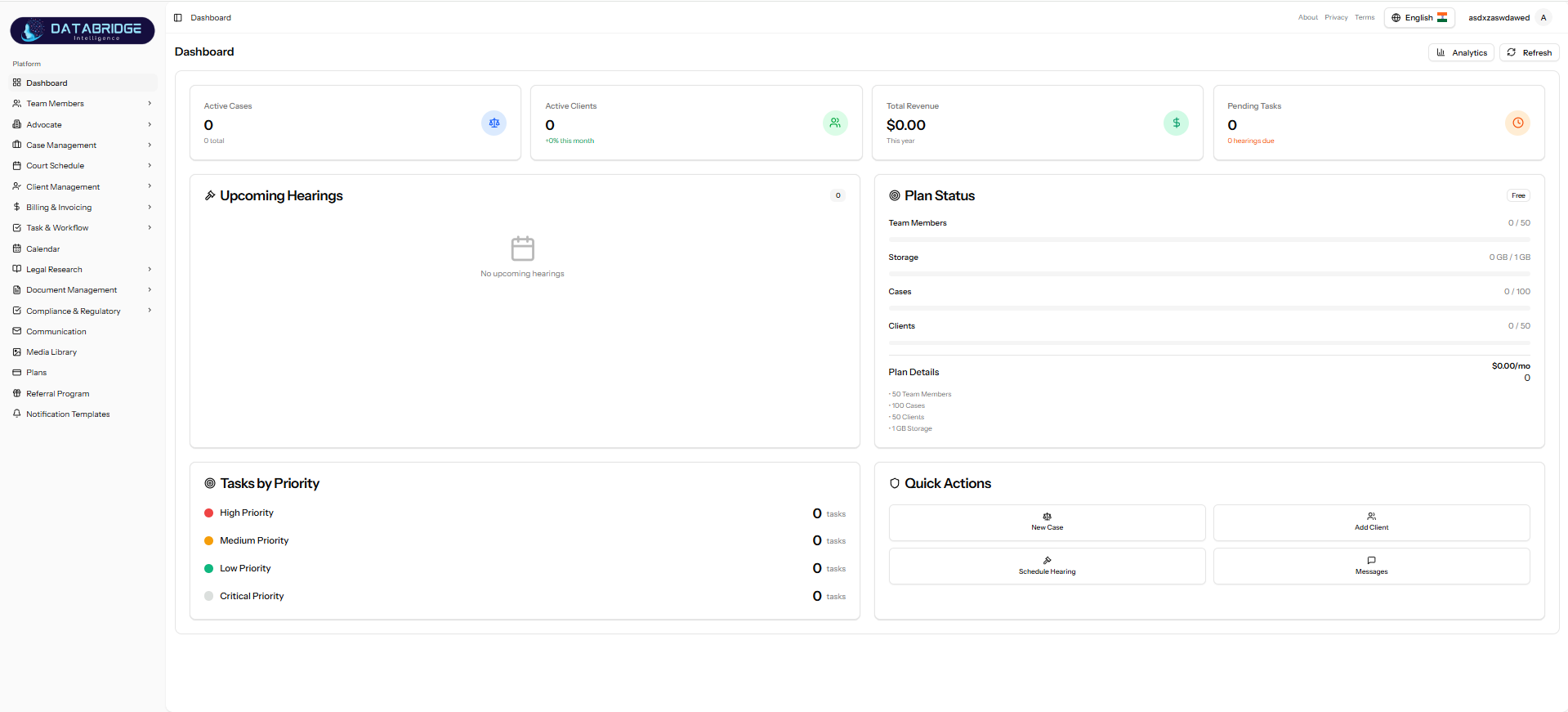
Key Components
🔹 Summary Cards (Top Section):
->The dashboard displays important statistics in the form of quick-view cards:
1.Active Cases – Total number of ongoing cases
2.Active Clients – Number of clients currently handled
3.Total Revenue – Revenue generated for the current year
4.Pending Tasks – Tasks or hearings that are due
->These cards give users an instant overview of system activity.
🔹 Upcoming Hearings
1.Displays scheduled upcoming hearings
2.Shows hearing details if available
3.Displays a “No upcoming hearings” message when empty
->This section helps advocates stay updated with their court schedule.
🔹 Plan Status
->Shows current subscription plan (e.g., Free Plan)
->Displays usage limits and consumption:
1.Team Members
2.Storage
3.Cases
4.Clients
->Includes plan details and limits
This helps users track their usage against plan limits.
🔹Tasks by Priority
1.Categorizes tasks based on priority levels:
2.High Priority
3.Medium Priority
4.Low Priority
5.Critical Priority
6.Displays the count of tasks in each category
->This enables better task prioritization and workload management.
🔹Quick Actions
->Provides shortcuts for commonly used actions:
1.New Case – Quickly create a new case
2.Add Client – Add a new client
3.Schedule Hearing – Create a new hearing entry
4.Messages – Access communication module
->This improves productivity by reducing navigation time.
🔹Header Controls
1.Analytics Button – View detailed insights and reports
2.Refresh Button – Reload dashboard data
3.Language Selector – Switch application language
4.User Profile – Access account-related settings
🔹 Summary Cards (Top Section):
->The dashboard displays important statistics in the form of quick-view cards:
1.Active Cases – Total number of ongoing cases
2.Active Clients – Number of clients currently handled
3.Total Revenue – Revenue generated for the current year
4.Pending Tasks – Tasks or hearings that are due
->These cards give users an instant overview of system activity.
🔹 Upcoming Hearings
1.Displays scheduled upcoming hearings
2.Shows hearing details if available
3.Displays a “No upcoming hearings” message when empty
->This section helps advocates stay updated with their court schedule.
🔹 Plan Status
->Shows current subscription plan (e.g., Free Plan)
->Displays usage limits and consumption:
1.Team Members
2.Storage
3.Cases
4.Clients
->Includes plan details and limits
This helps users track their usage against plan limits.
🔹Tasks by Priority
1.Categorizes tasks based on priority levels:
2.High Priority
3.Medium Priority
4.Low Priority
5.Critical Priority
6.Displays the count of tasks in each category
->This enables better task prioritization and workload management.
🔹Quick Actions
->Provides shortcuts for commonly used actions:
1.New Case – Quickly create a new case
2.Add Client – Add a new client
3.Schedule Hearing – Create a new hearing entry
4.Messages – Access communication module
->This improves productivity by reducing navigation time.
🔹Header Controls
1.Analytics Button – View detailed insights and reports
2.Refresh Button – Reload dashboard data
3.Language Selector – Switch application language
4.User Profile – Access account-related settings
Team Members
The Team Members module is designed to manage users and define their roles within the system. It ensures proper access control, collaboration, and security by allowing administrators to add members, assign roles, and manage permissions efficiently.
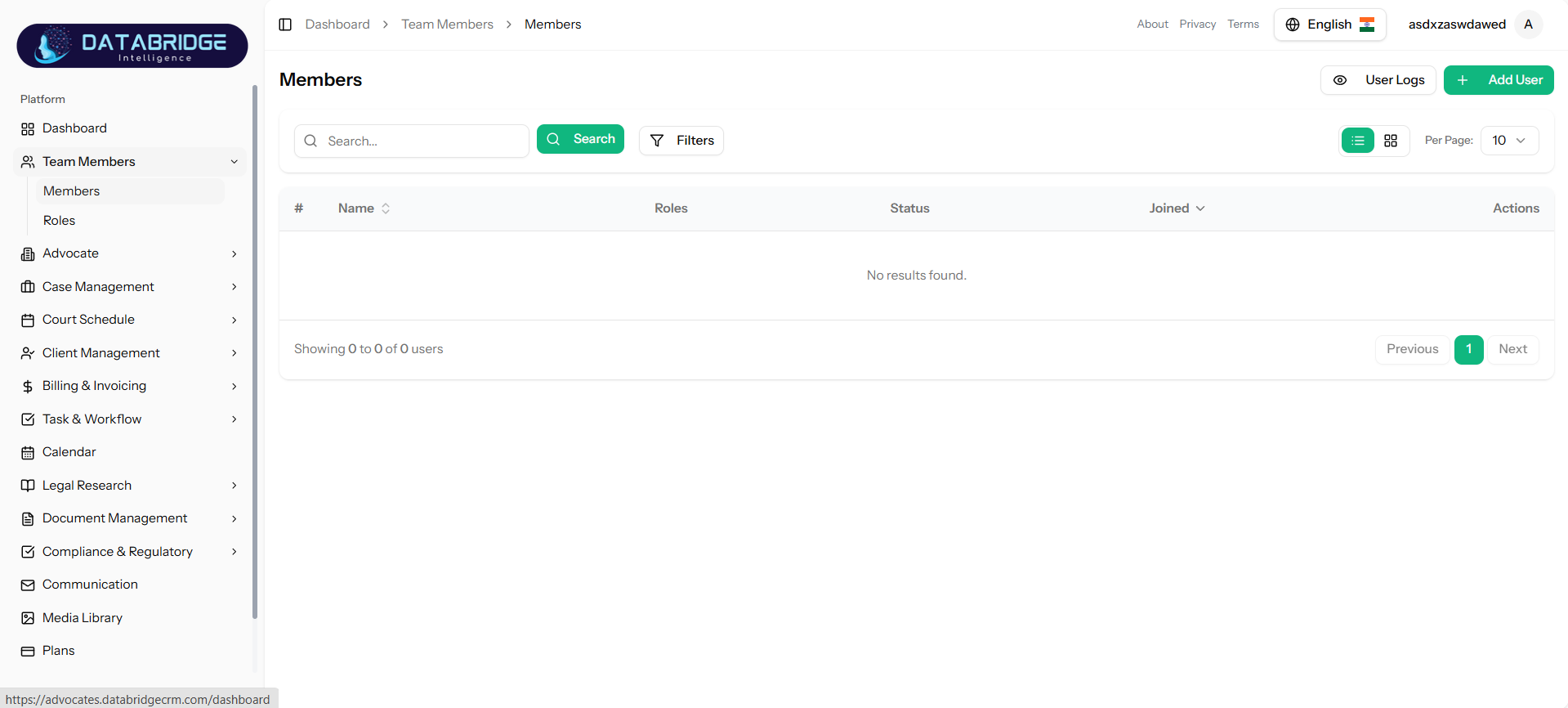
Members List:
The Members screen displays all users added to the system in a structured tabular format.
Key Features:
-View list of all team members with details like:
->Name
->Assigned Role
->Status (Active/Inactive)
->Joining Date
-Search functionality to quickly find specific users
-Filter options for refined results
-Pagination support for large datasets
-Action controls:
->Edit user details
->Delete user
-“User Logs” option to track user activity
-“Add User” button to create new members
This screen acts as the central hub for user management.
The Members screen displays all users added to the system in a structured tabular format.
Key Features:
-View list of all team members with details like:
->Name
->Assigned Role
->Status (Active/Inactive)
->Joining Date
-Search functionality to quickly find specific users
-Filter options for refined results
-Pagination support for large datasets
-Action controls:
->Edit user details
->Delete user
-“User Logs” option to track user activity
-“Add User” button to create new members
This screen acts as the central hub for user management.
1
Team Members
2
Members
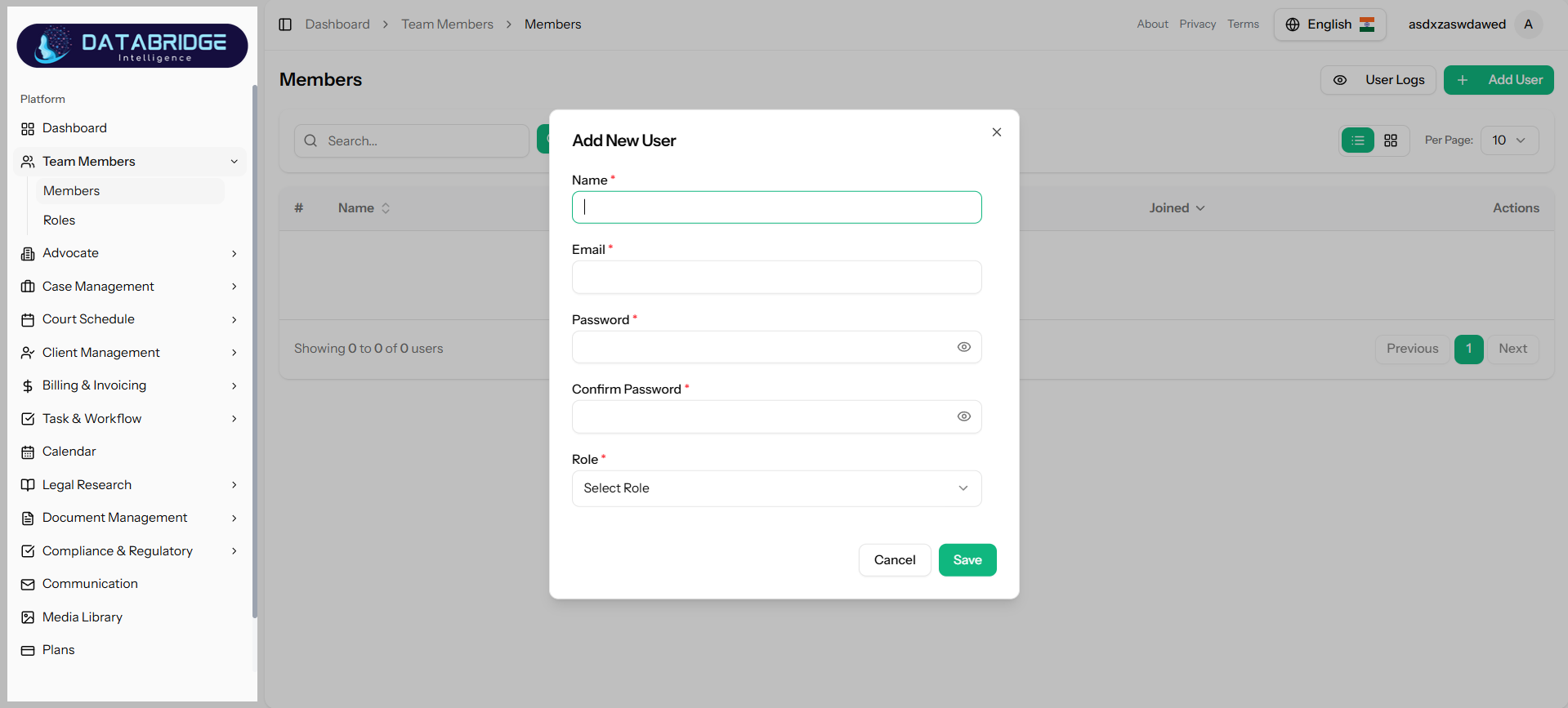
Add New User:
The Add User form allows administrators to create new system users.
Fields Available:
->Name (Required)
->Email (Required)
->Password (Required)
->Confirm Password (Required)
->Role (Dropdown selection)
Key Features:
->Role-based assignment during user creation
->Password validation and confirmation
->Secure user onboarding process
->Easy form submission with Save/Cancel options
This ensures that every user is properly registered and assigned a role from the beginning.
The Add User form allows administrators to create new system users.
Fields Available:
->Name (Required)
->Email (Required)
->Password (Required)
->Confirm Password (Required)
->Role (Dropdown selection)
Key Features:
->Role-based assignment during user creation
->Password validation and confirmation
->Secure user onboarding process
->Easy form submission with Save/Cancel options
This ensures that every user is properly registered and assigned a role from the beginning.
1
Team Members
2
Members
3
Add User
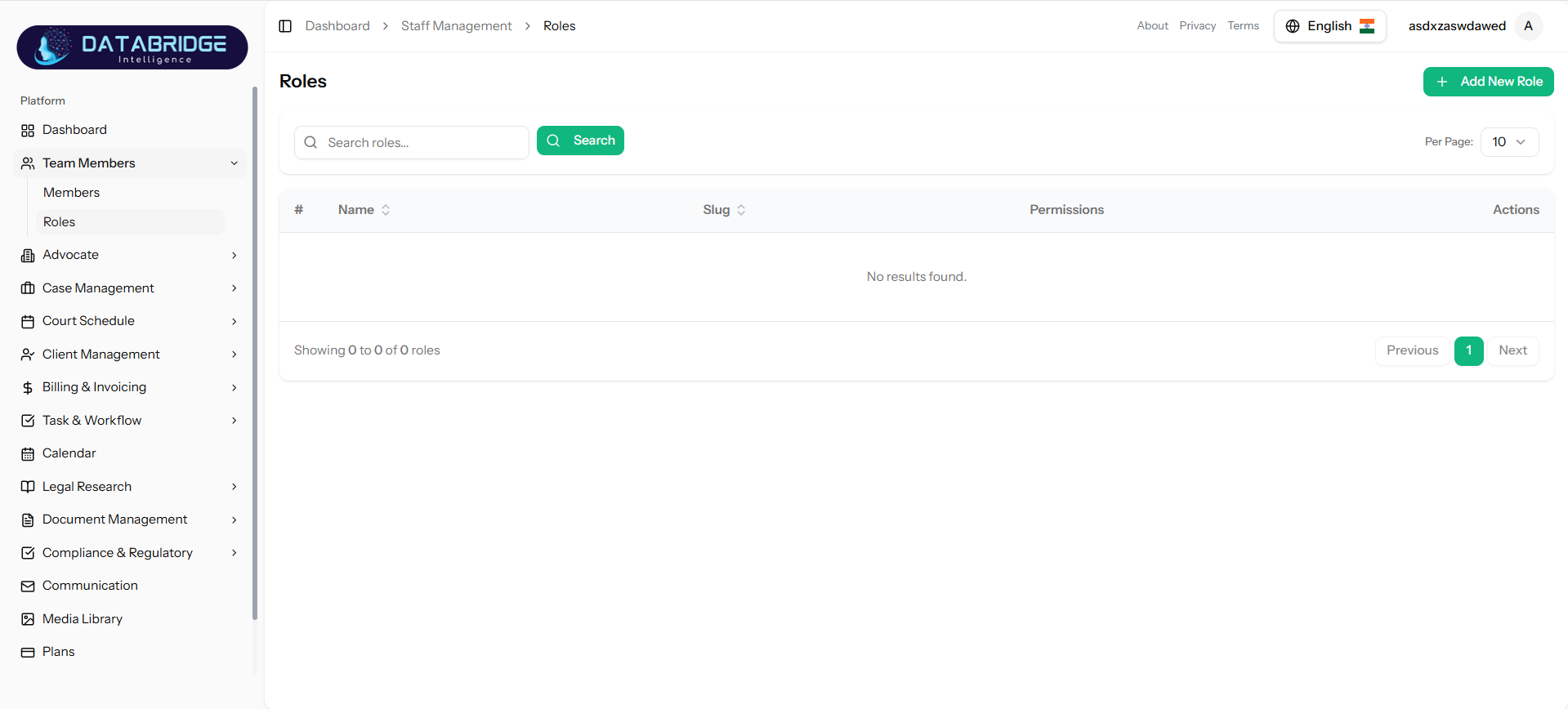
Roles:
The Roles screen manages different user roles within the application.
Key Features:
-View all available roles with:
->Role Name
->Slug (unique identifier)
->Permissions summary
-Search functionality to locate roles easily
-Pagination support
-Action controls:
->Edit role
->Delete role
-“Add New Role” button to create new roles
This screen helps in defining the structure of access control across the system.
The Roles screen manages different user roles within the application.
Key Features:
-View all available roles with:
->Role Name
->Slug (unique identifier)
->Permissions summary
-Search functionality to locate roles easily
-Pagination support
-Action controls:
->Edit role
->Delete role
-“Add New Role” button to create new roles
This screen helps in defining the structure of access control across the system.
1
Team Members
2
Roles
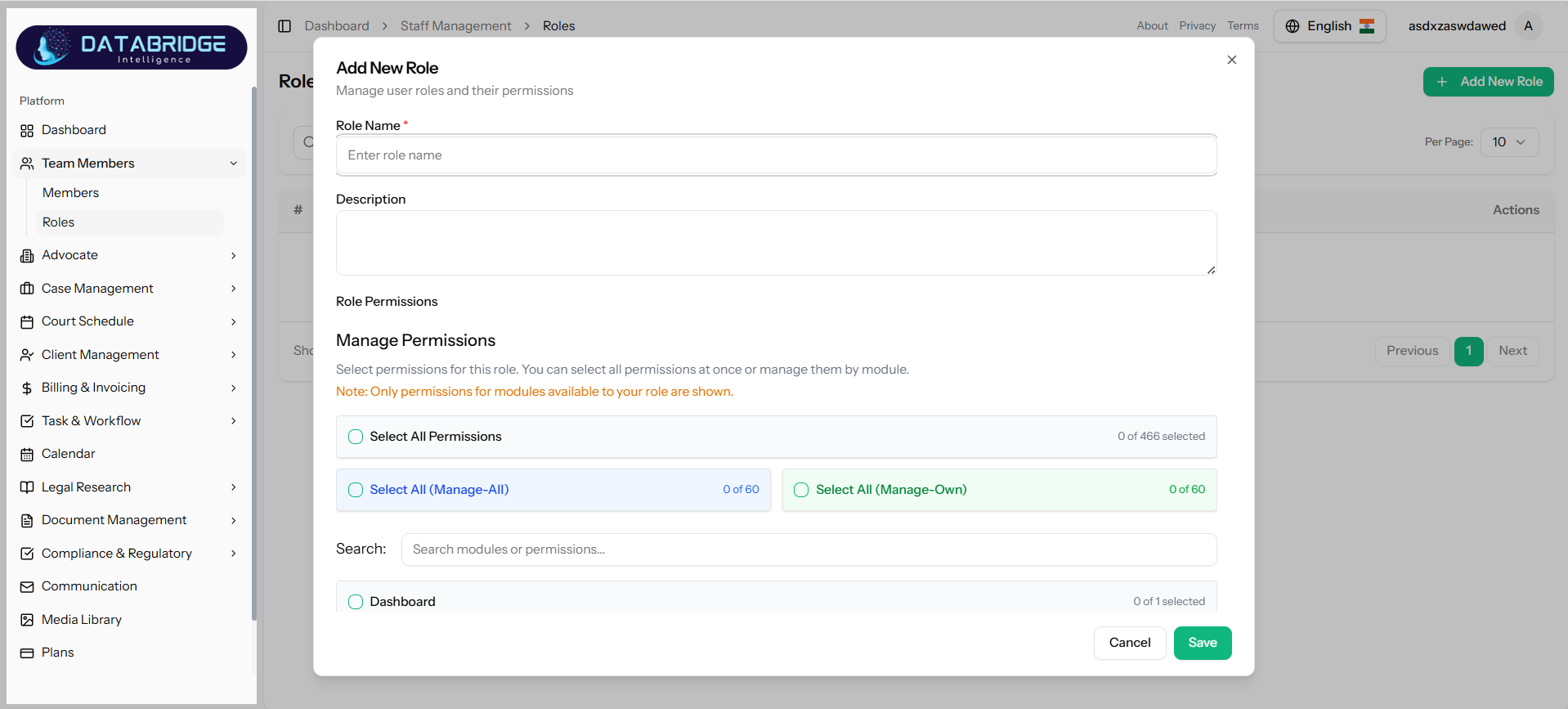
Add New Role:
The Add Role screen allows administrators to define roles and assign permissions.
Fields & Sections:
->Role Name (Required)
->Description (Optional)
Permissions Management:
-Assign permissions module-wise
-Options available:
->Select All Permissions
->Select All (Manage-All)
->Select All (Manage-Own)
-Search permissions by module
-Checkbox-based selection for fine control
Key Features:
-Granular permission control (module-level access)
-Ability to assign full or limited access
-Organized permission grouping
-Scalable for large systems with multiple modules
This ensures secure and role-based access control (RBAC) across the application.
The Add Role screen allows administrators to define roles and assign permissions.
Fields & Sections:
->Role Name (Required)
->Description (Optional)
Permissions Management:
-Assign permissions module-wise
-Options available:
->Select All Permissions
->Select All (Manage-All)
->Select All (Manage-Own)
-Search permissions by module
-Checkbox-based selection for fine control
Key Features:
-Granular permission control (module-level access)
-Ability to assign full or limited access
-Organized permission grouping
-Scalable for large systems with multiple modules
This ensures secure and role-based access control (RBAC) across the application.
1
Team Members
2
Roles
3
Add New Role
Advocate
The Company Profiles module allows advocates or organizations to manage their professional and personal details within the system. It acts as a centralized profile management page where all essential information related to an advocate is stored and maintained.
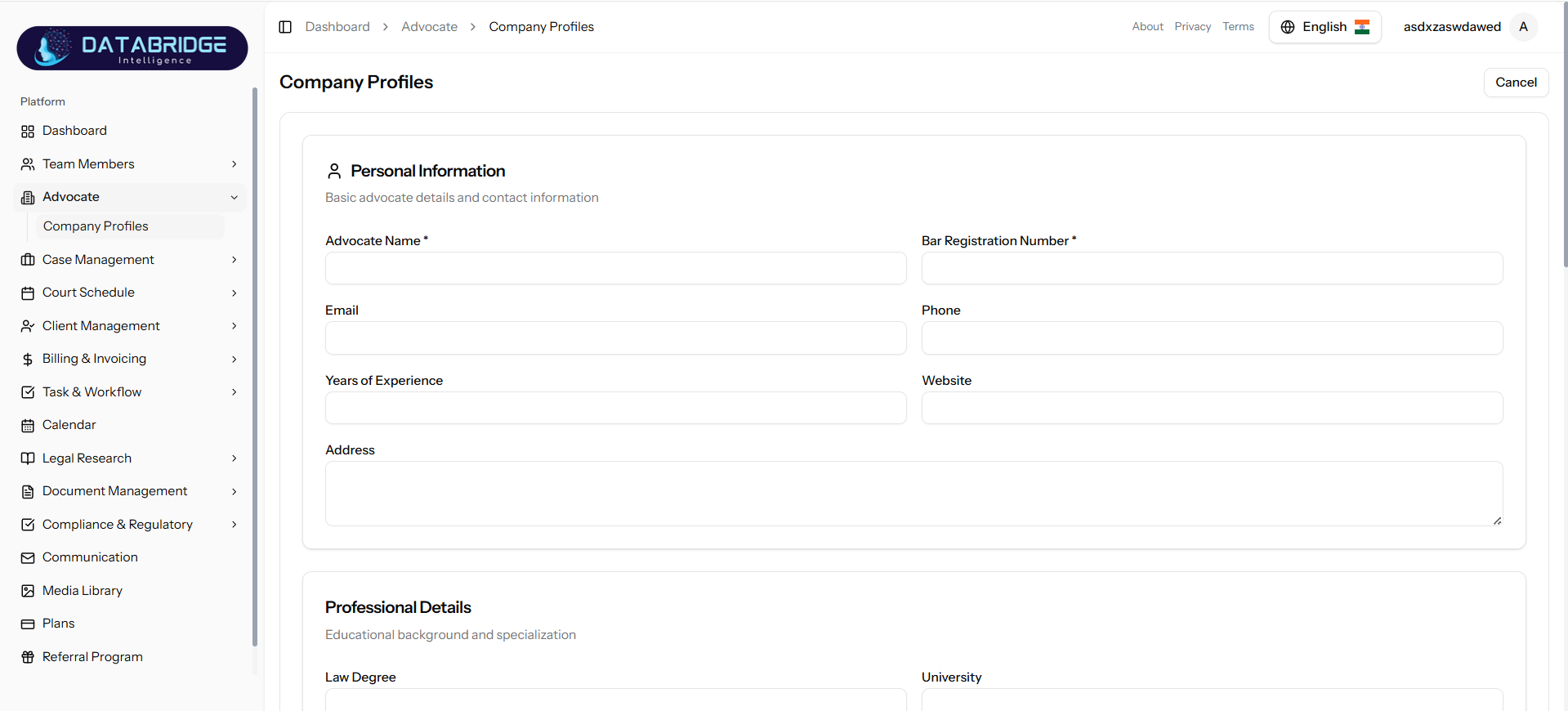
1. Personal Information
This section includes basic advocate details and contact information.
It captures essential identity data such as name, registration number, email, phone, experience, and address.
2. Professional Details
This section contains the educational background and area of specialization.
It includes qualifications like law degree, university, and expertise.
3. Business Details
This section defines the practice and consultation information of the advocate.
It includes working hours (e.g., Mon–Fri 9:00 AM – 6:00 PM), consultation type, and practice setup (e.g., Solo Practice).
4. Firm Details
This section includes legal firm registration and business-related information.
It captures firm name, registration details, and organizational structure.
This section includes basic advocate details and contact information.
It captures essential identity data such as name, registration number, email, phone, experience, and address.
2. Professional Details
This section contains the educational background and area of specialization.
It includes qualifications like law degree, university, and expertise.
3. Business Details
This section defines the practice and consultation information of the advocate.
It includes working hours (e.g., Mon–Fri 9:00 AM – 6:00 PM), consultation type, and practice setup (e.g., Solo Practice).
4. Firm Details
This section includes legal firm registration and business-related information.
It captures firm name, registration details, and organizational structure.
1
Dashboard
2
Advocate
3
Company Profile
Case Management
The Case Management module is designed to efficiently organize, track, and manage legal cases within the system.It enables users to define case types, statuses, events, and hearings for structured workflow management.The module provides a centralized platform to monitor case progress, client details, and important activities.It improves productivity, ensures better case handling, and enhances overall operational efficiency.
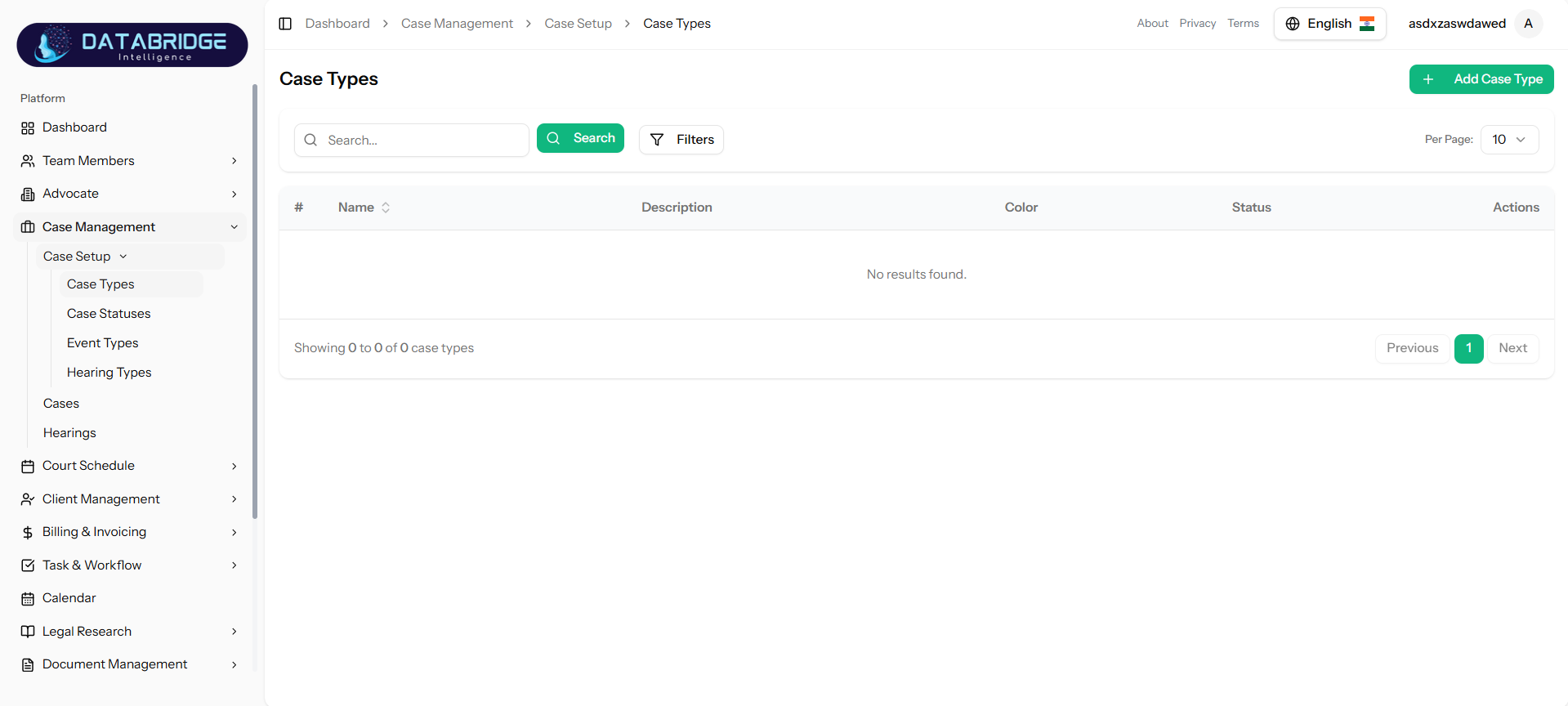
Case Types:
This screen displays all available case types in the system.It helps users categorize and manage different types of legal cases efficiently.Users can view, search, filter, and manage case types from a centralized interface.
-> Features:
-Search bar to quickly find case types
-Filter option for advanced sorting
-Table view with columns: Name, Description, Color, Status
-Pagination support
-“Add Case Type” button for creating new entries
-Actions column for Edit/Delete (if implemented)
This screen displays all available case types in the system.It helps users categorize and manage different types of legal cases efficiently.Users can view, search, filter, and manage case types from a centralized interface.
-> Features:
-Search bar to quickly find case types
-Filter option for advanced sorting
-Table view with columns: Name, Description, Color, Status
-Pagination support
-“Add Case Type” button for creating new entries
-Actions column for Edit/Delete (if implemented)
1
Case Management
2
Case Setup
3
Case Types
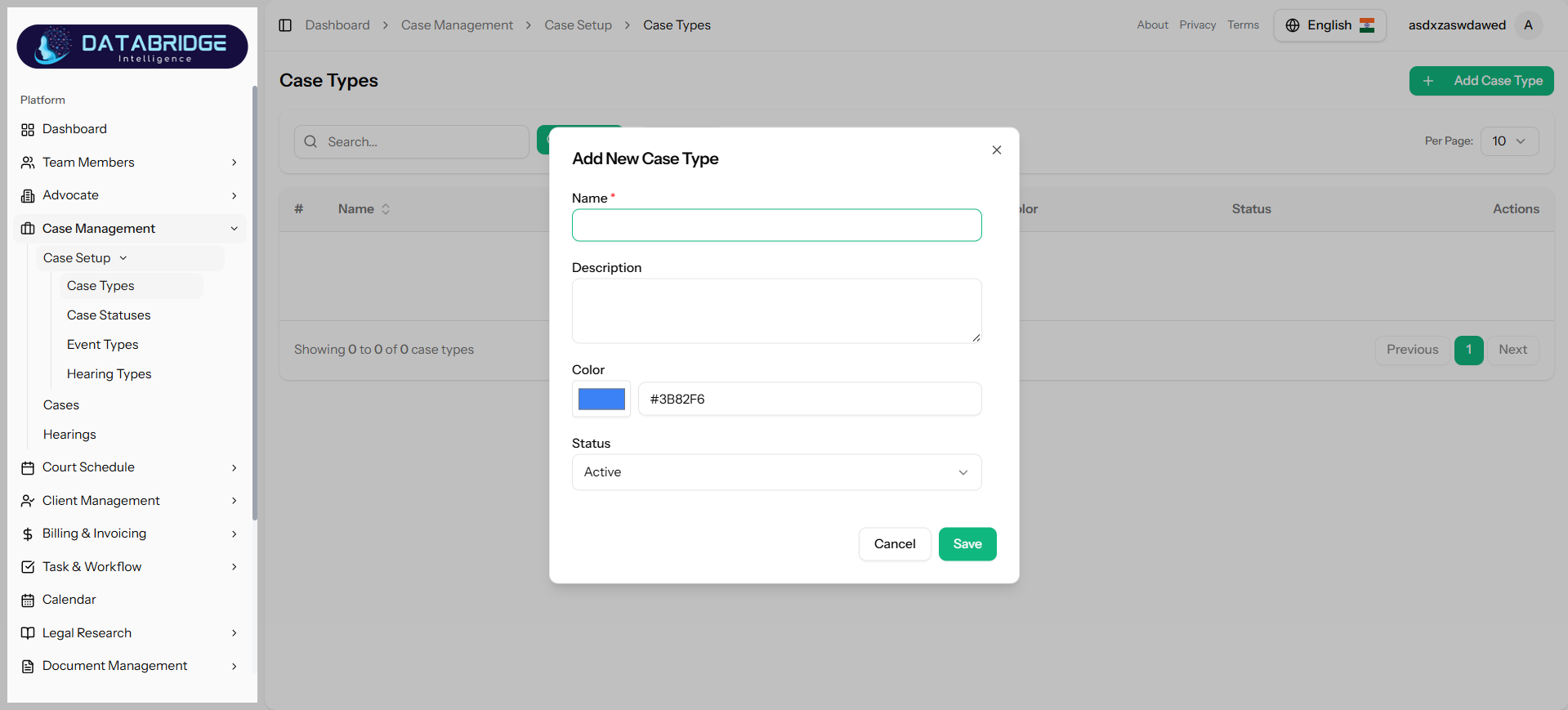
Add New Case:
This modal allows users to create a new case type.It ensures proper classification of cases within the system.
-> Features:
-Required field: Case Name
-Optional Description field
-Color picker for visual identification
-Status dropdown (Active/Inactive)
-Save and Cancel buttons
This modal allows users to create a new case type.It ensures proper classification of cases within the system.
-> Features:
-Required field: Case Name
-Optional Description field
-Color picker for visual identification
-Status dropdown (Active/Inactive)
-Save and Cancel buttons
1
Case Management
2
Case Setup
3
Case Types
4
Add New Case
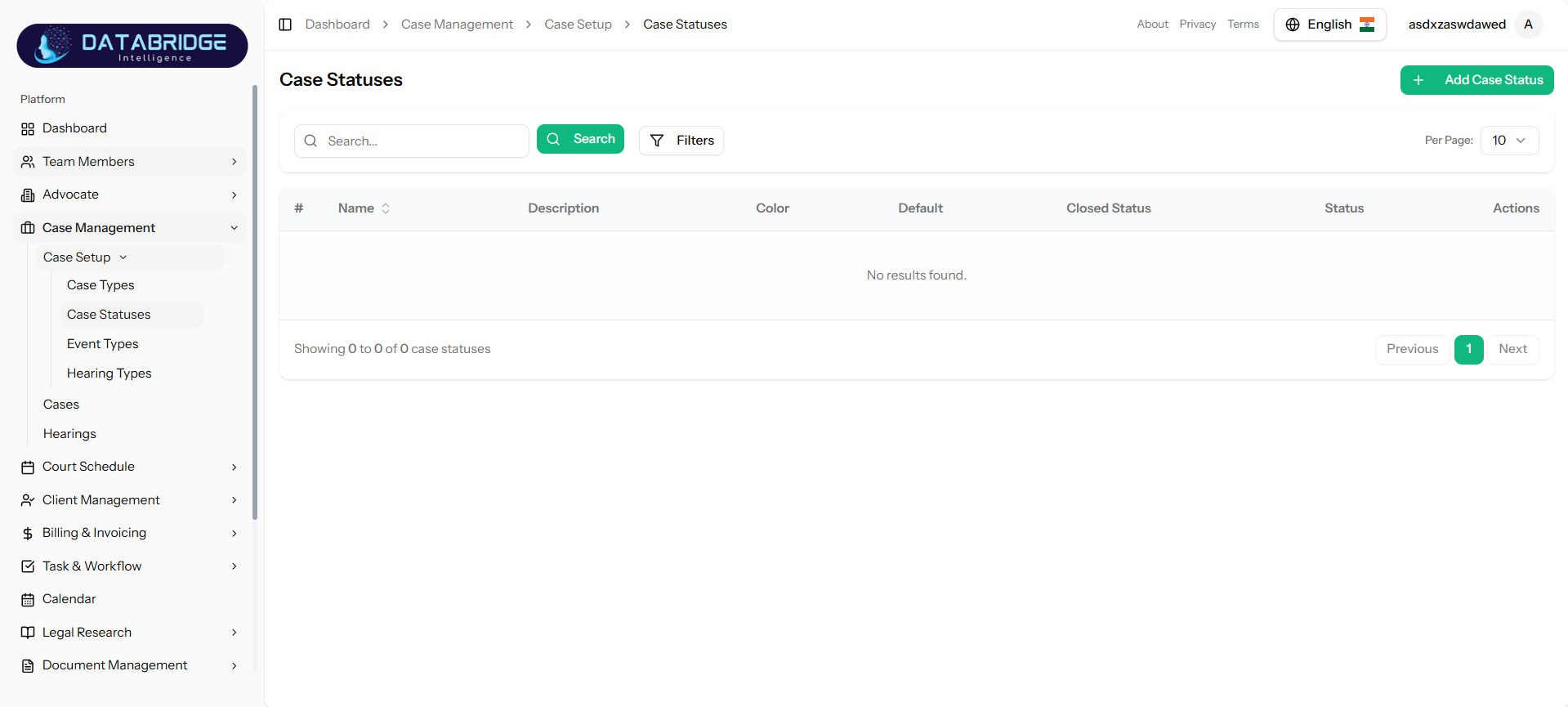
Case Statuses:
This screen shows all case statuses representing different stages of a case lifecycle.It helps track progress from initiation to closure.
->Features
-Search and Filter options
-Table columns: Name, Description, Color, Default Status, -----Closed Status, Status
-Pagination
-Add Case Status button
This screen shows all case statuses representing different stages of a case lifecycle.It helps track progress from initiation to closure.
->Features
-Search and Filter options
-Table columns: Name, Description, Color, Default Status, -----Closed Status, Status
-Pagination
-Add Case Status button
1
Case Management
2
Case Setup
3
Case Statuses
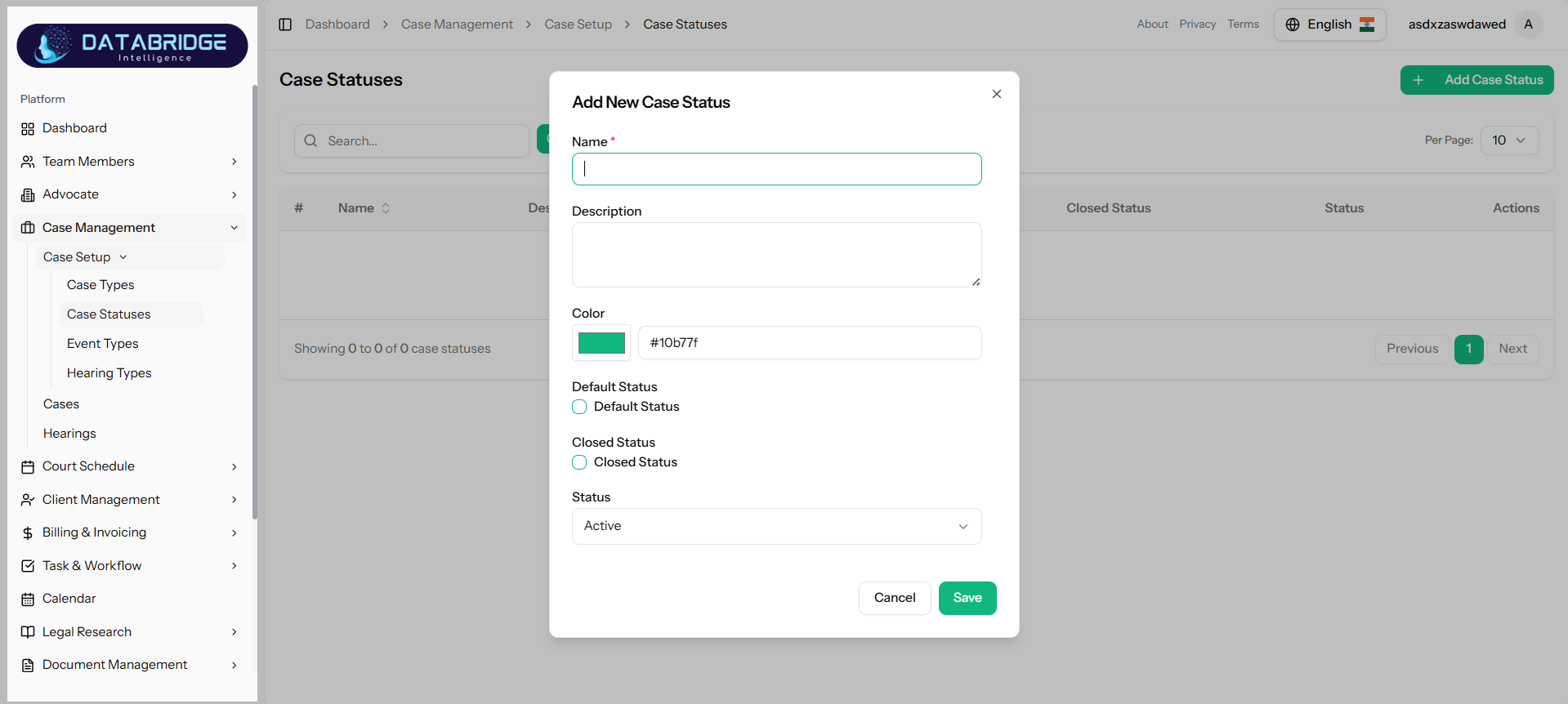
Add New Case Status:
Used to define new case lifecycle stages such as Pending, In Progress, Closed.
->Features
-Name (Required)
-Description (Optional)
-Color picker
-Toggle for Default Status
-Toggle for Closed Status
-Status dropdown
Used to define new case lifecycle stages such as Pending, In Progress, Closed.
->Features
-Name (Required)
-Description (Optional)
-Color picker
-Toggle for Default Status
-Toggle for Closed Status
-Status dropdown
1
Case Management
2
Case Setup
3
Case Statuses
4
Add New Case Status
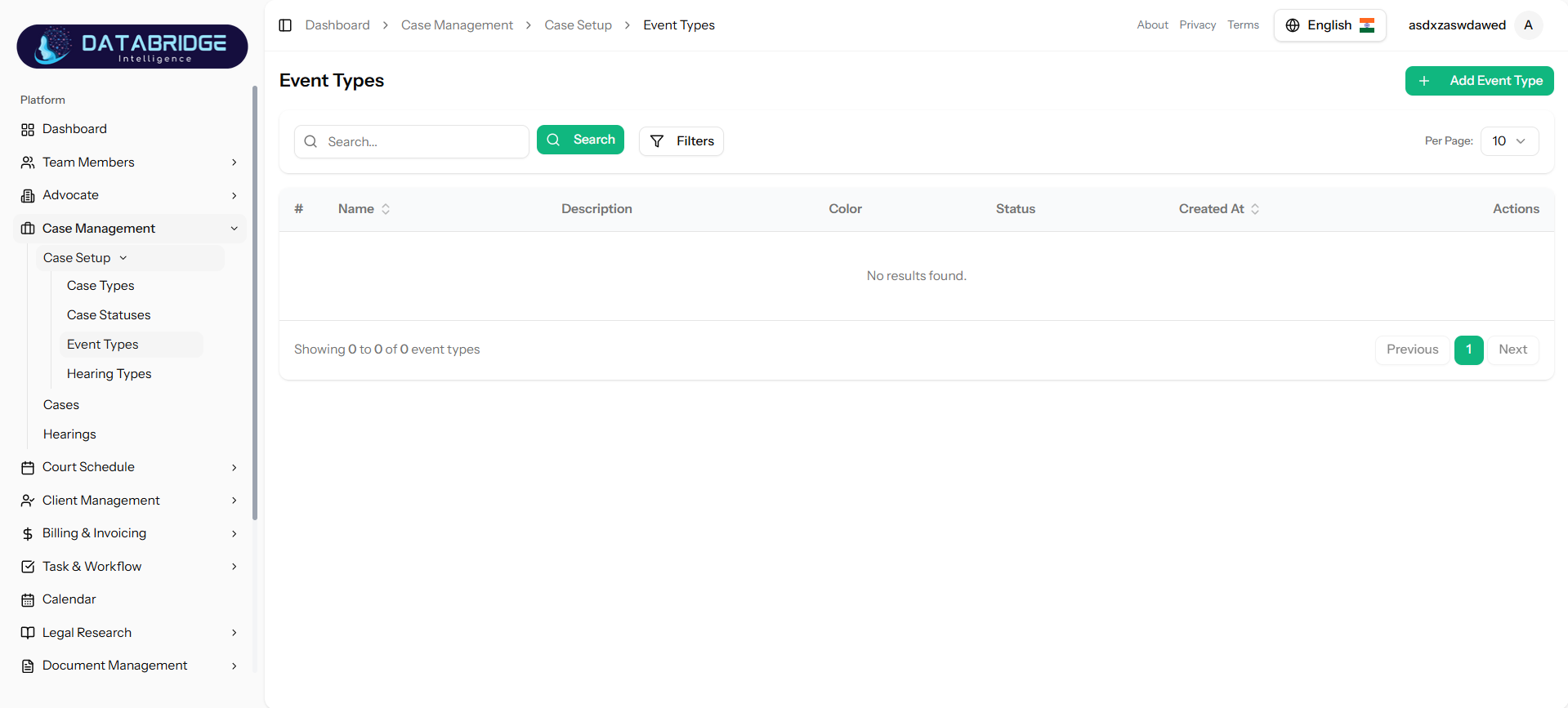
Event Types:
Displays all event types associated with cases like meetings, hearings, follow-ups.
->Features
-Search and Filter functionality
-Table columns: Name, Description, Color, Status, Created At
-Add Event Type button
Displays all event types associated with cases like meetings, hearings, follow-ups.
->Features
-Search and Filter functionality
-Table columns: Name, Description, Color, Status, Created At
-Add Event Type button
1
Case Management
2
Case Setup
3
Event Types
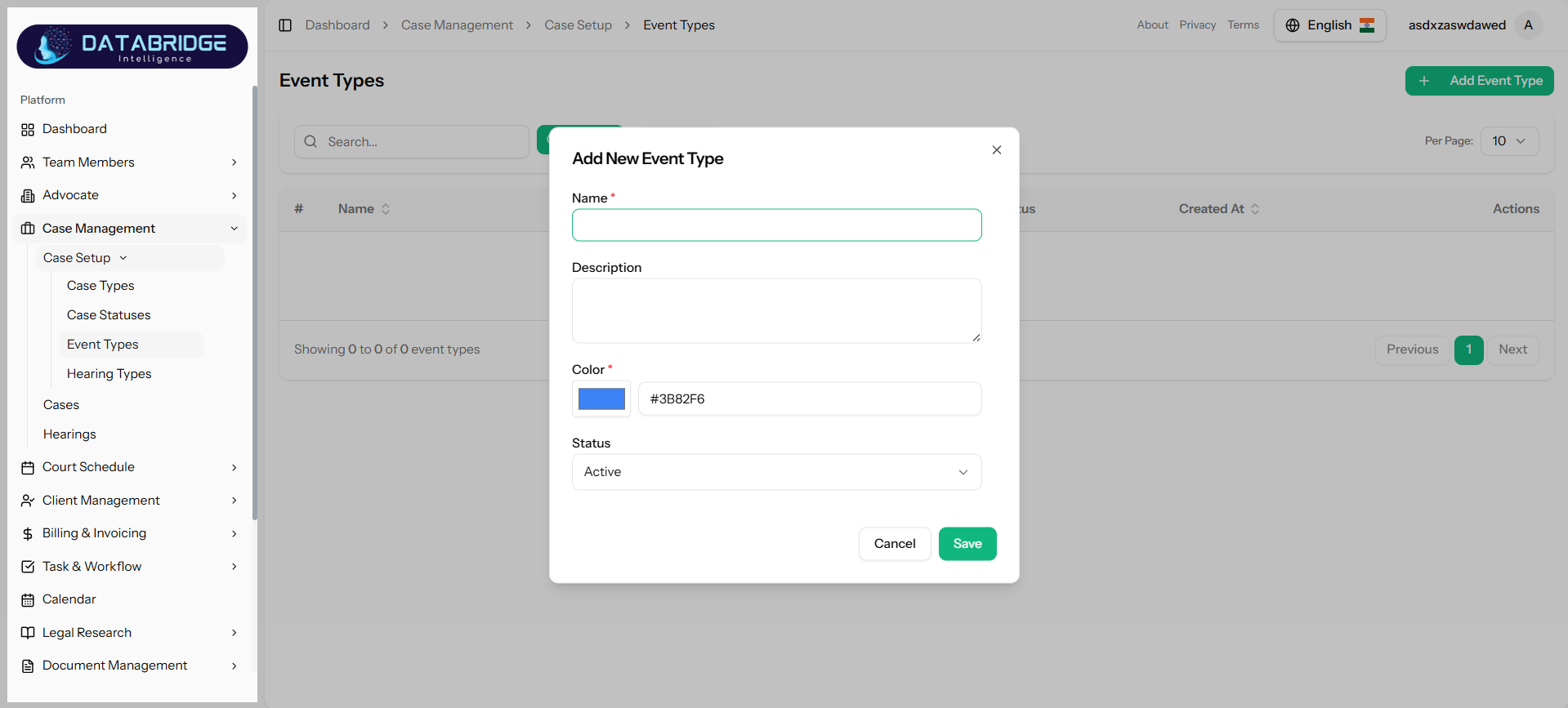
Add New Event Type:
Allows users to create new event categories for better tracking.
->Features
-Name (Required)
-Description
-Color selection
-Status dropdown
Allows users to create new event categories for better tracking.
->Features
-Name (Required)
-Description
-Color selection
-Status dropdown
1
Case Management
2
Case Setup
3
Event Types
4
Add New Event Types
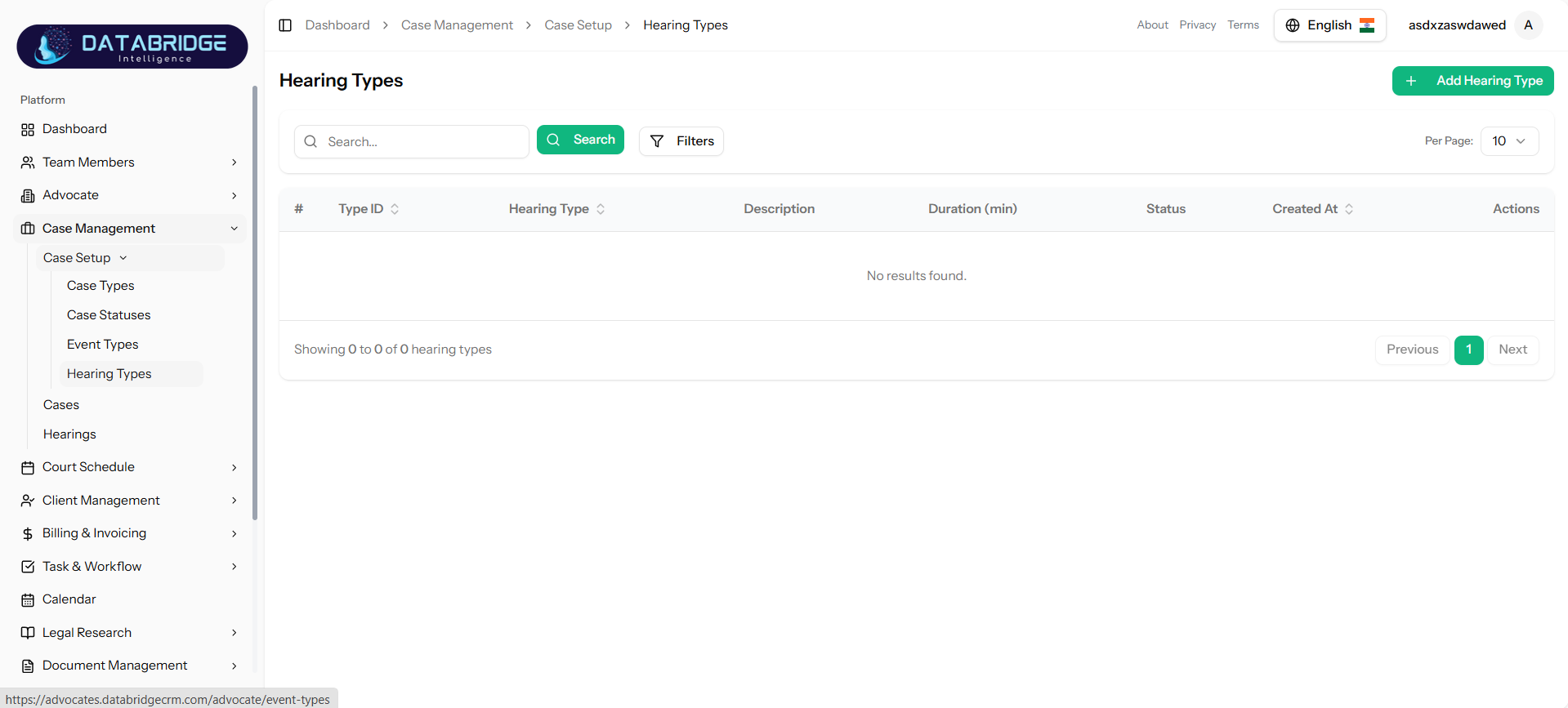
Hearing Types:
Shows various categories of hearings, including preliminary, interim, and final hearings, in a structured manner.Helps users easily identify and navigate through different hearing stages within the case process.
->Features
-Table columns: Type ID, Hearing Type, Description, Duration, Status
-Search and Filter
-Add Hearing Type button
Shows various categories of hearings, including preliminary, interim, and final hearings, in a structured manner.Helps users easily identify and navigate through different hearing stages within the case process.
->Features
-Table columns: Type ID, Hearing Type, Description, Duration, Status
-Search and Filter
-Add Hearing Type button
1
Case Management
2
Case Setup
3
Hearing Types
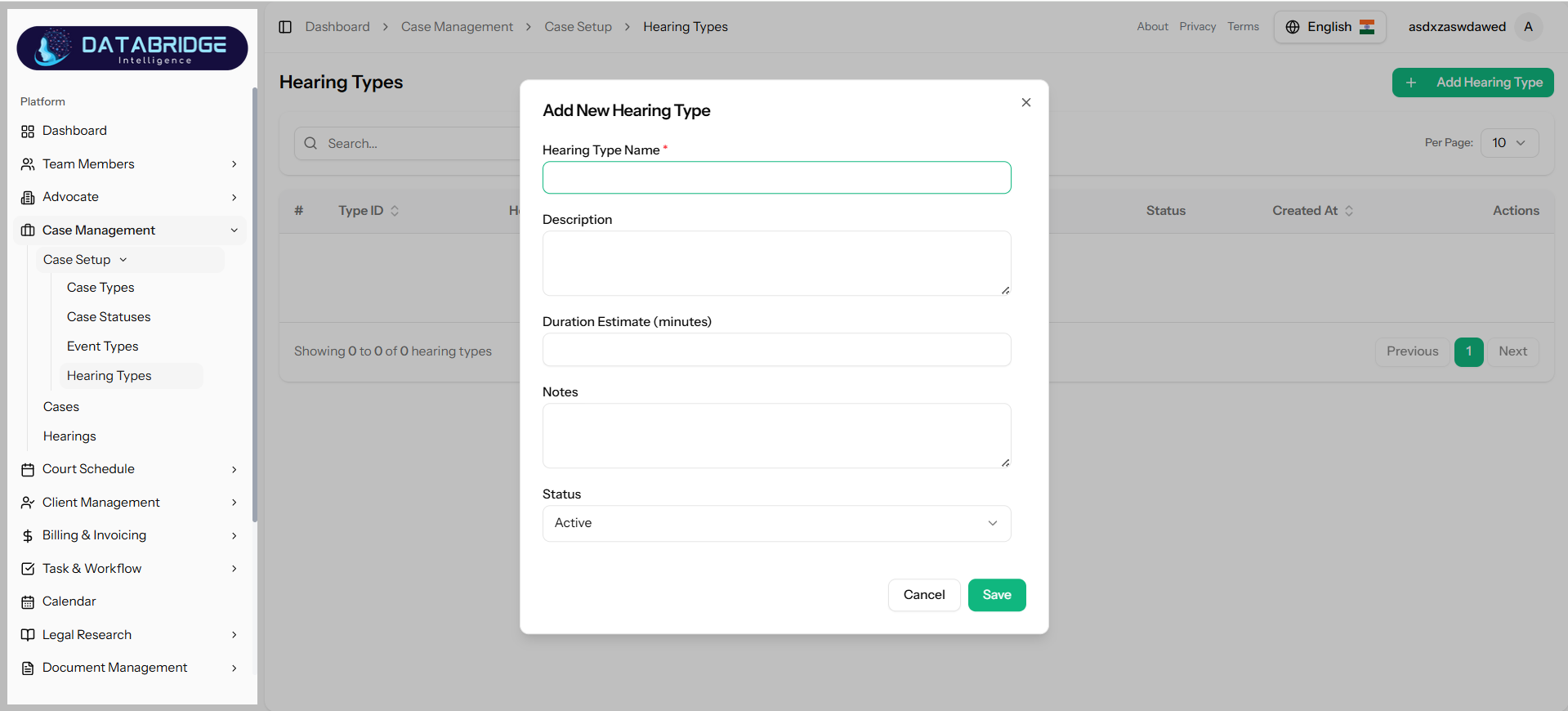
Add New Hearing Type:
Allows users to define different hearing categories along with their estimated duration for better scheduling.
Helps in organizing hearings efficiently by setting clear time expectations for each type.
->Features
-Hearing Type Name (Required)
-Description
-Duration Estimate (minutes)
-Notes field
-Status dropdown
Allows users to define different hearing categories along with their estimated duration for better scheduling.
Helps in organizing hearings efficiently by setting clear time expectations for each type.
->Features
-Hearing Type Name (Required)
-Description
-Duration Estimate (minutes)
-Notes field
-Status dropdown
1
Case Management
2
Case Setup
3
Hearing Types
4
Add New Hearing Types
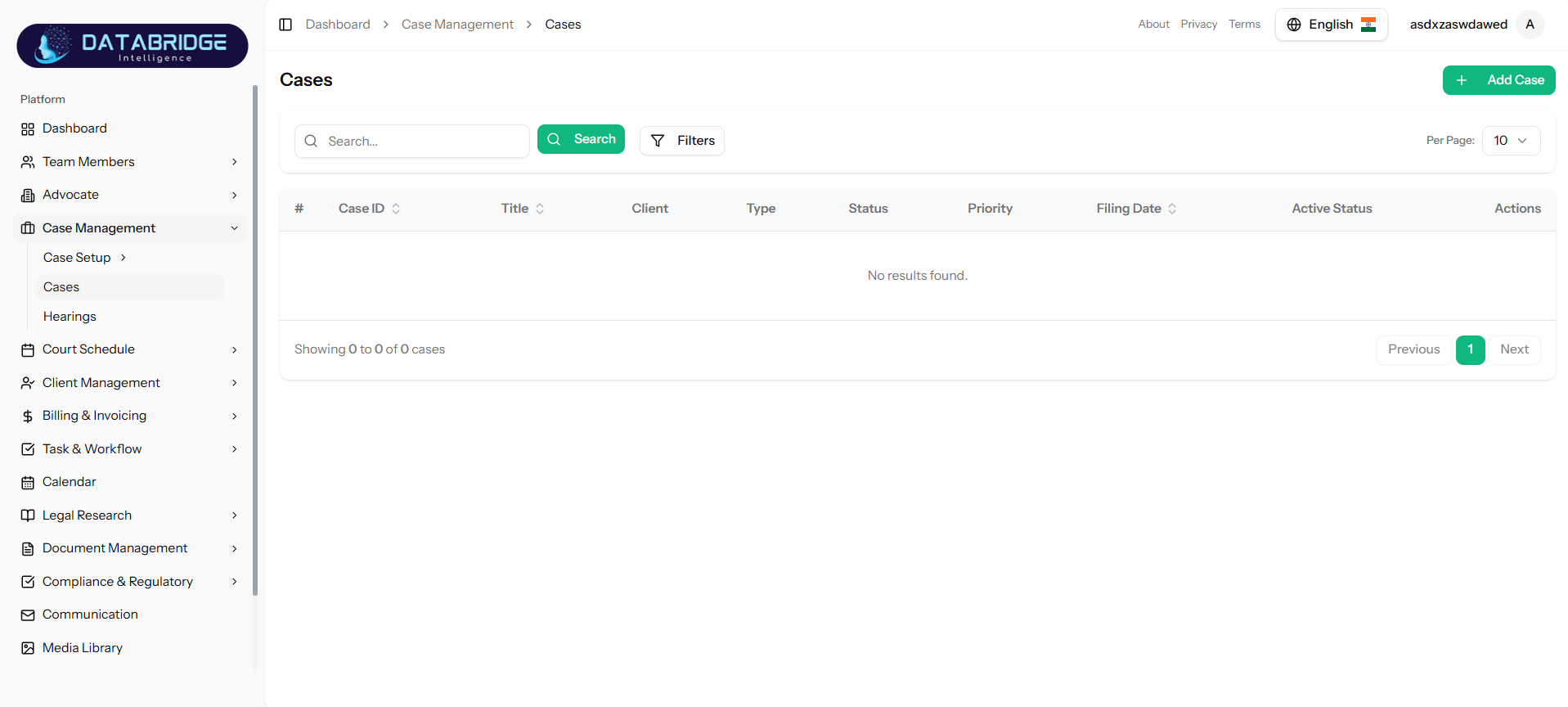
Cases:
Displays all cases registered within the system in a centralized view.Acts as the primary dashboard for efficient case tracking and management.
->Features
-Table columns: Case ID, Title, Client, Type, Status, Priority, Filing Date
-Search and Filter options
-Add Case button
-Pagination
Displays all cases registered within the system in a centralized view.Acts as the primary dashboard for efficient case tracking and management.
->Features
-Table columns: Case ID, Title, Client, Type, Status, Priority, Filing Date
-Search and Filter options
-Add Case button
-Pagination
1
Case Management
2
Cases
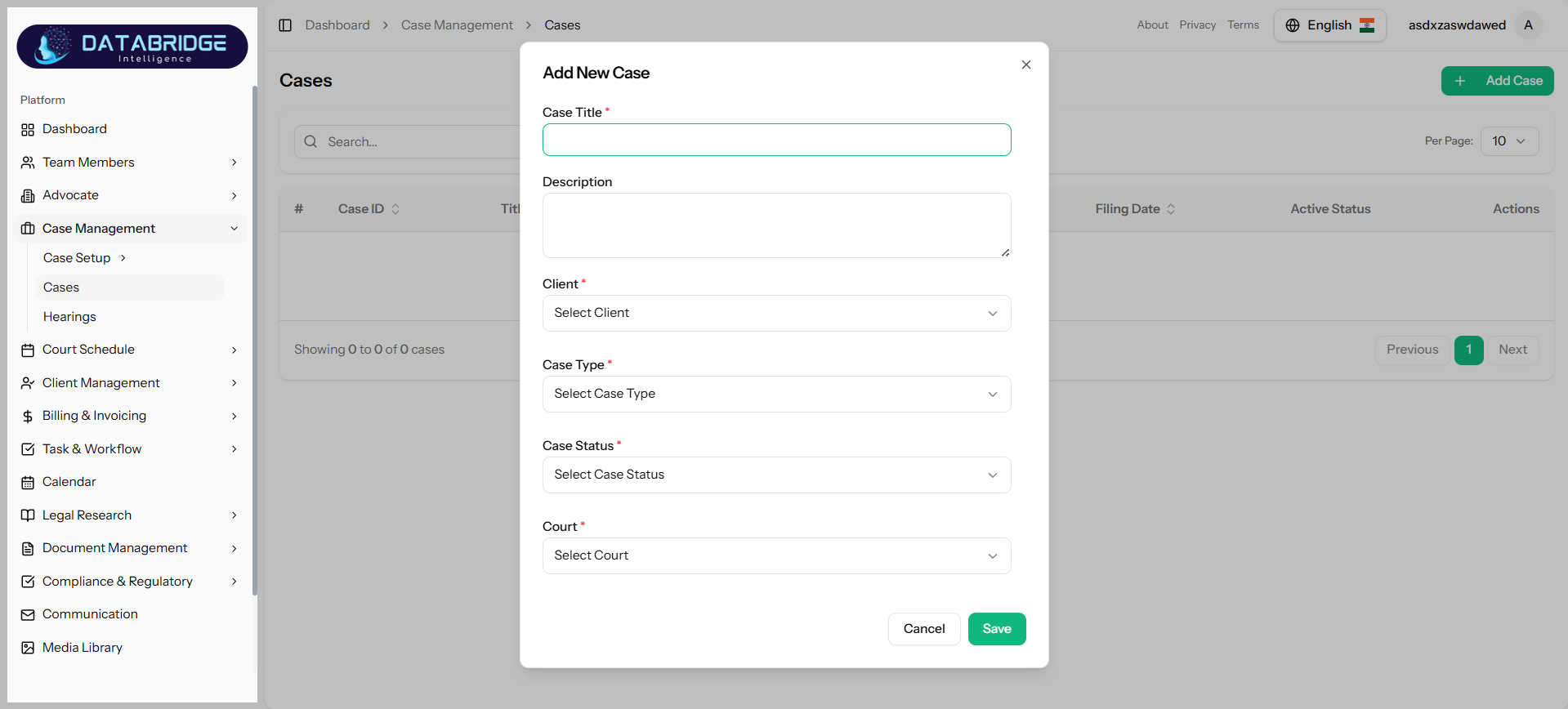
Add New Case:
Allows users to register a new case in the system.
->Features
-Dashboard access
-Case Management module
-Client Management
-Billing & Invoicing
-Calendar
-Legal Research
-Document Management
Allows users to register a new case in the system.
->Features
-Dashboard access
-Case Management module
-Client Management
-Billing & Invoicing
-Calendar
-Legal Research
-Document Management
1
Case Management
2
Cases
3
Add Case
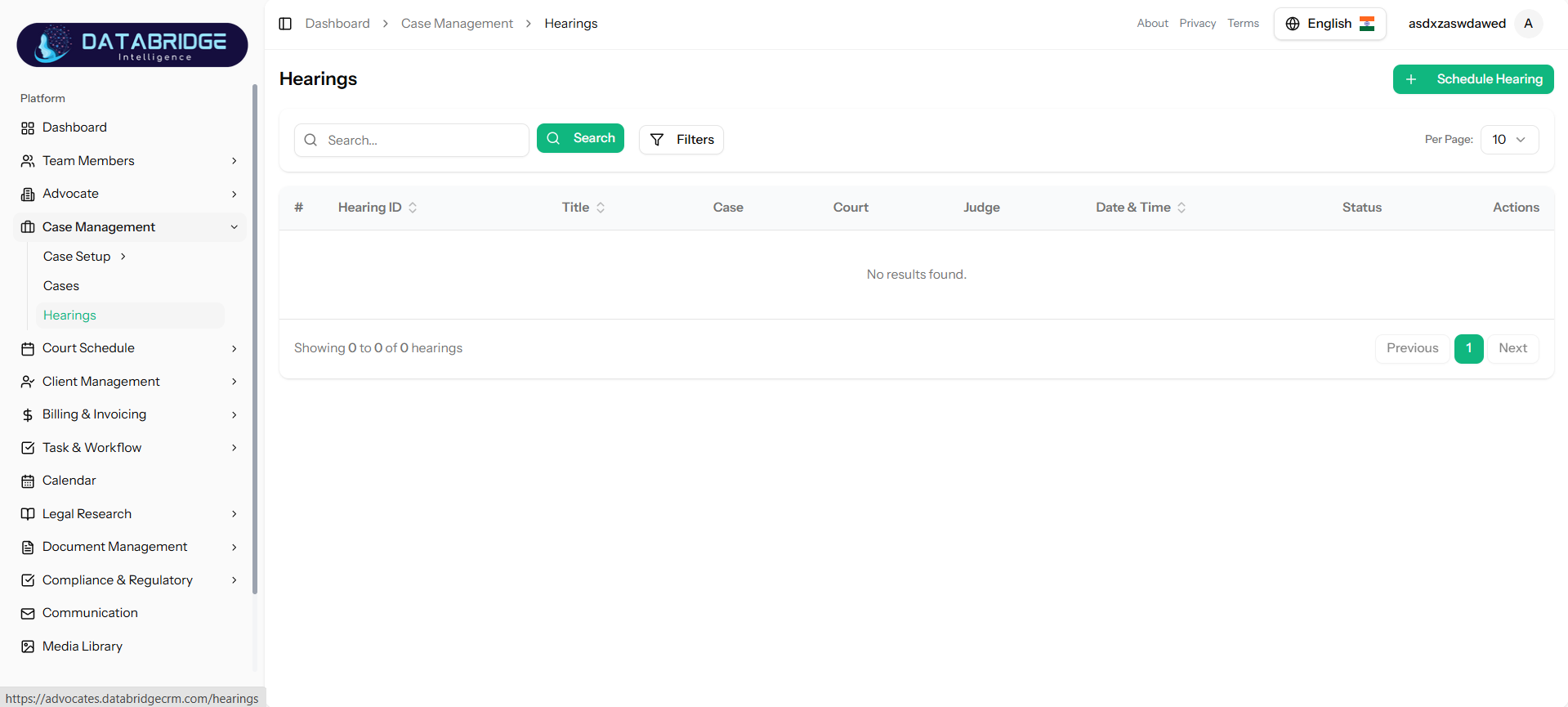
Hearing:
The Hearing Types Listing Page displays all available hearing categories used within the case management system. It helps users define and manage different types of hearings such as preliminary hearings, final hearings, or follow-ups. This ensures proper classification and scheduling of hearings for cases.
Features:
-Displays hearing types in a tabular format
-Columns include:
->Type ID
->Hearing Type
->Description
->Duration (minutes)
->Status
->Created Date
-Search functionality for quick lookup
-Filter option for refined results
-Pagination for large datasets
-“Add Hearing Type” button
-Actions column for managing hearing types
The Hearing Types Listing Page displays all available hearing categories used within the case management system. It helps users define and manage different types of hearings such as preliminary hearings, final hearings, or follow-ups. This ensures proper classification and scheduling of hearings for cases.
Features:
-Displays hearing types in a tabular format
-Columns include:
->Type ID
->Hearing Type
->Description
->Duration (minutes)
->Status
->Created Date
-Search functionality for quick lookup
-Filter option for refined results
-Pagination for large datasets
-“Add Hearing Type” button
-Actions column for managing hearing types
1
Case Management
2
Hearing
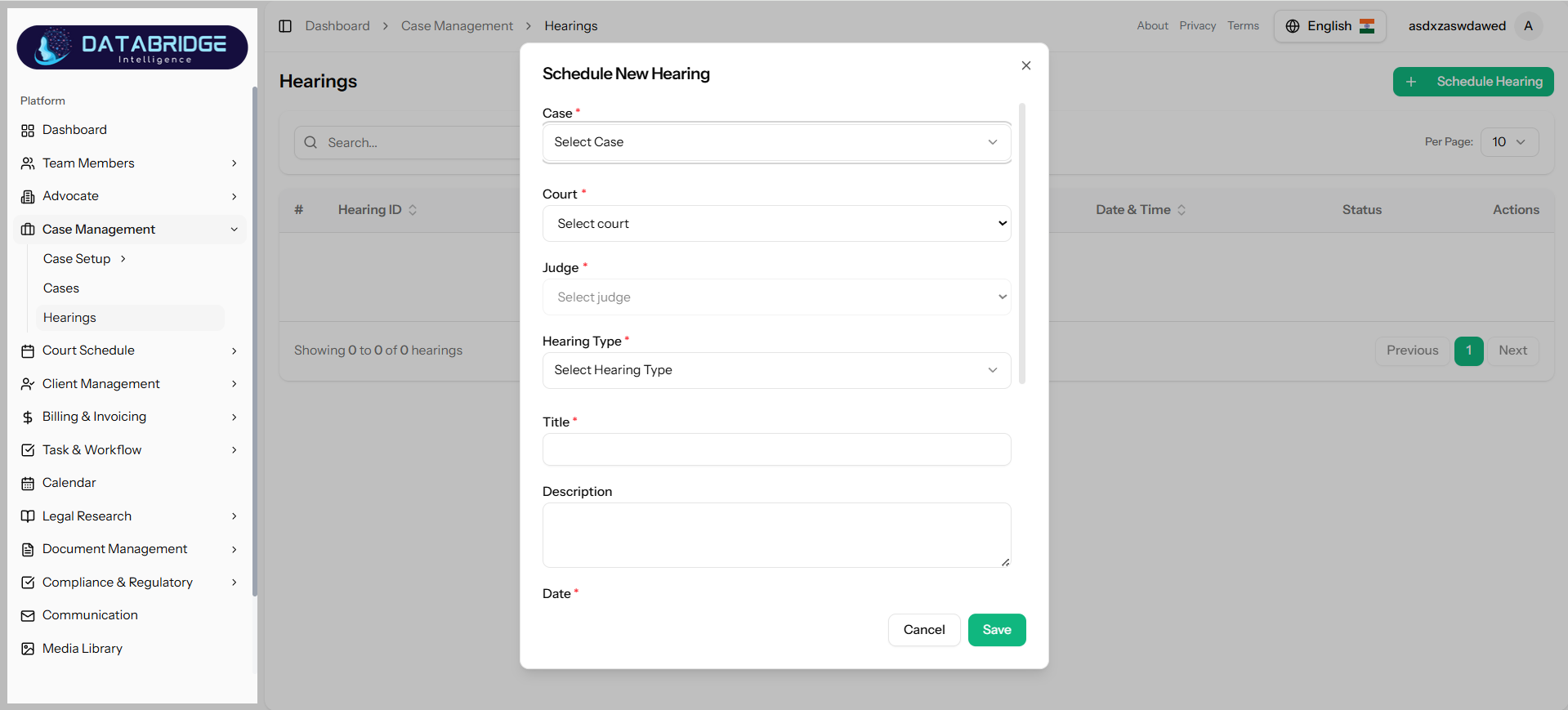
Schedule Hearing:
The Add New Hearing Type (Schedule Hearing) modal allows users to define new hearing categories and specify their estimated duration. This helps in organizing and scheduling hearings effectively within the system.
->Features
-Hearing Type Name (Required field)
-Description field for details
-Duration Estimate (in minutes)
-Notes field for additional information
-Status dropdown (Active/Inactive)
-Save and Cancel buttons
-Input validation for required fields
The Add New Hearing Type (Schedule Hearing) modal allows users to define new hearing categories and specify their estimated duration. This helps in organizing and scheduling hearings effectively within the system.
->Features
-Hearing Type Name (Required field)
-Description field for details
-Duration Estimate (in minutes)
-Notes field for additional information
-Status dropdown (Active/Inactive)
-Save and Cancel buttons
-Input validation for required fields
1
Case Management
2
Hearing
3
Schedule Hearing
Court Schedule
The Court Schedule module is designed to manage and organize all court-related schedules in a structured manner.It allows users to define court types, courts, and assign judges for proper case handling and scheduling.The module helps in planning and tracking court activities, hearings, and availability efficiently.It ensures better coordination, reduces scheduling conflicts, and improves overall workflow management.
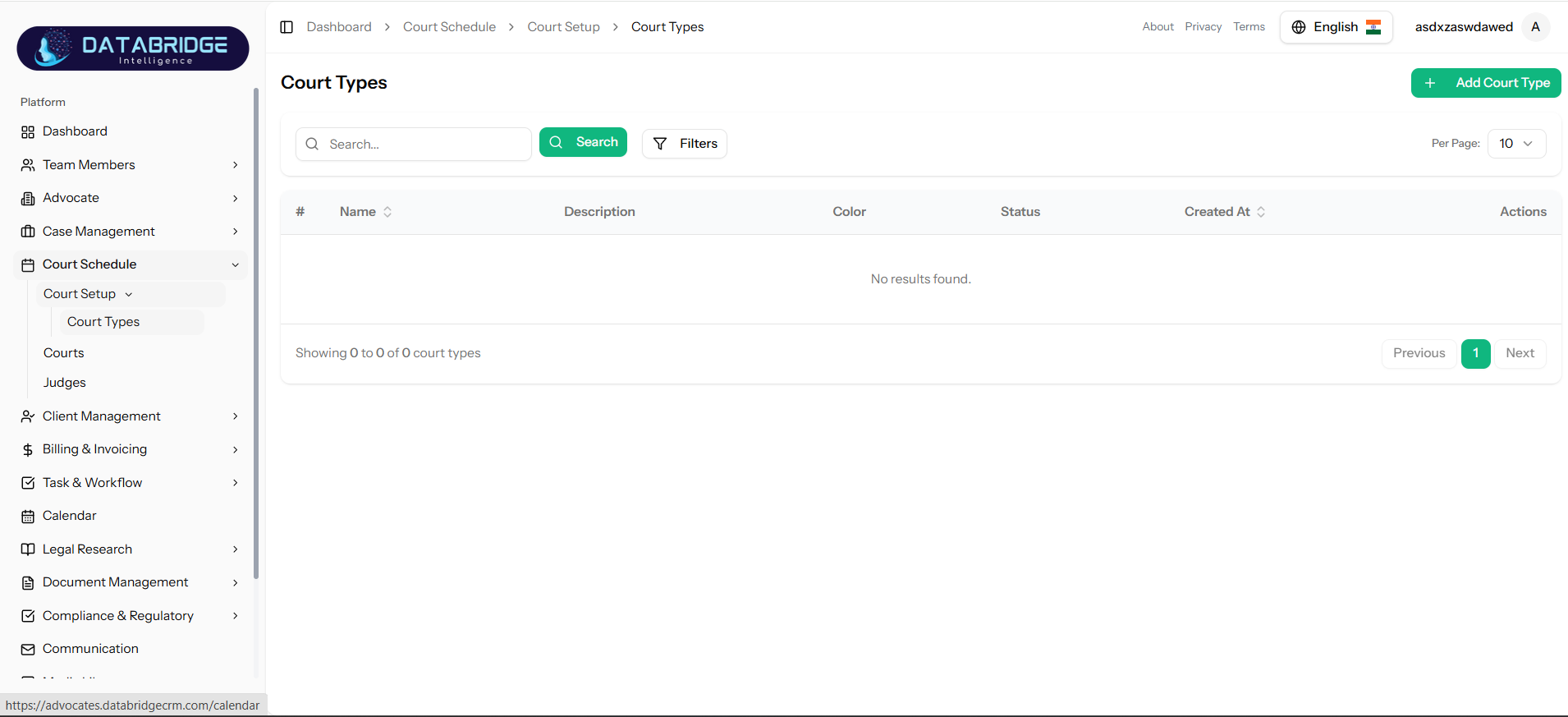
Court Types:
The Court Types Listing Page is used to manage and organize different types of courts within the system. It provides a centralized interface where users can view all court categories, helping in proper classification and selection while creating or managing cases. This ensures consistency in court-related data across the application.
Features:
-Displays all court types in a tabular format
-Columns include:
->Name
->Description
->Color
->Status
->Created Date
-Search functionality to quickly find court types
-Filter option for advanced sorting
-Pagination for large datasets
-“Add Court Type” button to create new entries
-Actions column for edit/delete operations
The Court Types Listing Page is used to manage and organize different types of courts within the system. It provides a centralized interface where users can view all court categories, helping in proper classification and selection while creating or managing cases. This ensures consistency in court-related data across the application.
Features:
-Displays all court types in a tabular format
-Columns include:
->Name
->Description
->Color
->Status
->Created Date
-Search functionality to quickly find court types
-Filter option for advanced sorting
-Pagination for large datasets
-“Add Court Type” button to create new entries
-Actions column for edit/delete operations
1
Court Schedule
2
Court Setup
3
Court Types
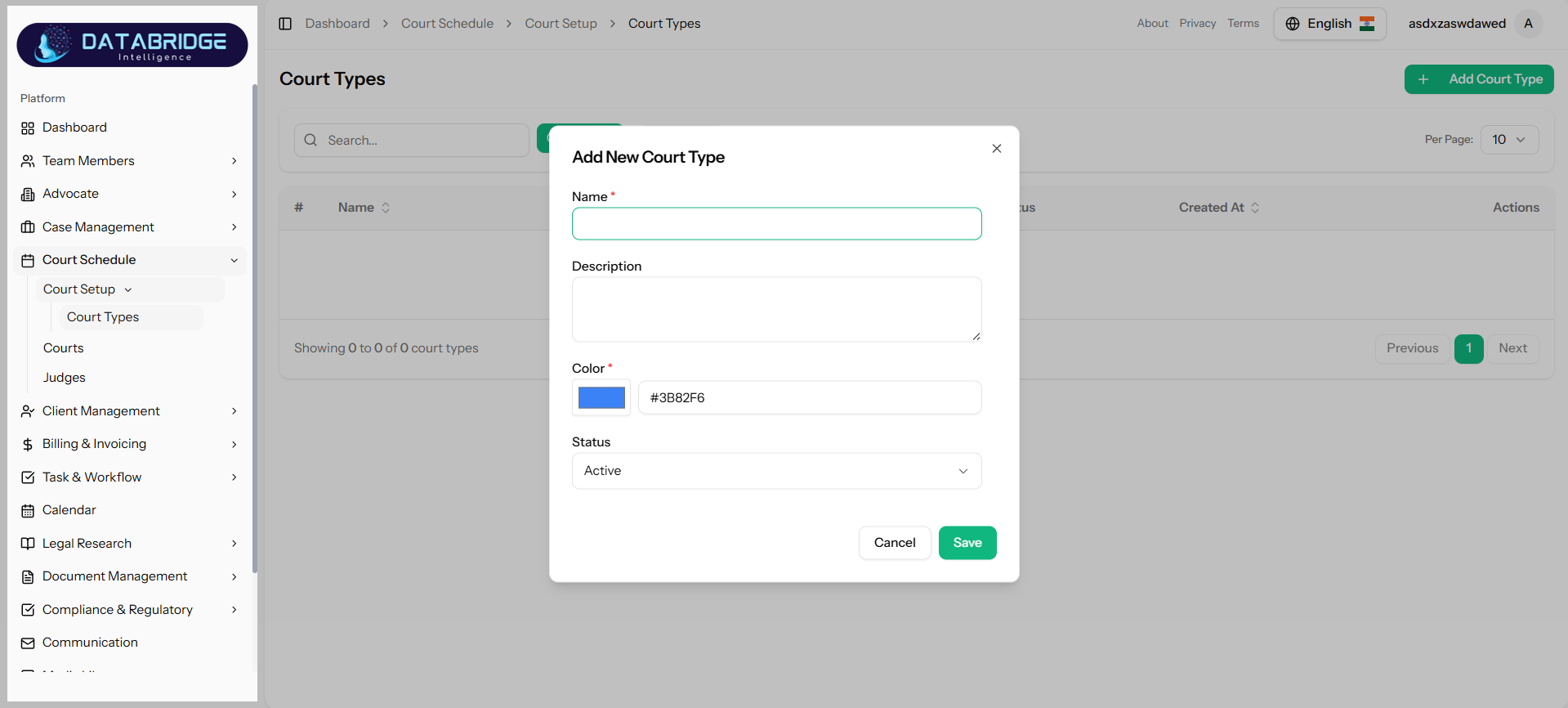
Add New Court Type:
The Add New Court Type modal allows users to define and add new court categories into the system. This helps in maintaining structured court information which can be used while creating or managing cases.
Features:
-Name (Required field)
-Description field for additional details
-Color picker for visual identification
-Status dropdown (Active/Inactive)
-Save and Cancel buttons
-Form validation for required fields
The Add New Court Type modal allows users to define and add new court categories into the system. This helps in maintaining structured court information which can be used while creating or managing cases.
Features:
-Name (Required field)
-Description field for additional details
-Color picker for visual identification
-Status dropdown (Active/Inactive)
-Save and Cancel buttons
-Form validation for required fields
1
Court Schedule
2
Court Setup
3
Court Types
4
Add Court Type
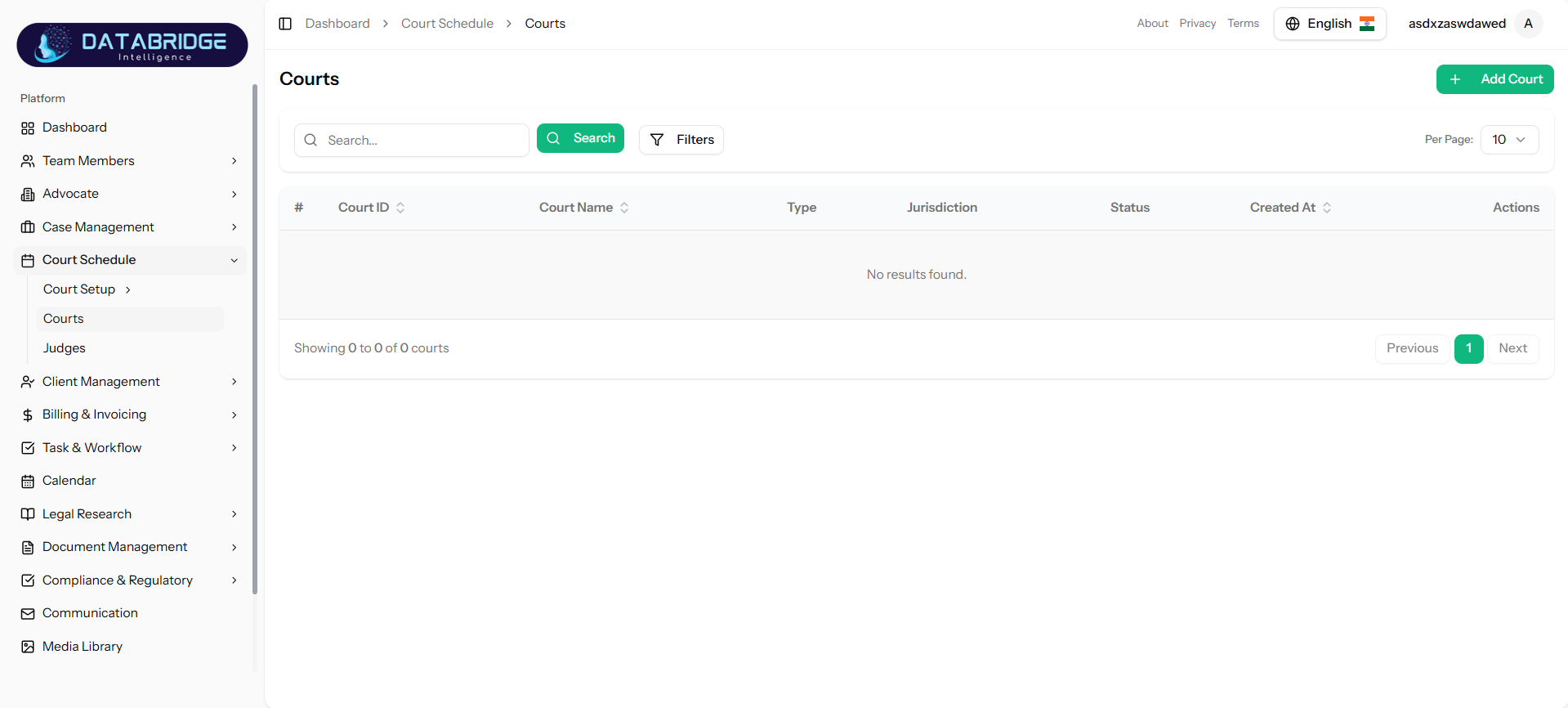
Courts:
The Courts Screen is used to manage and maintain a list of courts within the system. It allows users to store essential details such as court name, type, and jurisdiction. This module helps in organizing courts for proper case assignment and scheduling.
Features:
-View list of all courts in tabular format
-Search courts using keyword
-Apply filters to refine results
-Pagination support for large data
-Add new court using “Add Court” button
-Columns include:
->Court ID
->Court Name
->Type
->Jurisdiction
->Status
->Created Date
-Actions column for edit/delete operations
The Courts Screen is used to manage and maintain a list of courts within the system. It allows users to store essential details such as court name, type, and jurisdiction. This module helps in organizing courts for proper case assignment and scheduling.
Features:
-View list of all courts in tabular format
-Search courts using keyword
-Apply filters to refine results
-Pagination support for large data
-Add new court using “Add Court” button
-Columns include:
->Court ID
->Court Name
->Type
->Jurisdiction
->Status
->Created Date
-Actions column for edit/delete operations
1
Court Schedule
2
Courts
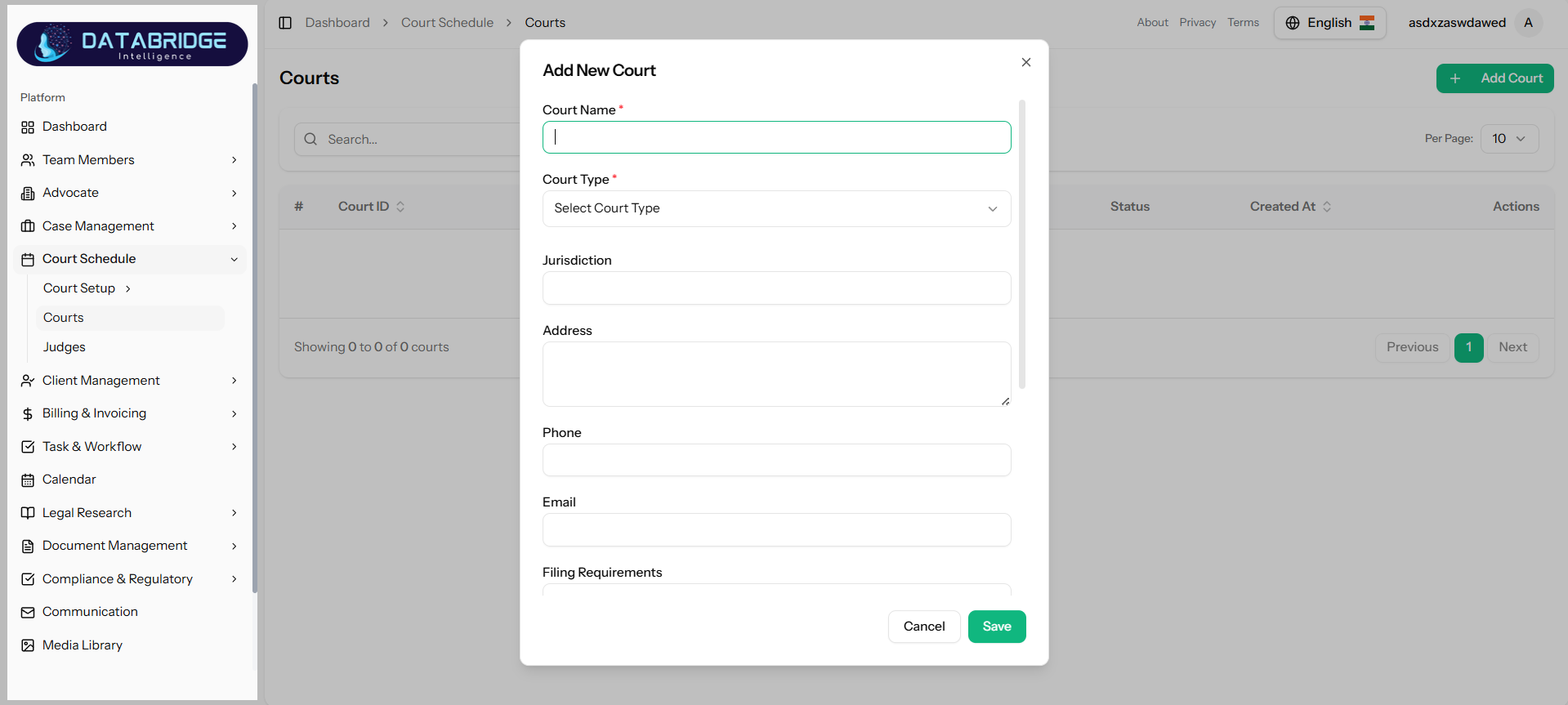
Add New Court:
This form is used to add a new court into the system with complete details such as type, jurisdiction, and contact information.
Features:
-Input fields:
->Court Name (Required)
->Court Type (Dropdown)
->Jurisdiction
->Address
->Phone
->Email
->Filing Requirements
-Validation for required fields
-Save and Cancel buttons
This form is used to add a new court into the system with complete details such as type, jurisdiction, and contact information.
Features:
-Input fields:
->Court Name (Required)
->Court Type (Dropdown)
->Jurisdiction
->Address
->Phone
->Filing Requirements
-Validation for required fields
-Save and Cancel buttons
1
Court Schedule
2
Courts
3
Add Courts
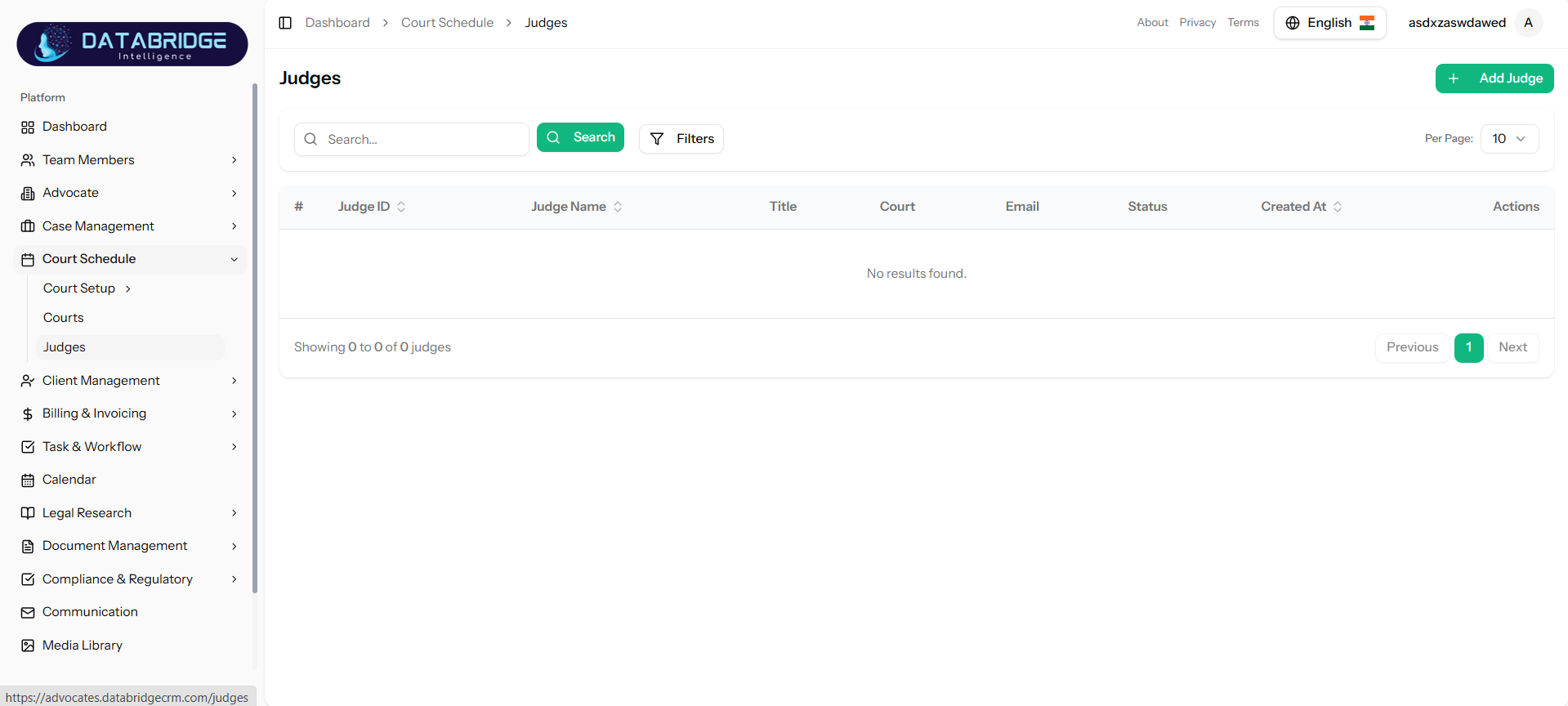
Judges:
The Judges Screen is used to manage judges associated with different courts. It helps in assigning judges to cases and scheduling hearings efficiently.
Features:
-View list of judges in table format
-Search functionality
-Filter options
-Pagination support
-Add new judge using “Add Judge” button
-Columns include:
->Judge ID
->Judge Name
->Title
->Court
->Email
->Status
->Created Date
-Actions for edit/delete
The Judges Screen is used to manage judges associated with different courts. It helps in assigning judges to cases and scheduling hearings efficiently.
Features:
-View list of judges in table format
-Search functionality
-Filter options
-Pagination support
-Add new judge using “Add Judge” button
-Columns include:
->Judge ID
->Judge Name
->Title
->Court
->Status
->Created Date
-Actions for edit/delete
1
Court Schedule
2
Judges
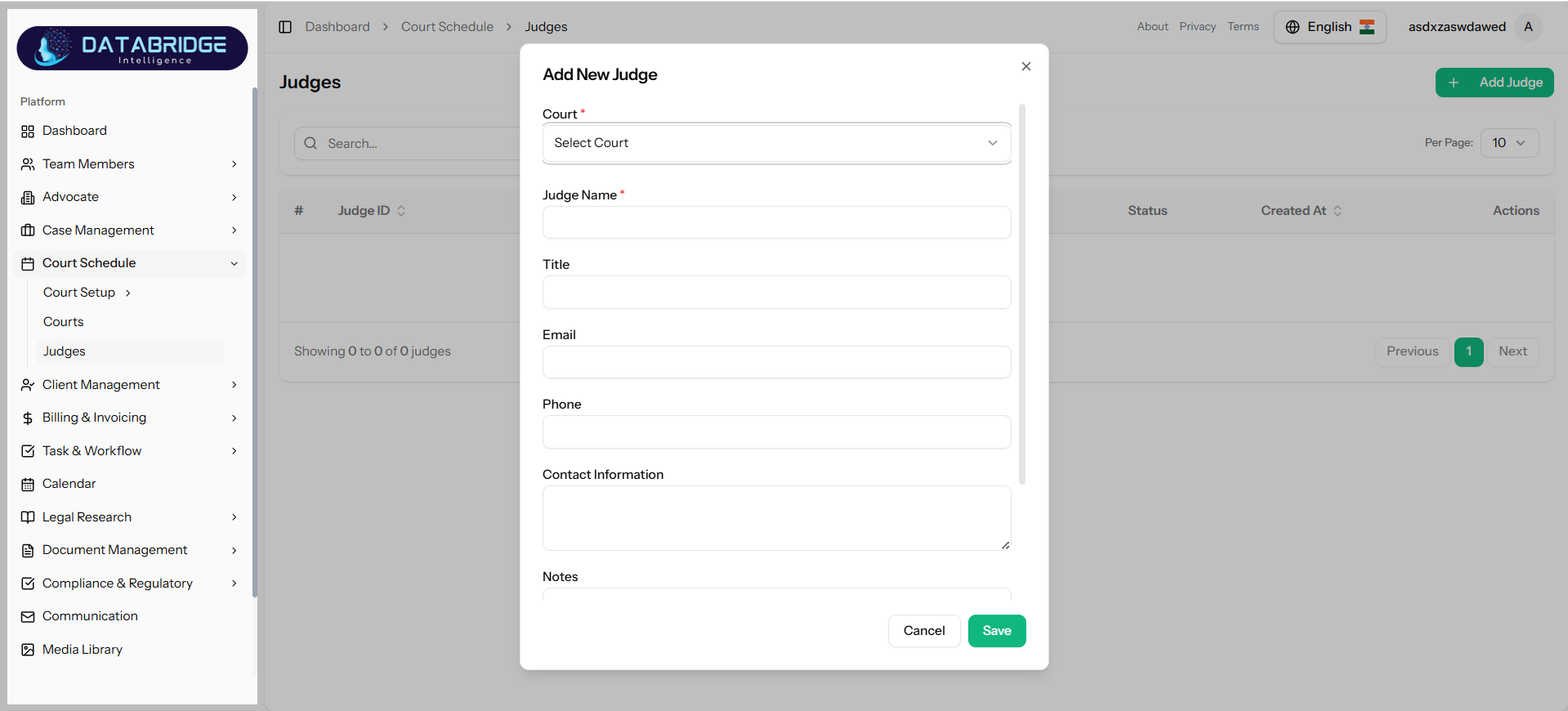
Add New Judge:
This form allows users to add a new judge and link them to a specific court along with contact details.
Features:
-Input fields:
->Court (Dropdown – Required)
->Judge Name (Required)
->Title
->Email
->Phone
->Contact Information
->Notes
-Dropdown to select associated court
-Save and Cancel buttons
This form allows users to add a new judge and link them to a specific court along with contact details.
Features:
-Input fields:
->Court (Dropdown – Required)
->Judge Name (Required)
->Title
->Phone
->Contact Information
->Notes
-Dropdown to select associated court
-Save and Cancel buttons
1
Court Schedule
2
Judges
3
Add Judges
Client Management
The Client Management module is designed to efficiently manage and organize all client-related information within the system. It allows users to create, update, and categorize clients based on predefined client types. The module ensures easy access to client details, associated cases, and documents, improving overall workflow efficiency. It also supports structured data handling, enabling better communication, tracking, and service delivery. This module plays a crucial role in maintaining strong client relationships and streamlining legal operations.
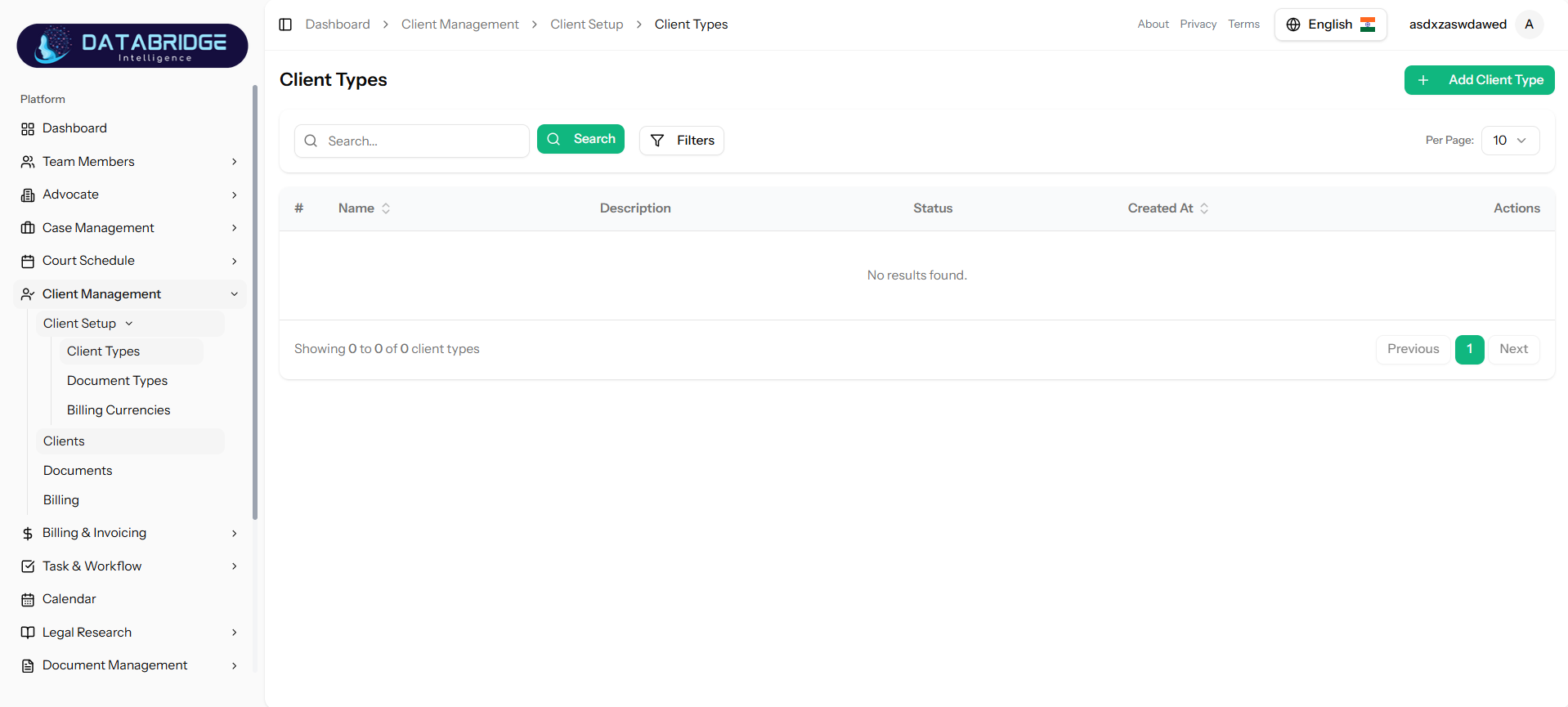
Client Types:
The Client Types Screen is used to define and manage different categories of clients (e.g., Individual, Corporate). It helps in organizing clients systematically and simplifies client classification during case creation.
Features:
-View all client types in table format
-Search functionality to find client types
-Filter option for refined results
-Pagination support
-Add new client type using “Add Client Type” button
-Columns include:
->Name
->Description
->Status
->Created Date
-Actions column for edit/delete
The Client Types Screen is used to define and manage different categories of clients (e.g., Individual, Corporate). It helps in organizing clients systematically and simplifies client classification during case creation.
Features:
-View all client types in table format
-Search functionality to find client types
-Filter option for refined results
-Pagination support
-Add new client type using “Add Client Type” button
-Columns include:
->Name
->Description
->Status
->Created Date
-Actions column for edit/delete
1
Client Management
2
Client Setup
3
Client Types
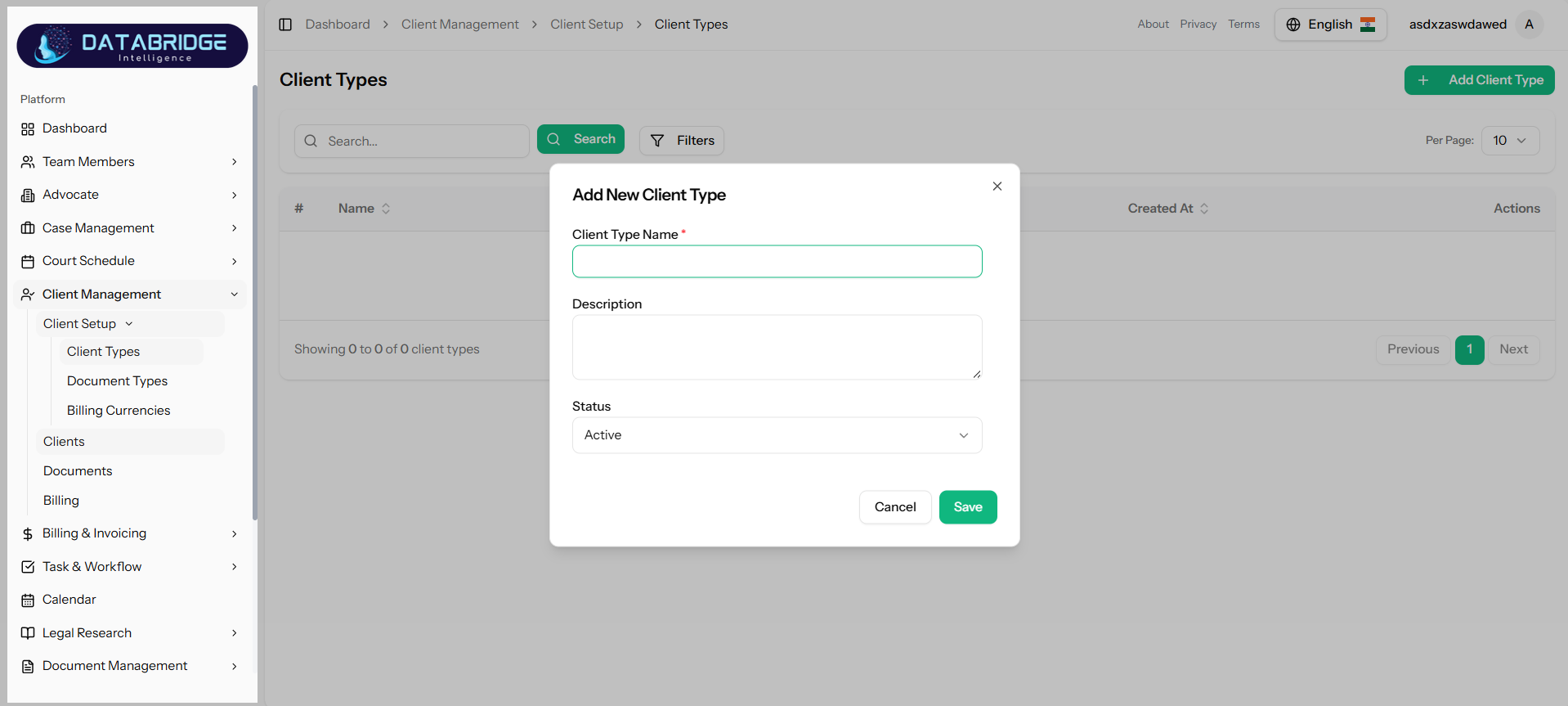
Add New Client:
This form allows users to create a new client category for better classification and management.
Features:
-Input fields:
->Client Type Name (Required)
->Description
->Status (Active/Inactive)
-Validation for required fields
-Save and Cancel buttons
This form allows users to create a new client category for better classification and management.
Features:
-Input fields:
->Client Type Name (Required)
->Description
->Status (Active/Inactive)
-Validation for required fields
-Save and Cancel buttons
1
Client Management
2
Client Setup
3
Client Types
4
Add Client Type
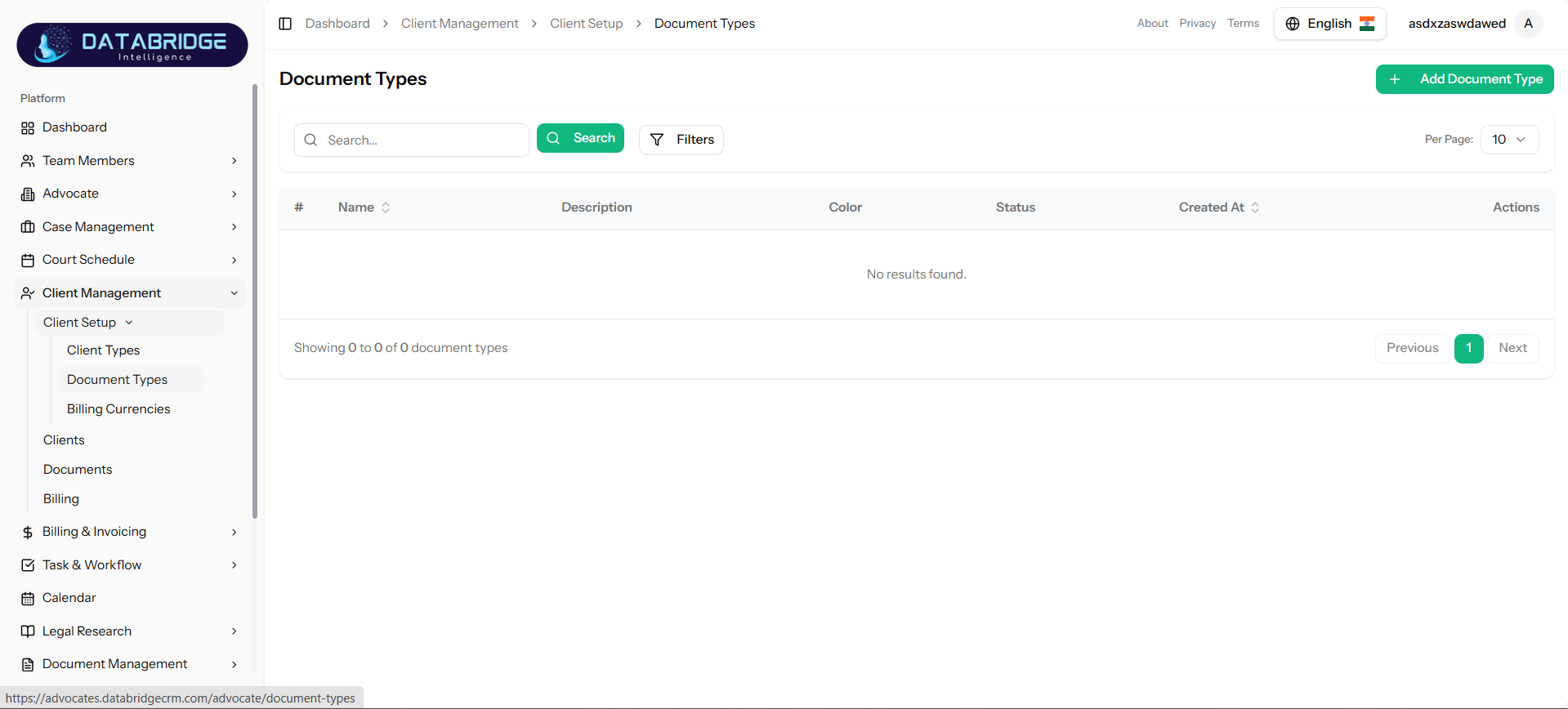
Document Types:
The Document Types Screen is used to manage different types of documents required in the system (e.g., ID Proof, Agreements). It ensures proper categorization and handling of client and case documents.
Features:
-View document types in table
-Search and filter functionality
-Pagination support
-Add new document type via “Add Document Type”
-Columns include:
->Name
->Description
->Color (for identification)
->Status
->Created Date
-Actions for edit/delete
The Document Types Screen is used to manage different types of documents required in the system (e.g., ID Proof, Agreements). It ensures proper categorization and handling of client and case documents.
Features:
-View document types in table
-Search and filter functionality
-Pagination support
-Add new document type via “Add Document Type”
-Columns include:
->Name
->Description
->Color (for identification)
->Status
->Created Date
-Actions for edit/delete
1
Client Management
2
Client Setup
3
Document Types
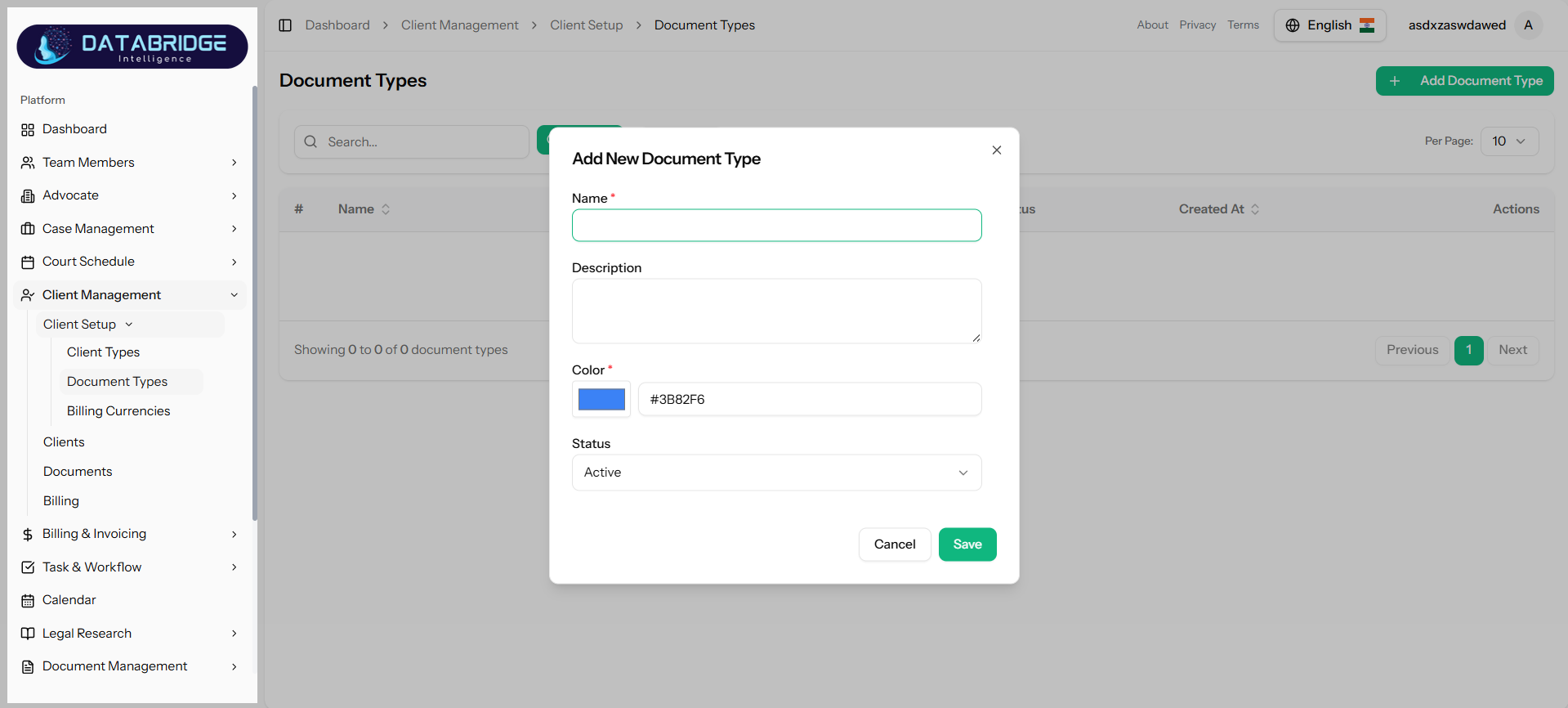
Add New Document Type:
This form is used to define new document categories with visual identification (color coding).
Features:
-Input fields:
->Name (Required)
->Description
->Color Picker (Required)
->Status
-Color selection for easy identification
-Save and Cancel options
This form is used to define new document categories with visual identification (color coding).
Features:
-Input fields:
->Name (Required)
->Description
->Color Picker (Required)
->Status
-Color selection for easy identification
-Save and Cancel options
1
Client Management
2
Client Setup
3
Document Types
4
Add Document Type
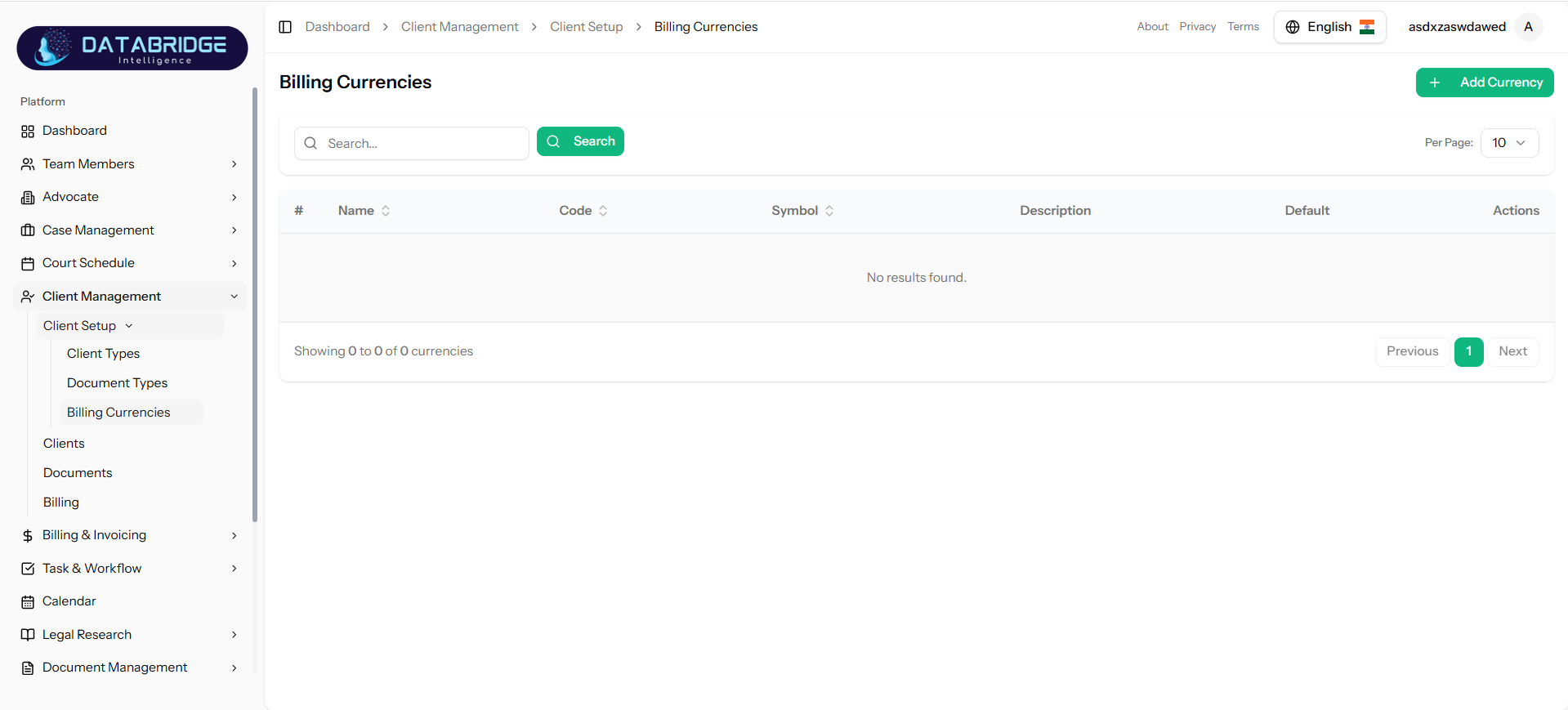
Billing Currencies:
The Billing Currencies Screen is used to manage different currencies for billing and invoicing. It allows setting a default currency and supports multi-currency operations.
Features:
-View list of currencies
-Search functionality
-Pagination support
-Add new currency via “Add Currency”
-Columns include:
->Name
->Code (e.g., USD, INR)
->Symbol (₹, $, etc.)
->Description
->Default (Yes/No)
-Actions for edit/delete
The Billing Currencies Screen is used to manage different currencies for billing and invoicing. It allows setting a default currency and supports multi-currency operations.
Features:
-View list of currencies
-Search functionality
-Pagination support
-Add new currency via “Add Currency”
-Columns include:
->Name
->Code (e.g., USD, INR)
->Symbol (₹, $, etc.)
->Description
->Default (Yes/No)
-Actions for edit/delete
1
Client Management
2
Client Setup
3
Billing Currencies

Add New Currency:
This form allows users to add a new currency for billing purposes and optionally set it as the default currency.
Features:
-Input fields:
->Currency Name (Required)
->Currency Code (Required)
->Currency Symbol (Required)
->Description
-Option to Set as Default Currency
-Save and Cancel buttons
This form allows users to add a new currency for billing purposes and optionally set it as the default currency.
Features:
-Input fields:
->Currency Name (Required)
->Currency Code (Required)
->Currency Symbol (Required)
->Description
-Option to Set as Default Currency
-Save and Cancel buttons
1
Client Management
2
Client Setup
3
Billing Currencies
4
Add Currency
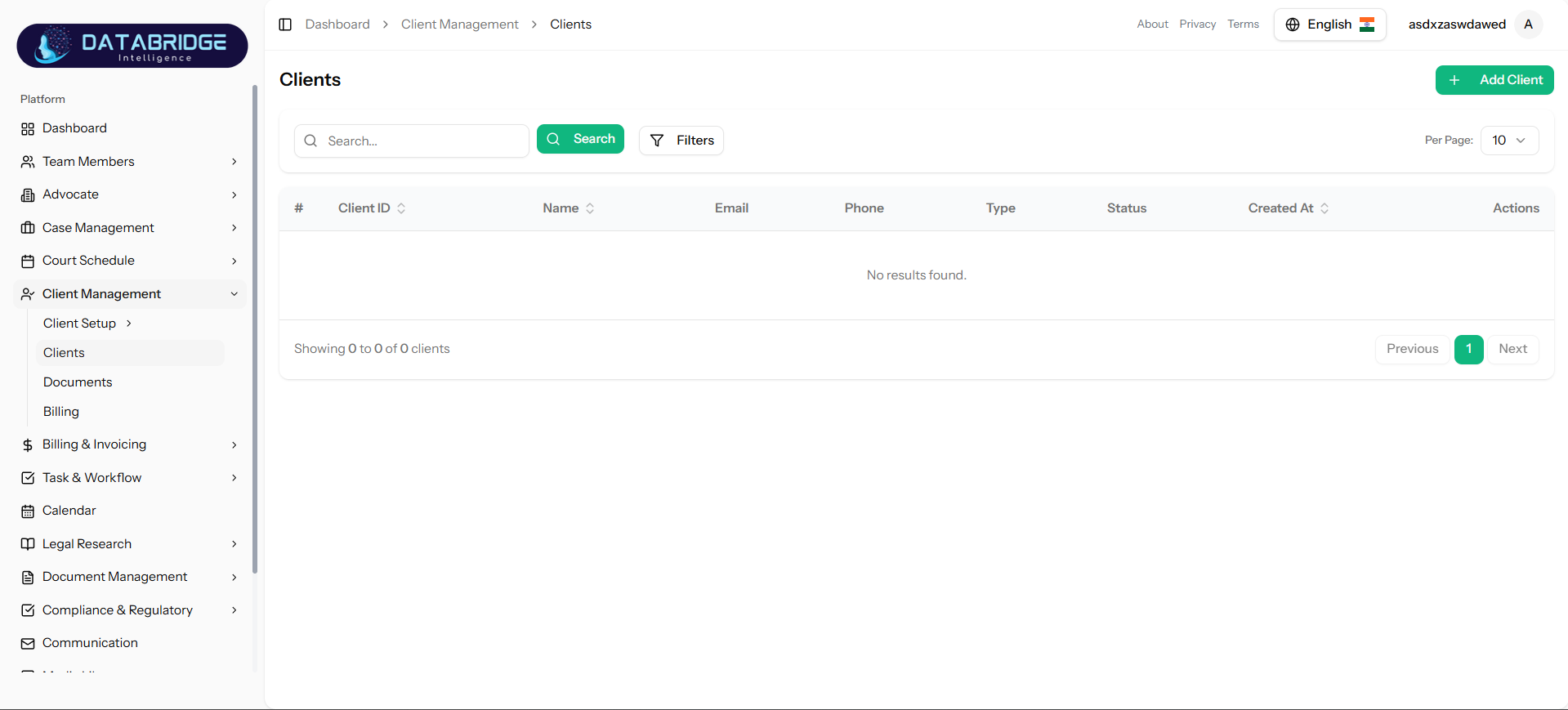
Clients:
The Clients Screen is used to manage all client records within the system. It allows users to view, search, and organize client details such as contact information, client type, and status, ensuring efficient client handling.
Features:
-Display all clients in tabular format
-Search functionality to find clients quickly
-Filter option for advanced search
-Pagination support
-Add new client using “Add Client” button
-Columns include:
->Client ID
->Name
->Email
->Phone
->Type
->Status
->Created Date
-Actions column for edit/delete
The Clients Screen is used to manage all client records within the system. It allows users to view, search, and organize client details such as contact information, client type, and status, ensuring efficient client handling.
Features:
-Display all clients in tabular format
-Search functionality to find clients quickly
-Filter option for advanced search
-Pagination support
-Add new client using “Add Client” button
-Columns include:
->Client ID
->Name
->Phone
->Type
->Status
->Created Date
-Actions column for edit/delete
1
Client Management
2
Client
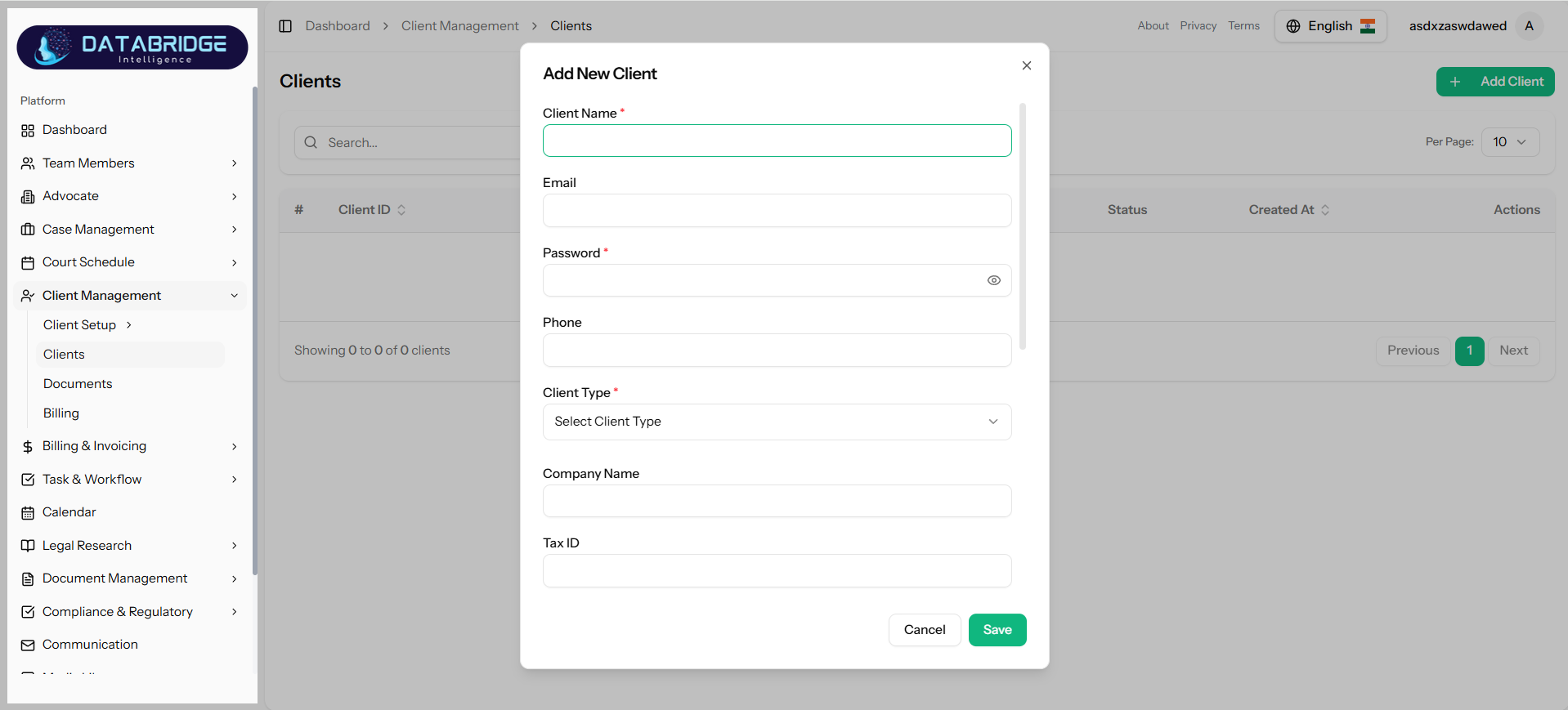
Add Client:
This form allows users to create a new client by entering personal and organizational details.
Features:
-Input fields:
->Client Name (Required)
->Email
->Password (Required)
->Phone
->Client Type (Dropdown – Required)
->Company Name
->Tax ID
-Password visibility toggle
-Validation for required fields
-Save and Cancel buttons
This form allows users to create a new client by entering personal and organizational details.
Features:
-Input fields:
->Client Name (Required)
->Password (Required)
->Phone
->Client Type (Dropdown – Required)
->Company Name
->Tax ID
-Password visibility toggle
-Validation for required fields
-Save and Cancel buttons
1
Client Management
2
Client
3
Add Client
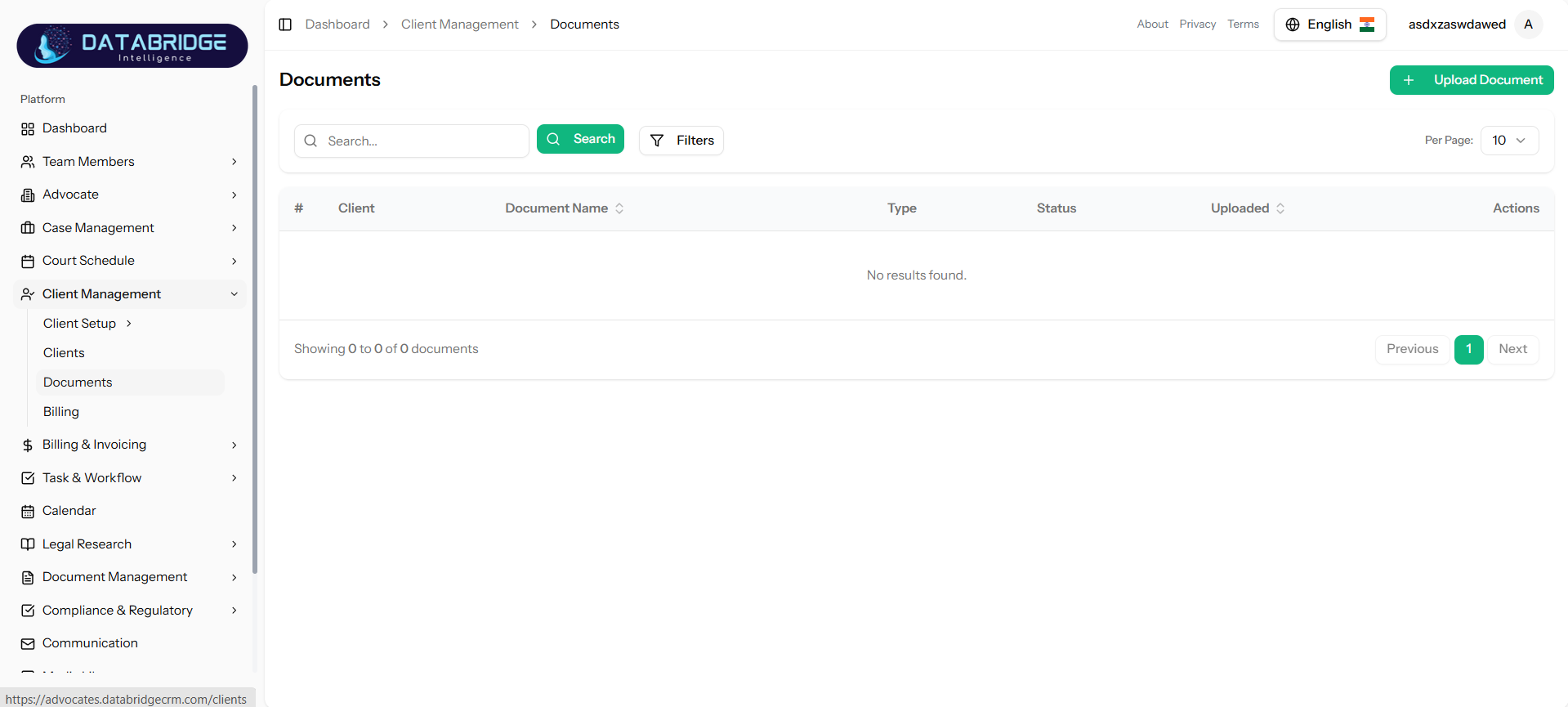
Documents:
The Documents Screen is used to manage all documents related to clients. It allows uploading, viewing, and organizing documents based on document types.
Features:
-Display all documents in table format
-Search and filter functionality
-Pagination support
-Upload new document using “Upload Document”
-Columns include:
->Client
->Document Name
->Type
->Status
->Uploaded Date
-Actions for managing documents
The Documents Screen is used to manage all documents related to clients. It allows uploading, viewing, and organizing documents based on document types.
Features:
-Display all documents in table format
-Search and filter functionality
-Pagination support
-Upload new document using “Upload Document”
-Columns include:
->Client
->Document Name
->Type
->Status
->Uploaded Date
-Actions for managing documents
1
Client Management
2
Documents
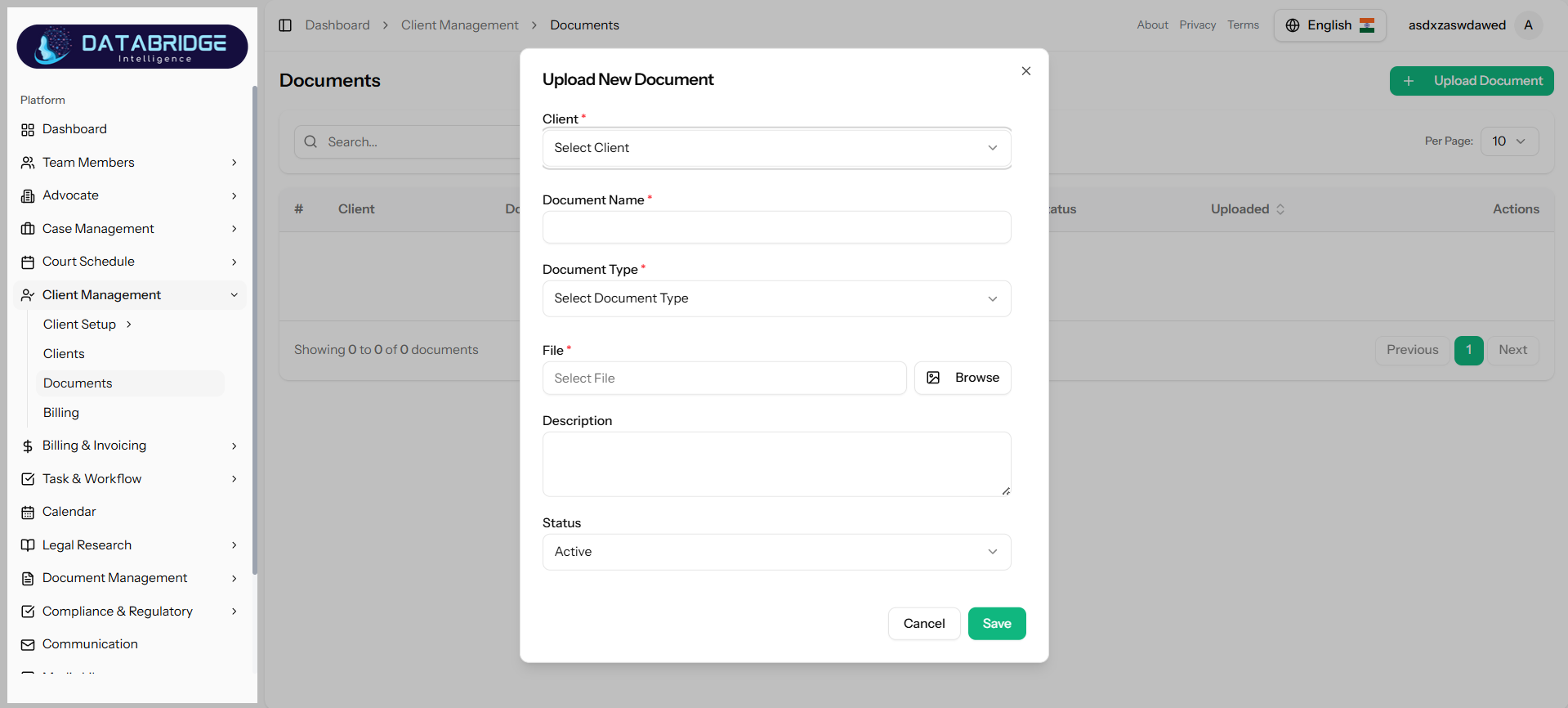
Upload Document:
This form allows users to upload and assign documents to specific clients.
Features:
-Input fields:
->Client (Dropdown – Required)
->Document Name (Required)
->Document Type (Dropdown – Required)
->File Upload (Required)
->Description
->Status
-File upload with browse option
-Validation for required fields
-Save and Cancel options
This form allows users to upload and assign documents to specific clients.
Features:
-Input fields:
->Client (Dropdown – Required)
->Document Name (Required)
->Document Type (Dropdown – Required)
->File Upload (Required)
->Description
->Status
-File upload with browse option
-Validation for required fields
-Save and Cancel options
1
Client Management
2
Documents
3
Add Documents
Billing:
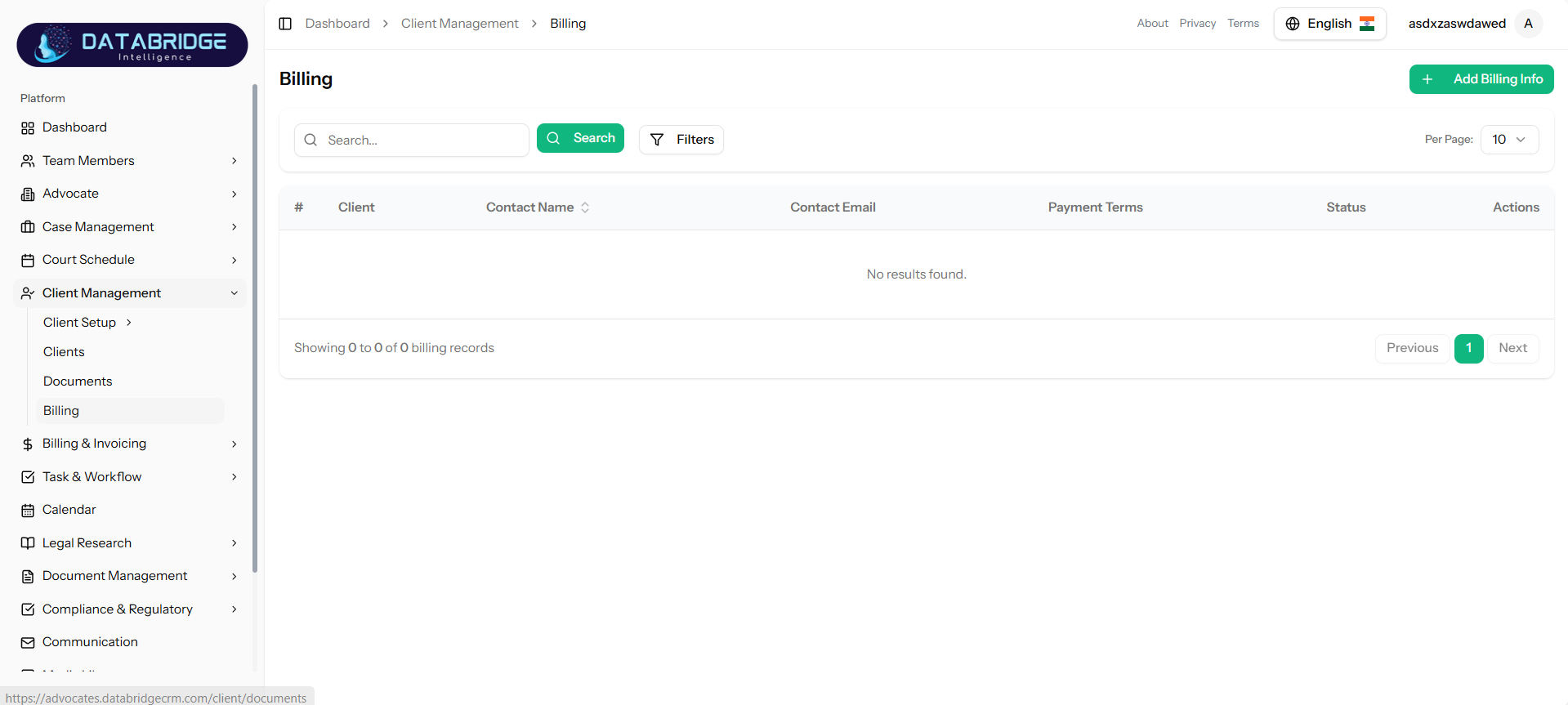
The Billing Screen is used to manage billing information for clients. It stores billing contacts, payment terms, and related financial details.
Features:
-View billing records in table format
-Search and filter functionality
-Pagination support
-Add billing details using “Add Billing Info”
-Columns include:
->Client
->Contact Name
->Contact Email
->Payment Terms
->Status
-Actions for edit/delete
The Billing Screen is used to manage billing information for clients. It stores billing contacts, payment terms, and related financial details.
Features:
-View billing records in table format
-Search and filter functionality
-Pagination support
-Add billing details using “Add Billing Info”
-Columns include:
->Client
->Contact Name
->Contact Email
->Payment Terms
->Status
-Actions for edit/delete
1
Client Management
2
Billing
Add Billing:
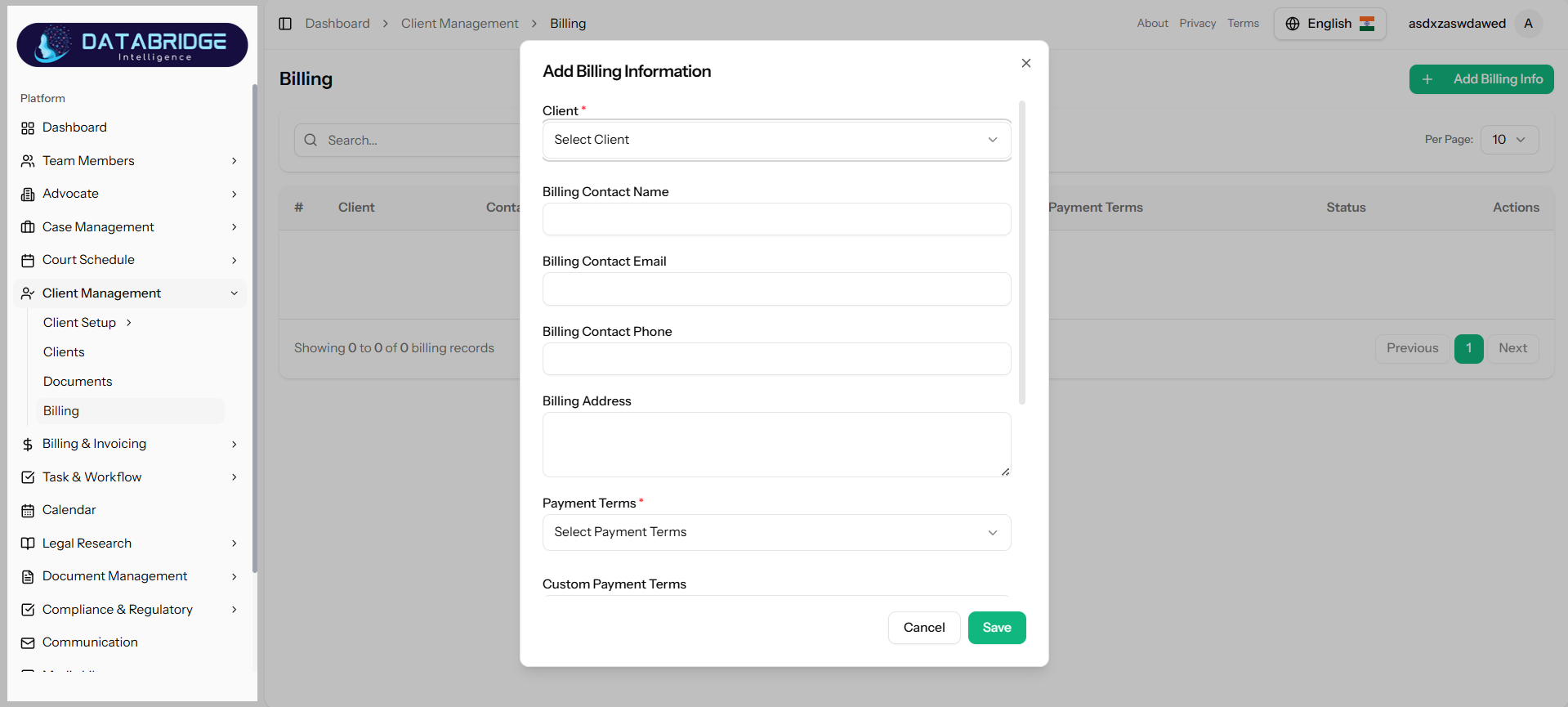
This form allows users to add billing contact details and define payment terms for a client.
Features:
-Input fields:
->Client (Dropdown – Required)
->Billing Contact Name
->Billing Contact Email
->Billing Contact Phone
->Billing Address
->Payment Terms (Required)
->Custom Payment Terms
-Dropdown for predefined payment terms
-Option to add custom terms
-Save and Cancel buttons
This form allows users to add billing contact details and define payment terms for a client.
Features:
-Input fields:
->Client (Dropdown – Required)
->Billing Contact Name
->Billing Contact Email
->Billing Contact Phone
->Billing Address
->Payment Terms (Required)
->Custom Payment Terms
-Dropdown for predefined payment terms
-Option to add custom terms
-Save and Cancel buttons
1
Client Management
2
Billing
3
Add Billing Info
Billing & Invoicing
The Billing & Invoicing module is designed to manage all financial operations related to client billing, expenses, and payments within the system. It provides a centralized platform to create invoices, track expenses, manage billing rates, and monitor payment statuses efficiently.This module helps streamline the complete billing lifecycle — from recording billable activities and expenses to generating invoices and tracking payments — ensuring accuracy, transparency, and timely financial management.
Expense Categories:
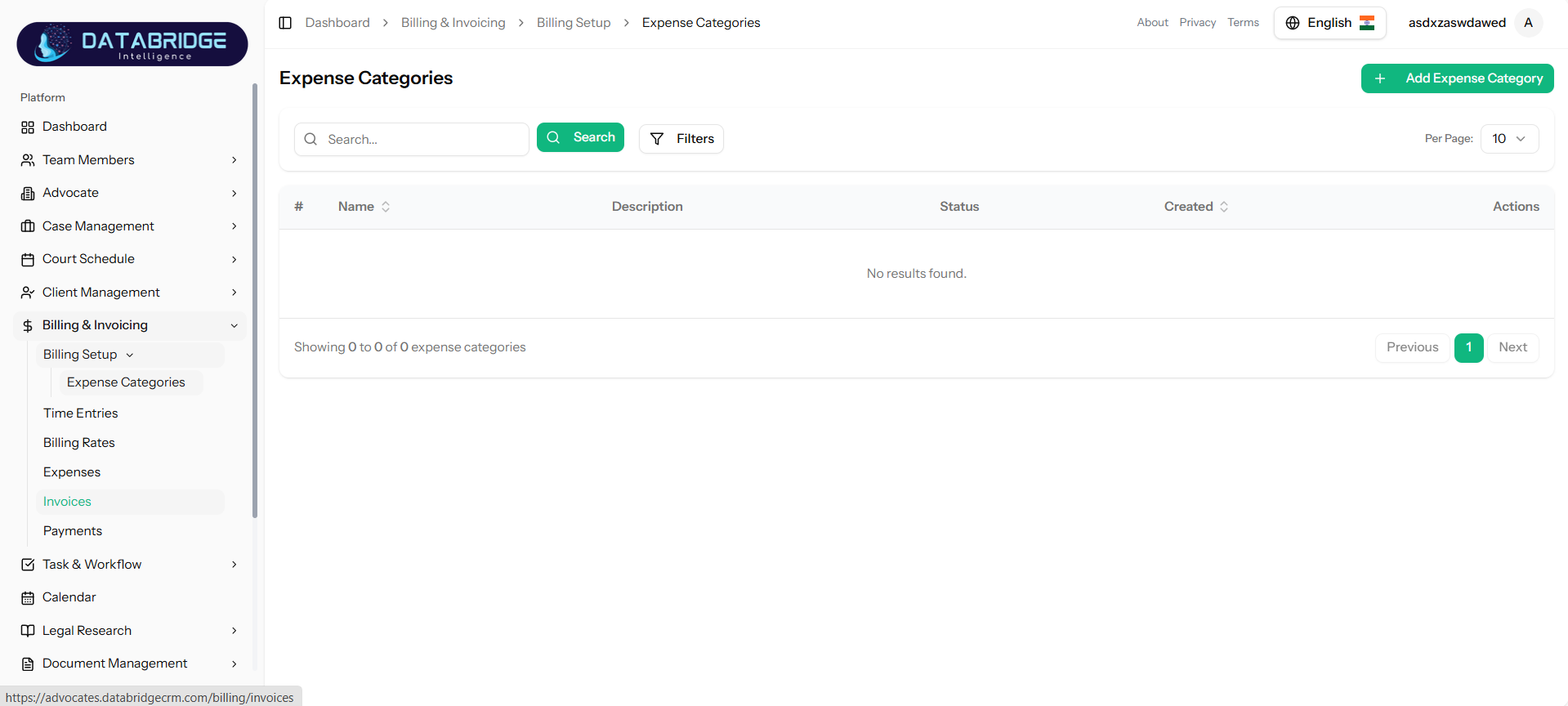
The Expense Categories Screen is used to manage different categories of expenses within the system. It helps organize and classify expenses for better tracking, reporting, and financial management.
Features:
-Display all expense categories in tabular format
-Search functionality to quickly find categories
-Filter option for refined results
-Pagination support
-Add new category using “Add Expense Category” button
-Columns include:
->Name
->Description
->Status
->Created Date
-Actions column for edit/delete
The Expense Categories Screen is used to manage different categories of expenses within the system. It helps organize and classify expenses for better tracking, reporting, and financial management.
Features:
-Display all expense categories in tabular format
-Search functionality to quickly find categories
-Filter option for refined results
-Pagination support
-Add new category using “Add Expense Category” button
-Columns include:
->Name
->Description
->Status
->Created Date
-Actions column for edit/delete
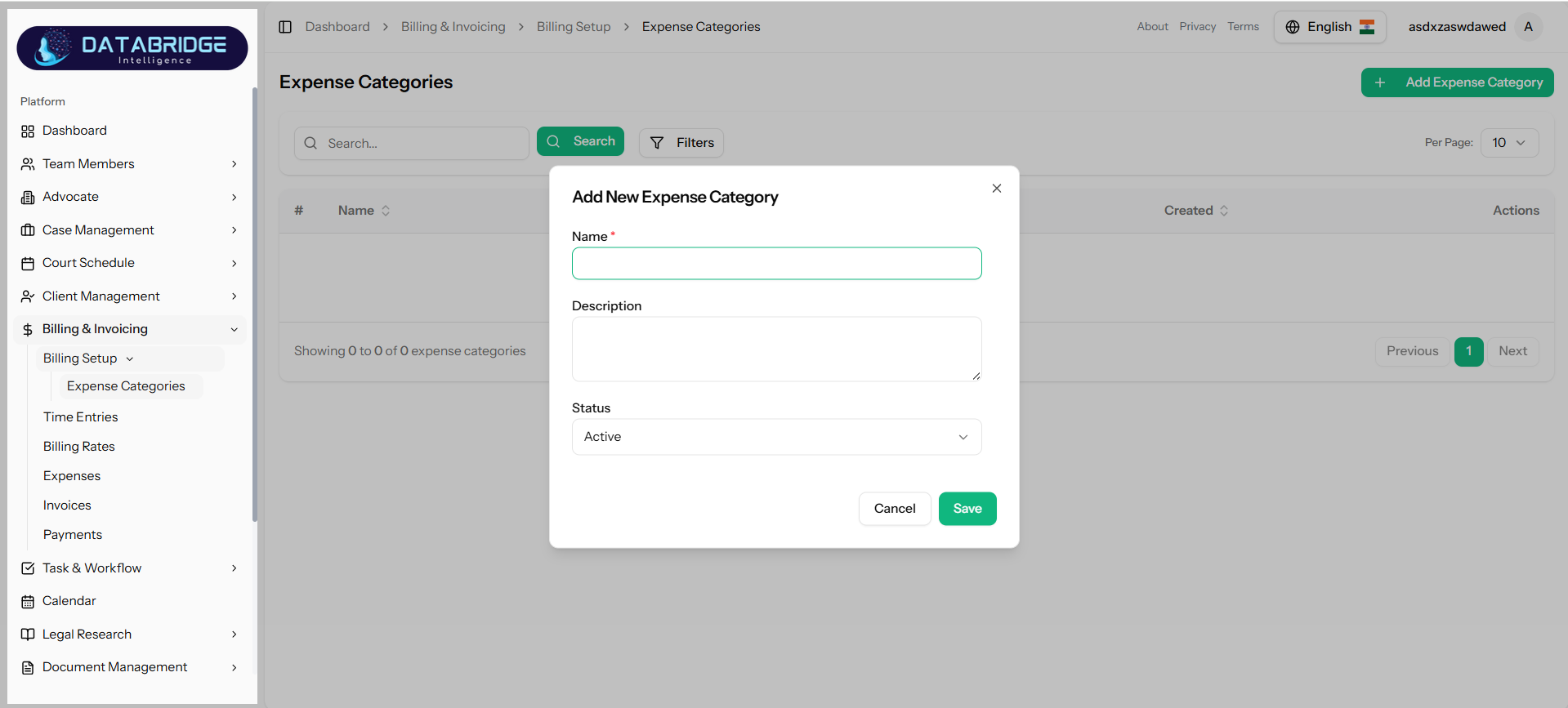
Add New Expense:
This form allows users to create a new expense category by defining its name, description, and status.
Features:
-Input fields:
->Name (Required)
->Description
->Status (Dropdown – Active/Inactive)
-Validation for required fields
-Simple and user-friendly interface
-Save and Cancel buttons
This form allows users to create a new expense category by defining its name, description, and status.
Features:
-Input fields:
->Name (Required)
->Description
->Status (Dropdown – Active/Inactive)
-Validation for required fields
-Simple and user-friendly interface
-Save and Cancel buttons
Time Entries:
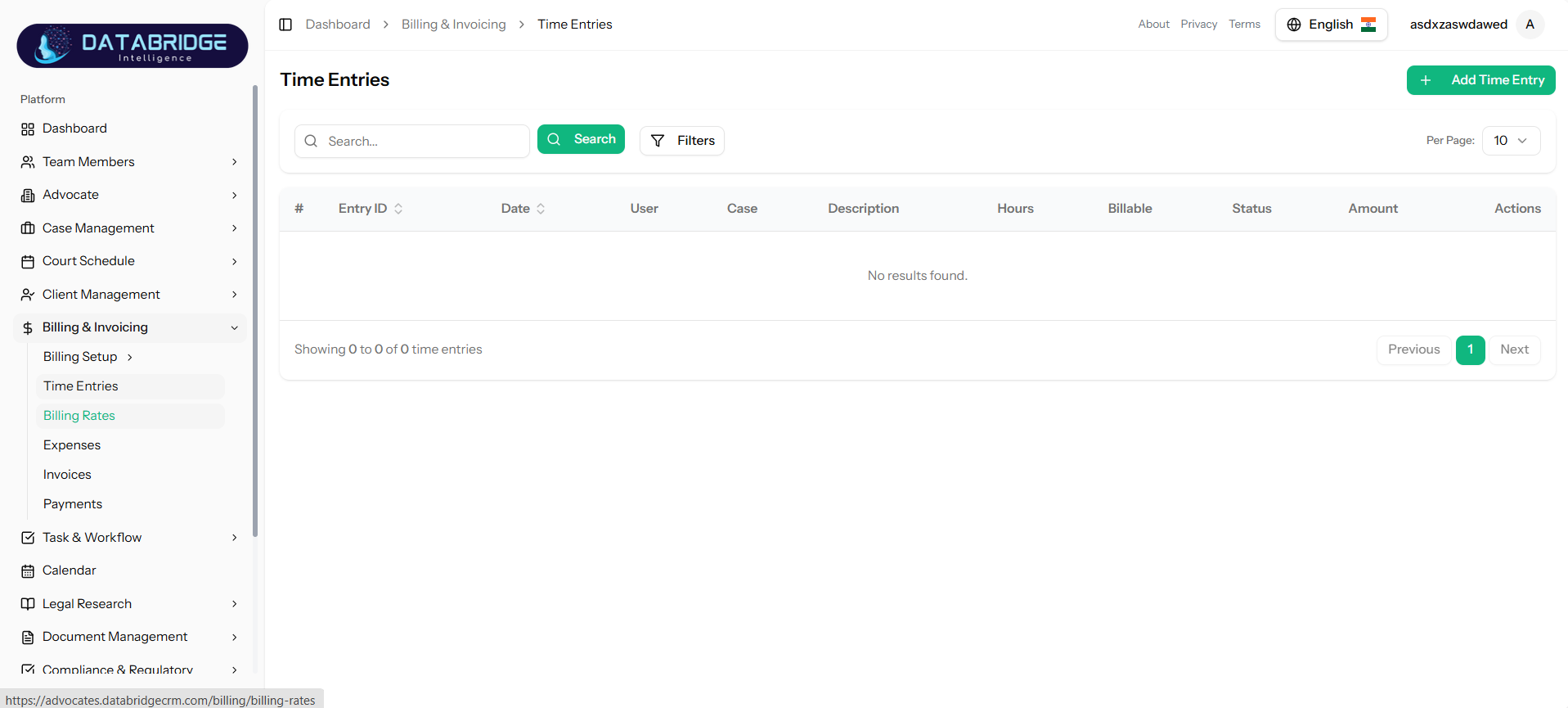
The Time Entries screen allows users to record, track, and manage time spent on different cases or tasks. It captures detailed information such as case, team member, working hours, and billable status to ensure accurate time-based billing.
Key Functionalities:
-Add new time entries
-Link entries to cases and team members
-Mark entries as billable/non-billable
-Track hours and calculated amount
The Time Entries screen allows users to record, track, and manage time spent on different cases or tasks. It captures detailed information such as case, team member, working hours, and billable status to ensure accurate time-based billing.
Key Functionalities:
-Add new time entries
-Link entries to cases and team members
-Mark entries as billable/non-billable
-Track hours and calculated amount
Add Time Entry:
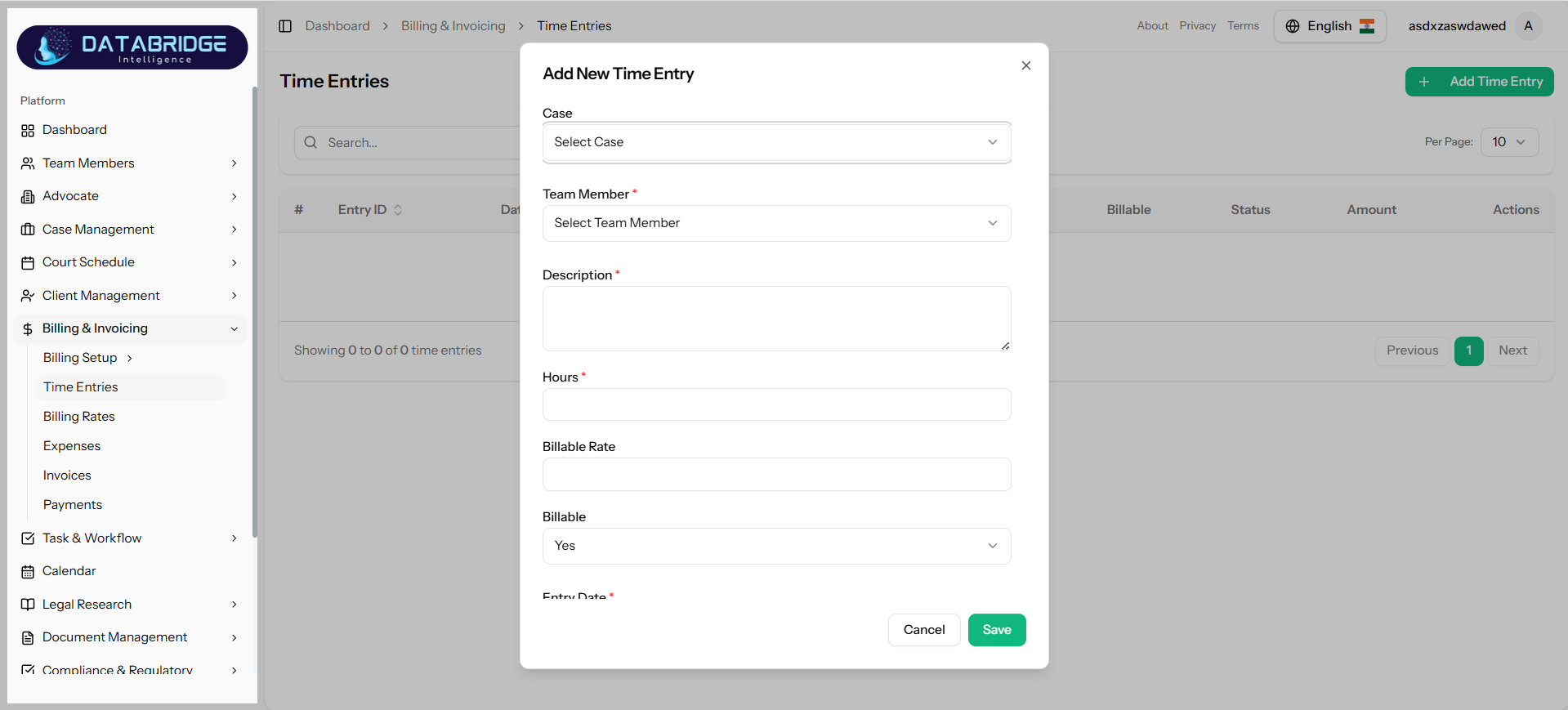
This form enables users to input detailed time tracking data including case, assigned team member, description of work, hours spent, and billing details.
Key Functionalities:
-Select case and team member
-Enter work description
-Input hours and billing rate
-Define billable status
-Set entry date
This form enables users to input detailed time tracking data including case, assigned team member, description of work, hours spent, and billing details.
Key Functionalities:
-Select case and team member
-Enter work description
-Input hours and billing rate
-Define billable status
-Set entry date
Billing:
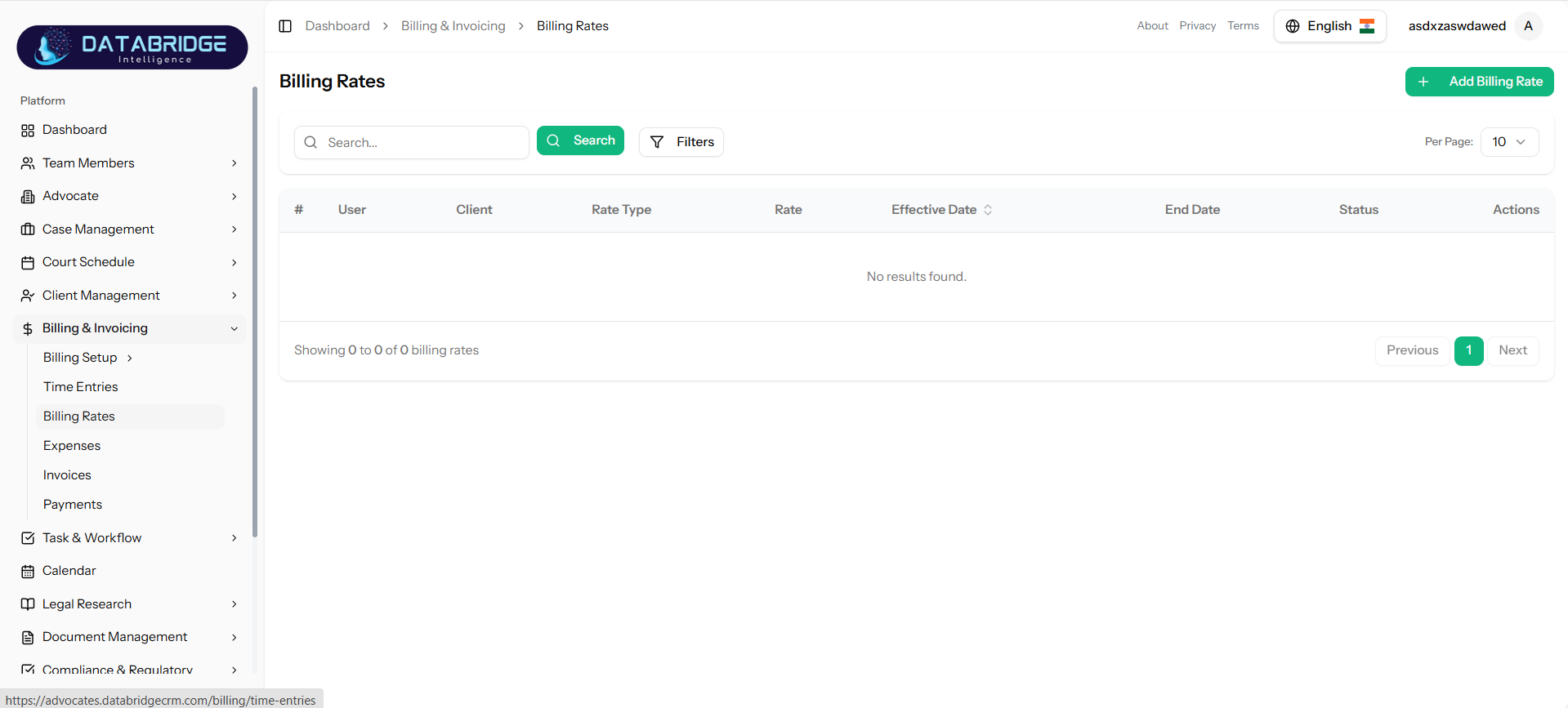
The Billing Rates screen manages different billing structures for team members or clients, such as hourly, fixed, or contingency-based rates.
Key Functionalities:
-Define multiple rate types
-Assign rates to team members
-Track effective and end dates
-Manage active/inactive rates
The Billing Rates screen manages different billing structures for team members or clients, such as hourly, fixed, or contingency-based rates.
Key Functionalities:
-Define multiple rate types
-Assign rates to team members
-Track effective and end dates
-Manage active/inactive rates
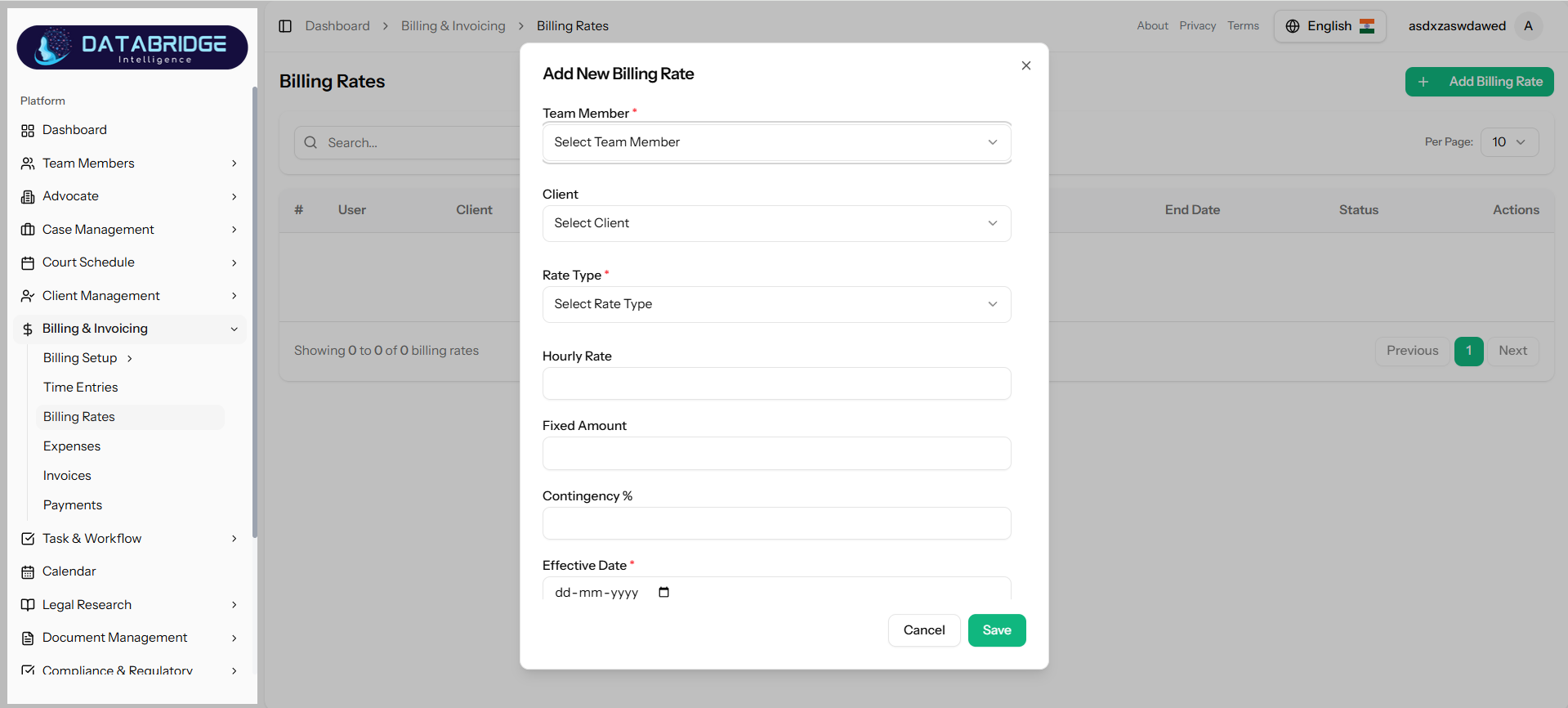
Add Billing:
This form allows administrators to create and configure billing rates for different team members and clients based on selected billing models.
Key Functionalities:
-Select team member and client
-Choose rate type (hourly/fixed/contingency)
-Define rate values
-Set effective date
This form allows administrators to create and configure billing rates for different team members and clients based on selected billing models.
Key Functionalities:
-Select team member and client
-Choose rate type (hourly/fixed/contingency)
-Define rate values
-Set effective date
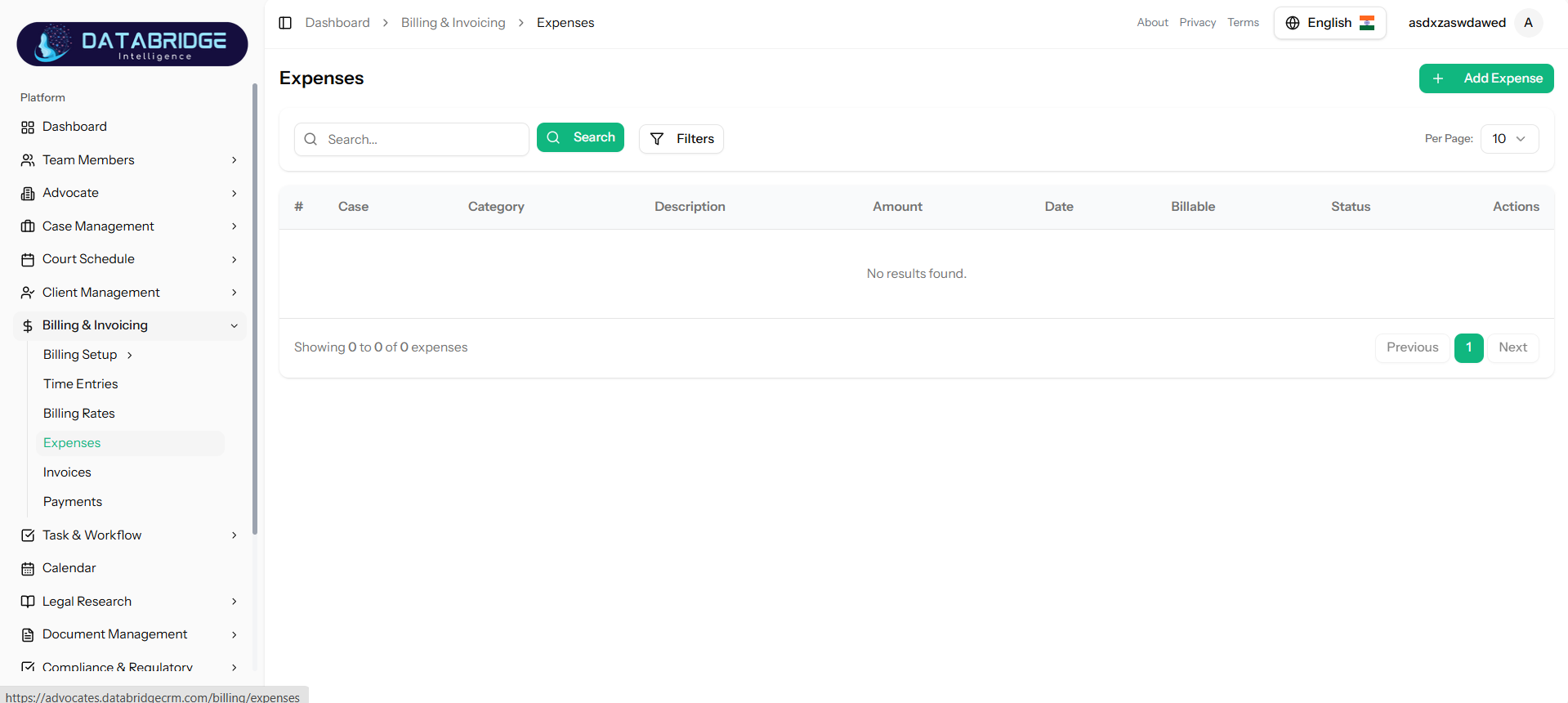
Expenses:
The Expenses screen tracks all costs incurred during case handling, including operational and miscellaneous expenses.
Key Functionalities:
-Add and manage expenses
-Categorize expenses
-Track amount and date
-Mark expenses as billable
The Expenses screen tracks all costs incurred during case handling, including operational and miscellaneous expenses.
Key Functionalities:
-Add and manage expenses
-Categorize expenses
-Track amount and date
-Mark expenses as billable
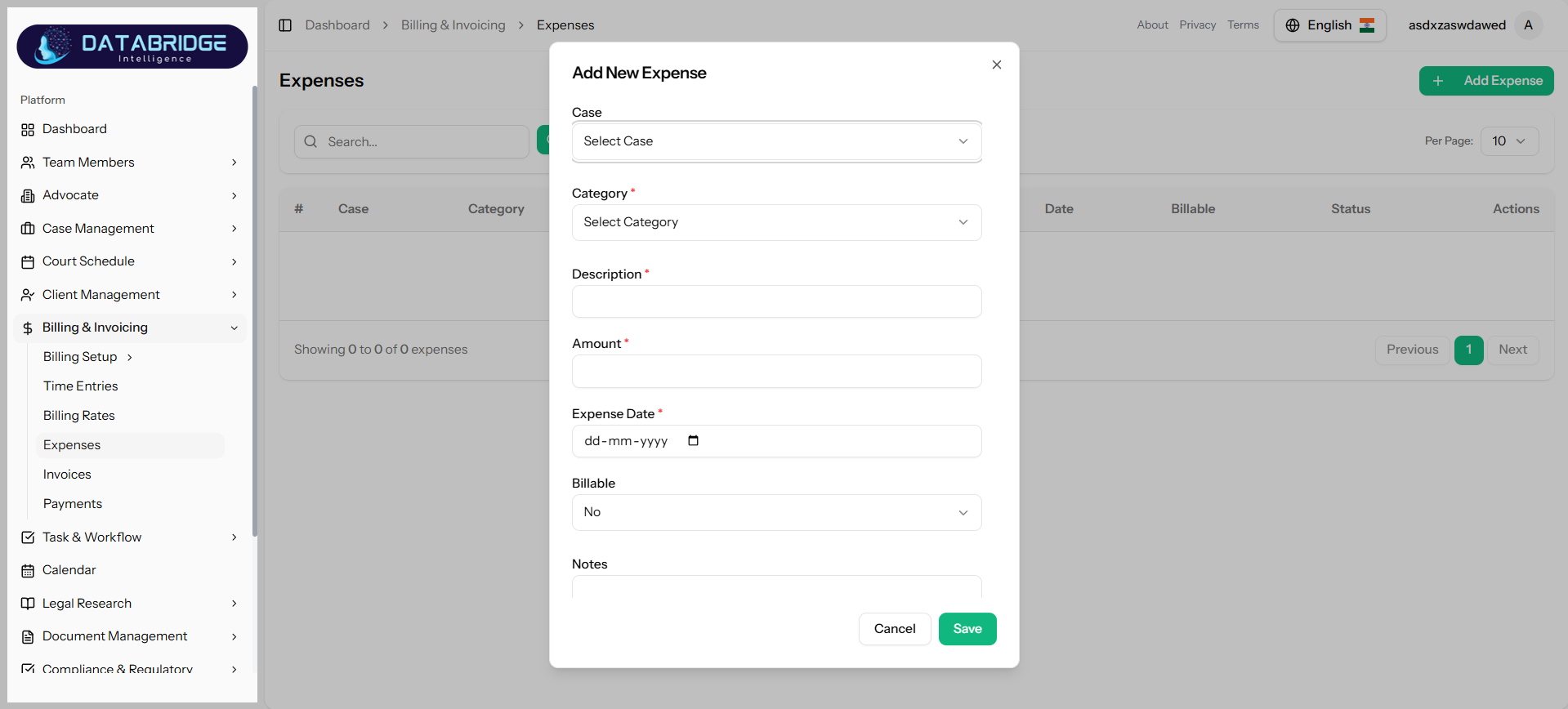
Add Expense:
This form allows users to record new expenses by specifying case, category, amount, and billing status.
Key Functionalities:
-Select case and category
-Enter description and amount
-Set expense date
-Mark as billable or non-billable
-Add notes
This form allows users to record new expenses by specifying case, category, amount, and billing status.
Key Functionalities:
-Select case and category
-Enter description and amount
-Set expense date
-Mark as billable or non-billable
-Add notes
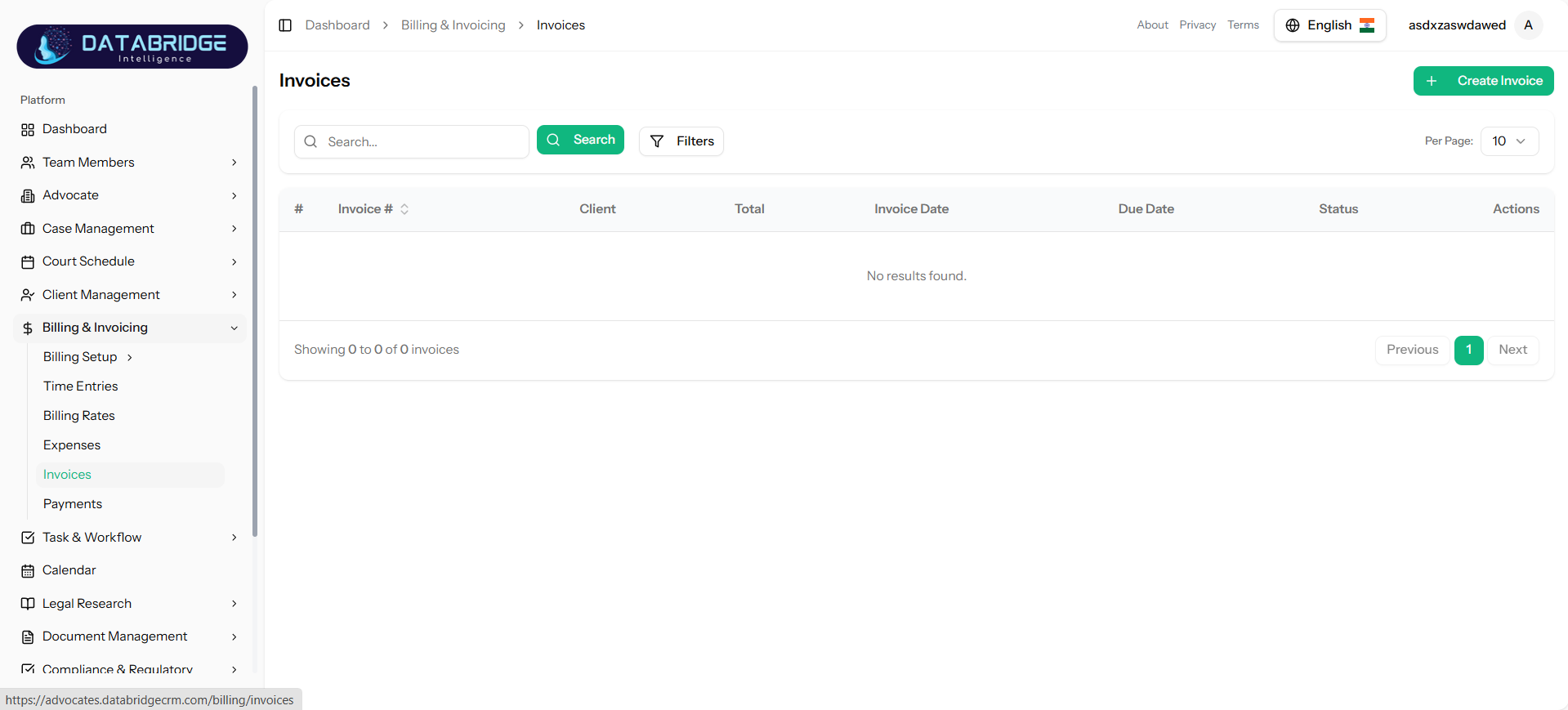
Invoices:
The Invoices screen displays all generated invoices, allowing users to track billing details, due dates, and payment status.
Key Functionalities:
-View invoice list
-Track total amount and due date
-Monitor invoice status
-Perform actions (view/edit)
The Invoices screen displays all generated invoices, allowing users to track billing details, due dates, and payment status.
Key Functionalities:
-View invoice list
-Track total amount and due date
-Monitor invoice status
-Perform actions (view/edit)
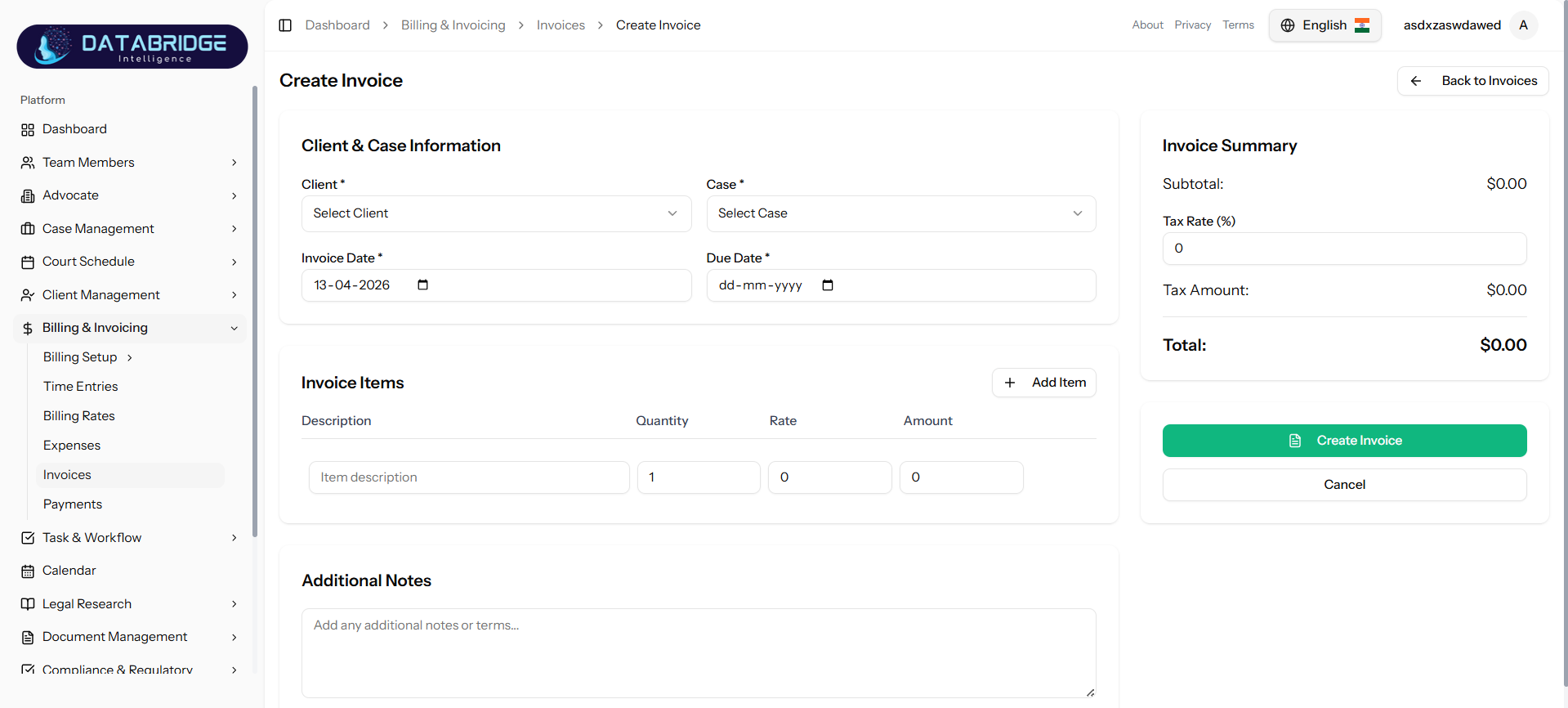
Create Invoice:
The Create Invoice screen enables users to generate invoices by combining time entries, expenses, and custom items for a selected client and case.
Key Functionalities:
-Select client and case
-Add invoice items (description, quantity, rate)
-Calculate subtotal, tax, and total
-Add additional notes
-Auto-generate invoice summary
The Create Invoice screen enables users to generate invoices by combining time entries, expenses, and custom items for a selected client and case.
Key Functionalities:
-Select client and case
-Add invoice items (description, quantity, rate)
-Calculate subtotal, tax, and total
-Add additional notes
-Auto-generate invoice summary
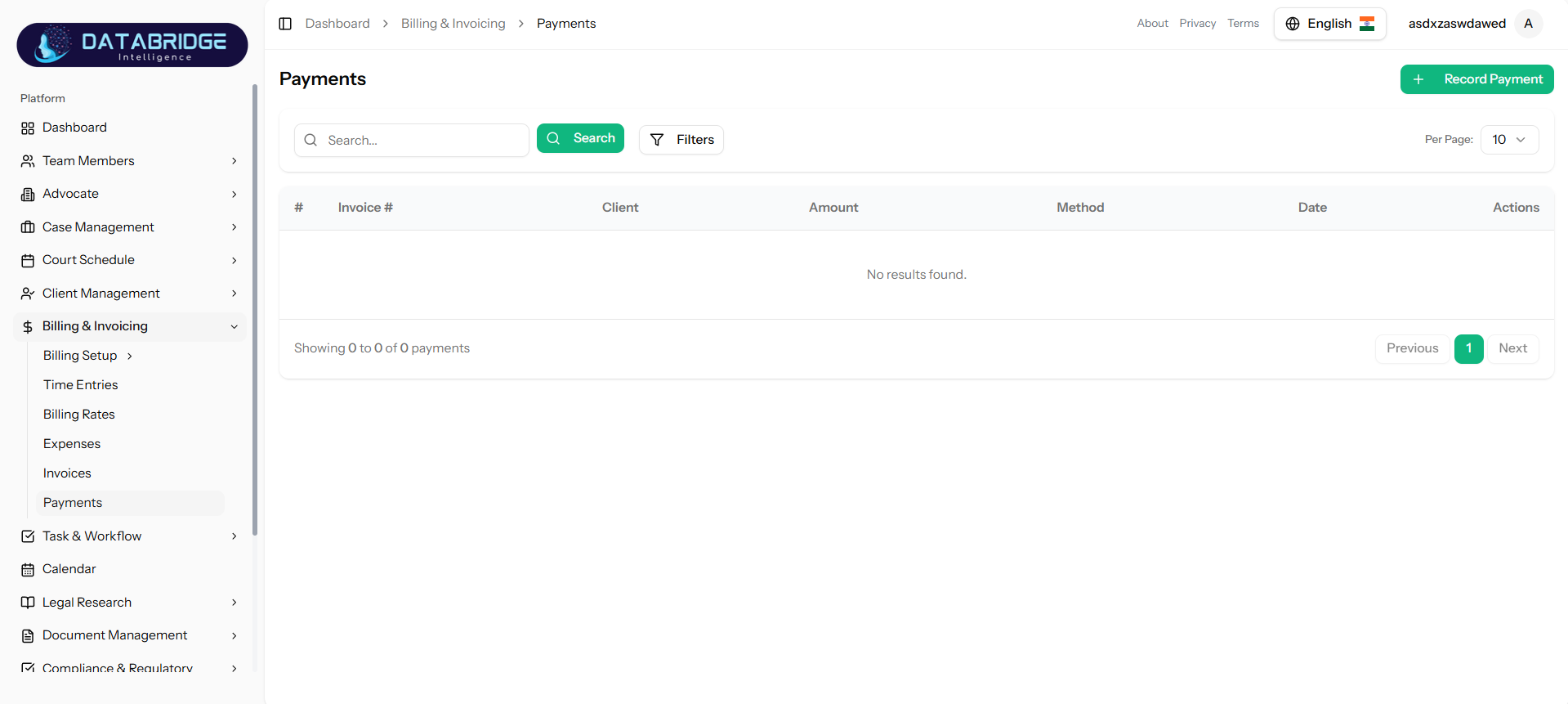
Payments:
The Payments screen tracks all payments received against invoices, providing visibility into financial transactions and outstanding balances.
Key Functionalities:
-View payment records
-Track invoice-wise payments
-Monitor payment methods and dates
The Payments screen tracks all payments received against invoices, providing visibility into financial transactions and outstanding balances.
Key Functionalities:
-View payment records
-Track invoice-wise payments
-Monitor payment methods and dates
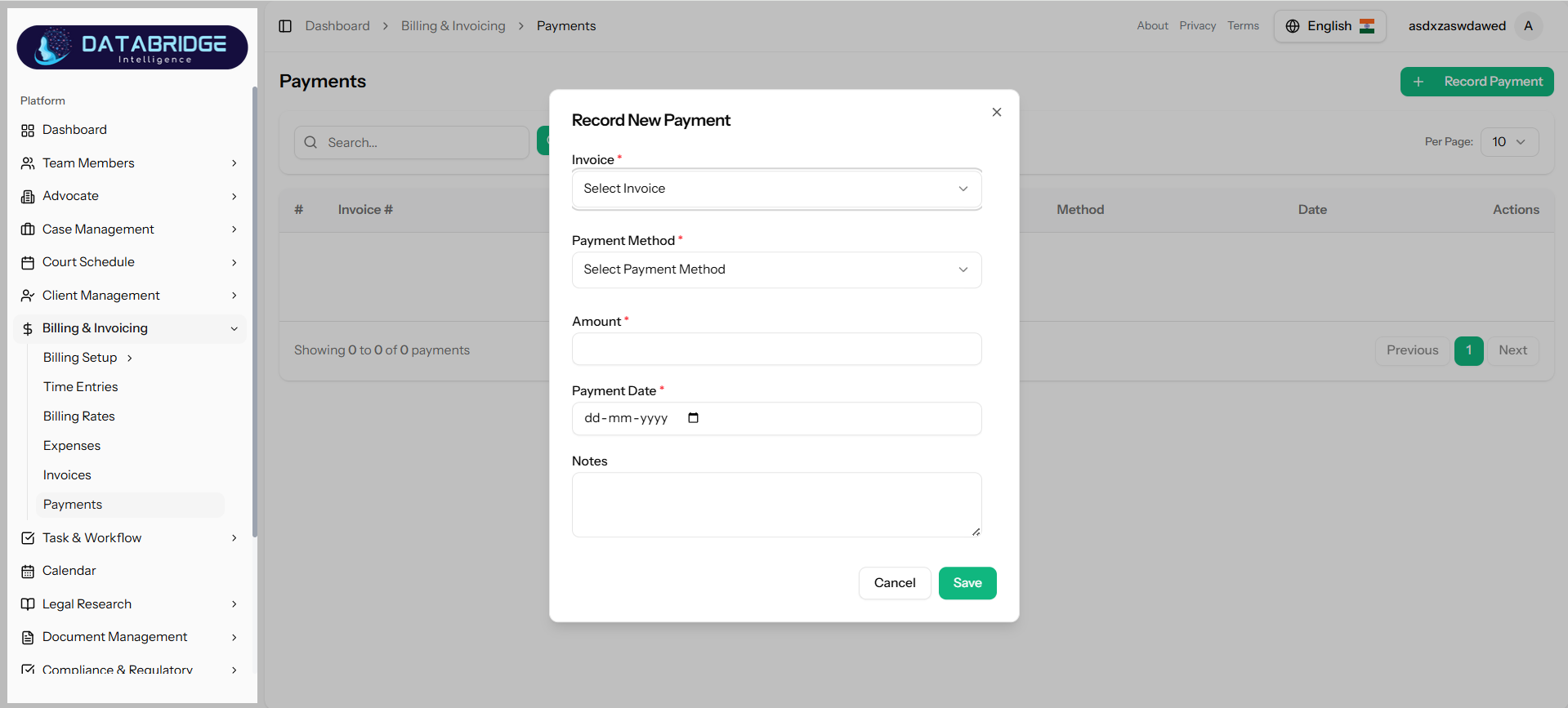
Record Payment:
This form allows users to record a new payment against an invoice, including payment method, amount, and date.
Key Functionalities:
-Select invoice
-Choose payment method
-Enter payment amount
-Set payment date
-Add notes
This form allows users to record a new payment against an invoice, including payment method, amount, and date.
Key Functionalities:
-Select invoice
-Choose payment method
-Enter payment amount
-Set payment date
-Add notes
1
Billing & Invoicing
2
Payments
3
Record Payment
Task & Workflow
The Task & Workflow module is designed to streamline and manage all task-related activities within the system. It enables users to create, assign, track, and manage tasks efficiently while ensuring smooth collaboration among team members.This module provides a structured workflow by defining task types, statuses, priorities, and timelines, allowing organizations to maintain better control over operations and ensure timely completion of work.
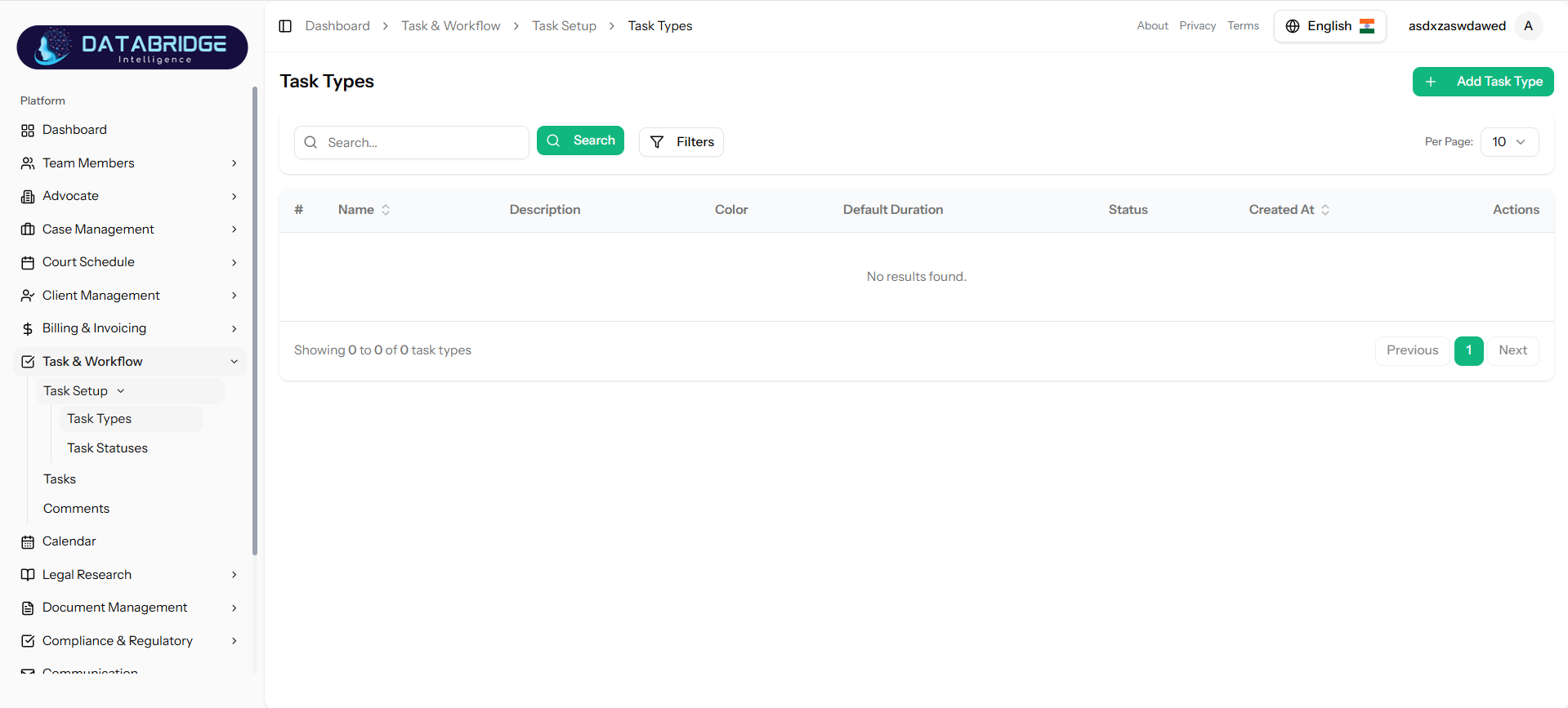
Task Types:
The Task Types screen allows administrators to define different types of tasks used across the system. These task types help categorize tasks and standardize workflow execution.
Key Functionalities:
-Create and manage task types
-Assign colors for visual identification
-Set default duration for tasks
-Activate/deactivate task types
The Task Types screen allows administrators to define different types of tasks used across the system. These task types help categorize tasks and standardize workflow execution.
Key Functionalities:
-Create and manage task types
-Assign colors for visual identification
-Set default duration for tasks
-Activate/deactivate task types
1
Task & Workflow
2
Task Setup
3
Task Types
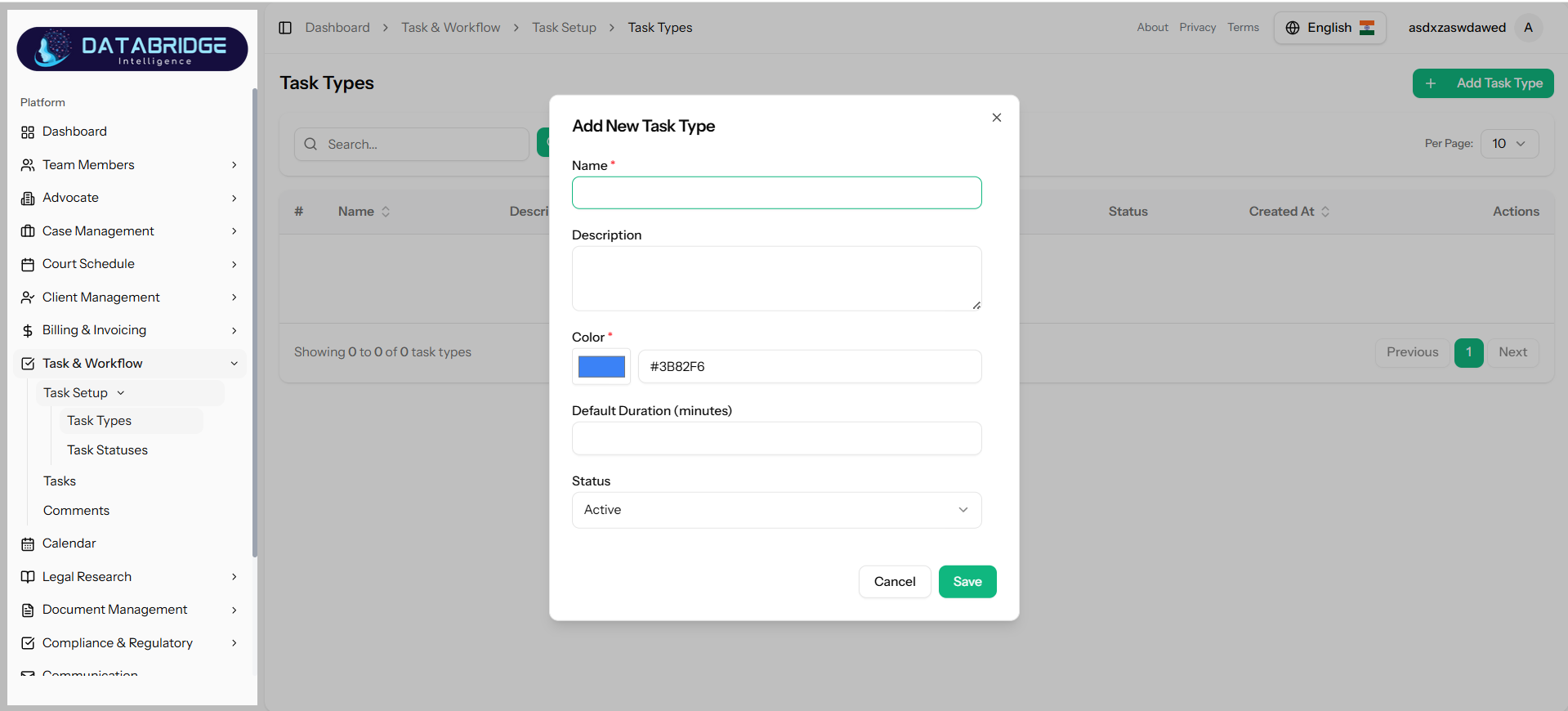
Add Task Type:
This form enables users to create a new task type by defining its name, description, color, and default duration.
Key Functionalities:
-Enter task type name
-Add description
-Select color (for UI representation)
-Define default duration (in minutes)
-Set status (Active/Inactive)
This form enables users to create a new task type by defining its name, description, color, and default duration.
Key Functionalities:
-Enter task type name
-Add description
-Select color (for UI representation)
-Define default duration (in minutes)
-Set status (Active/Inactive)
1
Task & Workflow
2
Task Setup
3
Task Types
2
Add New Task Type
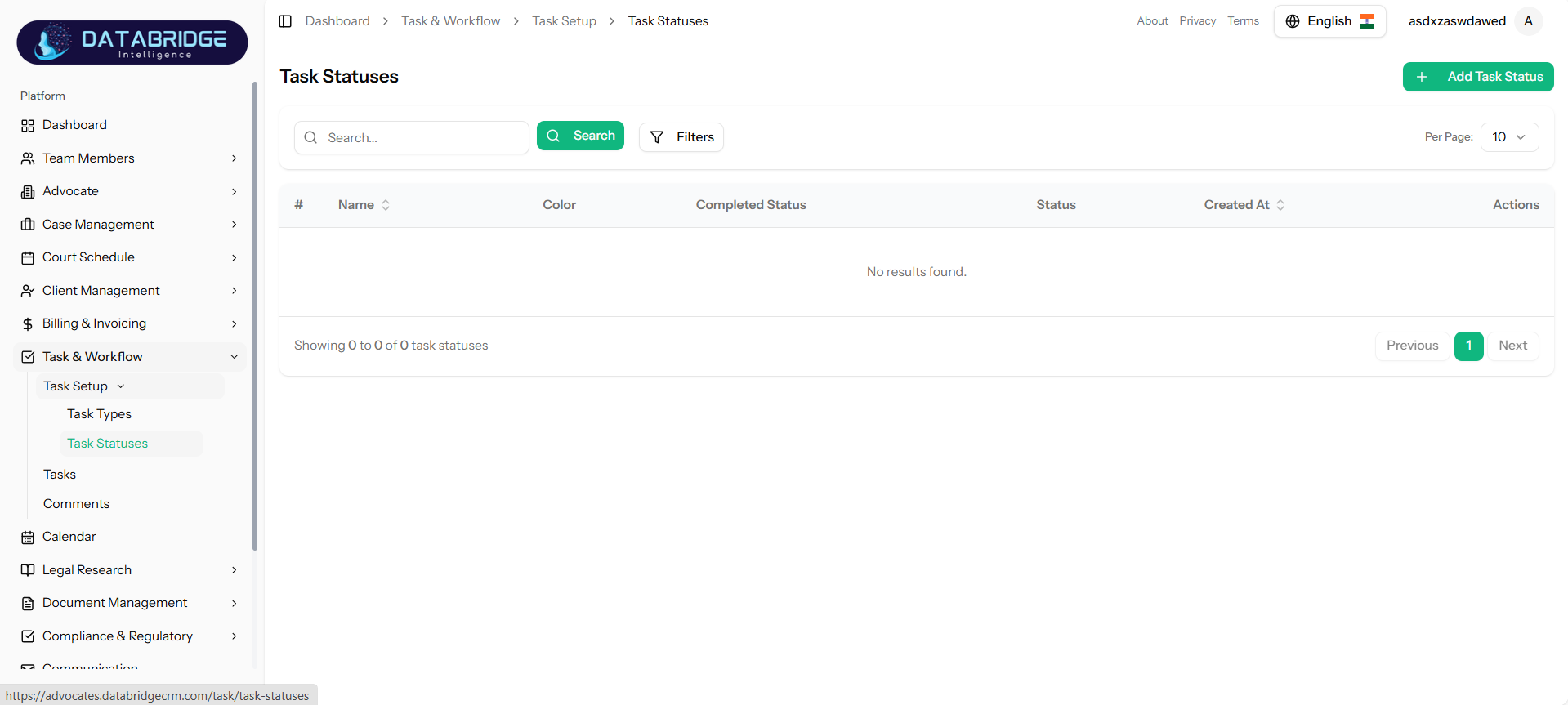
Task Statuses:
The Task Statuses screen is used to manage different statuses that represent the lifecycle of a task (e.g., Not Started, In Progress, Completed).
Key Functionalities:
-Create and manage task statuses
-Assign colors to statuses
-Mark status as completed stage
-Enable/disable statuses
The Task Statuses screen is used to manage different statuses that represent the lifecycle of a task (e.g., Not Started, In Progress, Completed).
Key Functionalities:
-Create and manage task statuses
-Assign colors to statuses
-Mark status as completed stage
-Enable/disable statuses
1
Task & Workflow
2
Task Setup
3
Task Statuses
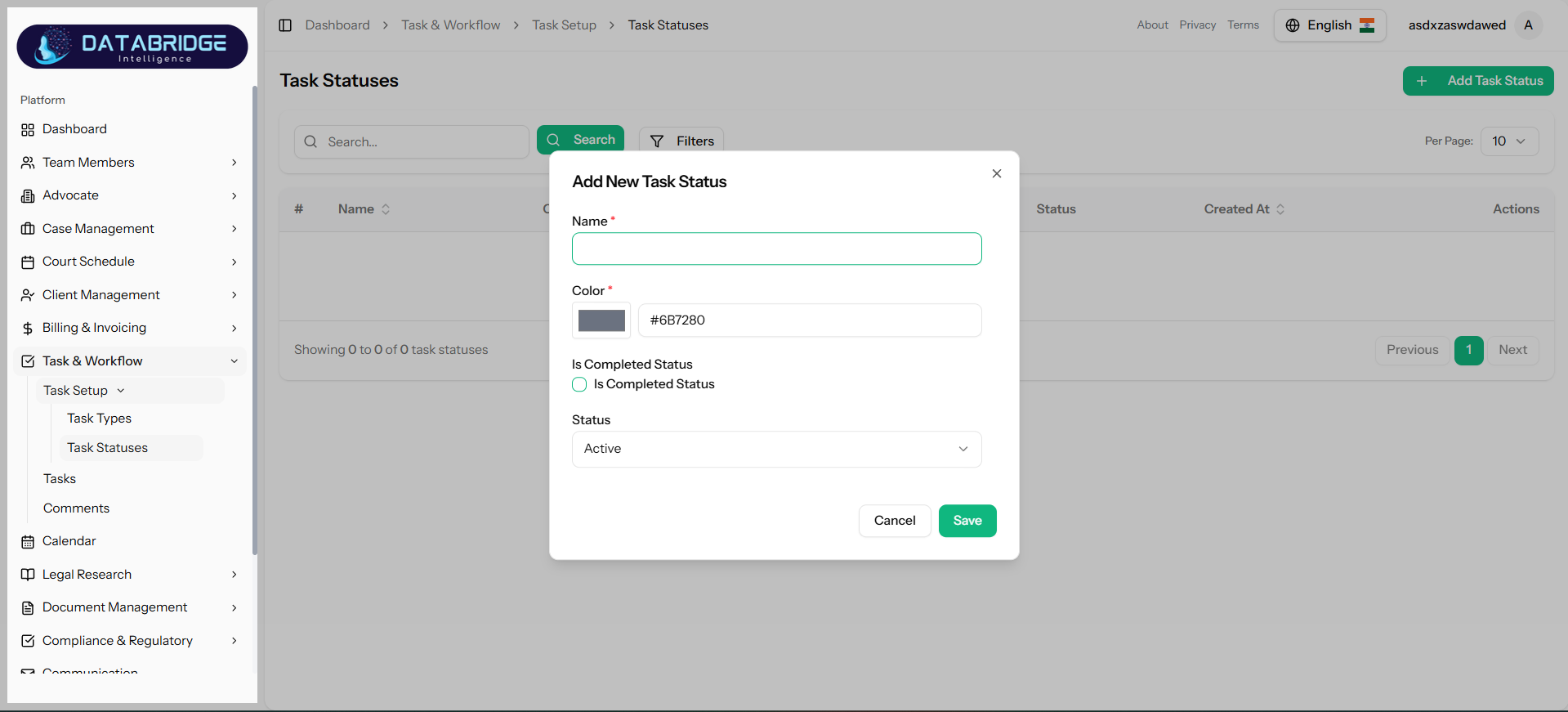
Add Task Status:
This form allows users to define new task statuses and configure whether they represent completion of a task.
Key Functionalities:
-Enter status name
-Select color
-Mark as “Completed Status”
-Set active/inactive status
This form allows users to define new task statuses and configure whether they represent completion of a task.
Key Functionalities:
-Enter status name
-Select color
-Mark as “Completed Status”
-Set active/inactive status
1
Task & Workflow
2
Task Setup
3
Task Statuses
4
Add Task Status
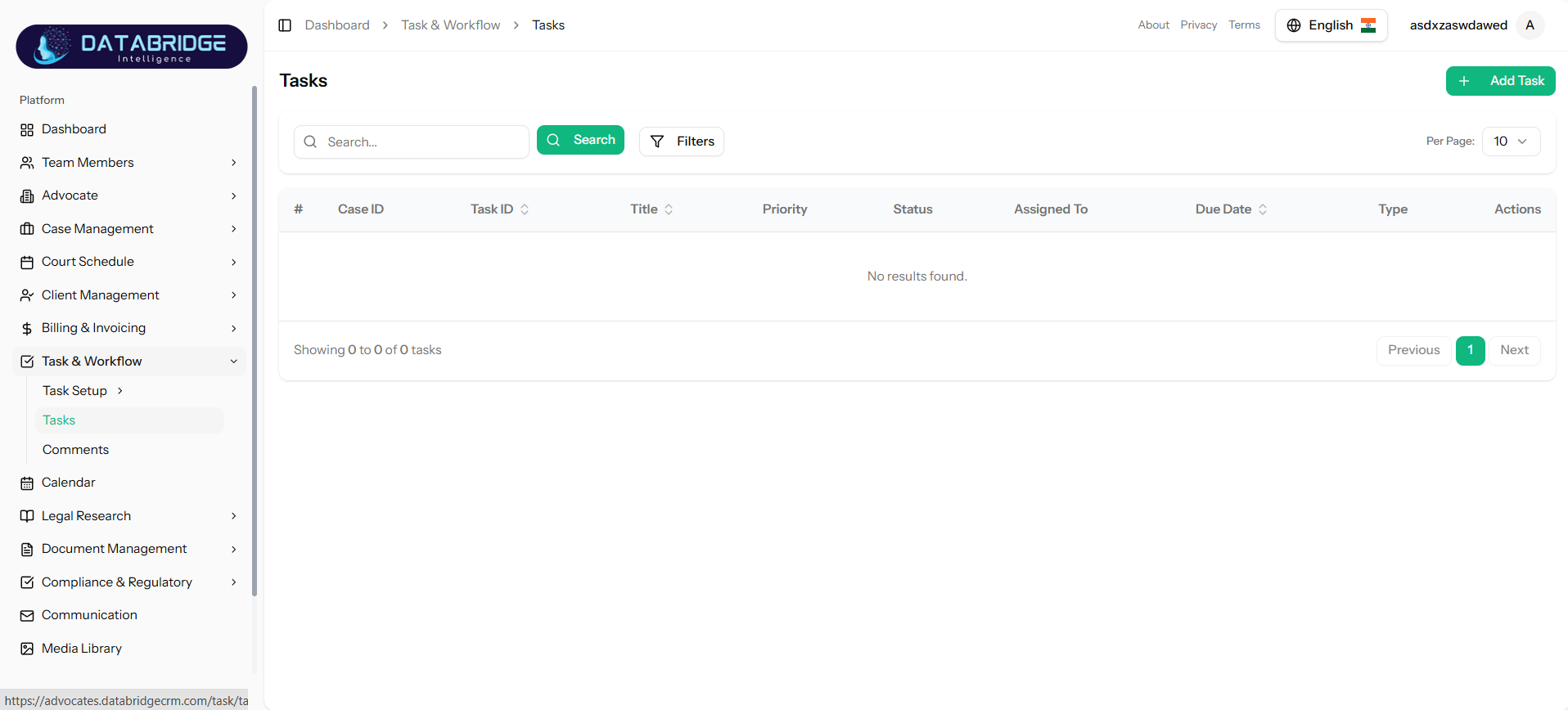
Tasks:
The Tasks screen provides a centralized view of all tasks, including their associated cases, priorities, statuses, and assignments.
Key Functionalities:
-View list of tasks
-Filter and search tasks
-Track status, priority, and due dates
-Assign tasks to team members
The Tasks screen provides a centralized view of all tasks, including their associated cases, priorities, statuses, and assignments.
Key Functionalities:
-View list of tasks
-Filter and search tasks
-Track status, priority, and due dates
-Assign tasks to team members
1
Task & Workflow
2
Tasks
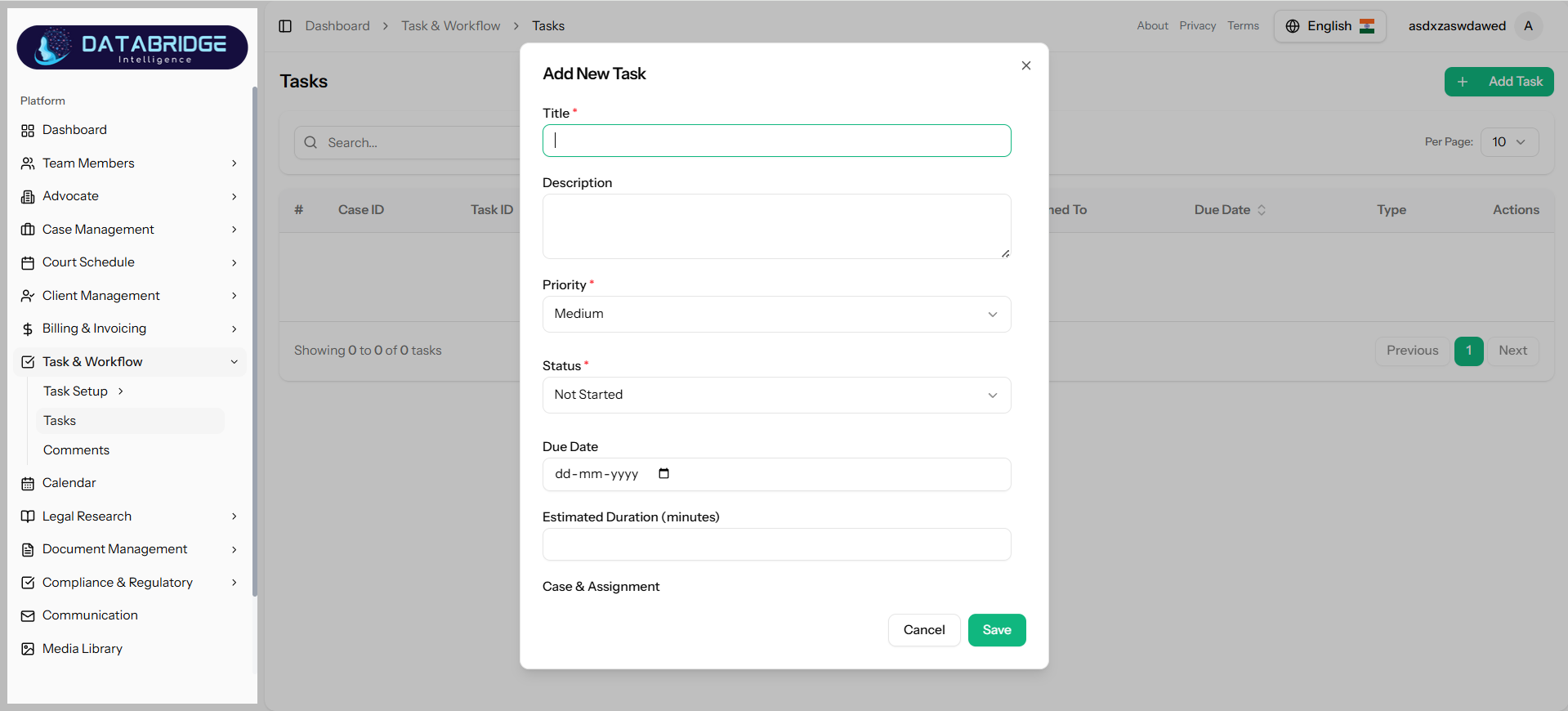
Add Task:
This form enables users to create a new task with detailed information such as title, description, priority, status, and due date.
Key Functionalities:
-Enter task title and description
-Set priority level
-Assign task status
-Define due date
-Set estimated duration
-Assign task to case/team member
This form enables users to create a new task with detailed information such as title, description, priority, status, and due date.
Key Functionalities:
-Enter task title and description
-Set priority level
-Assign task status
-Define due date
-Set estimated duration
-Assign task to case/team member
1
Task & Workflow
2
Tasks
3
Add Task
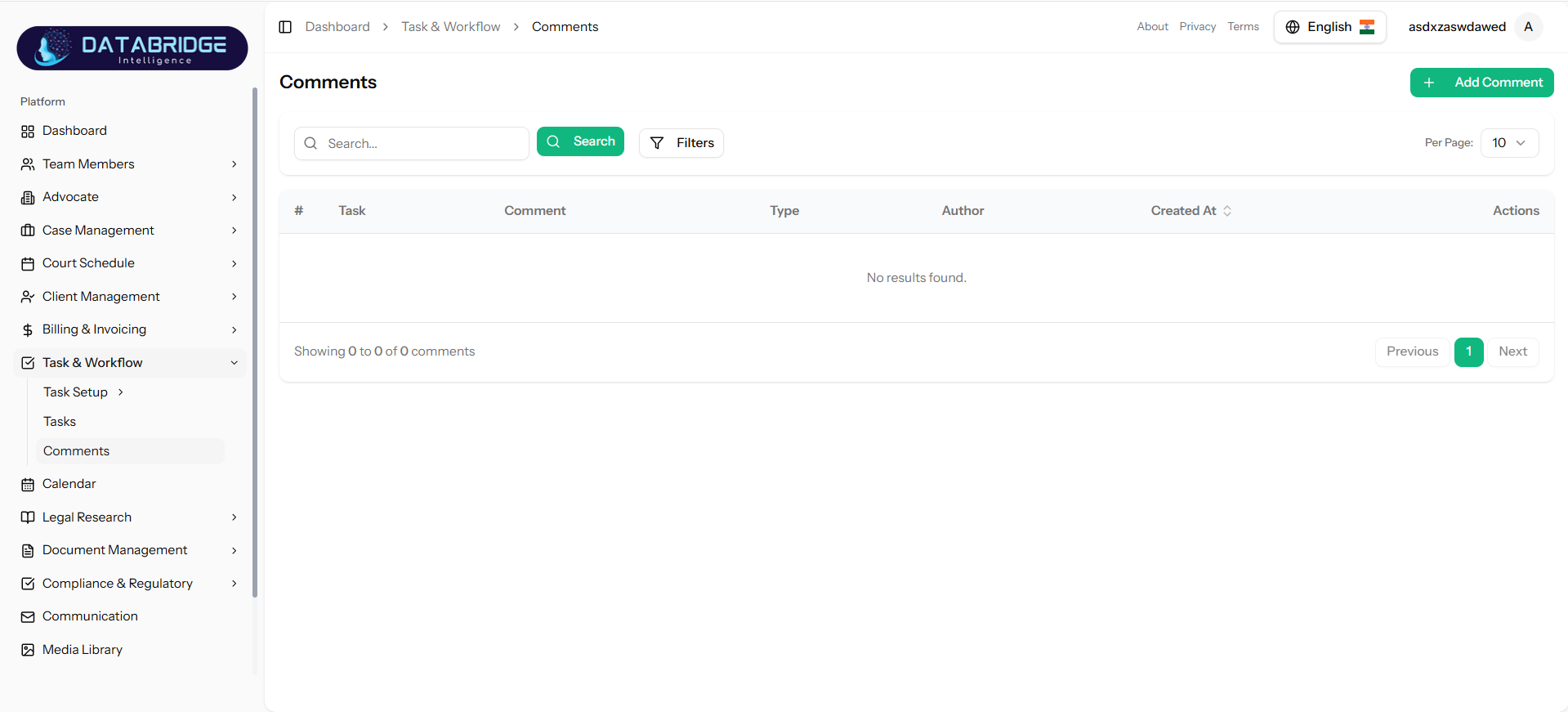
Comments:
The Comments screen allows users to view and manage comments associated with tasks, enabling better communication and collaboration.
Key Functionalities:
-View task-wise comments
-Filter and search comments
-Track author and timestamp
-Manage comment types
The Comments screen allows users to view and manage comments associated with tasks, enabling better communication and collaboration.
Key Functionalities:
-View task-wise comments
-Filter and search comments
-Track author and timestamp
-Manage comment types
1
Task & Workflow
2
Comments
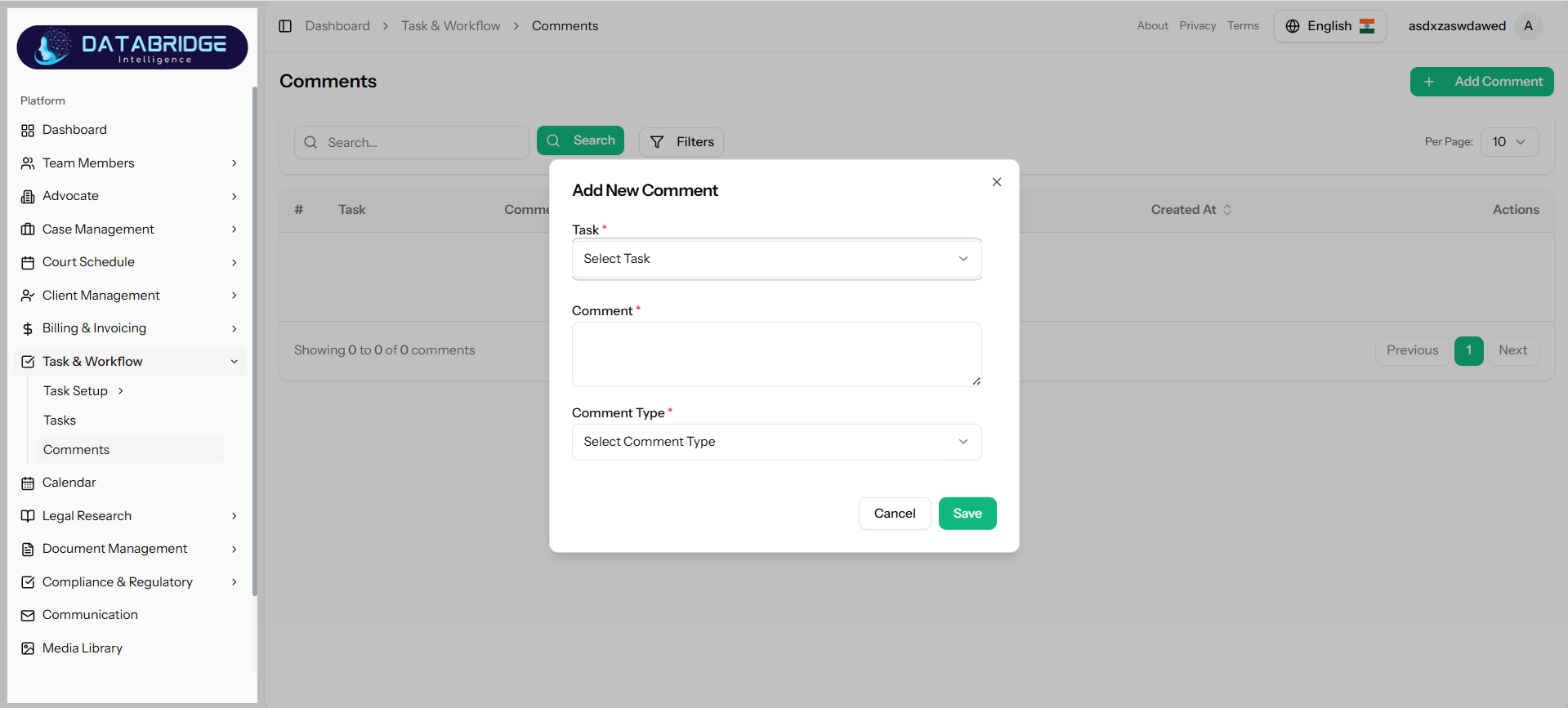
Add Comment:
This form allows users to add comments to tasks, helping teams collaborate and share updates effectively.
Key Functionalities:
-Select associated task
-Enter comment text
-Choose comment type
-Save and track comments
This form allows users to add comments to tasks, helping teams collaborate and share updates effectively.
Key Functionalities:
-Select associated task
-Enter comment text
-Choose comment type
-Save and track comments
1
Task & Workflow
2
Comments
3
Add Comment
Calendar
The Calendar module provides a centralized and visual interface for managing schedules, events, and important dates within the system. It enables users to view and track activities such as hearings, deadlines, meetings, and task timelines in an organized calendar format.
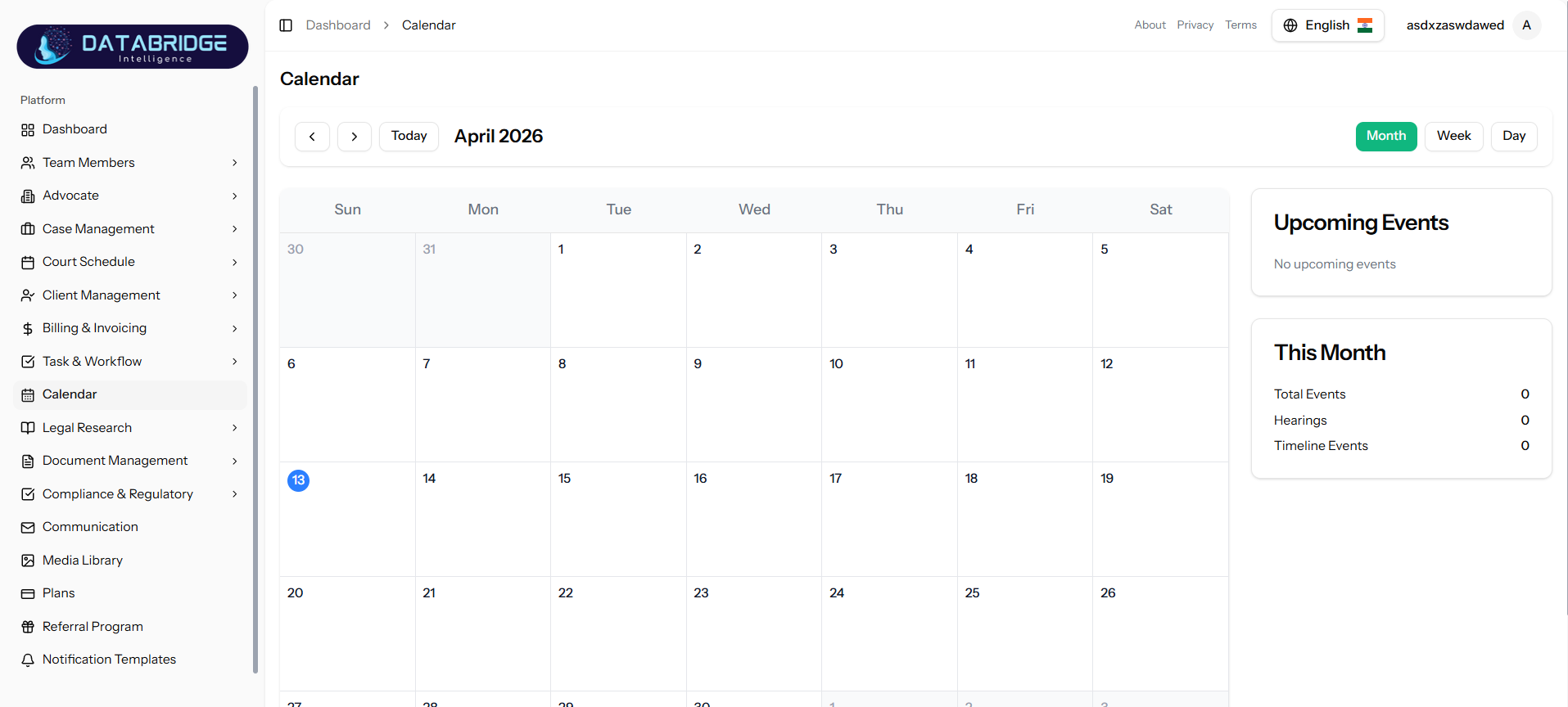
Calendar:
This module helps users plan their work efficiently by offering different calendar views (Monthly, Weekly, and Daily) along with quick navigation and event summaries.
Key Features
📅 1. Multiple Calendar Views
Month View – Overview of all events in a month
Week View – Detailed weekly schedule
Day View – Focused daily agenda
🔄 2. Easy Navigation
Navigate between months using previous/next arrows
Jump to current date using “Today” button
Smooth switching between different views
📌 3. Event Visualization
Display events directly on calendar dates
Highlight important dates
Easy identification of scheduled activities
📊 4. Upcoming Events Panel
Displays a list of upcoming scheduled events
Quick glance at near-future activities
Helps in planning priorities
📈 5. Monthly Summary Section
Shows total events for the current month
Displays categorized counts such as:
Total Events:
-Hearings
-Timeline Events
This module helps users plan their work efficiently by offering different calendar views (Monthly, Weekly, and Daily) along with quick navigation and event summaries.
Key Features
📅 1. Multiple Calendar Views
Month View – Overview of all events in a month
Week View – Detailed weekly schedule
Day View – Focused daily agenda
🔄 2. Easy Navigation
Navigate between months using previous/next arrows
Jump to current date using “Today” button
Smooth switching between different views
📌 3. Event Visualization
Display events directly on calendar dates
Highlight important dates
Easy identification of scheduled activities
📊 4. Upcoming Events Panel
Displays a list of upcoming scheduled events
Quick glance at near-future activities
Helps in planning priorities
📈 5. Monthly Summary Section
Shows total events for the current month
Displays categorized counts such as:
Total Events:
-Hearings
-Timeline Events
1
Dashboard
2
Calendar
Legal Research
The Legal Research module is a comprehensive system designed to manage, organize, and streamline all research-related activities within the platform. It enables users to categorize legal research, manage sources, track research projects, and maintain a structured knowledge base for efficient case preparation and decision-making.
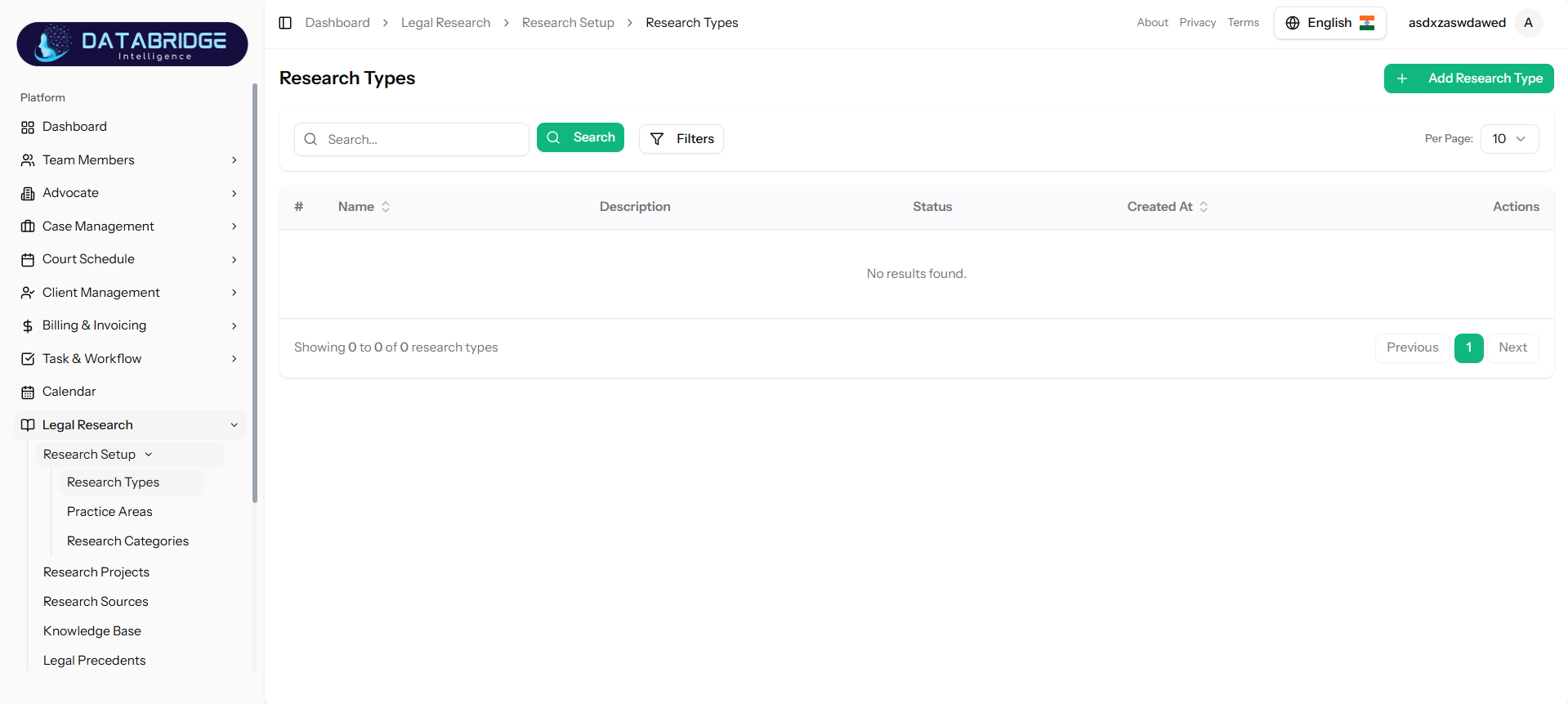
Research Types:
The Research Types screen allows users to define and manage different types of legal research within the system. It acts as a foundational layer for organizing research activities by categorizing them into meaningful types such as Case Law Research, Statutory Research, Compliance Research, etc.
Features:
-Add new research types
-View list of all research types
-Search and filter functionality
-Status management (Active/Inactive)
Pagination support
-Clean tabular structure (Name, Description, Status, Created Date)
The Research Types screen allows users to define and manage different types of legal research within the system. It acts as a foundational layer for organizing research activities by categorizing them into meaningful types such as Case Law Research, Statutory Research, Compliance Research, etc.
Features:
-Add new research types
-View list of all research types
-Search and filter functionality
-Status management (Active/Inactive)
Pagination support
-Clean tabular structure (Name, Description, Status, Created Date)
1
Legal Research
2
Research Setup
3
Research type
Add Research:
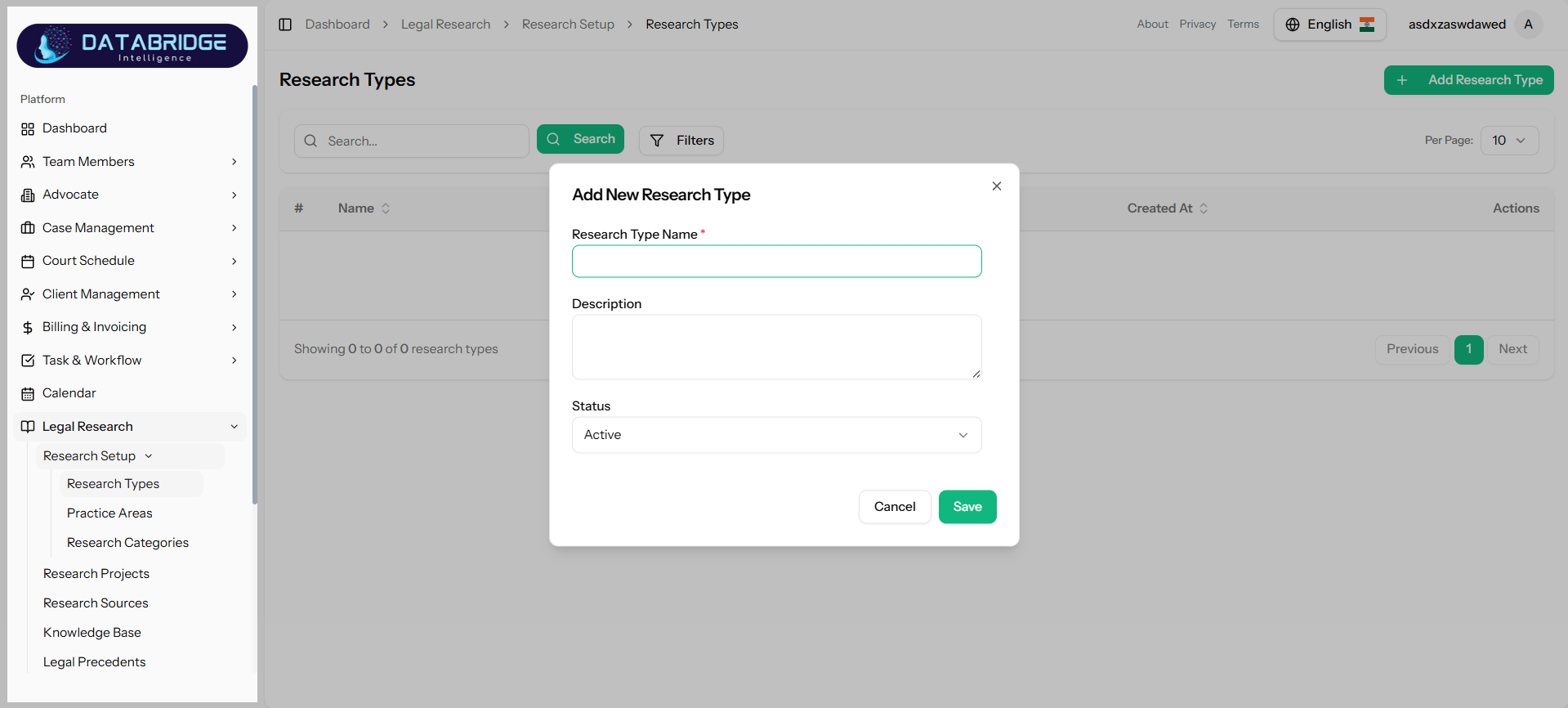
This modal enables users to create a new research type by entering essential details.
Features:
-Input field for Research Type Name (required)
-Description field
-Status dropdown (Active/Inactive)
-Form validation
-Save & Cancel actions
This modal enables users to create a new research type by entering essential details.
Features:
-Input field for Research Type Name (required)
-Description field
-Status dropdown (Active/Inactive)
-Form validation
-Save & Cancel actions
1
Legal Research
2
Research Setup
3
Research type
4
Add Research type
Practice Areas:
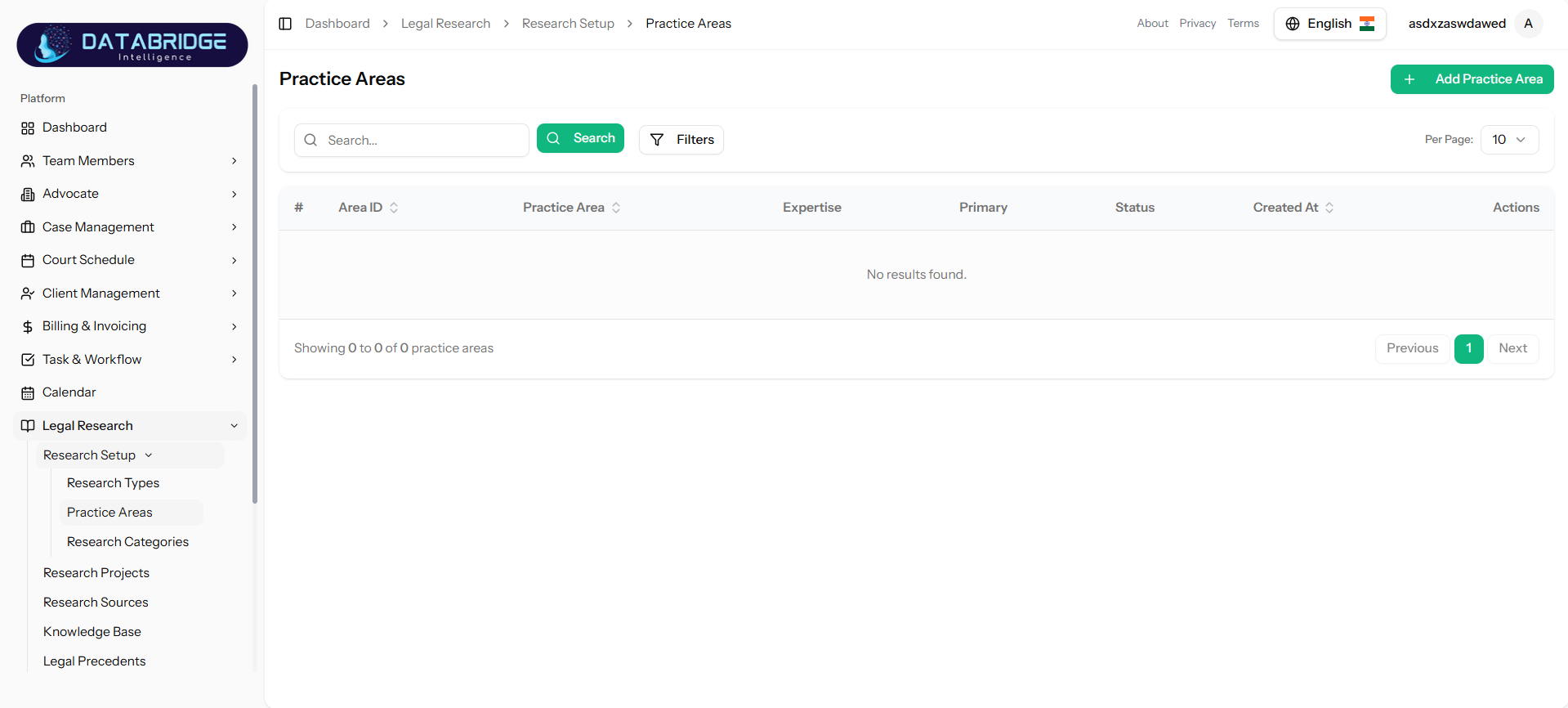
The Practice Areas screen is used to manage different legal domains such as Criminal Law, Corporate Law, Civil Law, etc. It helps in categorizing research and cases based on legal expertise.
Features:
-Add new practice areas
-View all practice areas in table format
-Search and filter options
-Expertise level tracking
-Primary practice area selection
-Status control
-Pagination
The Practice Areas screen is used to manage different legal domains such as Criminal Law, Corporate Law, Civil Law, etc. It helps in categorizing research and cases based on legal expertise.
Features:
-Add new practice areas
-View all practice areas in table format
-Search and filter options
-Expertise level tracking
-Primary practice area selection
-Status control
-Pagination
1
Legal Research
2
Research Setup
3
Practice Area
Add Practice Area:
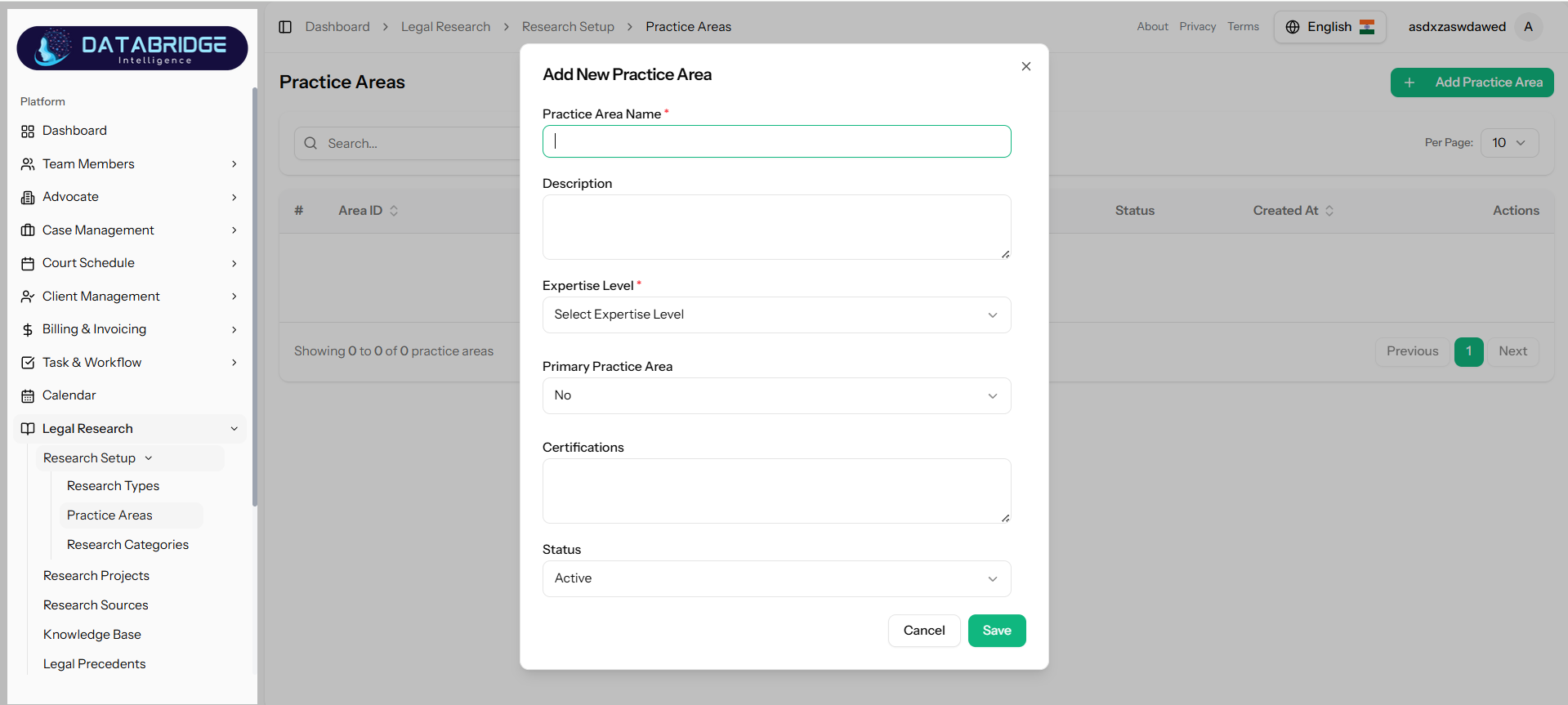
This modal allows users to define a new practice area along with expertise level and additional attributes.
Features:
-Practice Area Name (required)
-Description field
-Expertise Level dropdown
-Primary Practice Area toggle (Yes/No)
-Certifications input
-Status selection
-Save/Cancel actions
This modal allows users to define a new practice area along with expertise level and additional attributes.
Features:
-Practice Area Name (required)
-Description field
-Expertise Level dropdown
-Primary Practice Area toggle (Yes/No)
-Certifications input
-Status selection
-Save/Cancel actions
1
Legal Research
2
Research Setup
3
Practice Area
4
Add Practice Area
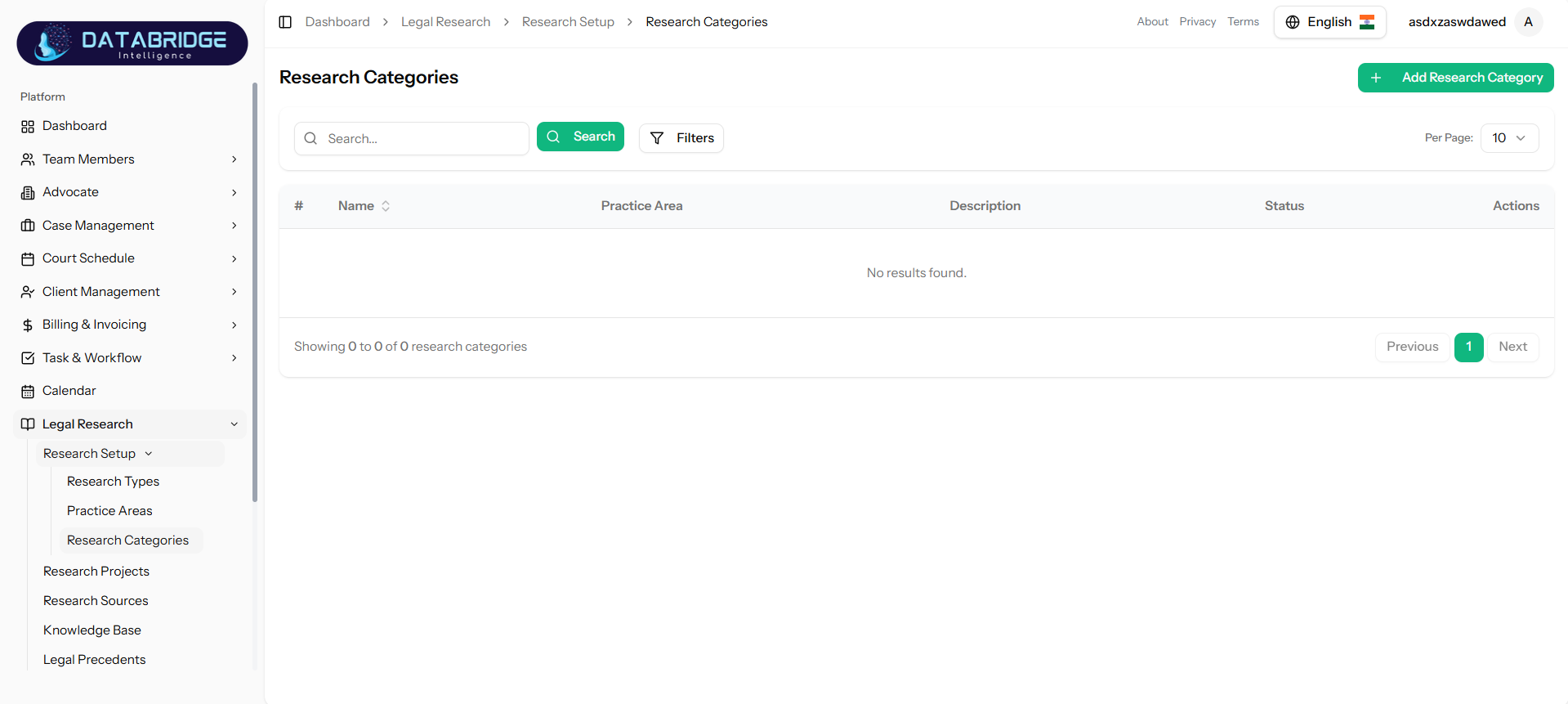
Research Categories:
The Research Categories screen helps in further classification of research within specific practice areas. It enables users to organize research into more granular segments.
Features:
-Add new research category
-Link category to Practice Area
-Search and filter functionality
-Status management
-Pagination
-Tabular data display
The Research Categories screen helps in further classification of research within specific practice areas. It enables users to organize research into more granular segments.
Features:
-Add new research category
-Link category to Practice Area
-Search and filter functionality
-Status management
-Pagination
-Tabular data display
1
Legal Research
2
Research Setup
3
Research Categories
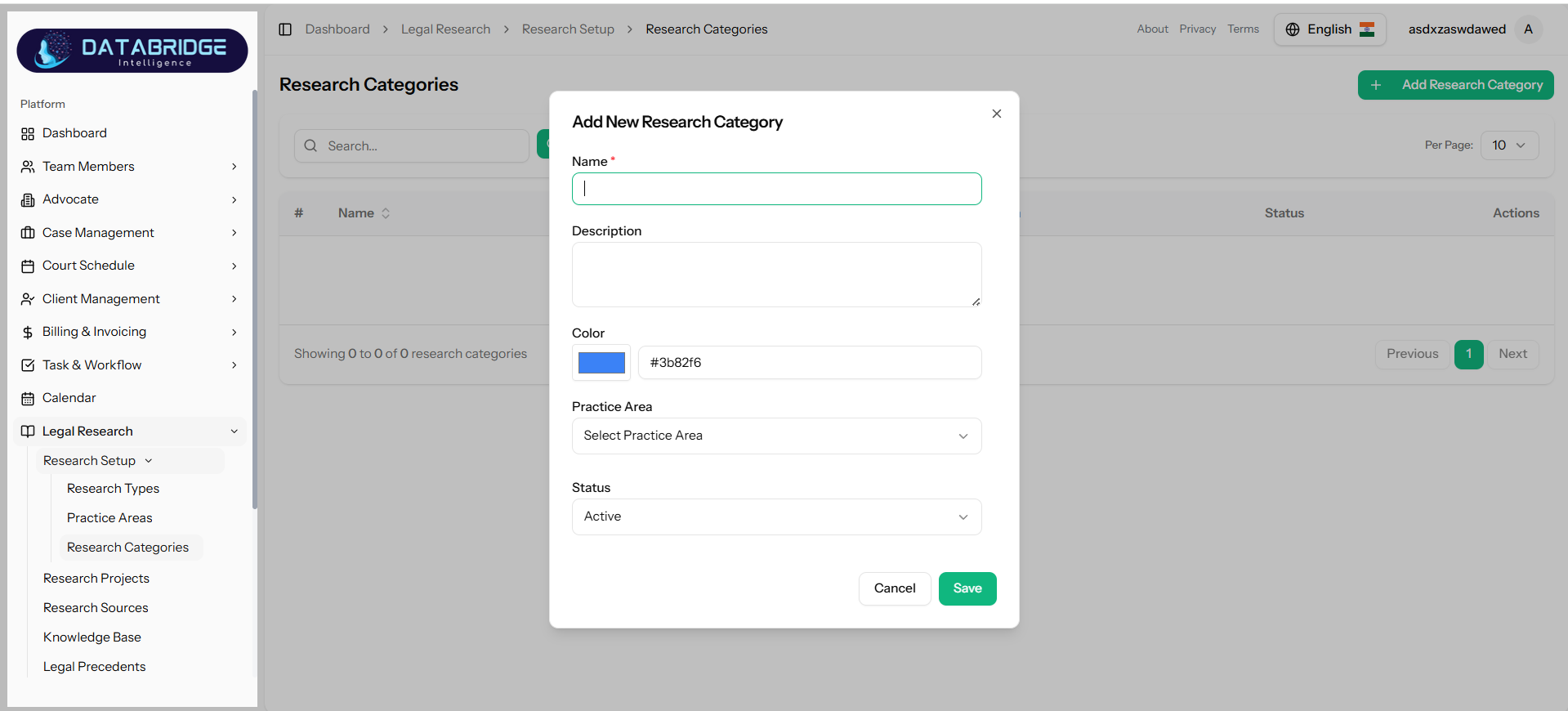
Add Research Category:
This modal is used to create a new research category and assign it to a specific practice area.
Features:
-Category Name (required)
-Description field
-Color picker for category tagging
-Practice Area selection dropdown
-Status dropdown
-Save/Cancel actions
This modal is used to create a new research category and assign it to a specific practice area.
Features:
-Category Name (required)
-Description field
-Color picker for category tagging
-Practice Area selection dropdown
-Status dropdown
-Save/Cancel actions
1
Legal Research
2
Research Setup
3
Research Categories
4
Add Research Categories
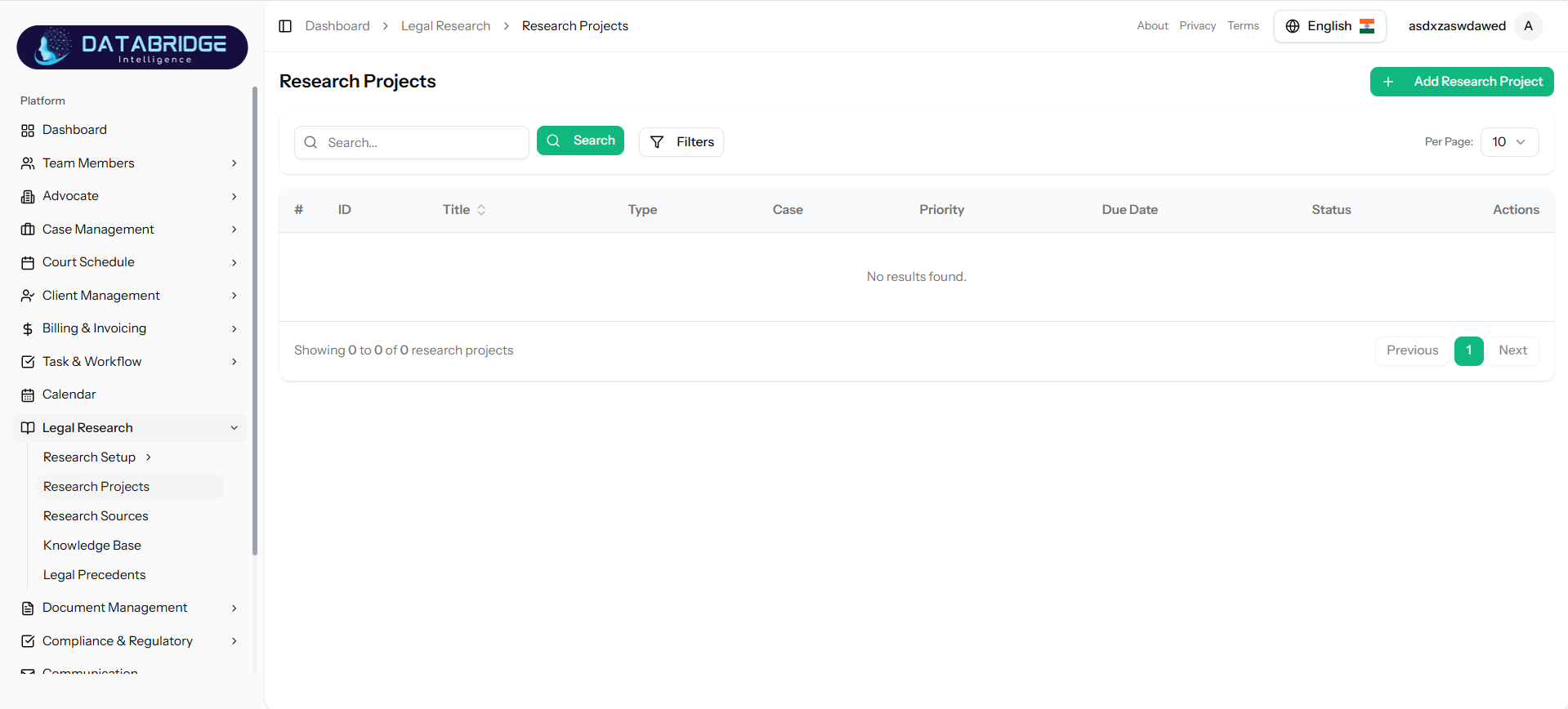
Research Projects:
The Research Projects screen is used to manage and track all legal research assignments. It allows users to create, organize, and monitor research work linked to specific cases, ensuring structured execution and timely completion.
Features:
-Add new research project
-View all research projects in tabular format
-Search and filter functionality
-Case association with research
-Priority management (Low, Medium, High)
-Due date tracking
-Status tracking
-Pagination support
The Research Projects screen is used to manage and track all legal research assignments. It allows users to create, organize, and monitor research work linked to specific cases, ensuring structured execution and timely completion.
Features:
-Add new research project
-View all research projects in tabular format
-Search and filter functionality
-Case association with research
-Priority management (Low, Medium, High)
-Due date tracking
-Status tracking
-Pagination support
1
Legal Research
2
Research Projects
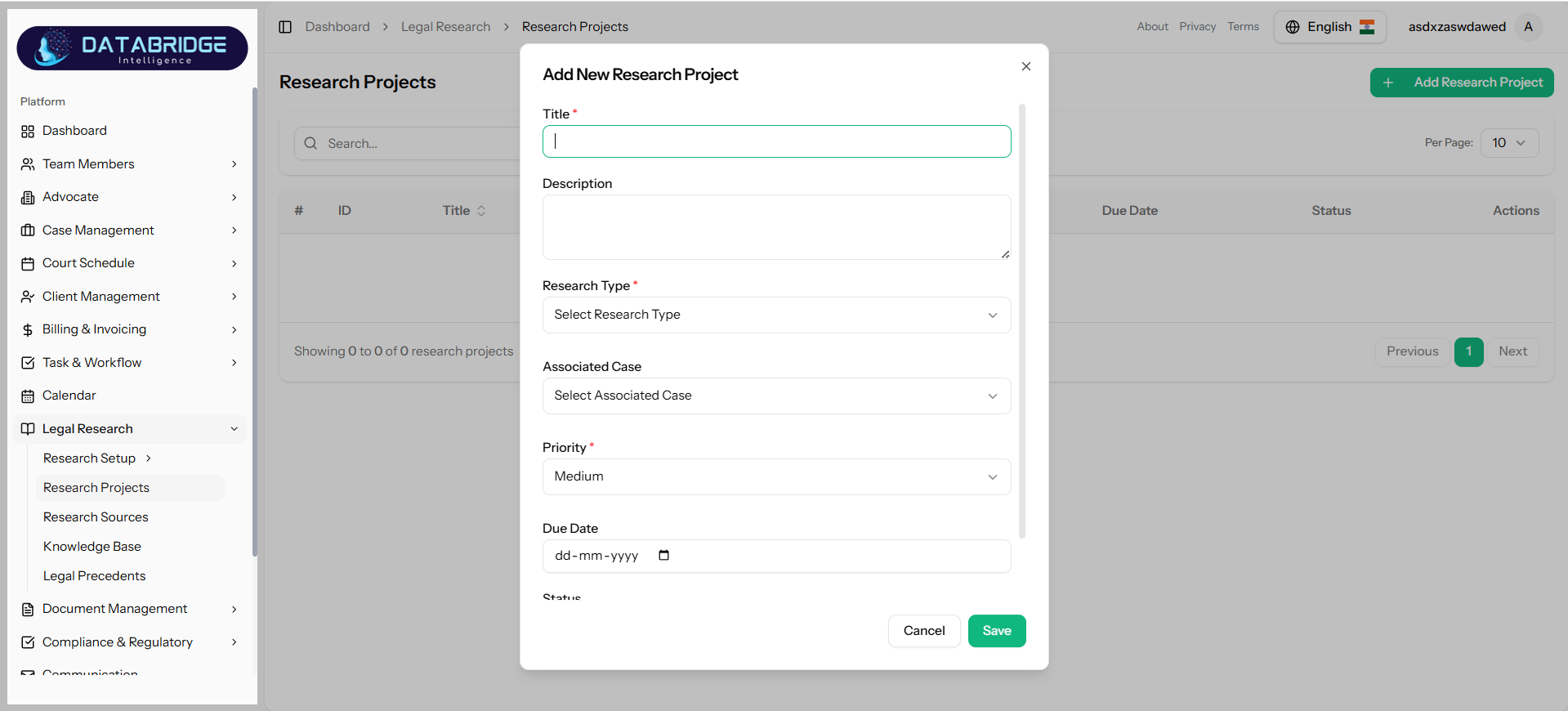
Add Research Project:
This modal allows users to create a new research project and assign it to a specific case with defined priority and timeline.
Features:
-Title (required)
-Description field
-Research Type dropdown
-Associated Case selection
-Priority selection
-Due Date picker
-Status selection
-Save/Cancel actions
This modal allows users to create a new research project and assign it to a specific case with defined priority and timeline.
Features:
-Title (required)
-Description field
-Research Type dropdown
-Associated Case selection
-Priority selection
-Due Date picker
-Status selection
-Save/Cancel actions
1
Legal Research
2
Research Projects
3
Add Research Projects
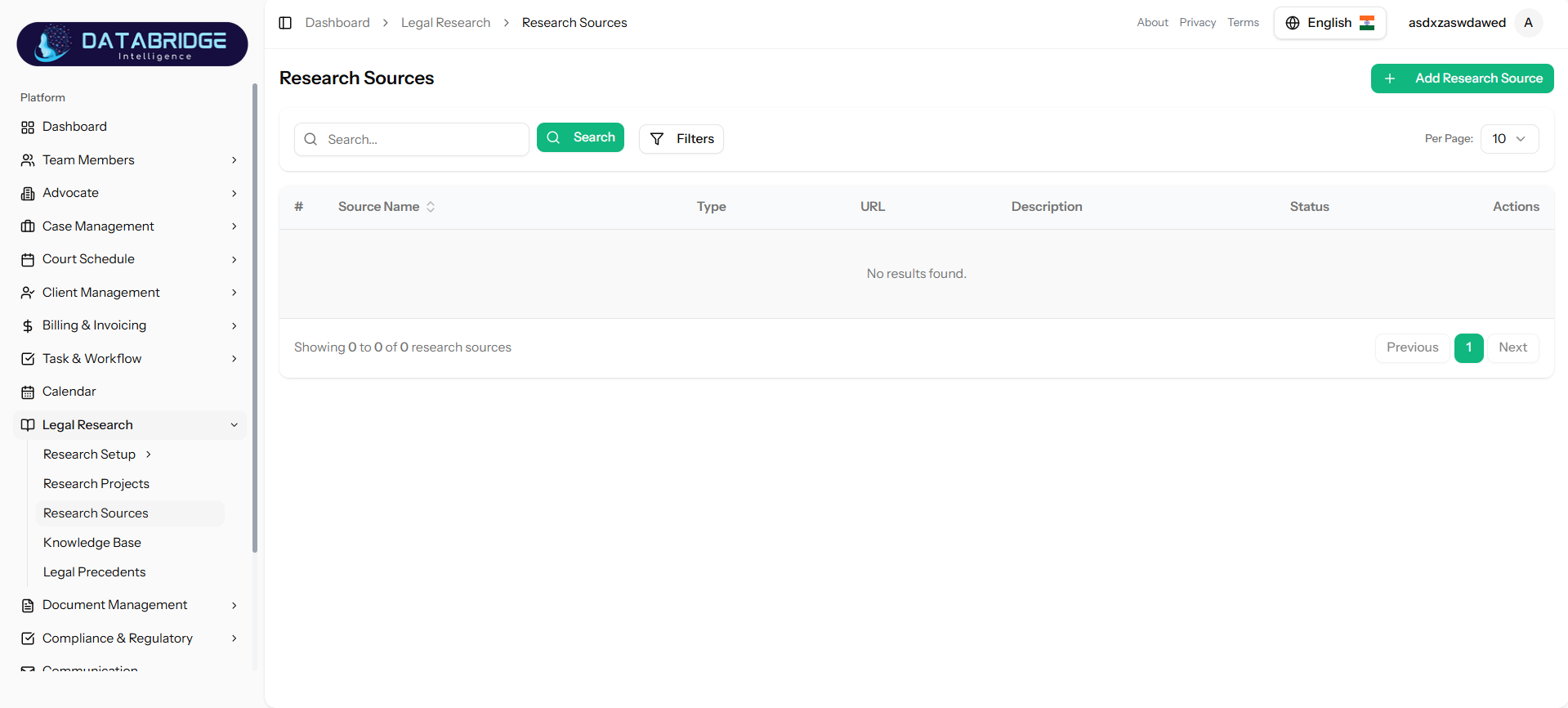
Research Sources:
The Research Sources screen manages all sources used for legal research such as websites, journals, legal databases, or internal documents. It ensures that all references are centralized and easily accessible.
Features:
-Add new research source
-View sources in table format
-Search and filter options
-Source type classification
-URL management
-Status tracking
-Pagination
The Research Sources screen manages all sources used for legal research such as websites, journals, legal databases, or internal documents. It ensures that all references are centralized and easily accessible.
Features:
-Add new research source
-View sources in table format
-Search and filter options
-Source type classification
-URL management
-Status tracking
-Pagination
1
Legal Research
2
Research Sources
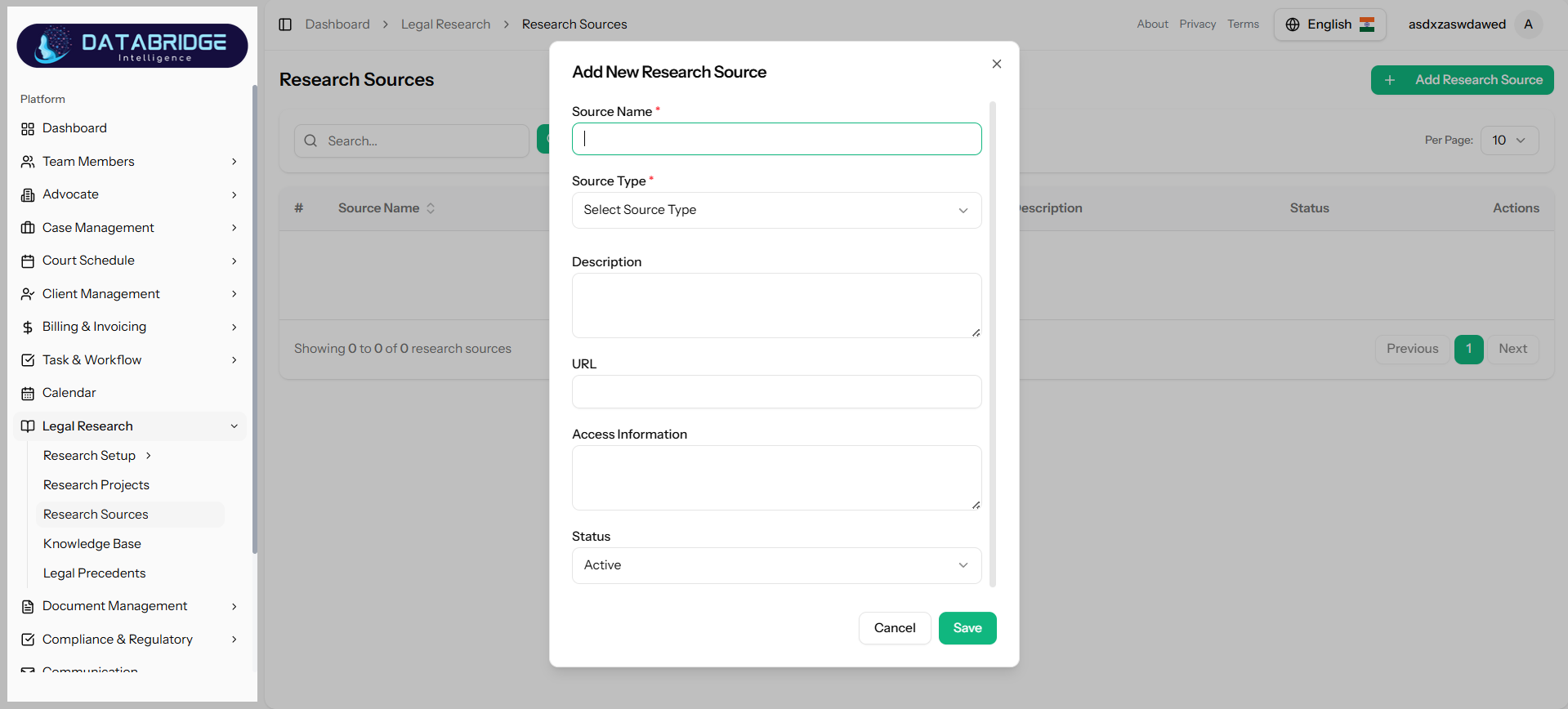
Add Research Source:
This modal allows users to add and manage research sources with details like type, URL, and access information.
Features:
-Source Name (required)
-Source Type dropdown
-Description field
-URL field
-Access Information field
-Status selection
-Save/Cancel actions
This modal allows users to add and manage research sources with details like type, URL, and access information.
Features:
-Source Name (required)
-Source Type dropdown
-Description field
-URL field
-Access Information field
-Status selection
-Save/Cancel actions
1
Legal Research
2
Research Sources
3
Add Research Sources
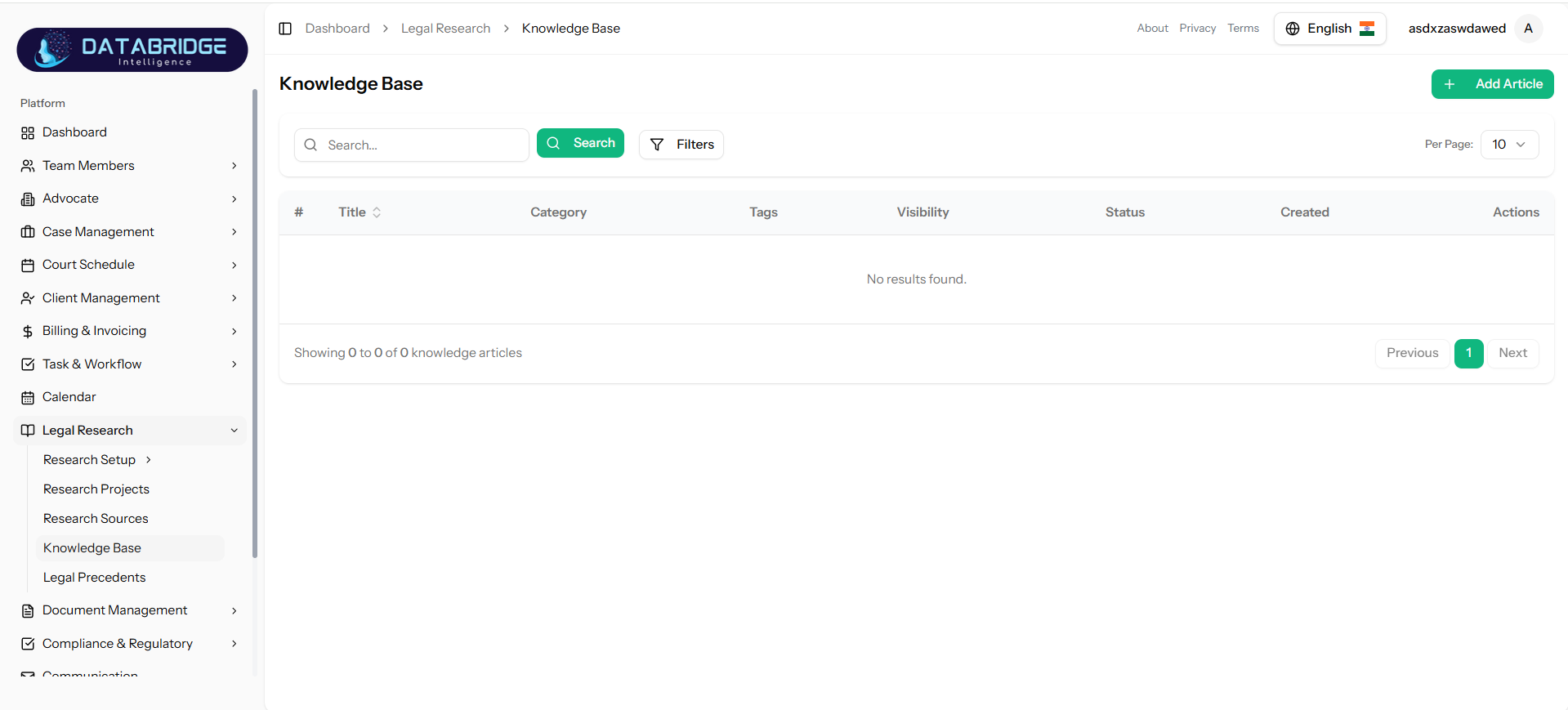
Knowledge Base:
The Knowledge Base is a centralized repository of legal articles, notes, and research insights. It helps users store and reuse knowledge for faster legal research and decision-making.
Features:
-Add new knowledge article
-View articles in table format
-Categorization of articles
-Tagging system
-Visibility control (Public/Private)
-Status management (Draft/Published)
-Search and filters
-Pagination
The Knowledge Base is a centralized repository of legal articles, notes, and research insights. It helps users store and reuse knowledge for faster legal research and decision-making.
Features:
-Add new knowledge article
-View articles in table format
-Categorization of articles
-Tagging system
-Visibility control (Public/Private)
-Status management (Draft/Published)
-Search and filters
-Pagination
1
Legal Research
2
Knowledge Base
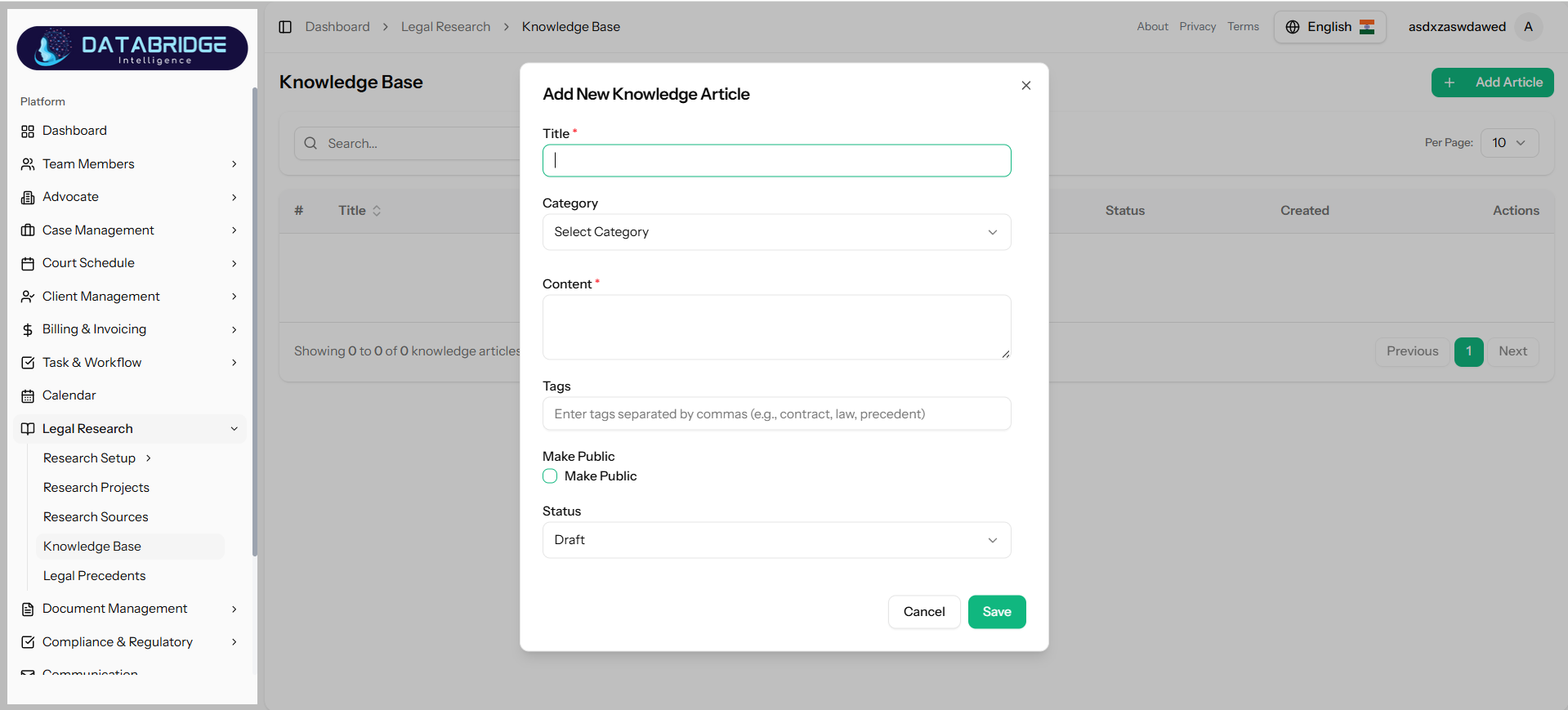
Add Knowledge Article:
This modal enables users to create and manage knowledge articles with structured content and tagging.
Features:
-Title (required)
-Category selection
-Content editor (main article body)
-Tags input (comma-separated)
-Public visibility toggle
-Status (Draft/Published)
-Save/Cancel
This modal enables users to create and manage knowledge articles with structured content and tagging.
Features:
-Title (required)
-Category selection
-Content editor (main article body)
-Tags input (comma-separated)
-Public visibility toggle
-Status (Draft/Published)
-Save/Cancel
1
Legal Research
2
Knowledge Base
3
Add Article
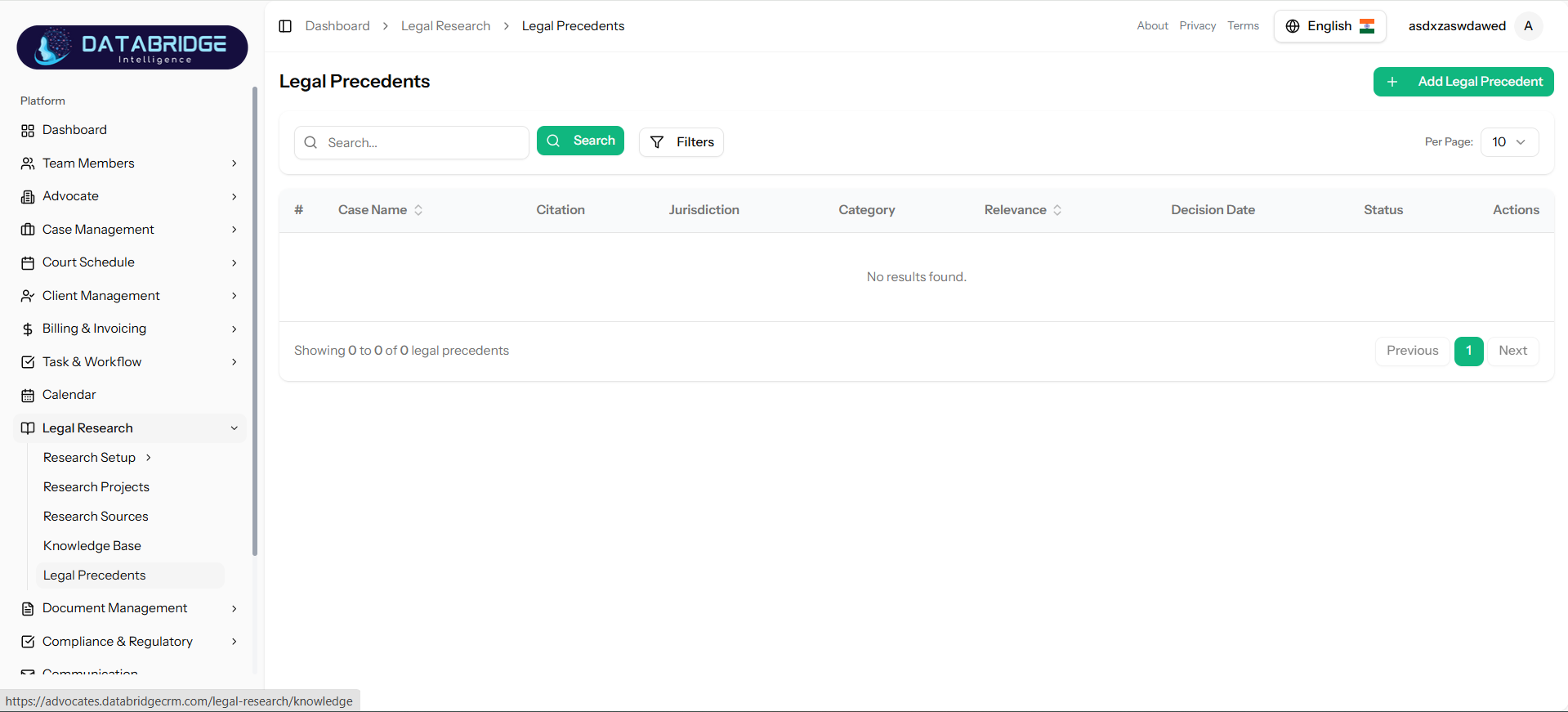
Legal Precedents:
The Legal Precedents screen stores past case laws and judgments that can be referenced in ongoing cases. It helps legal professionals quickly access relevant precedents for decision-making.
Features:
-Add new legal precedent
-View precedents in tabular format
-Search and filter functionality
-Categorization of precedents
-Relevance scoring
-Decision date tracking
-Status management
-Pagination
The Legal Precedents screen stores past case laws and judgments that can be referenced in ongoing cases. It helps legal professionals quickly access relevant precedents for decision-making.
Features:
-Add new legal precedent
-View precedents in tabular format
-Search and filter functionality
-Categorization of precedents
-Relevance scoring
-Decision date tracking
-Status management
-Pagination
1
Legal Research
2
Legal Precedents
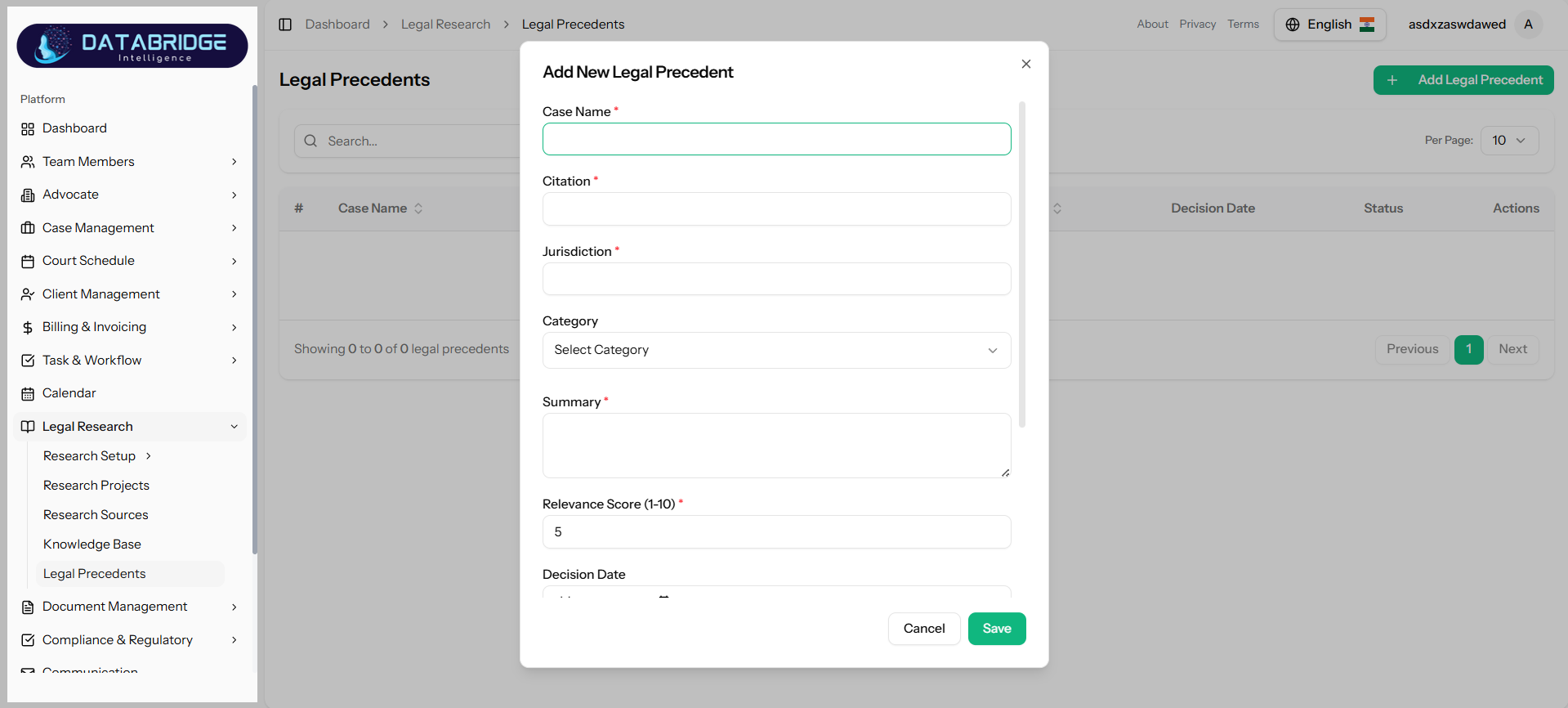
Add Legal Precedent:
This modal allows users to add detailed information about a legal precedent, including citation, jurisdiction, and relevance.
Features:
-Case Name (required)
-Citation (required)
-Jurisdiction (required)
-Category selection
-Summary field
-Relevance Score (1–10)
-Decision Date picker
-Save/Cancel
This modal allows users to add detailed information about a legal precedent, including citation, jurisdiction, and relevance.
Features:
-Case Name (required)
-Citation (required)
-Jurisdiction (required)
-Category selection
-Summary field
-Relevance Score (1–10)
-Decision Date picker
-Save/Cancel
1
Legal Research
2
Legal Precedents
3
Add Legal Precedent
Document Management
The Document Management module enables users to efficiently store, organize, and manage all documents within the system. It provides features like categorization, version control, secure access permissions, and collaboration through comments, ensuring streamlined document handling and improved data security.
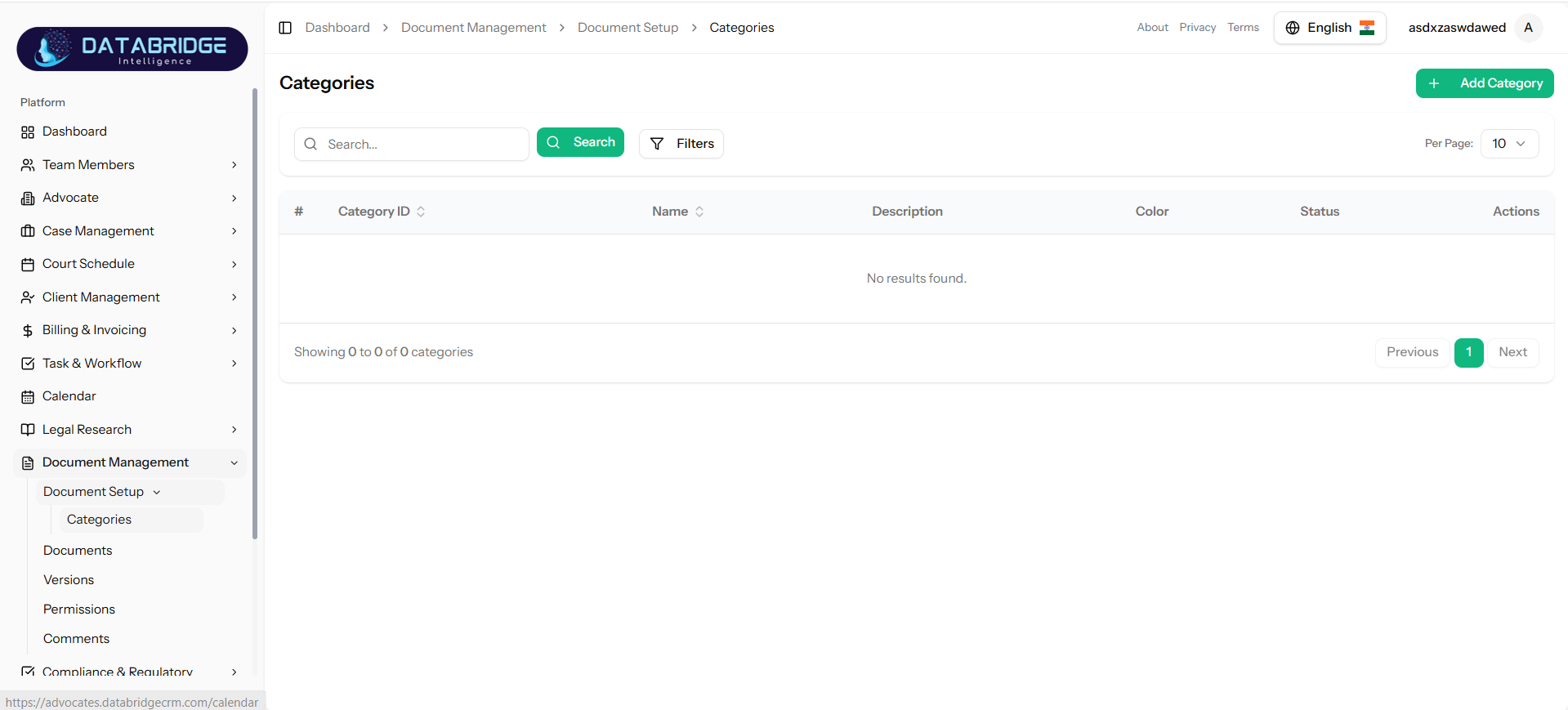
Categories:
This screen allows users to manage document categories within the system. It serves as a centralized interface to view, search, filter, and organize categories used for document classification.
Features:
-Search bar to quickly find categories
-Filter option for advanced sorting
-Table view with Category ID, Name, Description, Color, and Status
-Pagination support for large datasets
-“Add Category” button to create new categories
This screen allows users to manage document categories within the system. It serves as a centralized interface to view, search, filter, and organize categories used for document classification.
Features:
-Search bar to quickly find categories
-Filter option for advanced sorting
-Table view with Category ID, Name, Description, Color, and Status
-Pagination support for large datasets
-“Add Category” button to create new categories
1
Document Management
2
Document Setup
3
Categories
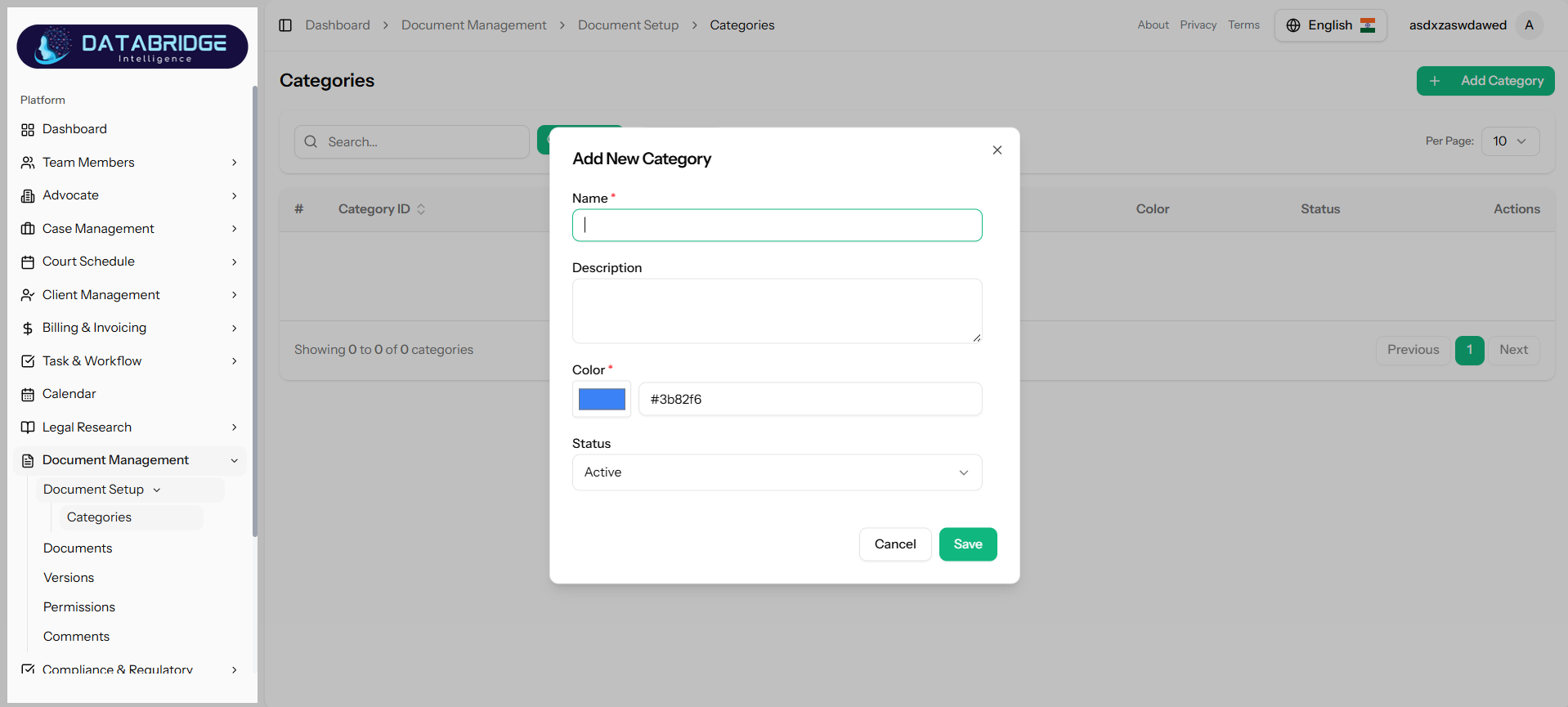
Add New Category:
This modal enables users to create a new document category by providing essential details such as name, description, color, and status.
Features:
-Input field for category name (mandatory)
-Description textarea
-Color picker with hex code
-Status dropdown (Active/Inactive)
-Save and Cancel buttons
This modal enables users to create a new document category by providing essential details such as name, description, color, and status.
Features:
-Input field for category name (mandatory)
-Description textarea
-Color picker with hex code
-Status dropdown (Active/Inactive)
-Save and Cancel buttons
1
Document Management
2
Document Setup
3
Categories
4
Add Categories
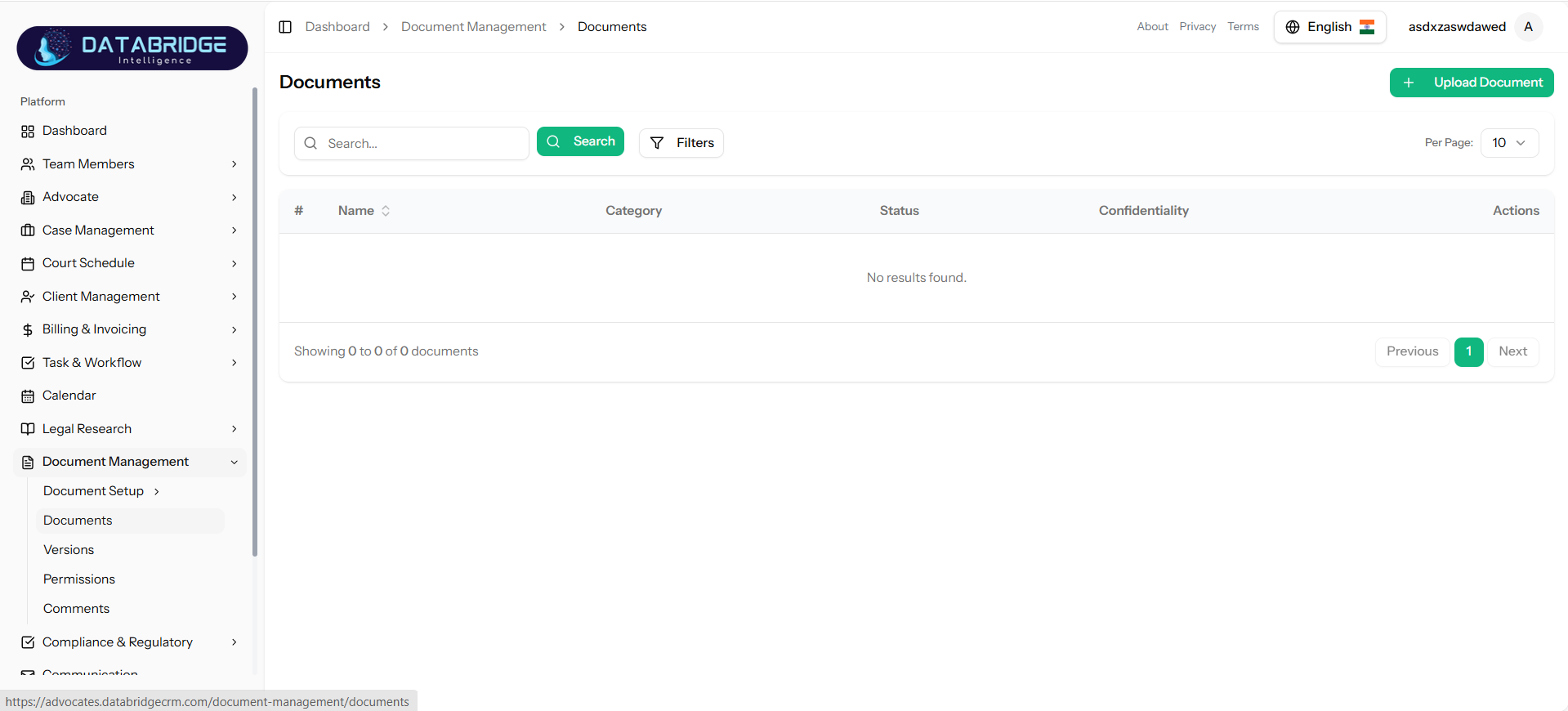
Documents Listing:
This screen displays all uploaded documents in the system. It acts as the main repository where users can manage and access documents efficiently.
Features:
-Search and filter functionality
-Table view with Name, Category, Status, and Confidentiality
-Upload Document button
-Pagination support
This screen displays all uploaded documents in the system. It acts as the main repository where users can manage and access documents efficiently.
Features:
-Search and filter functionality
-Table view with Name, Category, Status, and Confidentiality
-Upload Document button
-Pagination support
1
Document Management
2
Documents
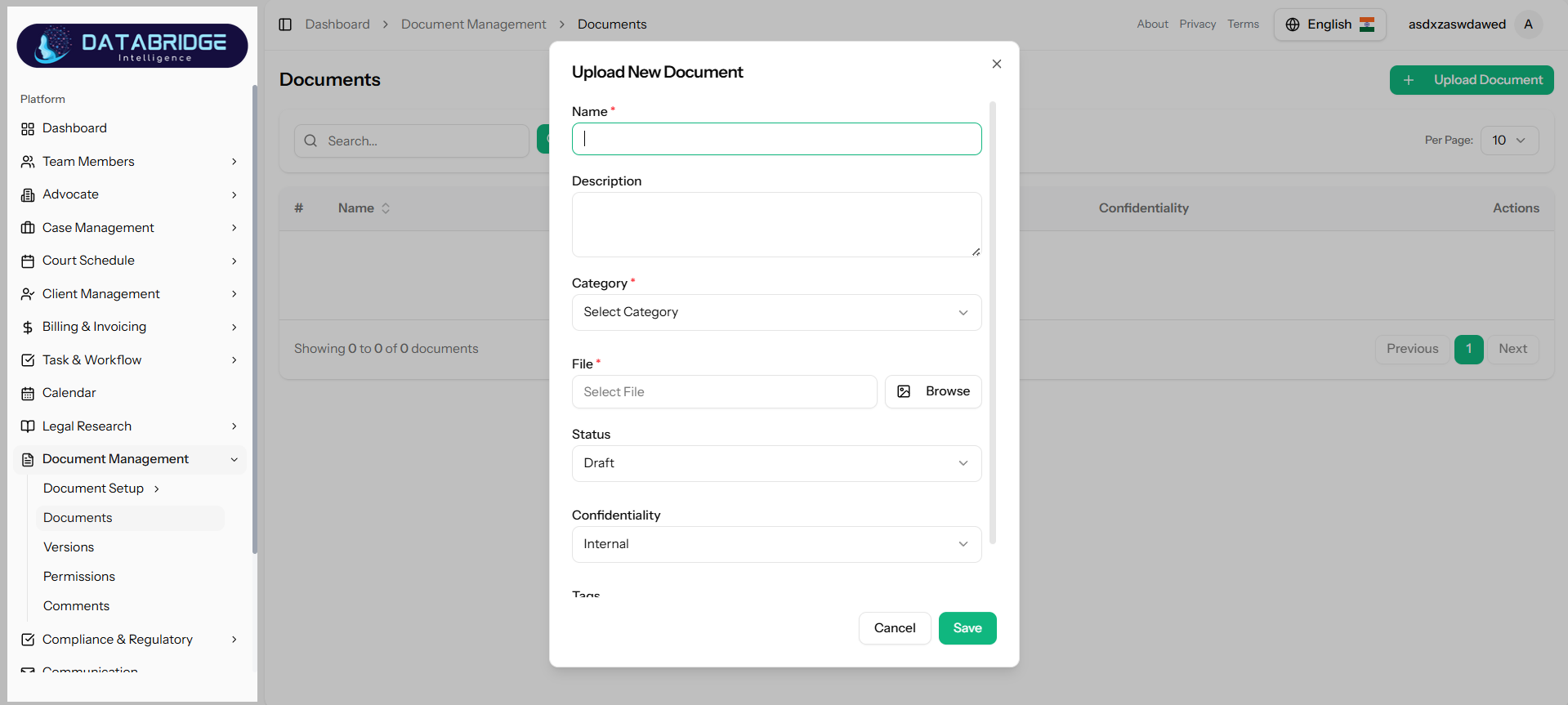
Upload New Document:
This modal allows users to upload new documents into the system along with relevant metadata and classification details.
Features:
-Document name input (mandatory)
-Description field
-Category selection dropdown
-File upload option with browse button
-Status selection (Draft/Published)
-Confidentiality level selection
-Tags input
This modal allows users to upload new documents into the system along with relevant metadata and classification details.
Features:
-Document name input (mandatory)
-Description field
-Category selection dropdown
-File upload option with browse button
-Status selection (Draft/Published)
-Confidentiality level selection
-Tags input
1
Document Management
2
Documents
3
Upload New Document
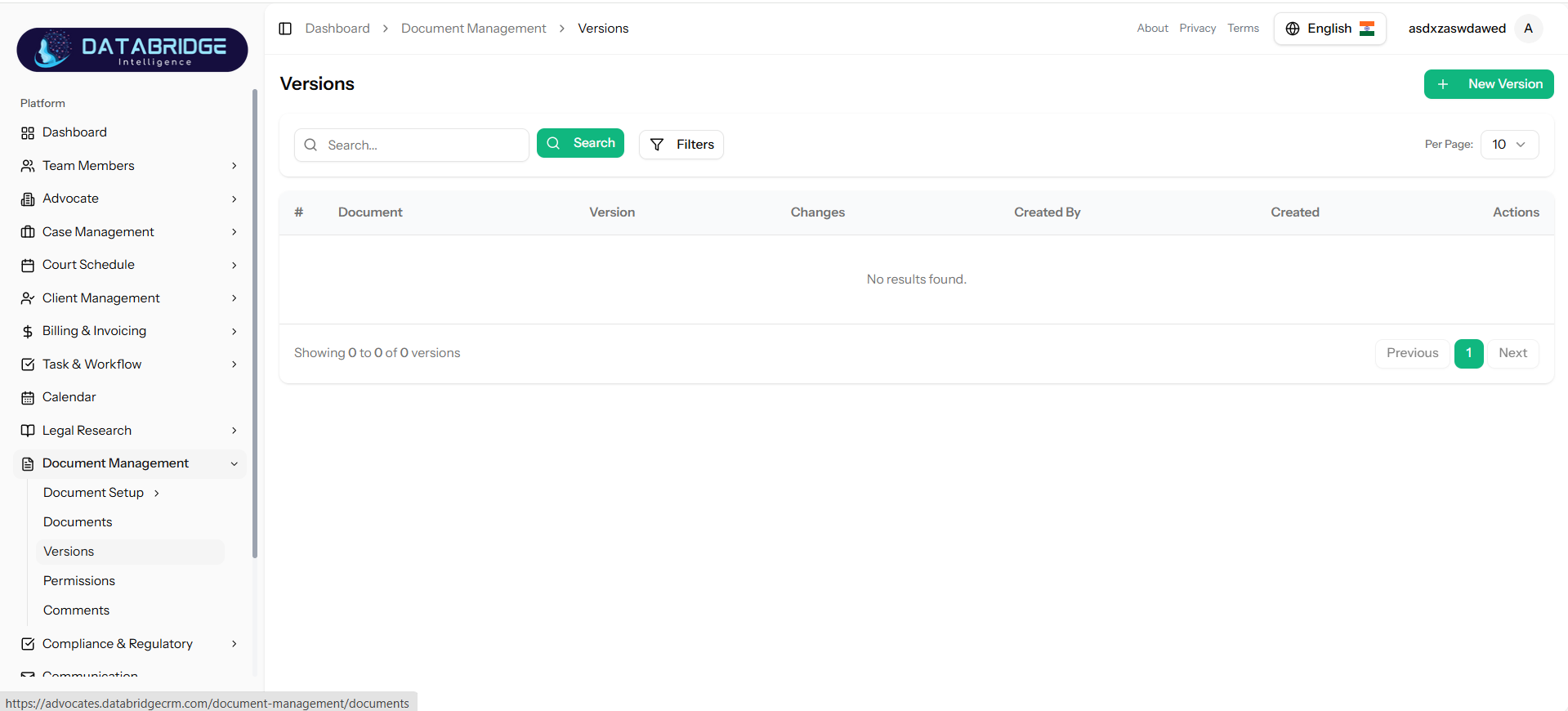
Versions Listing:
This screen manages document version history, allowing users to track updates and maintain document revisions.
Features:
-Table with Document, Version, Changes, Created By, and --Created Date
-Search and filter options
-“New Version” button
-Pagination support
This screen manages document version history, allowing users to track updates and maintain document revisions.
Features:
-Table with Document, Version, Changes, Created By, and --Created Date
-Search and filter options
-“New Version” button
-Pagination support
1
Document Management
2
Versions
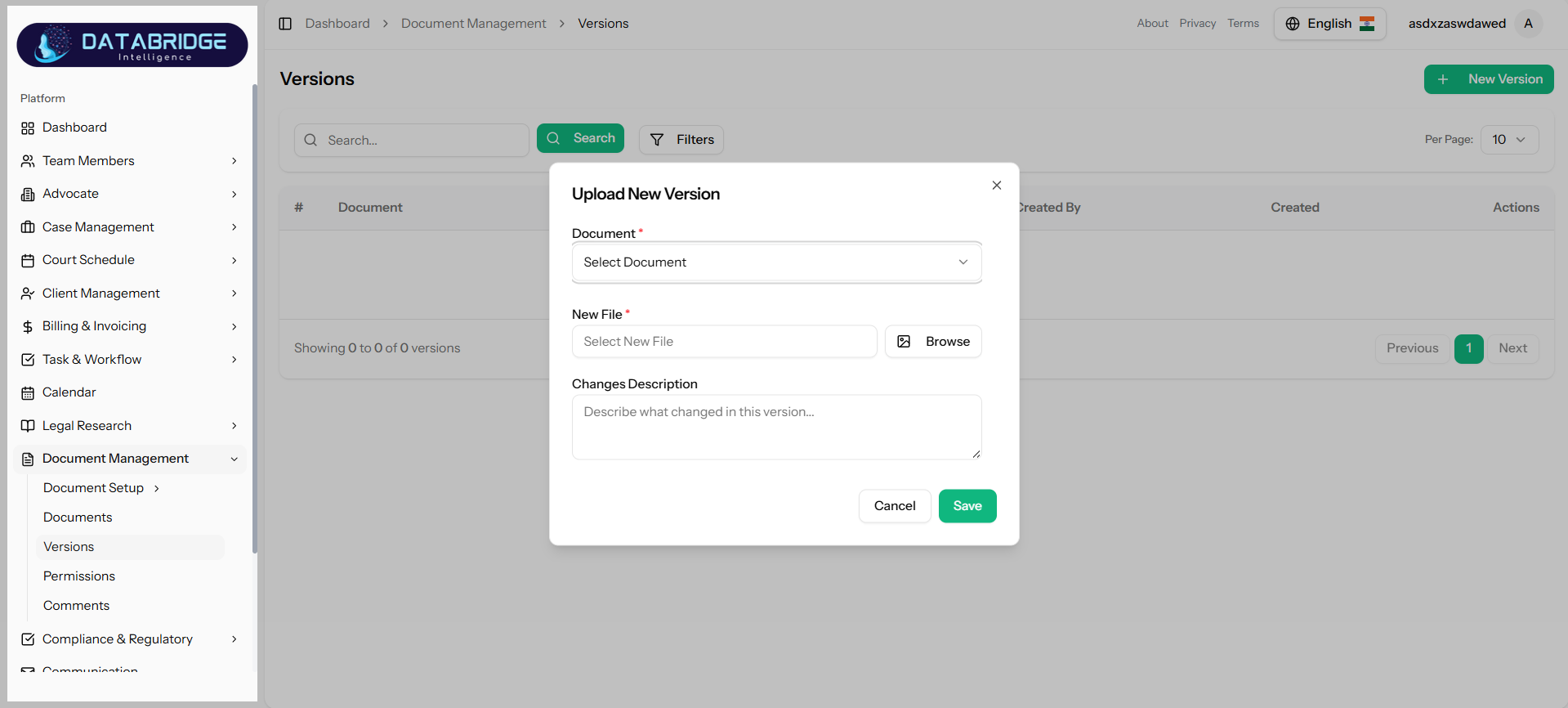
Upload New Version:
This modal allows users to upload a new version of an existing document while maintaining version history.
Features:
-Document selection dropdown
-File upload option
-Changes description textarea
-Save and Cancel buttons
This modal allows users to upload a new version of an existing document while maintaining version history.
Features:
-Document selection dropdown
-File upload option
-Changes description textarea
-Save and Cancel buttons
1
Document Management
2
Versions
3
Upload New Version
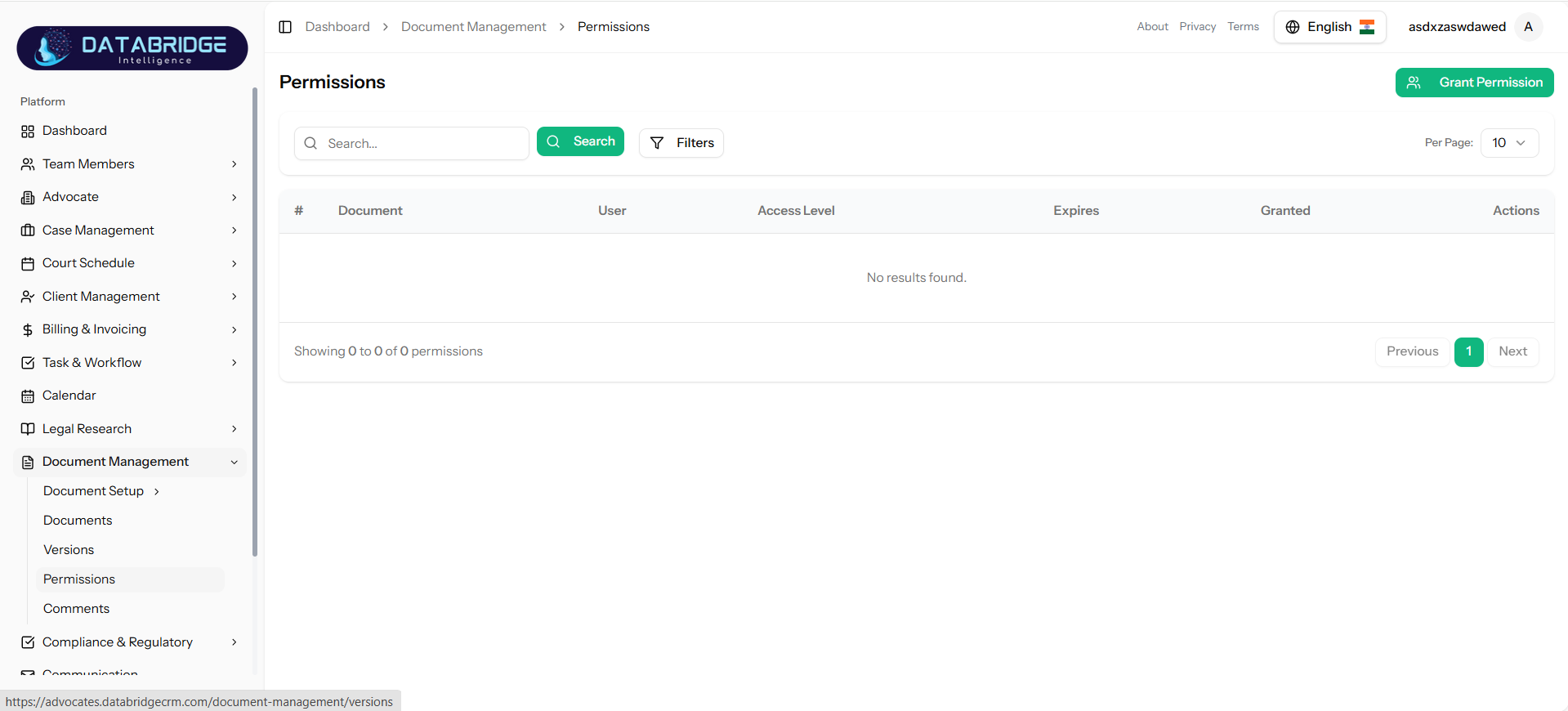
Permissions Listing:
This screen manages access control for documents by assigning permissions to users.
Features:
-Table with Document, User, Access Level, Expiry, and Granted details
-Search and filter functionality
-“Grant Permission” button
-Pagination support
This screen manages access control for documents by assigning permissions to users.
Features:
-Table with Document, User, Access Level, Expiry, and Granted details
-Search and filter functionality
-“Grant Permission” button
-Pagination support
1
Document Management
2
Permissions
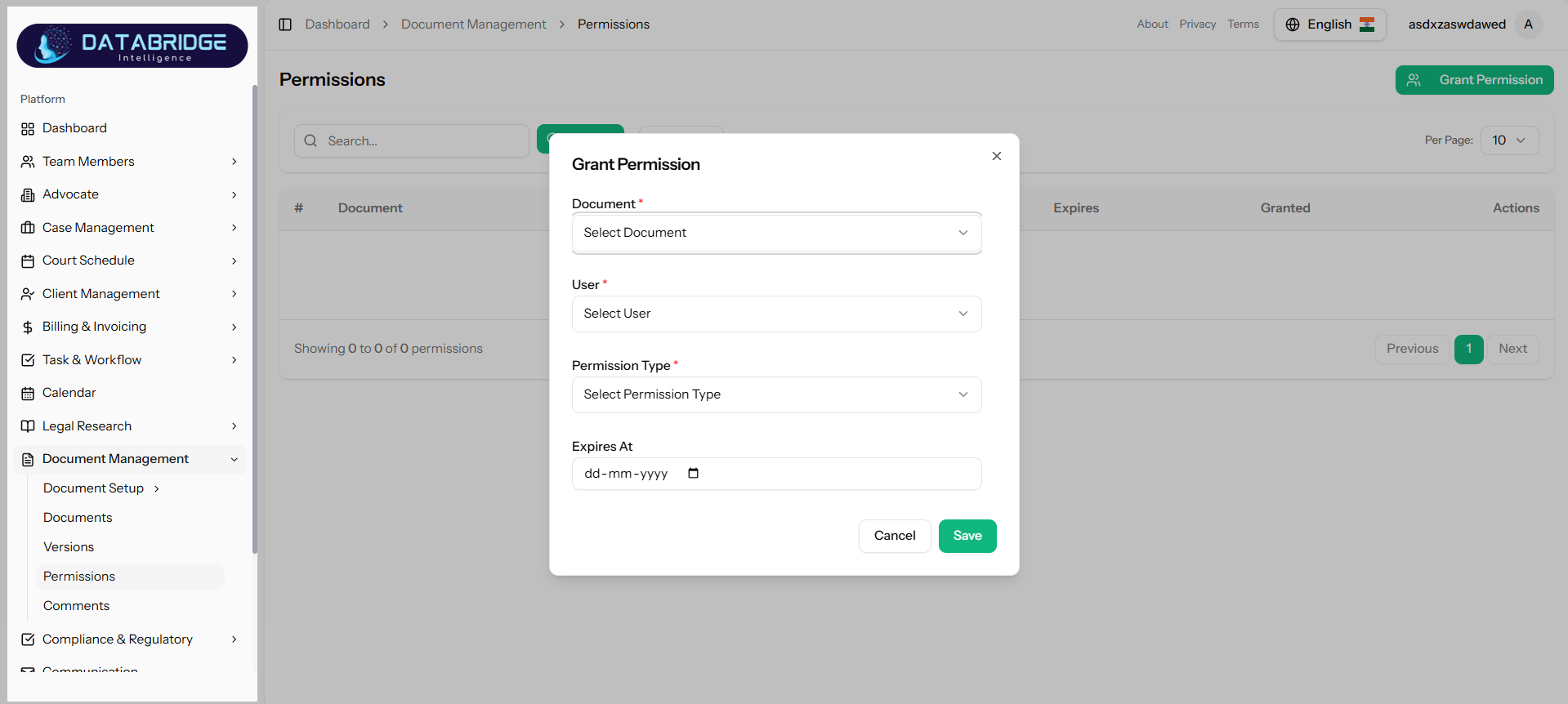
Grant Permission:
This modal allows administrators to assign access permissions to users for specific documents.
Features:
-Document selection dropdown
-User selection dropdown
-Permission type dropdown
-Expiry date picker
-Save and Cancel buttons
This modal allows administrators to assign access permissions to users for specific documents.
Features:
-Document selection dropdown
-User selection dropdown
-Permission type dropdown
-Expiry date picker
-Save and Cancel buttons
1
Document Management
2
Permissions
3
Grant Permission
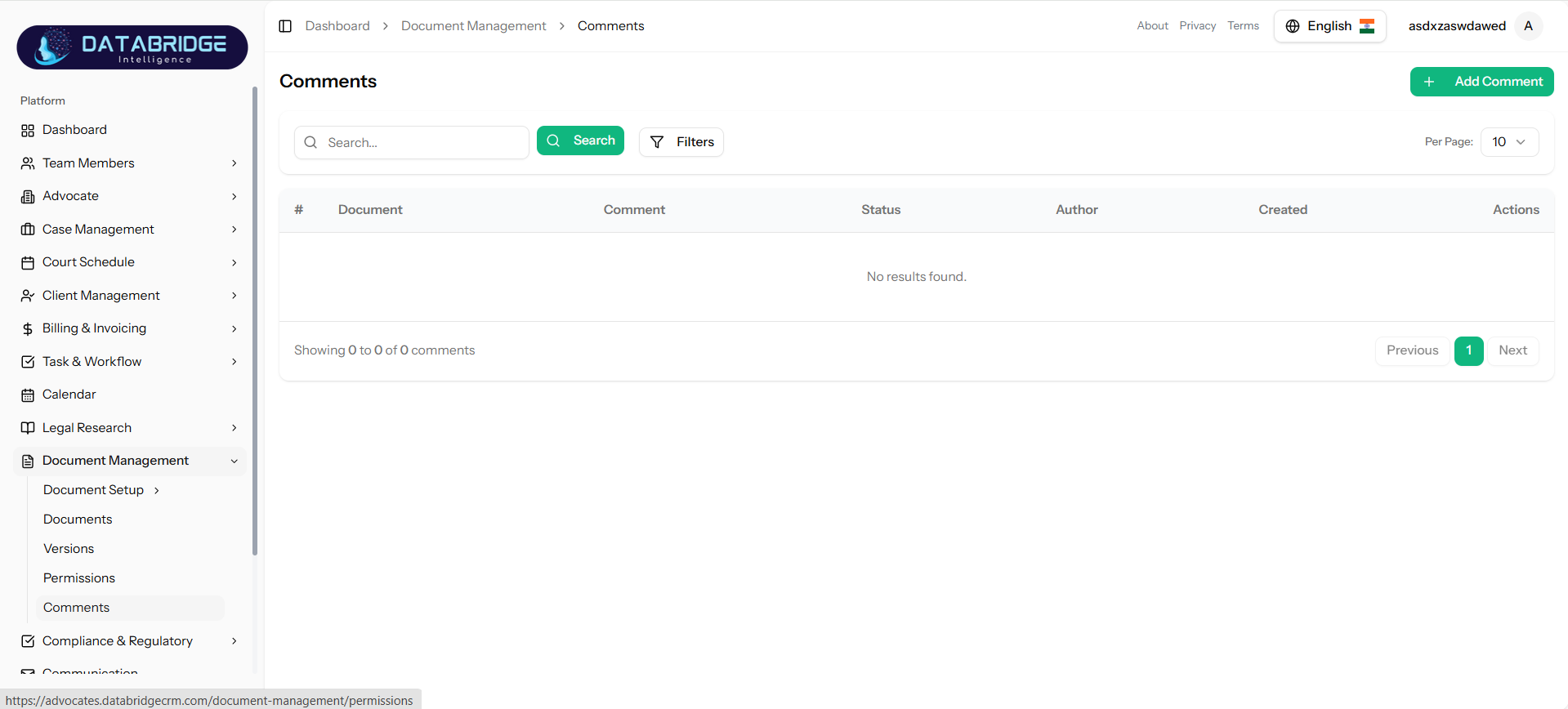
Comments Listing:
This screen displays all comments added to documents, enabling collaboration and communication between users.
Features:
-Table with Document, Comment, Status, Author, and Created date
-Search and filter options
-“Add Comment” button
-Pagination support
This screen displays all comments added to documents, enabling collaboration and communication between users.
Features:
-Table with Document, Comment, Status, Author, and Created date
-Search and filter options
-“Add Comment” button
-Pagination support
1
Document Management
2
Comments
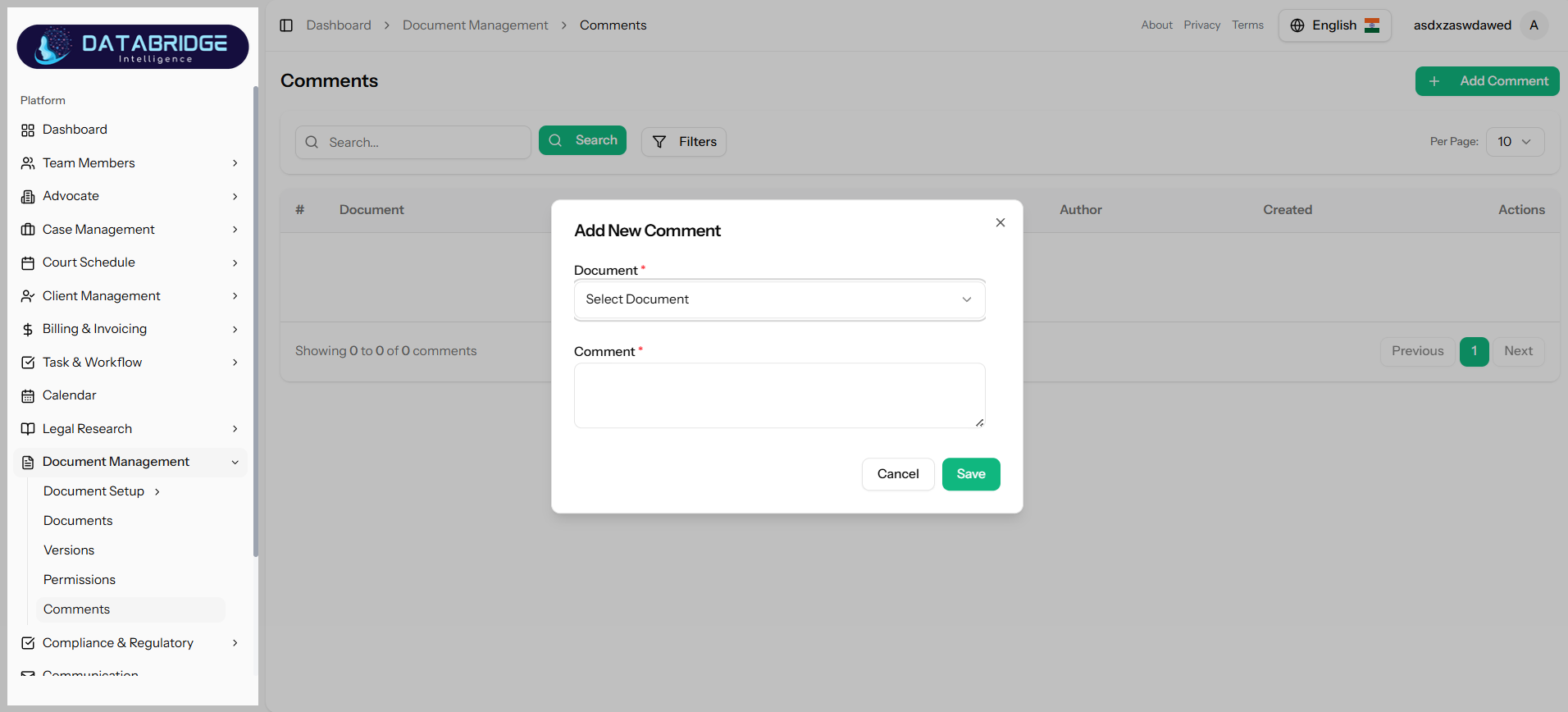
Add New Comment:
This modal allows users to add comments to a specific document for discussion or feedback.
Features:
-Document selection dropdown
-Comment textarea (mandatory)
-Save and Cancel buttons
This modal allows users to add comments to a specific document for discussion or feedback.
Features:
-Document selection dropdown
-Comment textarea (mandatory)
-Save and Cancel buttons
1
Document Management
2
Comments
3
Add New Comment
Compliance & Regulatory
The Compliance & Regulatory module helps organizations manage and monitor adherence to legal, regulatory, and internal compliance requirements. It enables users to define categories, track risks, schedule compliance activities, and conduct audits, ensuring that all processes align with applicable laws and organizational policies while minimizing compliance risks.
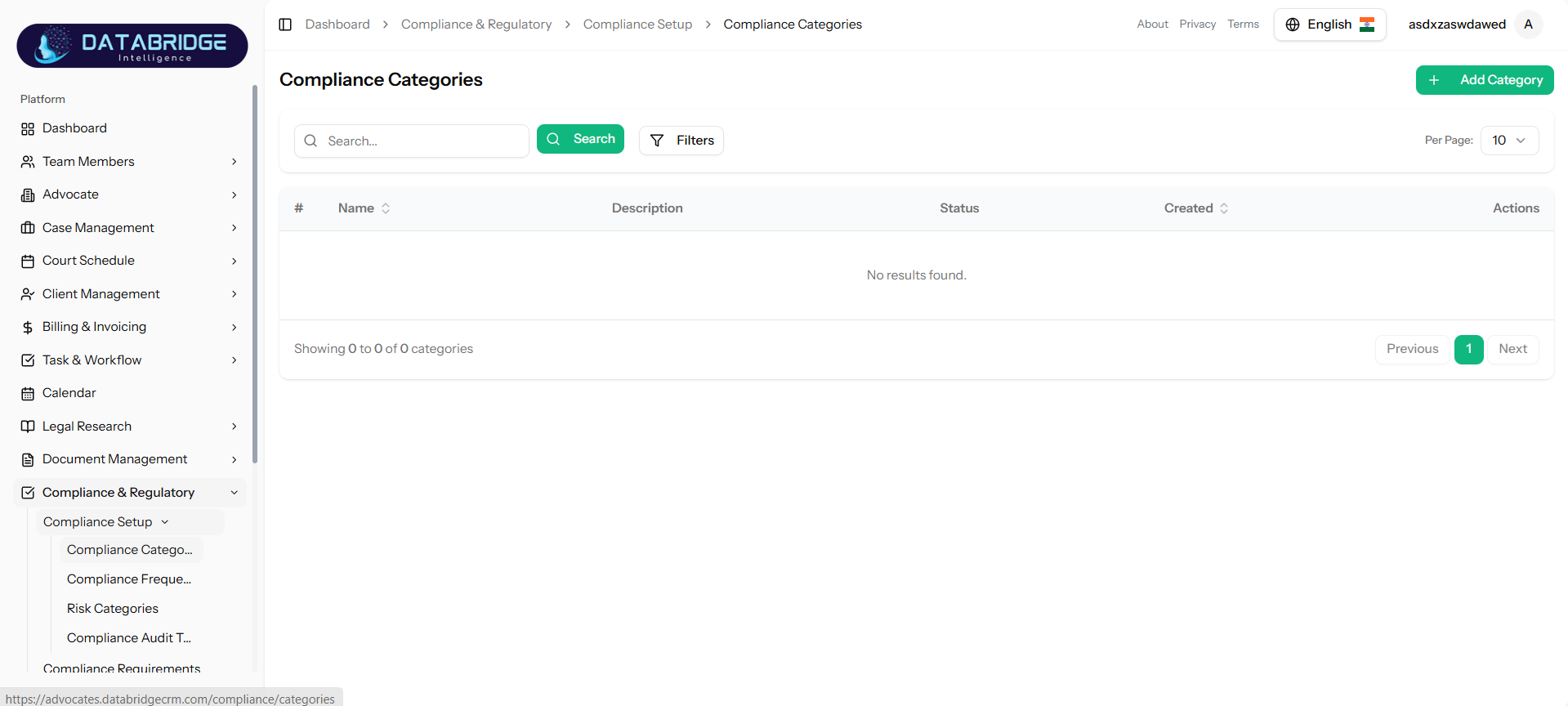
Compliance Categories:
This screen allows users to manage compliance categories used to classify different regulatory and compliance-related items within the system.
Features:
-Search and filter functionality
-Table view with Name, Description, Status, and Created date
-“Add Category” button
-Pagination support
This screen allows users to manage compliance categories used to classify different regulatory and compliance-related items within the system.
Features:
-Search and filter functionality
-Table view with Name, Description, Status, and Created date
-“Add Category” button
-Pagination support
1
Compliance & Regulatory
2
Compliance Setup
3
Compliance Categories
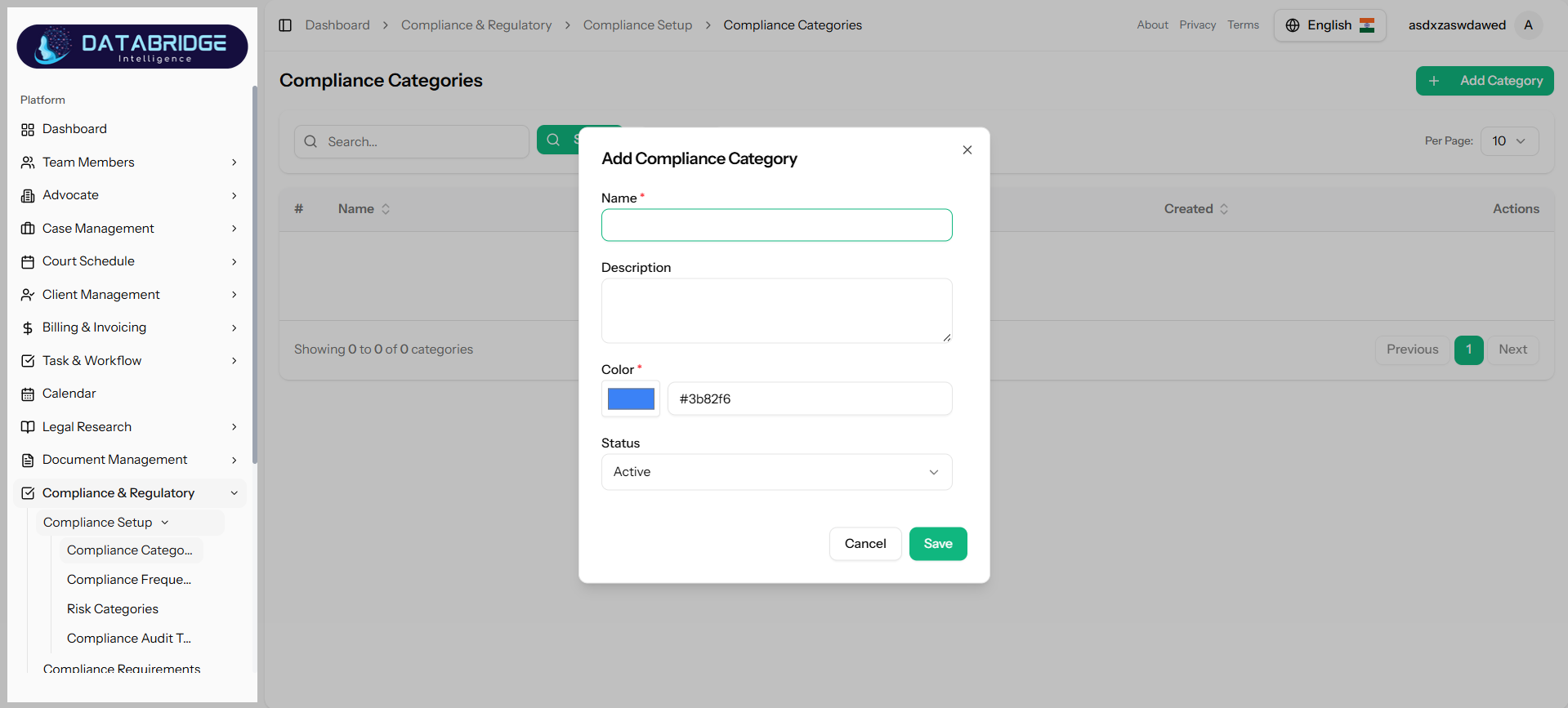
Add Compliance Category:
This modal enables users to create a new compliance category with basic details and visual identification.
Features:
-Name input field (mandatory)
-Description textarea
-Color picker with hex value
-Status dropdown
-Save and Cancel buttons
This modal enables users to create a new compliance category with basic details and visual identification.
Features:
-Name input field (mandatory)
-Description textarea
-Color picker with hex value
-Status dropdown
-Save and Cancel buttons
1
Compliance & Regulatory
2
Compliance Setup
3
Compliance Categories
4
Add Categories
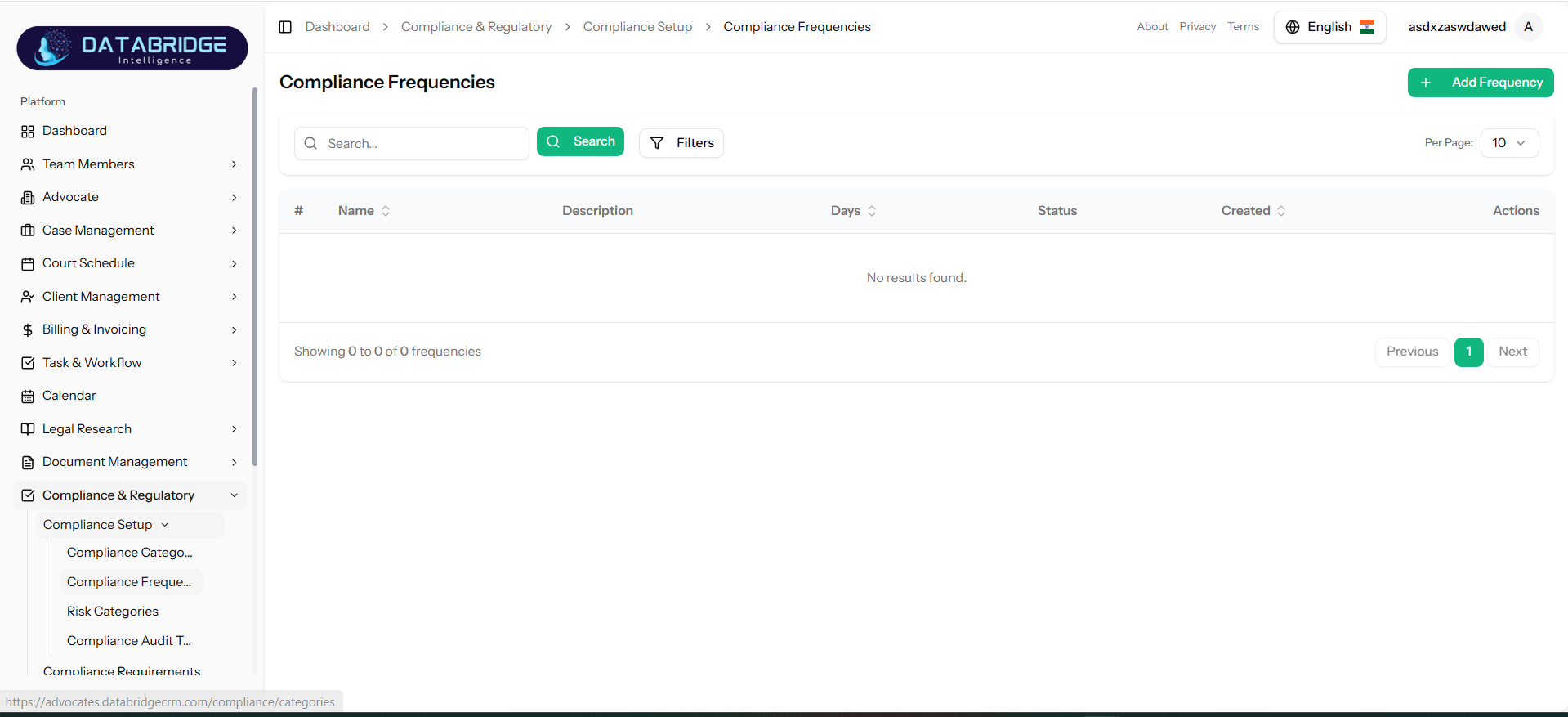
Compliance Frequencies:
This screen manages compliance frequencies, defining how often compliance activities should occur.
Features:
-Search and filter options
-Table with Name, Description, Days, Status, and Created date
-“Add Frequency” button
-Pagination support
This screen manages compliance frequencies, defining how often compliance activities should occur.
Features:
-Search and filter options
-Table with Name, Description, Days, Status, and Created date
-“Add Frequency” button
-Pagination support
1
Compliance & Regulatory
2
Compliance Setup
3
Compliance Frequencies
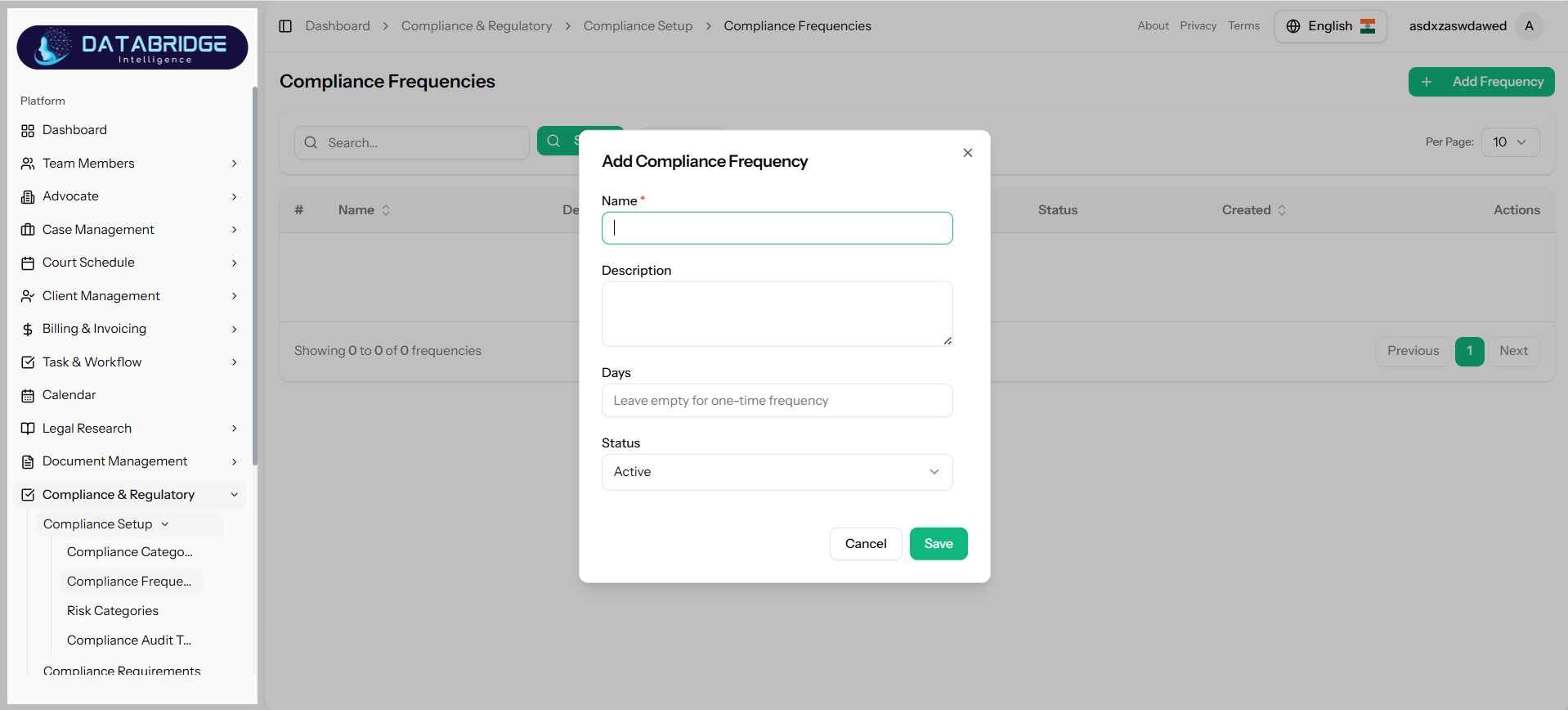
Add Compliance Frequency:
This modal allows users to define new compliance frequency intervals for recurring or one-time activities.
Features:
-Name input (mandatory)
-Description field
-Days input (optional for recurrence)
-Status dropdown
-Save and Cancel buttons
This modal allows users to define new compliance frequency intervals for recurring or one-time activities.
Features:
-Name input (mandatory)
-Description field
-Days input (optional for recurrence)
-Status dropdown
-Save and Cancel buttons
1
Compliance & Regulatory
2
Compliance Setup
3
Compliance Frequencies
4
Add Frequency
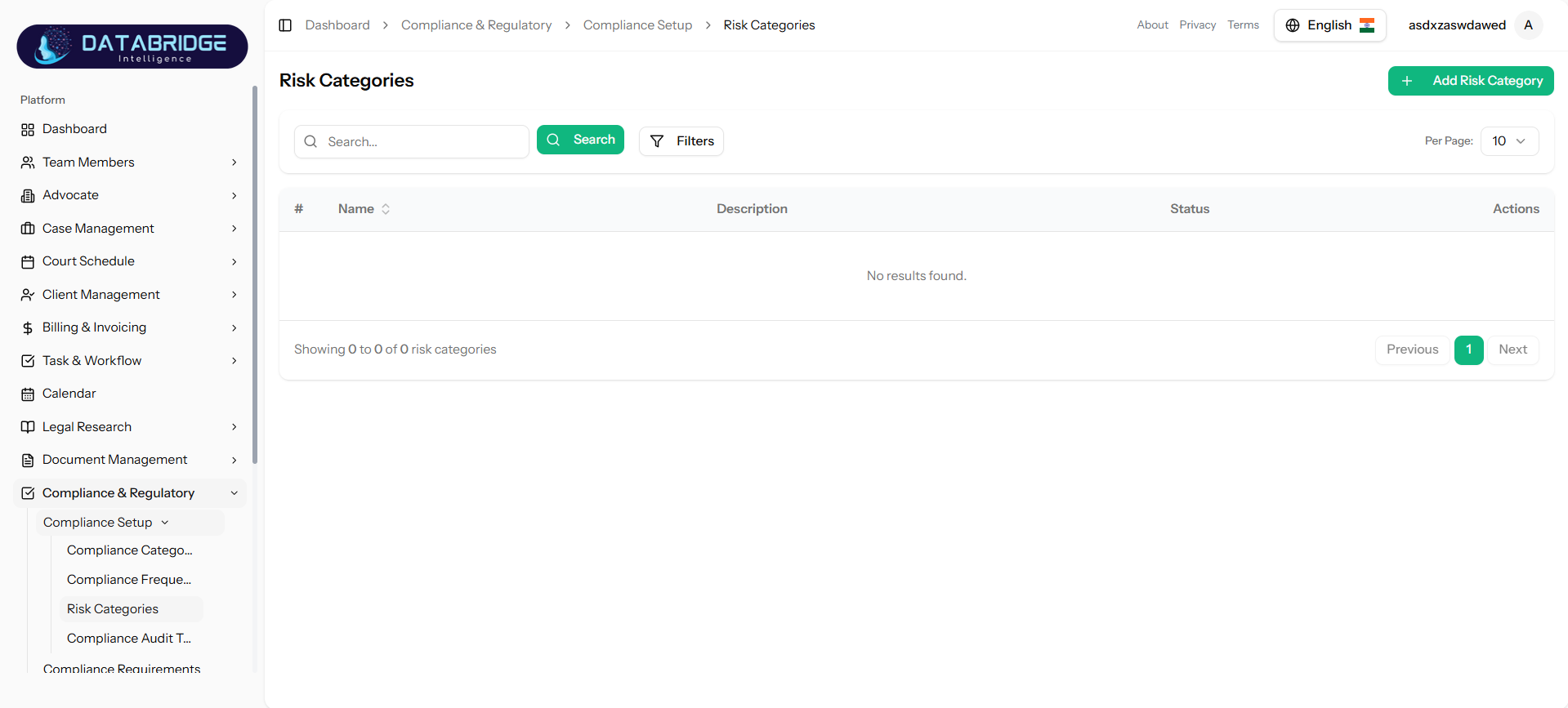
Risk Categories:
This screen allows users to manage risk categories used to classify different types of risks in compliance processes.
Features:
-Search and filter functionality
-Table view with Name, Description, and Status
-“Add Risk Category” button
-Pagination support
This screen allows users to manage risk categories used to classify different types of risks in compliance processes.
Features:
-Search and filter functionality
-Table view with Name, Description, and Status
-“Add Risk Category” button
-Pagination support
1
Compliance & Regulatory
2
Compliance Setup
3
Risk Categories
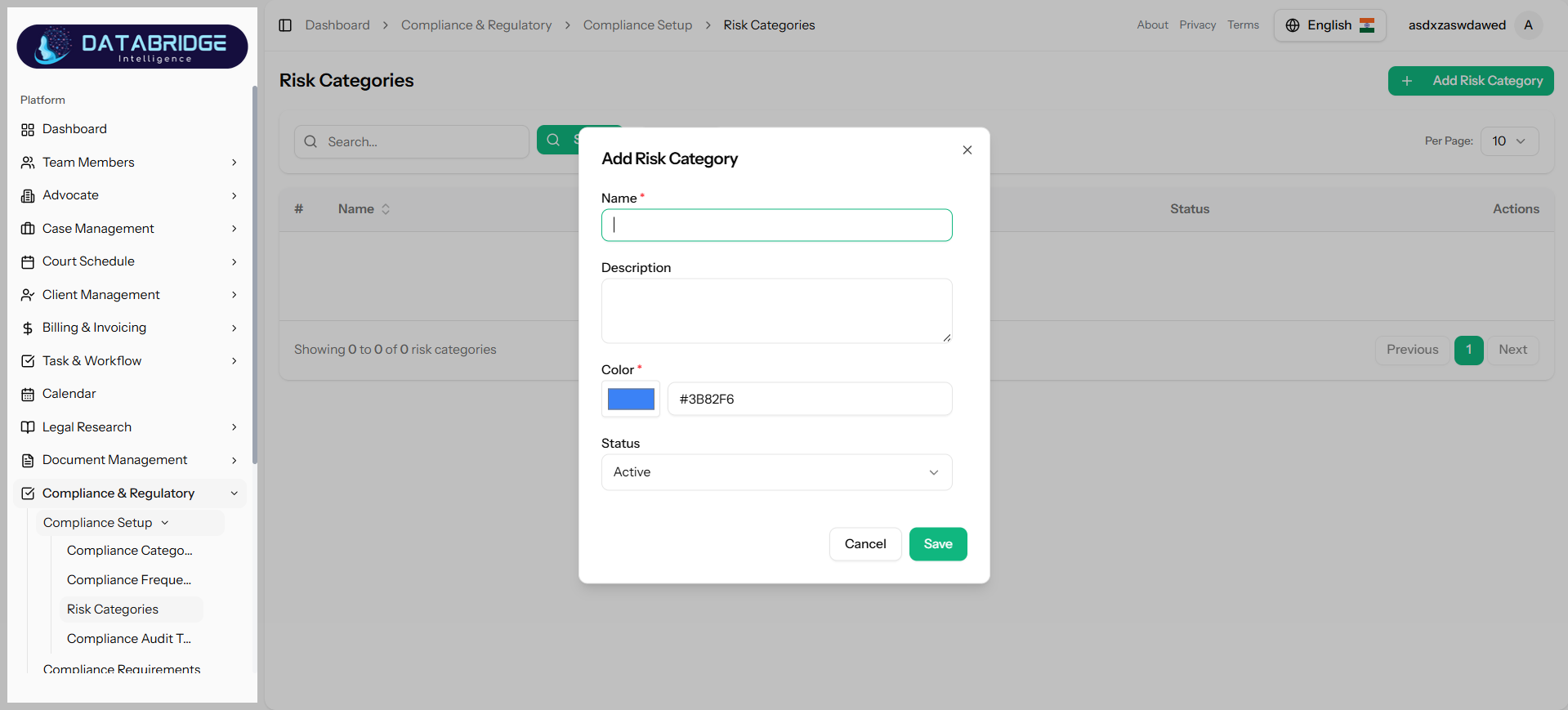
Add Risk Category:
This modal enables users to create a new risk category with classification details.
Features:
-Name input (mandatory)
-Description textarea
-Color picker
-Status dropdown
-Save and Cancel buttons
This modal enables users to create a new risk category with classification details.
Features:
-Name input (mandatory)
-Description textarea
-Color picker
-Status dropdown
-Save and Cancel buttons
1
Compliance & Regulatory
2
Compliance Setup
3
Risk Categories
4
Add Risk Category
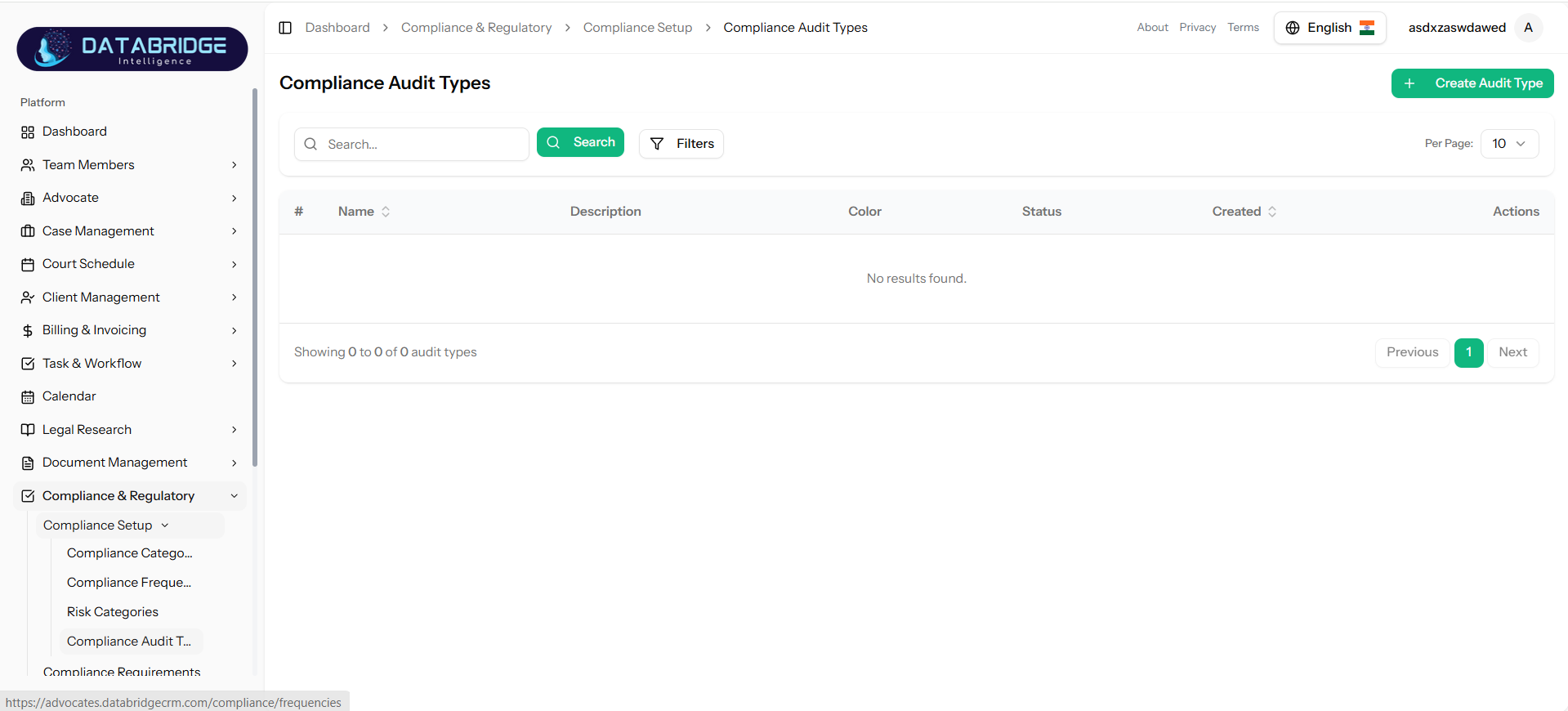
Compliance Audit:
This screen manages different types of compliance audits, helping define audit classifications within the system.
Features:
-Search and filter options
-Table with Name, Description, Color, Status, and Created date
-“Create Audit Type” button
-Pagination support
This screen manages different types of compliance audits, helping define audit classifications within the system.
Features:
-Search and filter options
-Table with Name, Description, Color, Status, and Created date
-“Create Audit Type” button
-Pagination support
1
Compliance & Regulatory
2
Compliance Setup
3
Compliance Audit Types
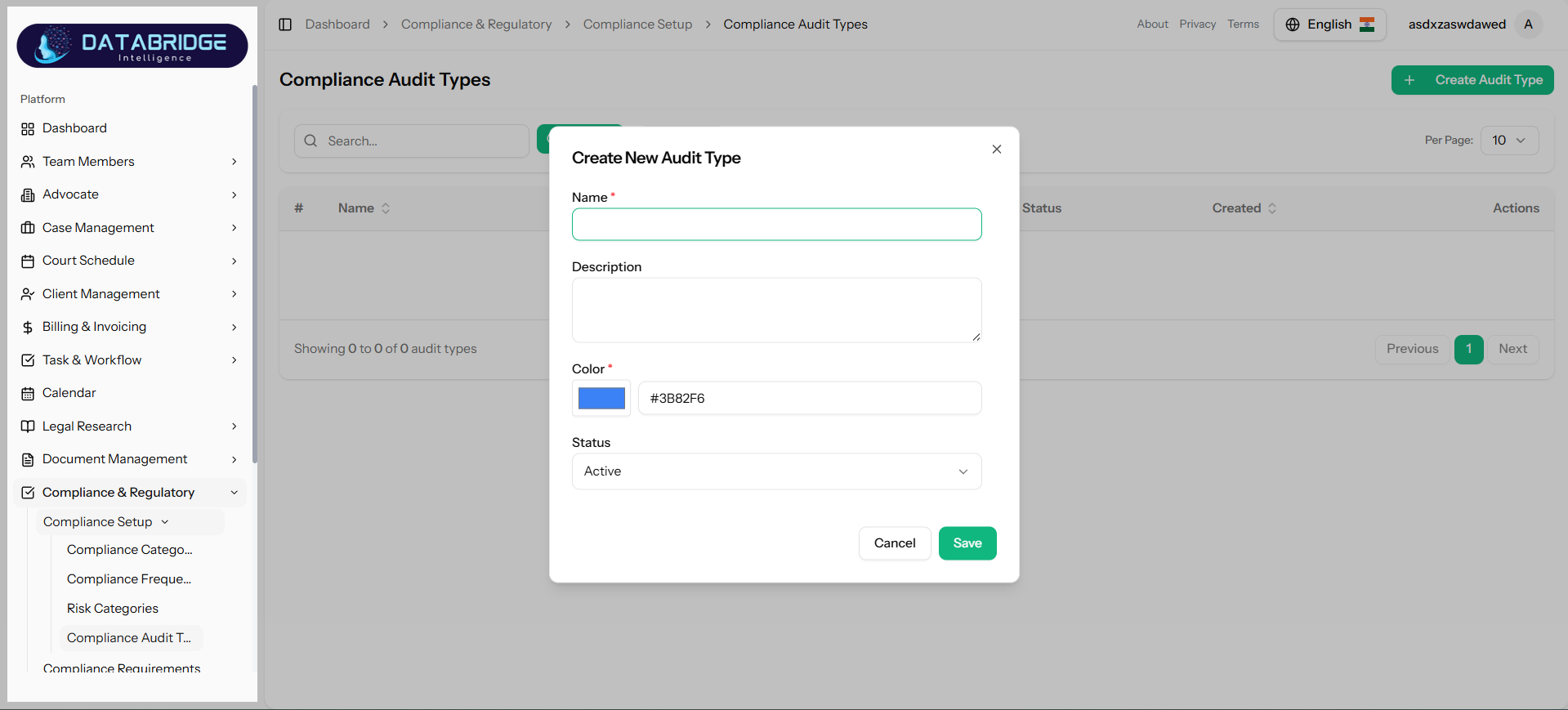
Create Compliance Audit:
This modal allows users to create a new audit type for compliance tracking and classification.
Features:
-Name input (mandatory)
-Description field
-Color picker
-Status dropdown
-Save and Cancel buttons
This modal allows users to create a new audit type for compliance tracking and classification.
Features:
-Name input (mandatory)
-Description field
-Color picker
-Status dropdown
-Save and Cancel buttons
1
Compliance & Regulatory
2
Compliance Setup
3
Compliance Audit Types
4
Create Compliance Audit
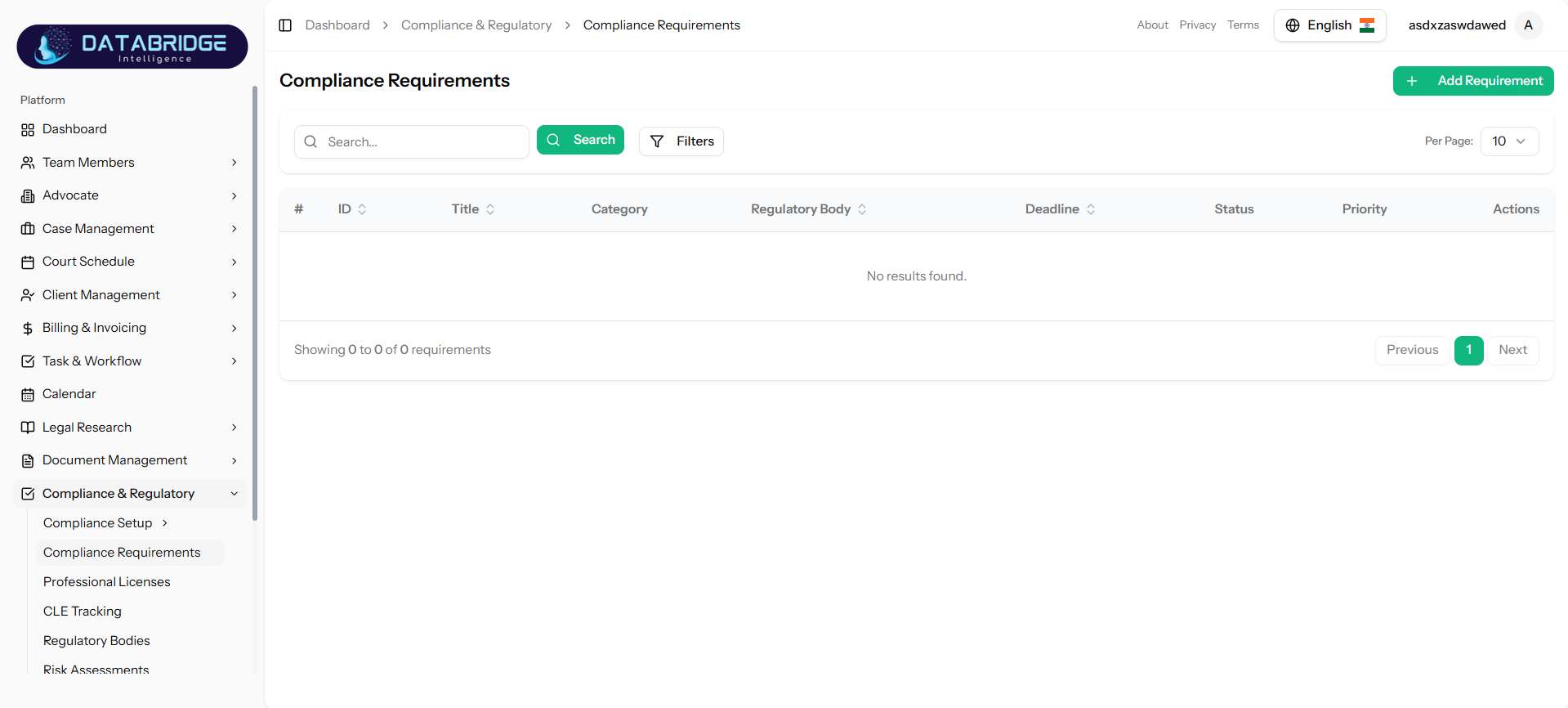
Compliance Requirements:
The Compliance Requirements module allows users to define, track, and manage all regulatory obligations applicable to the organization. It helps ensure that each requirement is properly categorized, assigned, and monitored within defined deadlines and compliance frameworks.
Features:
-Add and manage compliance requirements
-Categorization based on compliance types
-Assign regulatory bodies and jurisdictions
-Set frequency and deadlines
-Priority and status tracking
-Search and filter functionality
The Compliance Requirements module allows users to define, track, and manage all regulatory obligations applicable to the organization. It helps ensure that each requirement is properly categorized, assigned, and monitored within defined deadlines and compliance frameworks.
Features:
-Add and manage compliance requirements
-Categorization based on compliance types
-Assign regulatory bodies and jurisdictions
-Set frequency and deadlines
-Priority and status tracking
-Search and filter functionality
1
Compliance & Regulatory
2
Compliance Requirements
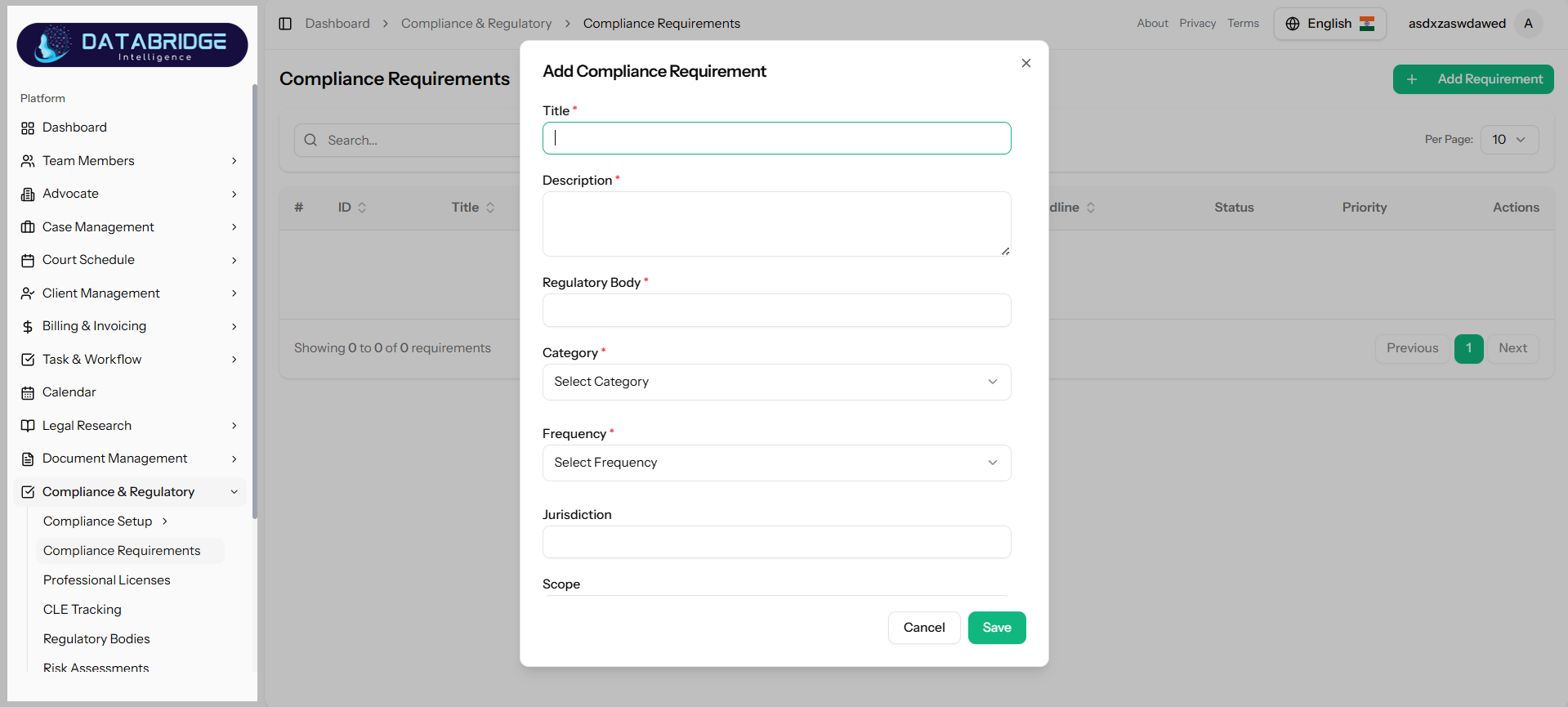
Add Requirement:
This screen allows users to create a new compliance requirement by entering all necessary regulatory details such as category, authority, frequency, and jurisdiction.
Features:
-Input fields for Title and Description
-Selection of Regulatory Body
-Dropdown for Category and Frequency
-Jurisdiction input field
-Scope definition
-Form validation for required fields
This screen allows users to create a new compliance requirement by entering all necessary regulatory details such as category, authority, frequency, and jurisdiction.
Features:
-Input fields for Title and Description
-Selection of Regulatory Body
-Dropdown for Category and Frequency
-Jurisdiction input field
-Scope definition
-Form validation for required fields
1
Compliance & Regulatory
2
Compliance Requirements
3
Add Requirement
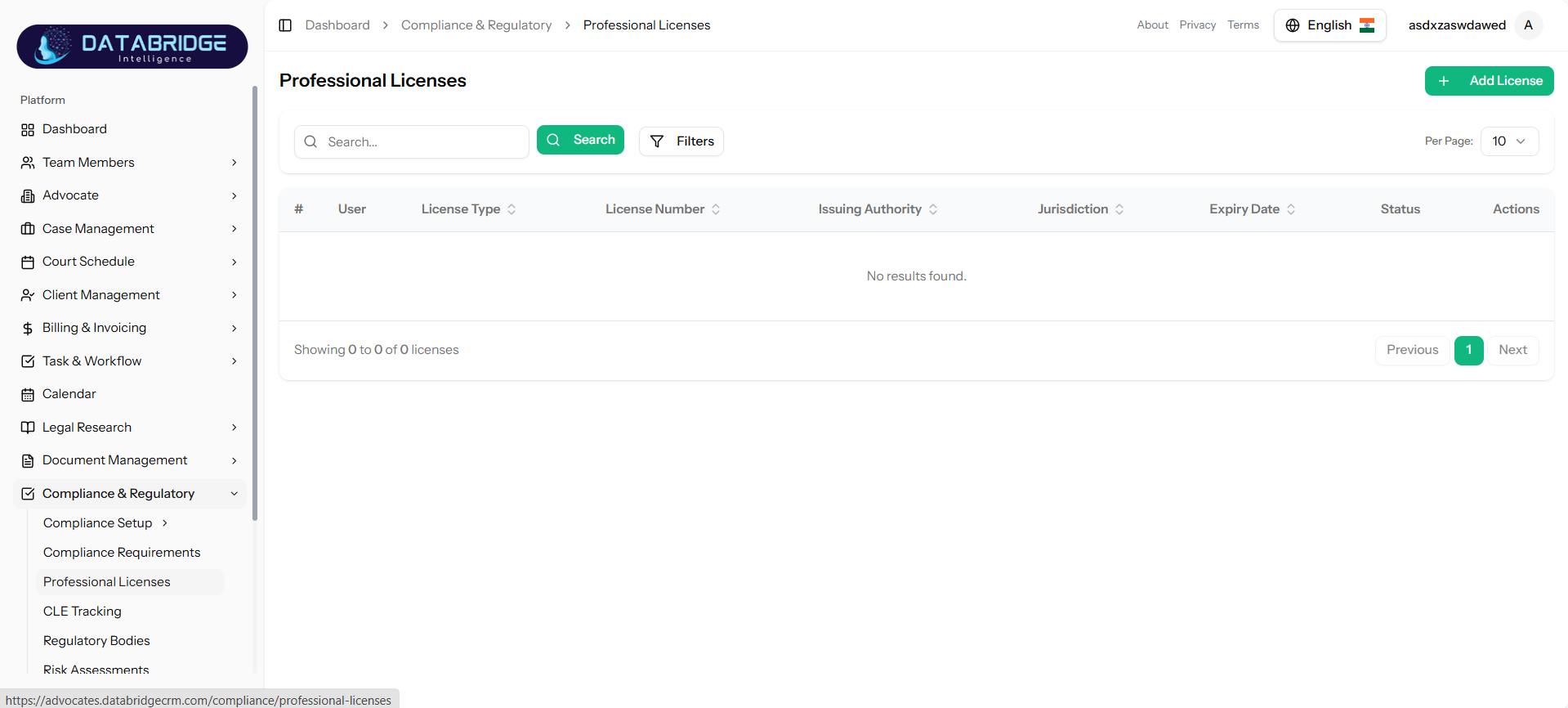
Professional Licenses:
The Professional Licenses module manages licenses of team members, ensuring all certifications remain valid and compliant with regulatory standards. It helps track issuance, expiry, and jurisdiction details for each license.
Features:
-Add and manage licenses for team members
-Track issuing authority and jurisdiction
-Monitor issue and expiry dates
-Status tracking for active/expired licenses
-Search and filtering options
The Professional Licenses module manages licenses of team members, ensuring all certifications remain valid and compliant with regulatory standards. It helps track issuance, expiry, and jurisdiction details for each license.
Features:
-Add and manage licenses for team members
-Track issuing authority and jurisdiction
-Monitor issue and expiry dates
-Status tracking for active/expired licenses
-Search and filtering options
1
Compliance & Regulatory
2
Professional Licenses
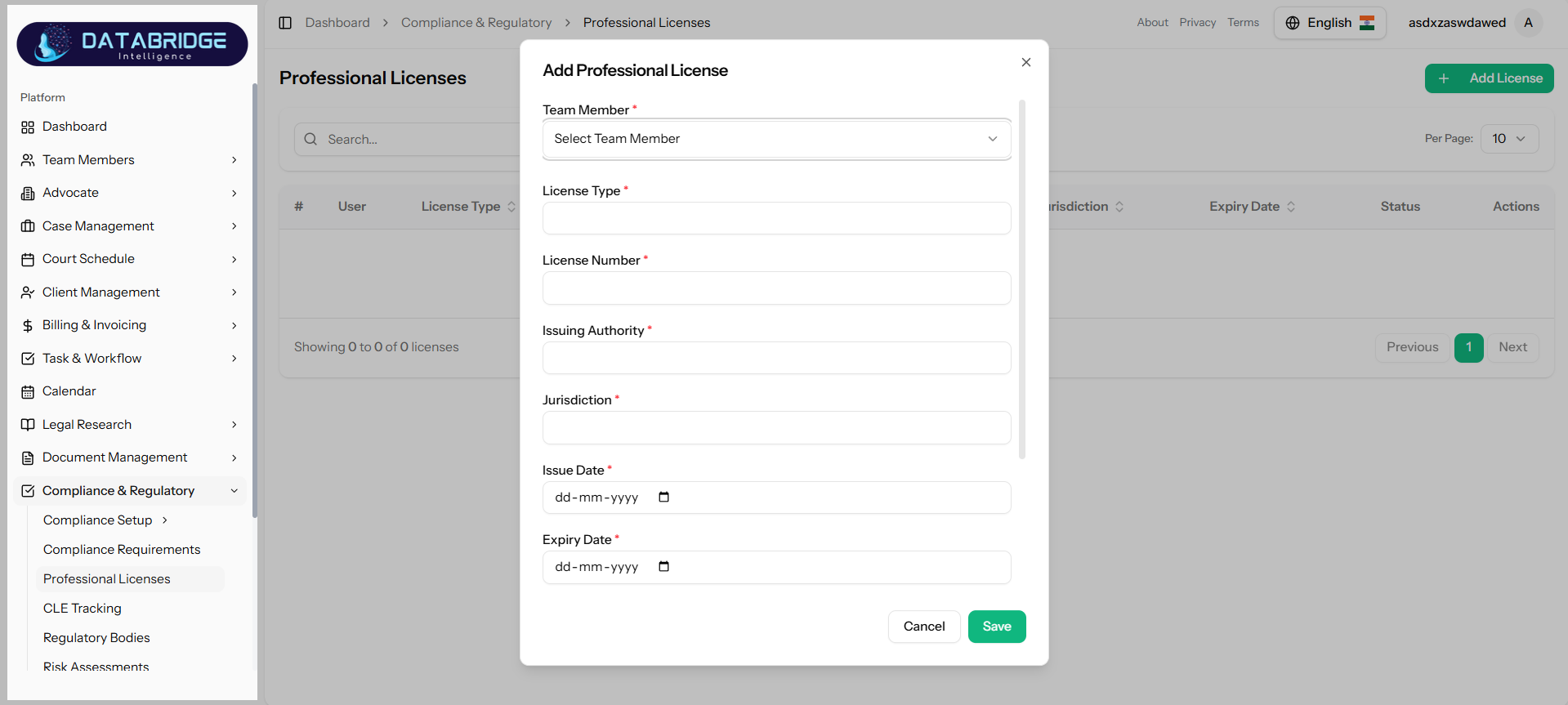
Add Professional License:
This screen enables users to add and manage professional licenses for team members, ensuring proper tracking of credentials and compliance.
Features:
-Team Member selection dropdown
-Fields for License Type and License Number
-Issuing Authority input
-Jurisdiction field
-Issue Date and Expiry Date picker
-Mandatory field validation
This screen enables users to add and manage professional licenses for team members, ensuring proper tracking of credentials and compliance.
Features:
-Team Member selection dropdown
-Fields for License Type and License Number
-Issuing Authority input
-Jurisdiction field
-Issue Date and Expiry Date picker
-Mandatory field validation
1
Compliance & Regulatory
2
Professional Licenses
3
Add License
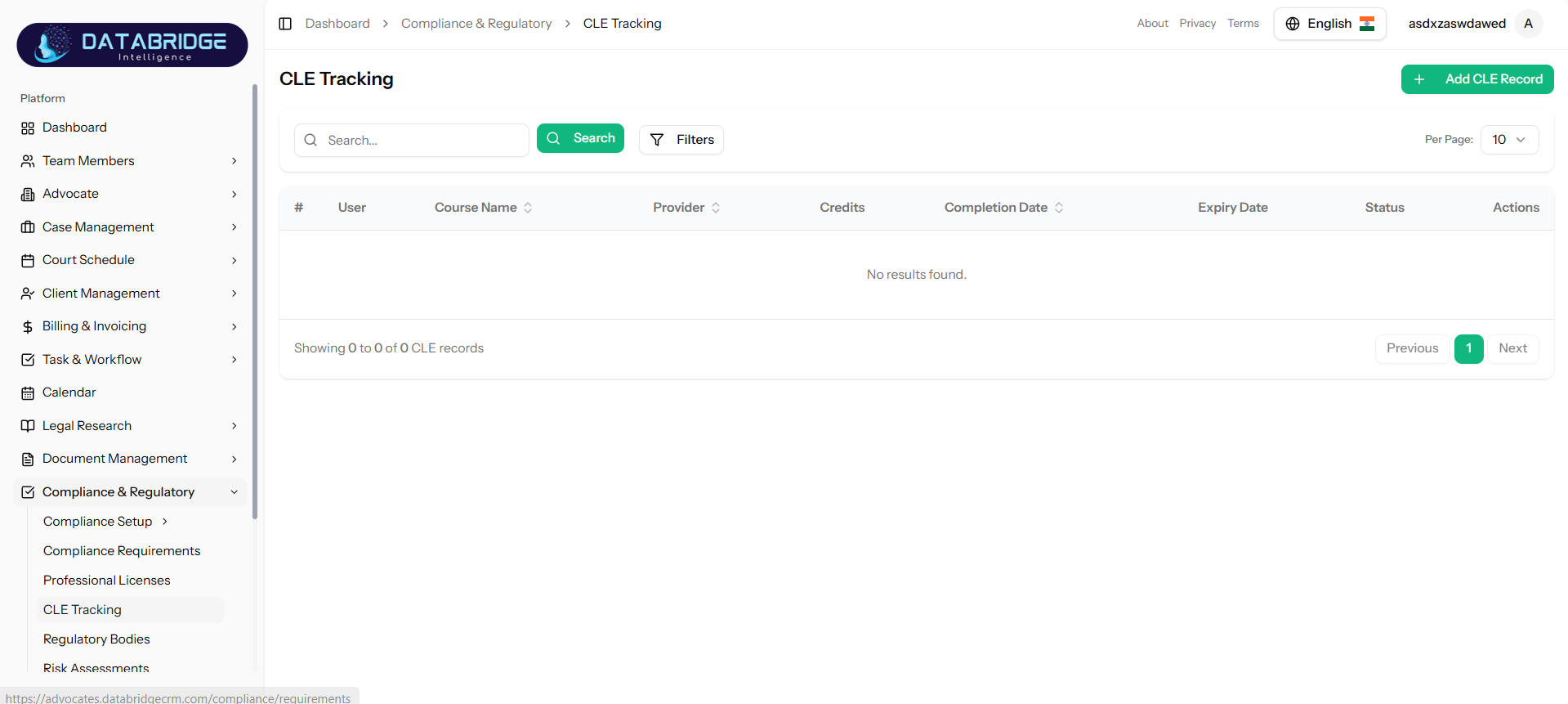
CLE Tracking:
The CLE (Continuing Legal Education) Tracking module helps monitor and manage training and certification credits earned by professionals to maintain compliance with legal education requirements.
Features:
-Track CLE courses and providers
-Record credits earned and required
-Monitor completion and expiry dates
-User-wise tracking of records
-Search and filter functionality
The CLE (Continuing Legal Education) Tracking module helps monitor and manage training and certification credits earned by professionals to maintain compliance with legal education requirements.
Features:
-Track CLE courses and providers
-Record credits earned and required
-Monitor completion and expiry dates
-User-wise tracking of records
-Search and filter functionality
1
Compliance & Regulatory
2
CLE Tracking
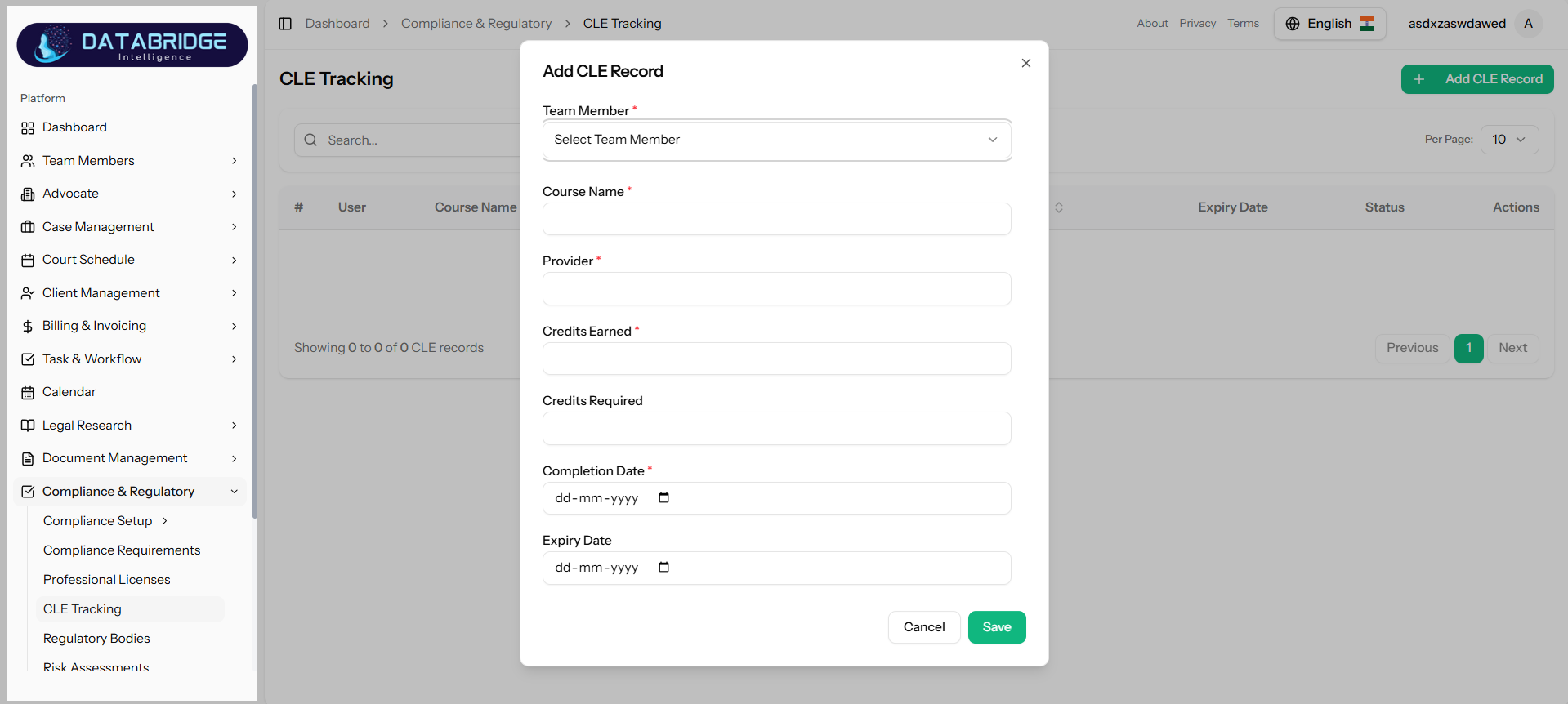
Add CLE Record:
This screen allows users to record Continuing Legal Education (CLE) activities for team members, helping track educational compliance requirements.
Features:
-Team Member selection
-Course Name and Provider fields
-Credits Earned and Credits Required
-Completion Date and Expiry Date
-Input validation for required fields
This screen allows users to record Continuing Legal Education (CLE) activities for team members, helping track educational compliance requirements.
Features:
-Team Member selection
-Course Name and Provider fields
-Credits Earned and Credits Required
-Completion Date and Expiry Date
-Input validation for required fields
1
Compliance & Regulatory
2
CLE Tracking
3
Add CLE Record
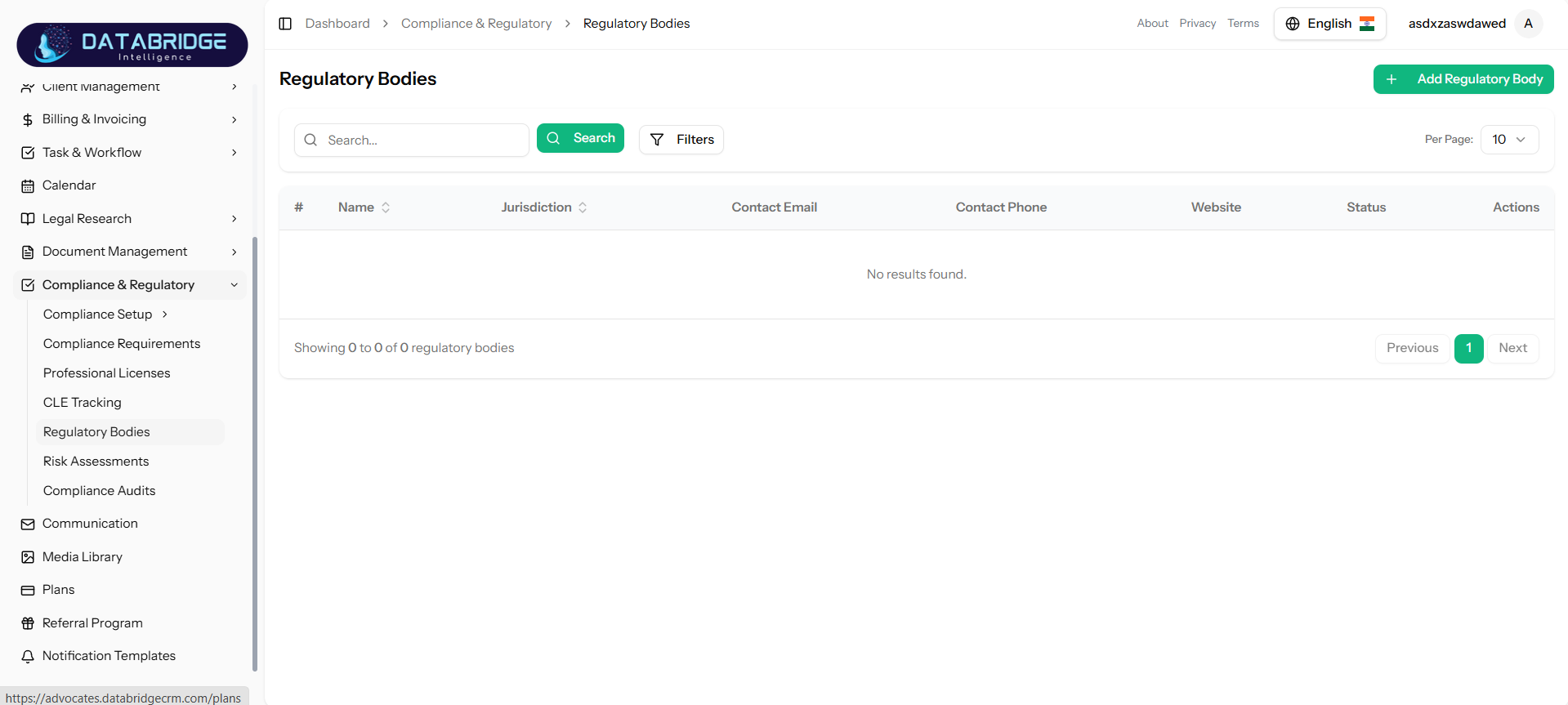
Regulatory Bodies:
The Regulatory Bodies module maintains a centralized database of all governing authorities responsible for compliance oversight. It stores essential contact and jurisdiction details for regulatory coordination.
Features:
-Add and manage regulatory authorities
-Store contact details and jurisdiction
-Maintain communication references
-Search and filter options
The Regulatory Bodies module maintains a centralized database of all governing authorities responsible for compliance oversight. It stores essential contact and jurisdiction details for regulatory coordination.
Features:
-Add and manage regulatory authorities
-Store contact details and jurisdiction
-Maintain communication references
-Search and filter options
1
Compliance & Regulatory
2
Regulatory Bodies
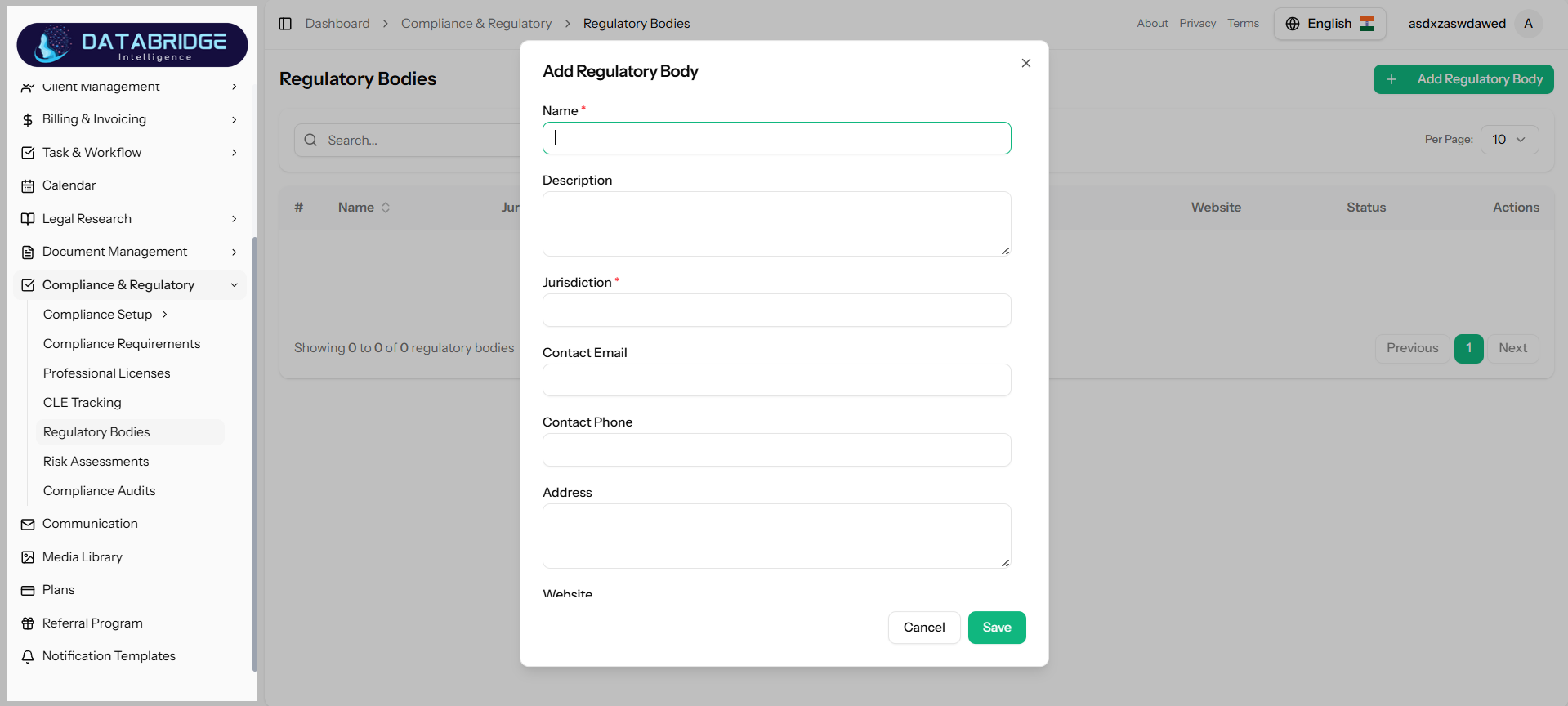
Add Regulatory Body:
This screen is used to add a new regulatory authority into the system with its contact and jurisdiction details for compliance mapping.
Features:
-Name and Description fields
-Jurisdiction input
-Contact Email and Phone fields
-Address field
-Website field
-Required field validation
This screen is used to add a new regulatory authority into the system with its contact and jurisdiction details for compliance mapping.
Features:
-Name and Description fields
-Jurisdiction input
-Contact Email and Phone fields
-Address field
-Website field
-Required field validation
1
Compliance & Regulatory
2
Regulatory Bodies
3
Add Regulatory Body
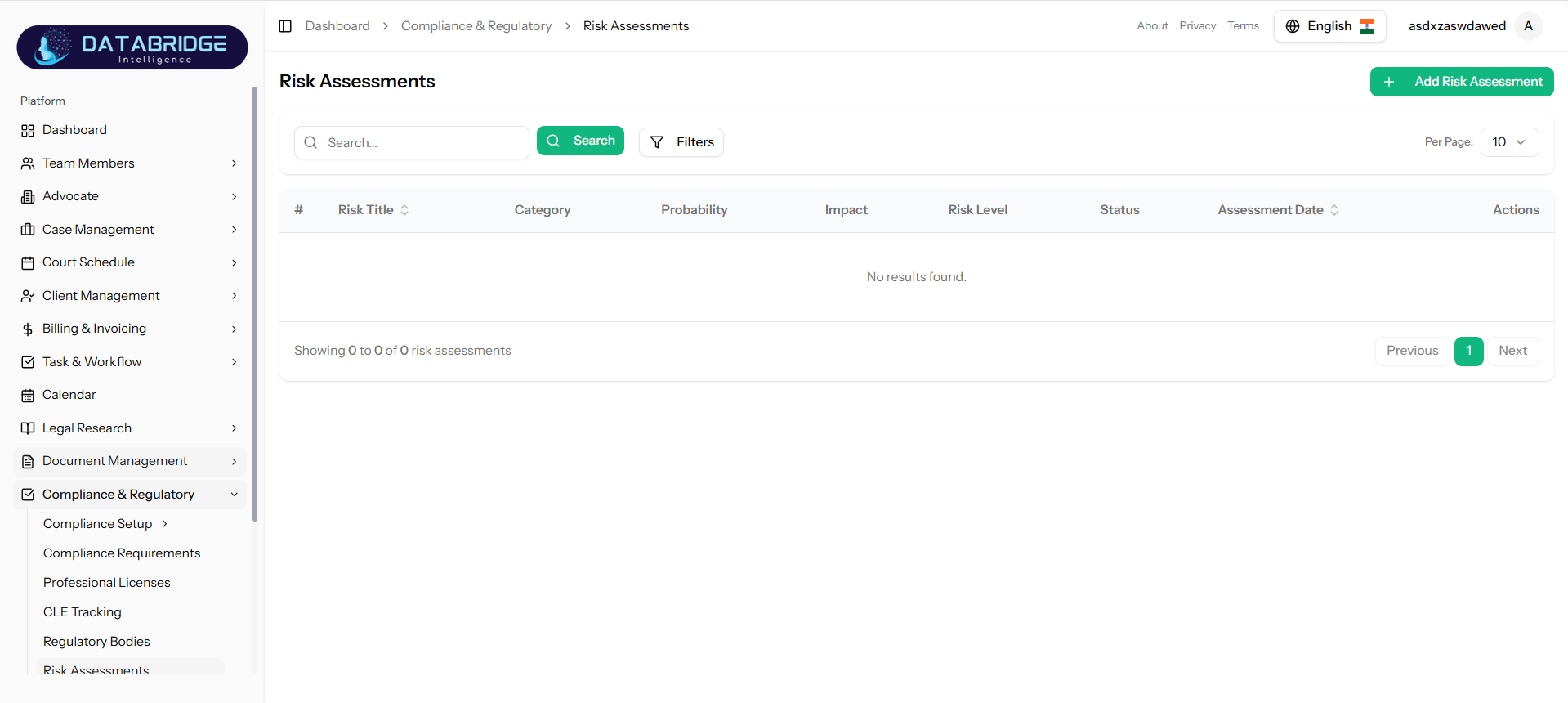
Risk Assessments:
The Risk Assessments module helps identify, evaluate, and manage potential compliance risks. It allows organizations to assess risk levels based on probability and impact, and define mitigation strategies.
Features:
-Create and manage risk records
-Categorize risks
-Define probability and impact levels
-Automatic risk level evaluation
-Mitigation planning
-Status tracking
The Risk Assessments module helps identify, evaluate, and manage potential compliance risks. It allows organizations to assess risk levels based on probability and impact, and define mitigation strategies.
Features:
-Create and manage risk records
-Categorize risks
-Define probability and impact levels
-Automatic risk level evaluation
-Mitigation planning
-Status tracking
1
Compliance & Regulatory
2
Risk Assessments
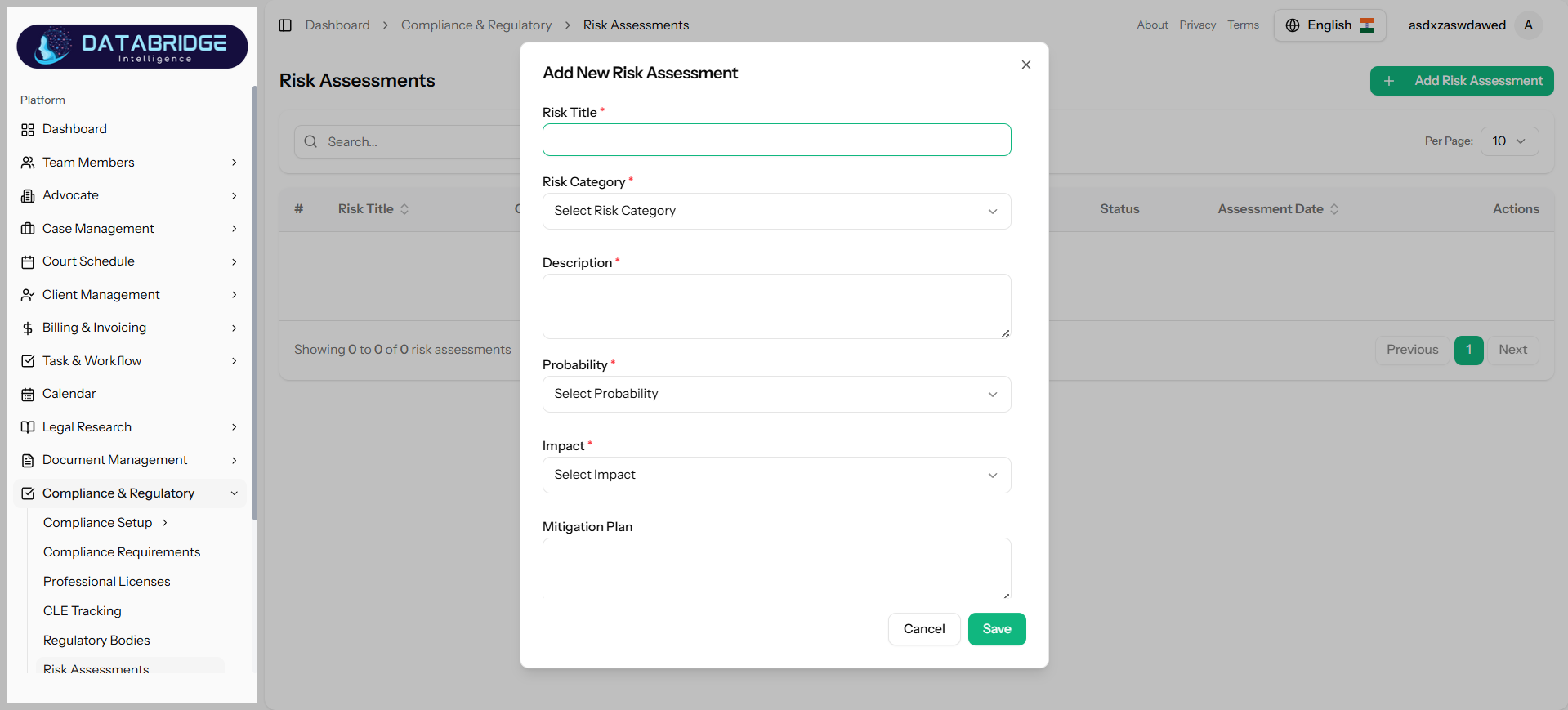
Add Risk Assessment:
This screen enables users to create a new risk assessment by defining risk details, probability, impact, and mitigation plans.
Features:
-Risk Title input
-Risk Category dropdown
-Description field
-Probability and Impact selection
-Mitigation Plan input
-Required field validation
This screen enables users to create a new risk assessment by defining risk details, probability, impact, and mitigation plans.
Features:
-Risk Title input
-Risk Category dropdown
-Description field
-Probability and Impact selection
-Mitigation Plan input
-Required field validation
1
Compliance & Regulatory
2
Risk Assessments
3
Add Risk Assessment
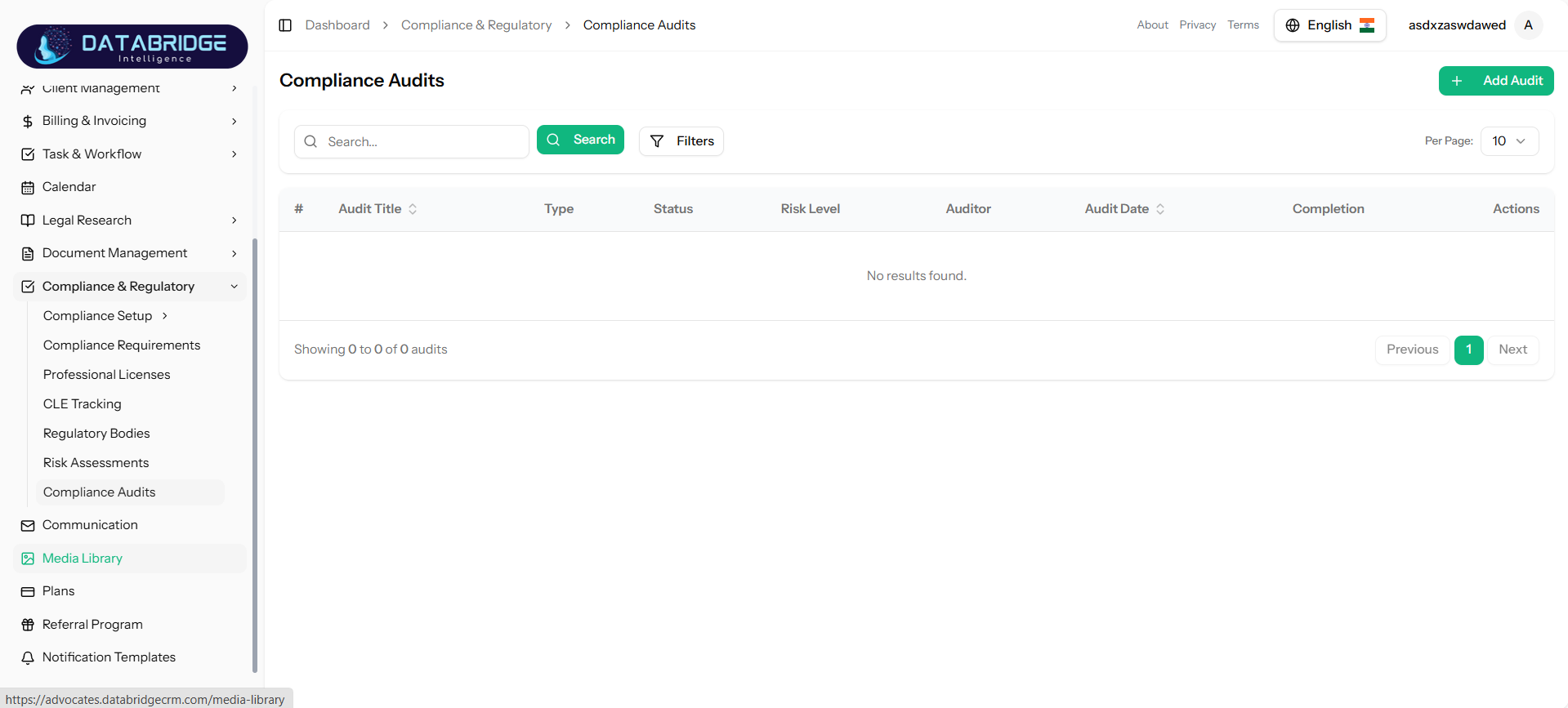
Compliance Audits:
The Compliance Audits module is used to plan, conduct, and monitor audits to ensure adherence to regulatory requirements. It helps track audit progress, outcomes, and completion status.
Features:
-Create and manage audits
-Assign audit types
-Track audit status and progress
-Schedule audit dates
-Monitor completion
The Compliance Audits module is used to plan, conduct, and monitor audits to ensure adherence to regulatory requirements. It helps track audit progress, outcomes, and completion status.
Features:
-Create and manage audits
-Assign audit types
-Track audit status and progress
-Schedule audit dates
-Monitor completion
1
Compliance & Regulatory
2
Compliance Audits
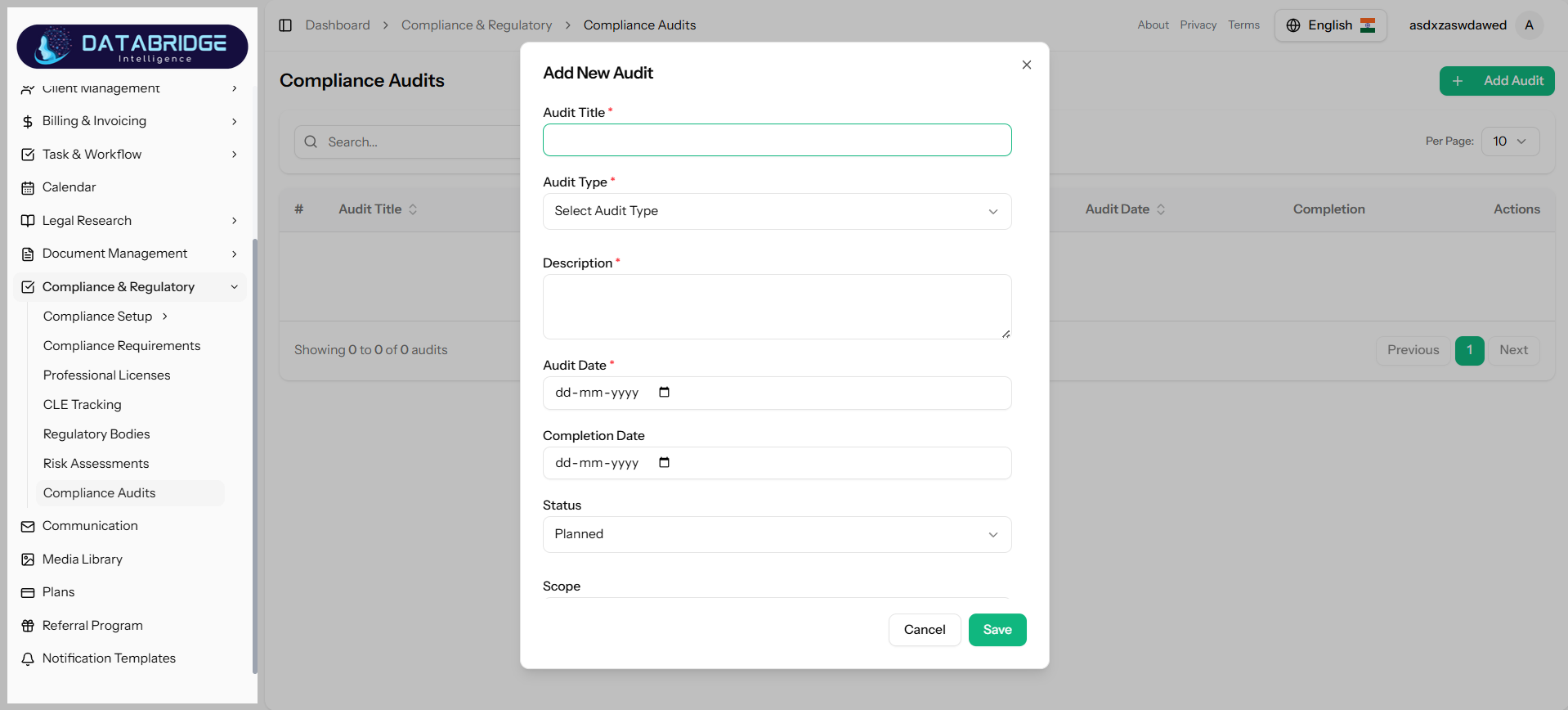
Add Compliance Audit:
This screen allows users to create and schedule a new compliance audit, including audit type, dates, and scope.
Features:
-Audit Title input
-Audit Type dropdown
-Description field
-Audit Date and Completion Date picker
-Status selection
-Scope field
-Form validation
This screen allows users to create and schedule a new compliance audit, including audit type, dates, and scope.
Features:
-Audit Title input
-Audit Type dropdown
-Description field
-Audit Date and Completion Date picker
-Status selection
-Scope field
-Form validation
1
Compliance & Regulatory
2
Compliance Audits
3
Add Compliance Audit
Communication Module
This screen provides a centralized messaging interface where users can view, manage, and interact with conversations within the system.It enables seamless communication between team members and supports efficient collaboration.The module ensures that all discussions are organized and easily accessible in one place.
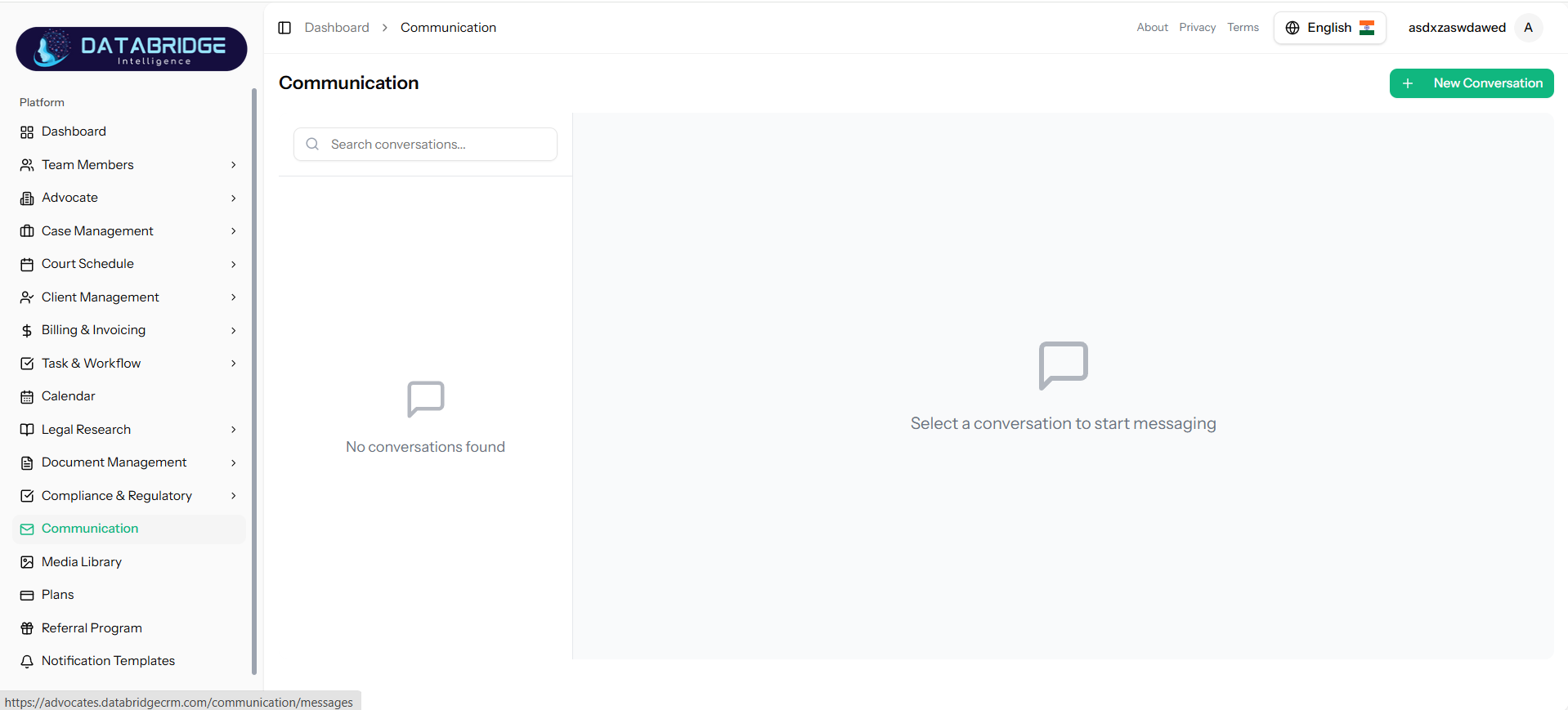
Communication :
This screen provides a centralized messaging interface where users can view, manage, and interact with conversations within the system.
It enables seamless communication between team members and supports efficient collaboration.
The module ensures that all discussions are organized and easily accessible in one place.
Feature:
-Conversation list panel
-Search conversations functionality
-Real-time messaging interface
-New conversation creation
-User selection for chat
-Message display area
-Empty state UI handling
This screen provides a centralized messaging interface where users can view, manage, and interact with conversations within the system.
It enables seamless communication between team members and supports efficient collaboration.
The module ensures that all discussions are organized and easily accessible in one place.
Feature:
-Conversation list panel
-Search conversations functionality
-Real-time messaging interface
-New conversation creation
-User selection for chat
-Message display area
-Empty state UI handling
1
Dashboard
2
Communication Module
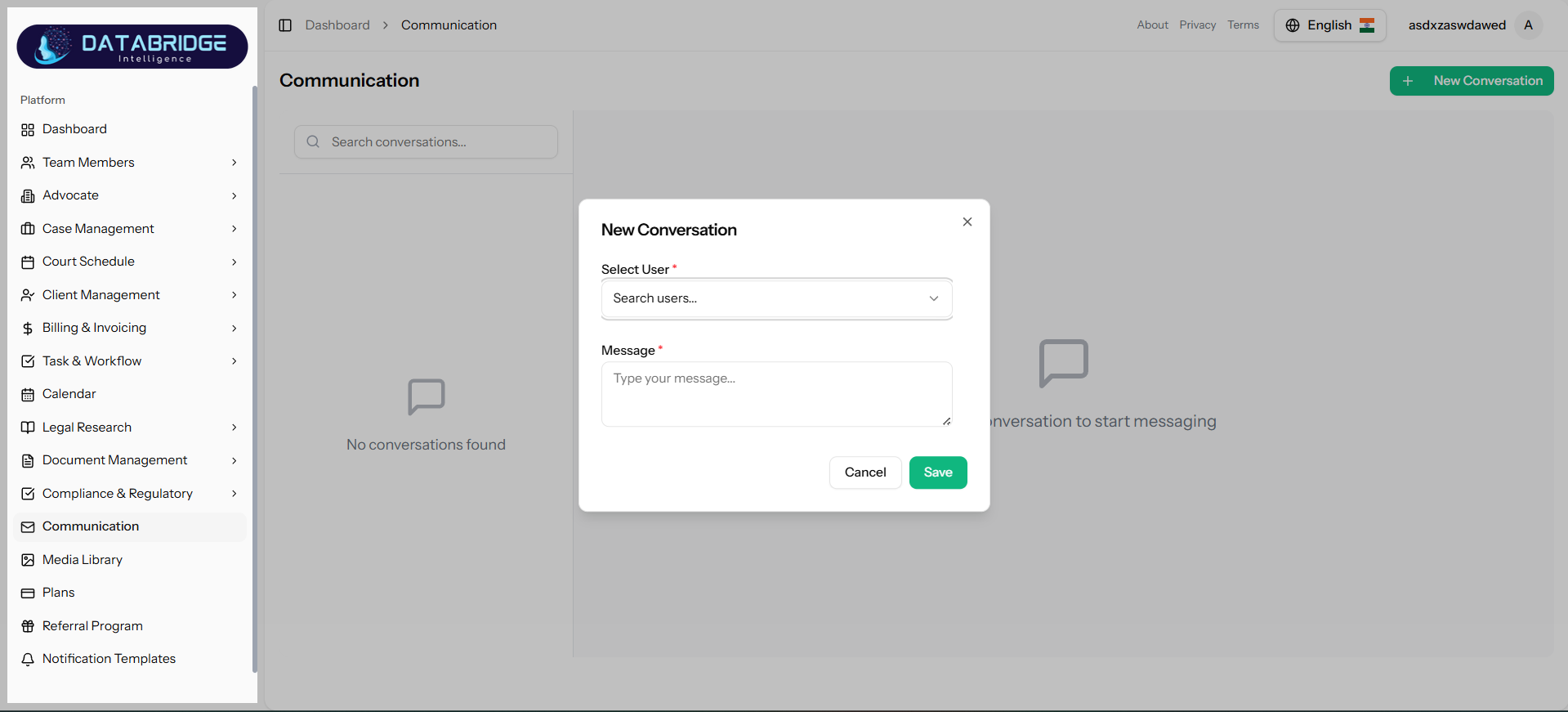
New Conversation:
This popup allows users to start a new conversation by selecting a recipient and entering a message.
It provides a simple and user-friendly interface for initiating communication quickly.
The form ensures that all required fields are filled before creating the conversation.
Features:
-User selection dropdown
-Message input field
-Mandatory field validation
-Save and Cancel actions
-Clean modal UI design
This popup allows users to start a new conversation by selecting a recipient and entering a message.
It provides a simple and user-friendly interface for initiating communication quickly.
The form ensures that all required fields are filled before creating the conversation.
Features:
-User selection dropdown
-Message input field
-Mandatory field validation
-Save and Cancel actions
-Clean modal UI design
1
Dashboard
2
Communication Module
3
New Conversation
Media Library
This screen serves as a centralized repository for storing and managing all media files uploaded in the system.Users can easily search, view, and organize files for reuse across different modules.It ensures efficient file management and quick access to important resources.
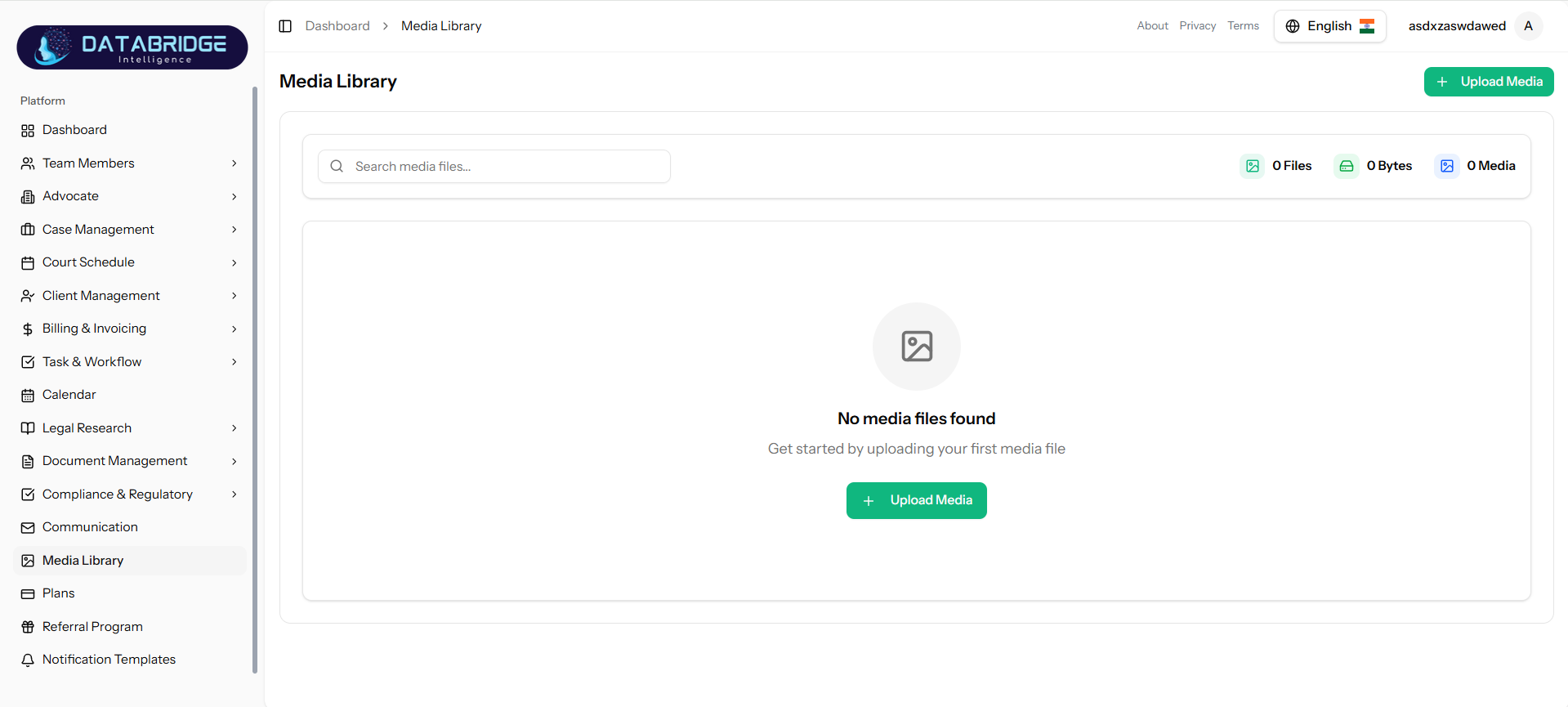
Media Library :
The Media Library enables users to maintain a structured collection of media assets such as images and documents.
It provides tools to upload, search, and manage files in a single location.
This helps in improving productivity by making files readily available when needed.
Features:
-Media file search functionality
-Upload media option
-File statistics display (files, size, media count)
-File listing interface
-Empty state UI
-Centralized storage system
The Media Library enables users to maintain a structured collection of media assets such as images and documents.
It provides tools to upload, search, and manage files in a single location.
This helps in improving productivity by making files readily available when needed.
Features:
-Media file search functionality
-Upload media option
-File statistics display (files, size, media count)
-File listing interface
-Empty state UI
-Centralized storage system
1
Dashboard
2
Media Library
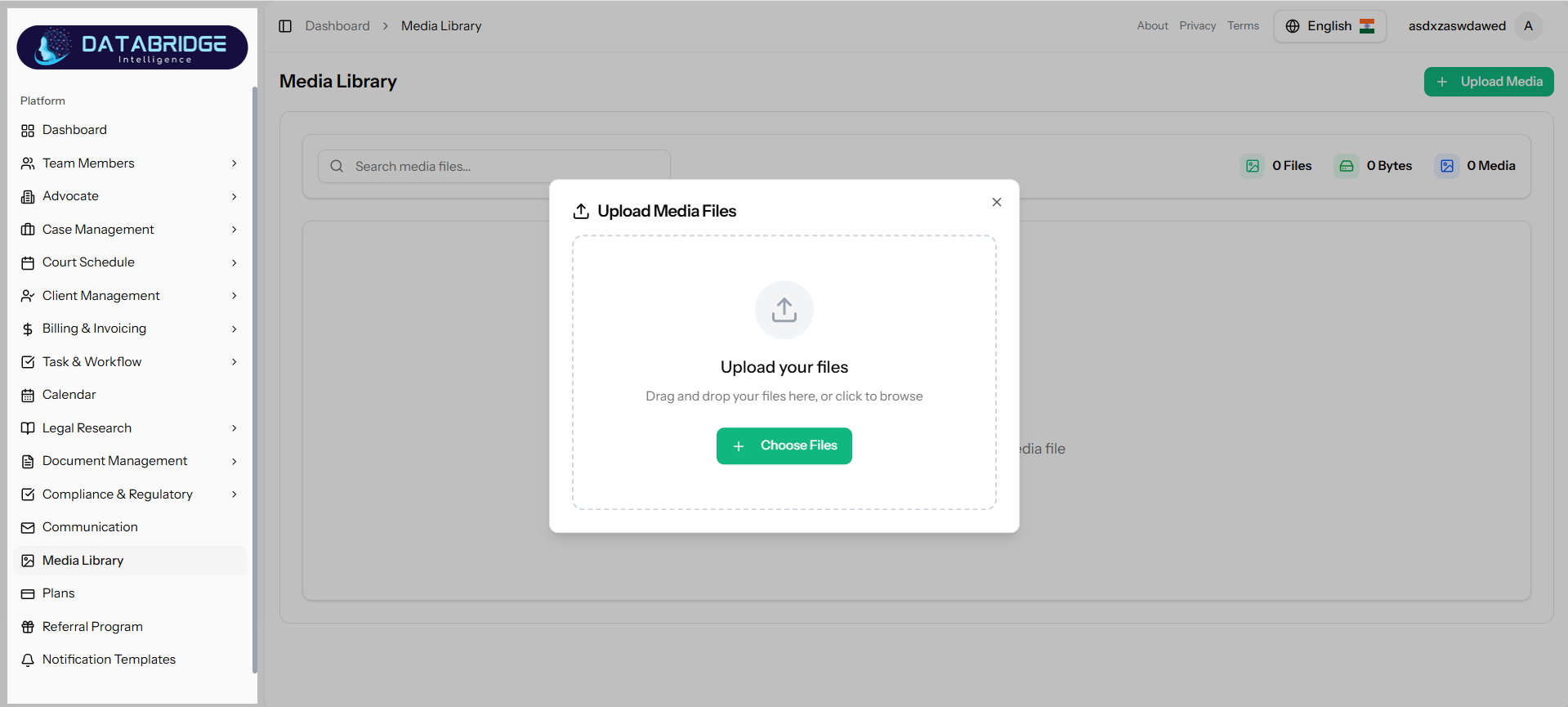
Upload Media:
This popup allows users to upload media files into the system using an intuitive interface.
Users can either drag and drop files or select them manually from their device.
It simplifies the process of adding new media to the library.
Features:
-Drag and drop upload area
-File browser option
-Upload button
-Multi-file upload support
-Clean modal interface
This popup allows users to upload media files into the system using an intuitive interface.
Users can either drag and drop files or select them manually from their device.
It simplifies the process of adding new media to the library.
Features:
-Drag and drop upload area
-File browser option
-Upload button
-Multi-file upload support
-Clean modal interface
1
Dashboard
2
Media Library
3
Upload Media
Plans Module
This screen allows users to explore and select subscription plans based on their business needs.It provides detailed information about pricing, features, and usage limits.Users can easily compare plans and choose the most suitable option.
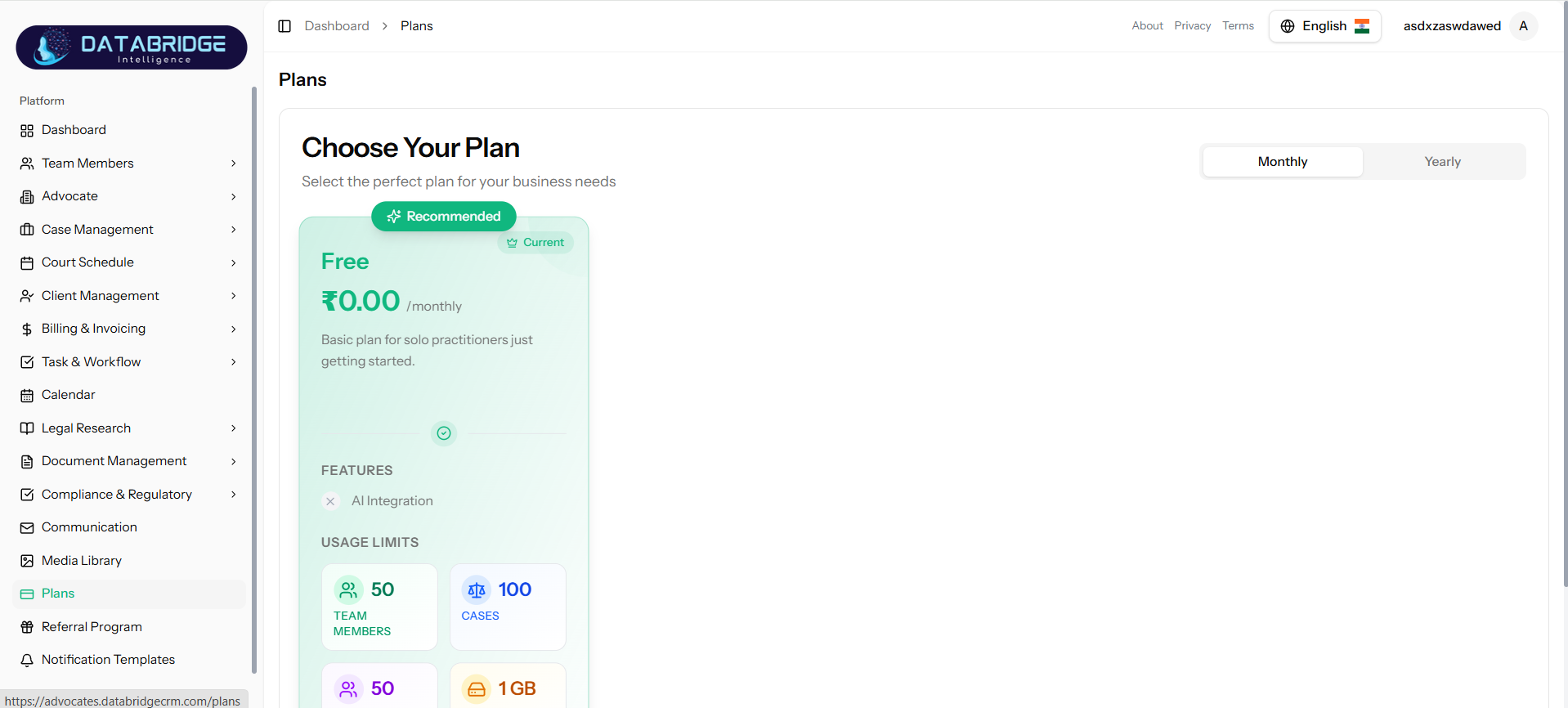
Plans Module:
The Plans module presents available pricing options in a structured and user-friendly format.
It helps users understand the benefits and limitations of each plan before making a decision.
This ensures better decision-making for subscription management.
Features:
-Plan cards display
-Monthly/Yearly toggle
-Pricing details
-Feature comparison
-Usage limits visualization
-Current plan indicator
-Recommended plan highlight
The Plans module presents available pricing options in a structured and user-friendly format.
It helps users understand the benefits and limitations of each plan before making a decision.
This ensures better decision-making for subscription management.
Features:
-Plan cards display
-Monthly/Yearly toggle
-Pricing details
-Feature comparison
-Usage limits visualization
-Current plan indicator
-Recommended plan highlight
1
Dashboard
2
Plans
Referral Program
This screen provides an overview of the referral system, including user activity and earnings.It allows users to track referrals, monitor performance, and manage payouts.The dashboard gives a clear summary of referral-related metrics.
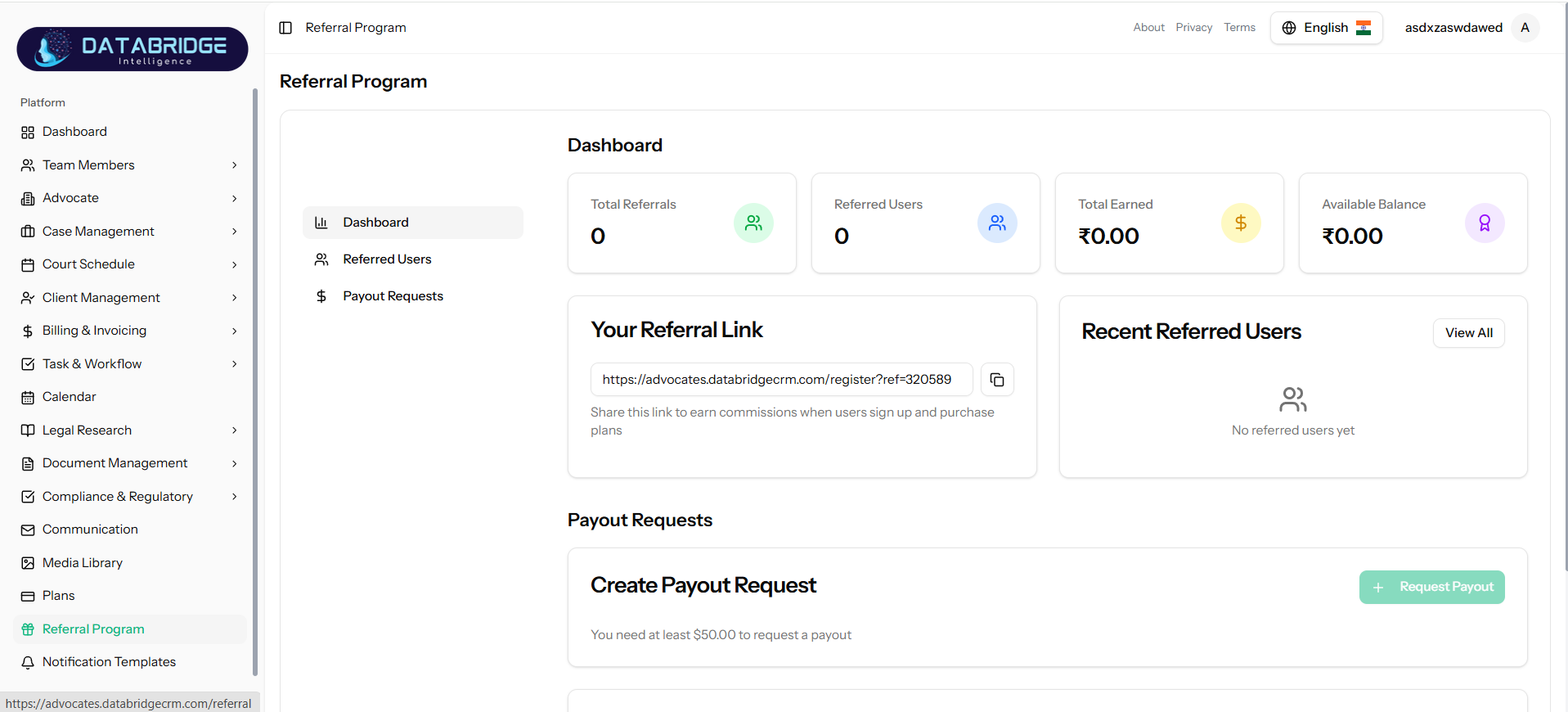
Referral Program;
The Referral Program module enables users to invite others using a unique referral link.
It tracks user engagement, earnings, and payout eligibility in real-time.
This feature encourages growth by rewarding users for successful referrals.
Features:
-Referral dashboard metrics
-Unique referral link generation
-Earnings tracking
-Referred users list
-Payout request option
-Balance display
-Navigation tabs (Dashboard, Users, Payouts)
The Referral Program module enables users to invite others using a unique referral link.
It tracks user engagement, earnings, and payout eligibility in real-time.
This feature encourages growth by rewarding users for successful referrals.
Features:
-Referral dashboard metrics
-Unique referral link generation
-Earnings tracking
-Referred users list
-Payout request option
-Balance display
-Navigation tabs (Dashboard, Users, Payouts)
1
Dashboard
2
Referral Program
Notification Templates
This screen allows users to manage predefined notification templates used across the system.It provides a centralized place to view and organize automated messages.Users can ensure consistent communication through reusable templates.
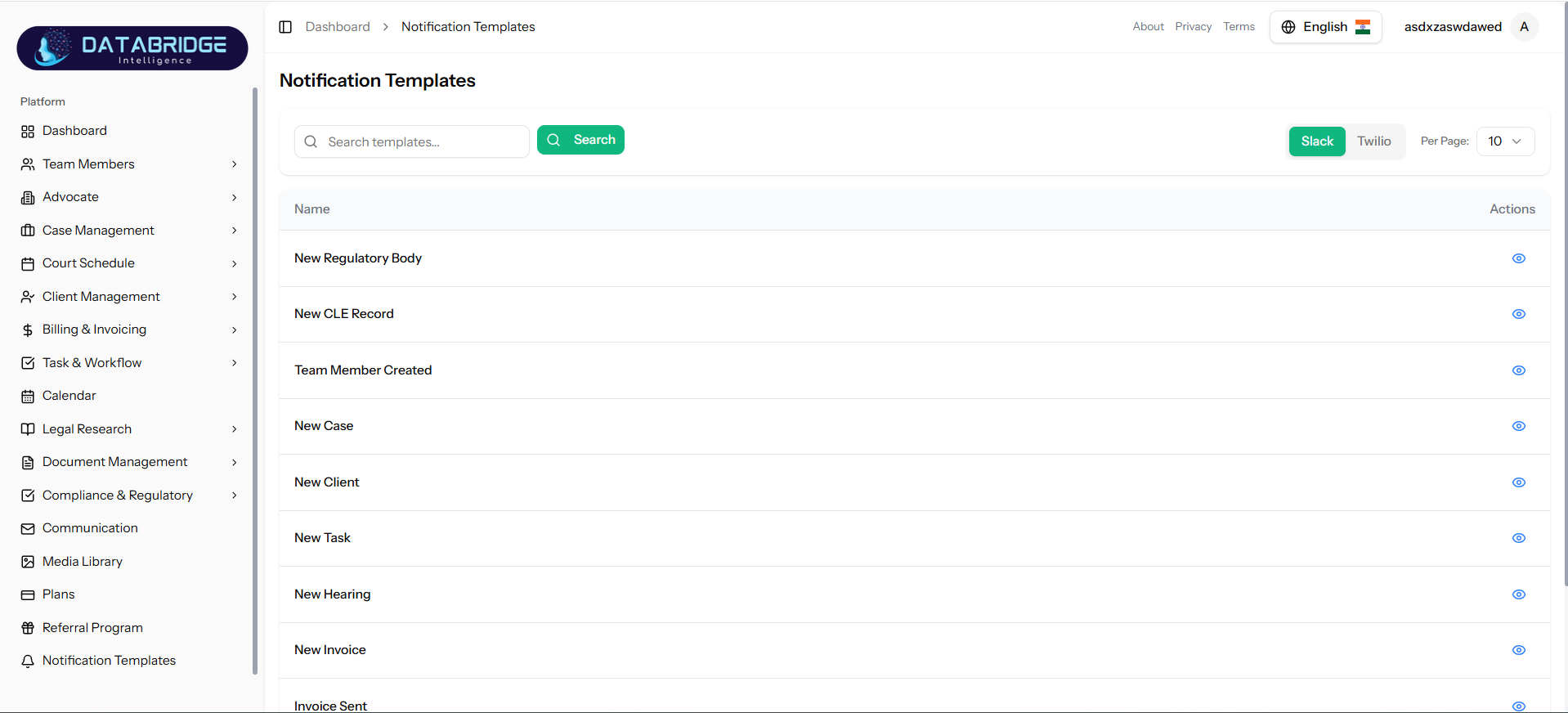
Notification Templates:
The Notification Templates module helps in managing system-generated notifications efficiently.
It supports multiple communication channels like Slack and Twilio.
This ensures timely and structured communication for different system events.
Feature:
-Template list view
-Search templates functionality
-Channel filtering (Slack, Twilio)
-Template preview option
-Action controls (view/edit)
-Predefined system templates
The Notification Templates module helps in managing system-generated notifications efficiently.
It supports multiple communication channels like Slack and Twilio.
This ensures timely and structured communication for different system events.
Feature:
-Template list view
-Search templates functionality
-Channel filtering (Slack, Twilio)
-Template preview option
-Action controls (view/edit)
-Predefined system templates
1
Dashboard
2
Notification Templates